7.6. Company Information and My Account
Overview
This chapter explains how to edit your department's slogan and goal, view your account information, change your password, and view notices you closed. The department slogan is the banner text that hangs above the 3D Office. "Settings › Company info" in the left menu covers only the department slogan and goal in the first section. Your account information, password, and closed notices are opened from the account menu on the top bar.
Permissions: Anyone in the same department can edit the department slogan and goal. All users can view their account information, change their password, and view notices again. Only administrators set departments and the company name. Look up terms such as department and notice in A.1. Glossary.
Editing the Department Slogan and Goal
The department slogan and goal is a one-line text that appears as a banner in the sky above the 3D Office. Anyone in the same department can edit it, and all users in the company can see it. Edit it when your department's goal or motto changes.
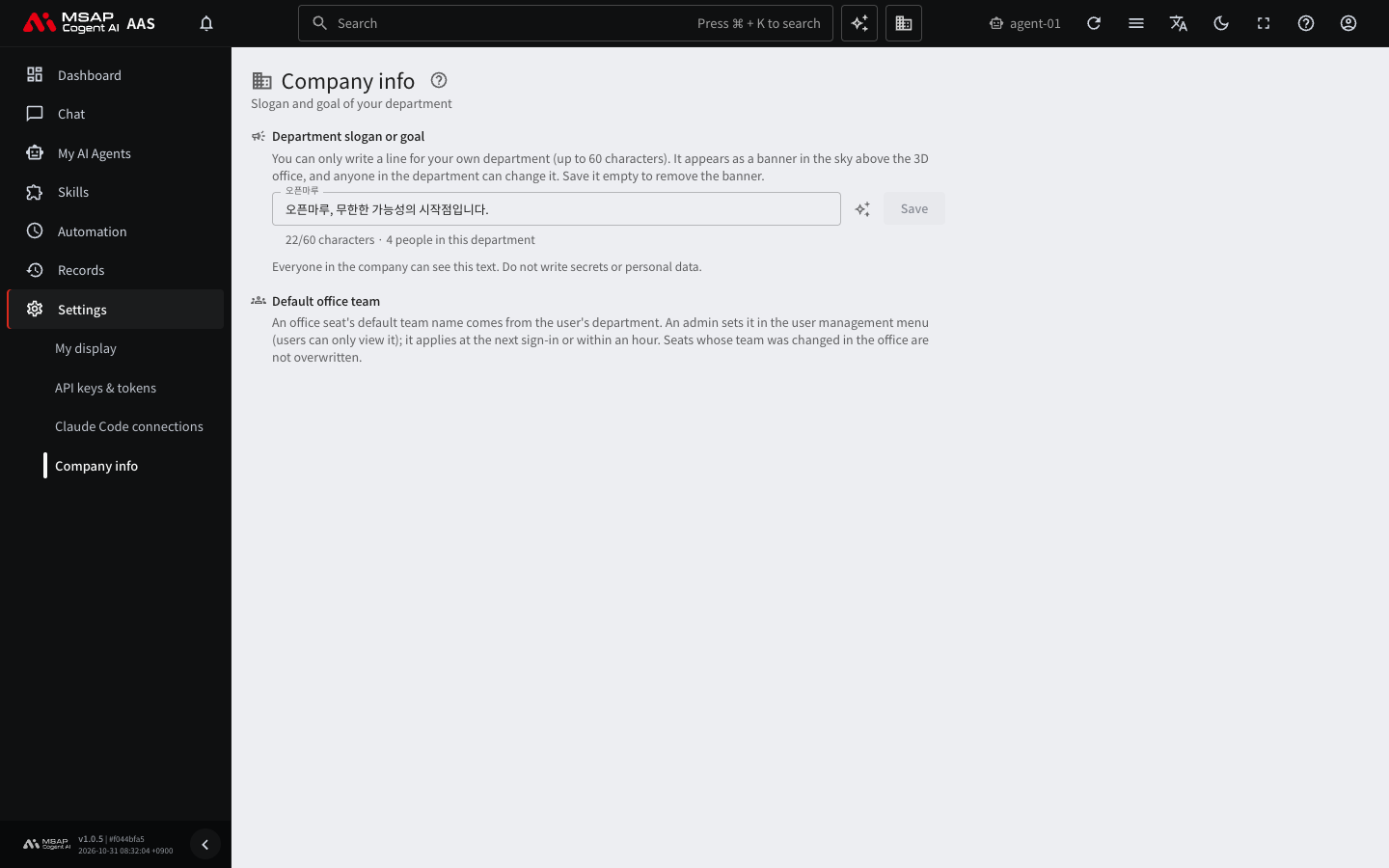
Figure 7.6-1. The "Company info" screen
Caution: This is text that all users see. Do not write secrets or personal information. Anyone in the same department can edit it, and there is no way to restore the previous text. Copy the current text before you edit it.
Editing Steps
- Open "Settings › Company info" in the left menu. For general users, the screen description reads "Slogan and goal of your department".
- In "Department slogan or goal", find the line for your department.
- Edit the text. The limit is 60 characters. Below the field, the current character count and the number of people in the department appear.
- Click "Save". Pressing Enter in the field also saves.
When you save, the banner in the 3D Office changes to the new text. If it is not saved, check that the text is not longer than 60 characters and that your department is set.
If you empty the text and save, the banner of that department disappears.
If it is hard to decide on the text, click "Suggest slogans with AI". You can enter keywords, and if you leave the keywords empty, it suggests from the department name. When you choose a text from the suggestion list, it goes into the field. Even after you choose, you must click "Save" for it to take effect.
Characters such as emoji are left out of the banner. A note below the field tells you this.
When a Message Says You Have No Department
If you see "You have no department yet, so you cannot write a line", your account has no department. An administrator must set the department in the user management menu. Ask an administrator to set your department.
Users can only view their department and cannot edit it. After an administrator sets it, it appears after a moment. To see it right away, sign out and sign in again. Here is an example request.
My account (
email address) has no department, so I cannot write the department slogan. Please set my department.
Note: The company name and the AI agent introduction sentence are visible only to administrators. For details, see "Company Information and AI Agent Introduction Sentence" in the Administrator Manual.
Viewing My Account
- Open the account menu on the top bar.
- Click "My account". A drawer opens on the right.
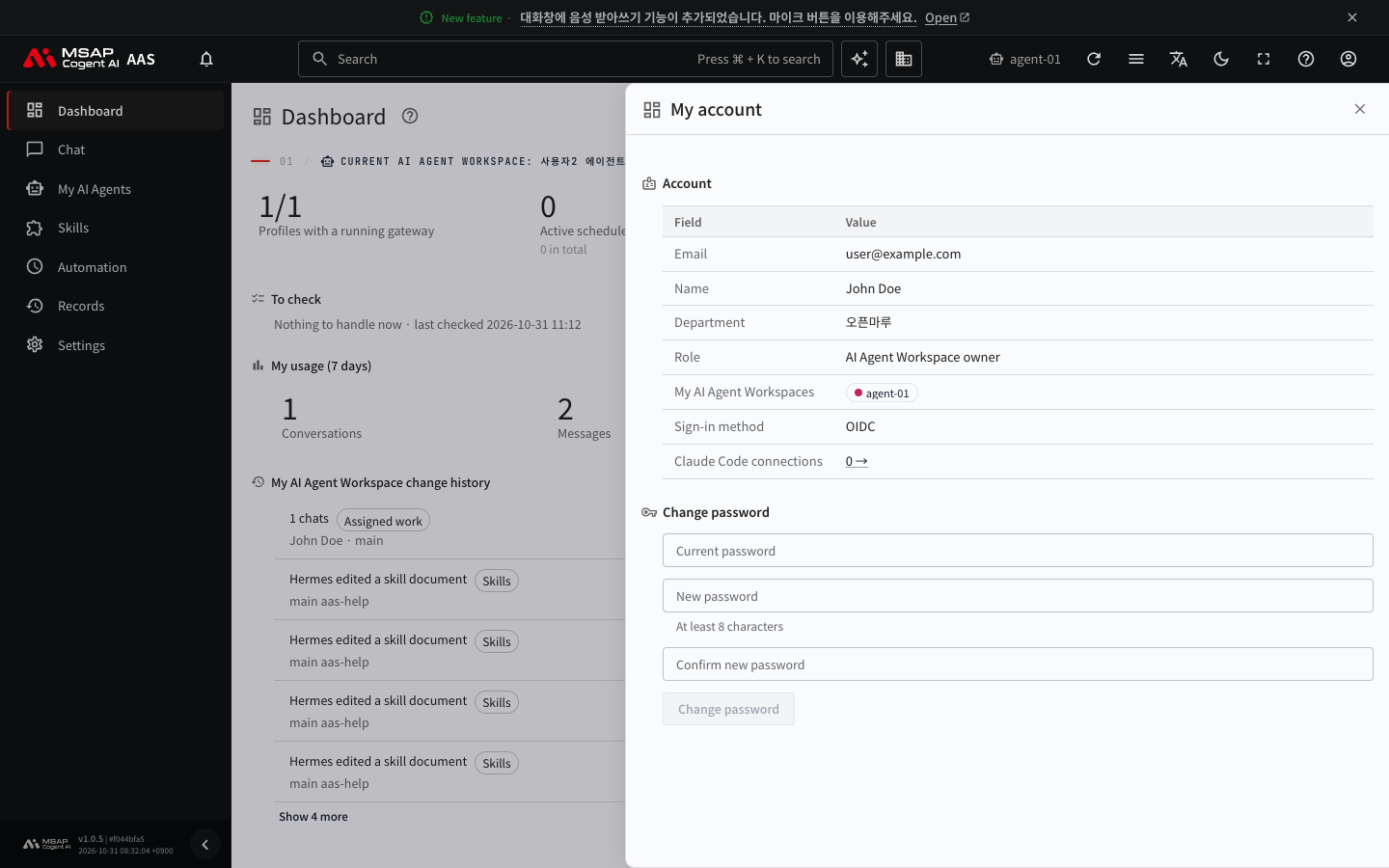
Figure 7.6-2. The "My account" drawer
The "Account" section shows the following.
| Item | Content |
|---|---|
| The email you use to sign in | |
| Name | The display name |
| Department | Your department. A dash (-) appears if it is not set. |
| Role | One of "Admin", "AI Agent Workspace owner", or "User" |
| My AI Agent Workspaces | The name of the workspace you own (the place where AI agents work, created for each user) |
| Sign-in method | "OIDC" (OpenID Connect, a way to sign in with a company account), "Local account", or "Other (the password cannot be changed in AAS)" |
| Claude Code connections | The number of connections. Click it to go to the "Claude Code connections" screen. |
Changing Your Password
Change it in the "Change password" section of the "My account" drawer.
- Enter your "Current password".
- Enter a "New password". It must be at least 8 characters.
- Enter the same value once more in "Confirm new password".
- Click "Change password".
If it succeeds, "Password changed." appears. If you had sign-ins on other devices, "Sign-ins on other devices have ended." also appears.
In the following cases, you cannot change the password or an error appears.
| Situation | Message on the screen | What to do |
|---|---|---|
| The new password is shorter than 8 characters | "Must be at least 8 characters" | Enter a longer one. |
| It differs from the confirmation field | "The new passwords do not match" | Enter the same value in both fields. |
| It is the same as the current password | "Same as the current password" | Enter a different value. |
| The sign-in method is "Other" | "You cannot change the password in AAS with this sign-in method. Ask your account admin." | Ask your company's account administrator. |
Viewing Closed Notices Again
Notices that an administrator posts appear in the bar at the very top of the screen. Even if you close a notice, you can see it again while its period remains.
- Open the account menu.
- Click "Current notices N". N is the number of notices showing now. This line appears only when there are notices.
- Check the notices in the "Current notices" list. For a notice you closed, click "Show at the top of the screen again" to show it in the bar again.
If there are no notices, "No notices are showing now." appears.