4.3. Company Information and the AI Agent Introduction Sentence
Overview
The company name is the name that AAS shows on screens and tells to AI agents. Once an administrator sets it, the same name is used in the titles of the Office and Chat screens, in the first sentence of every AI agent's personality (SOUL, the text that defines what kind of being an AI agent is), and in the first line of role templates. Use this chapter when you first install AAS and when the company name changes.
Permissions: Only administrators can edit the company name and the introduction sentence. On the same screen, regular users can edit only the slogan of their own department. For the user's side, see 7.6. Company Information and My Information in the User Manual.
Opening the Screen
In the left menu, click "Settings › Company info". The keyboard shortcut is g then i.
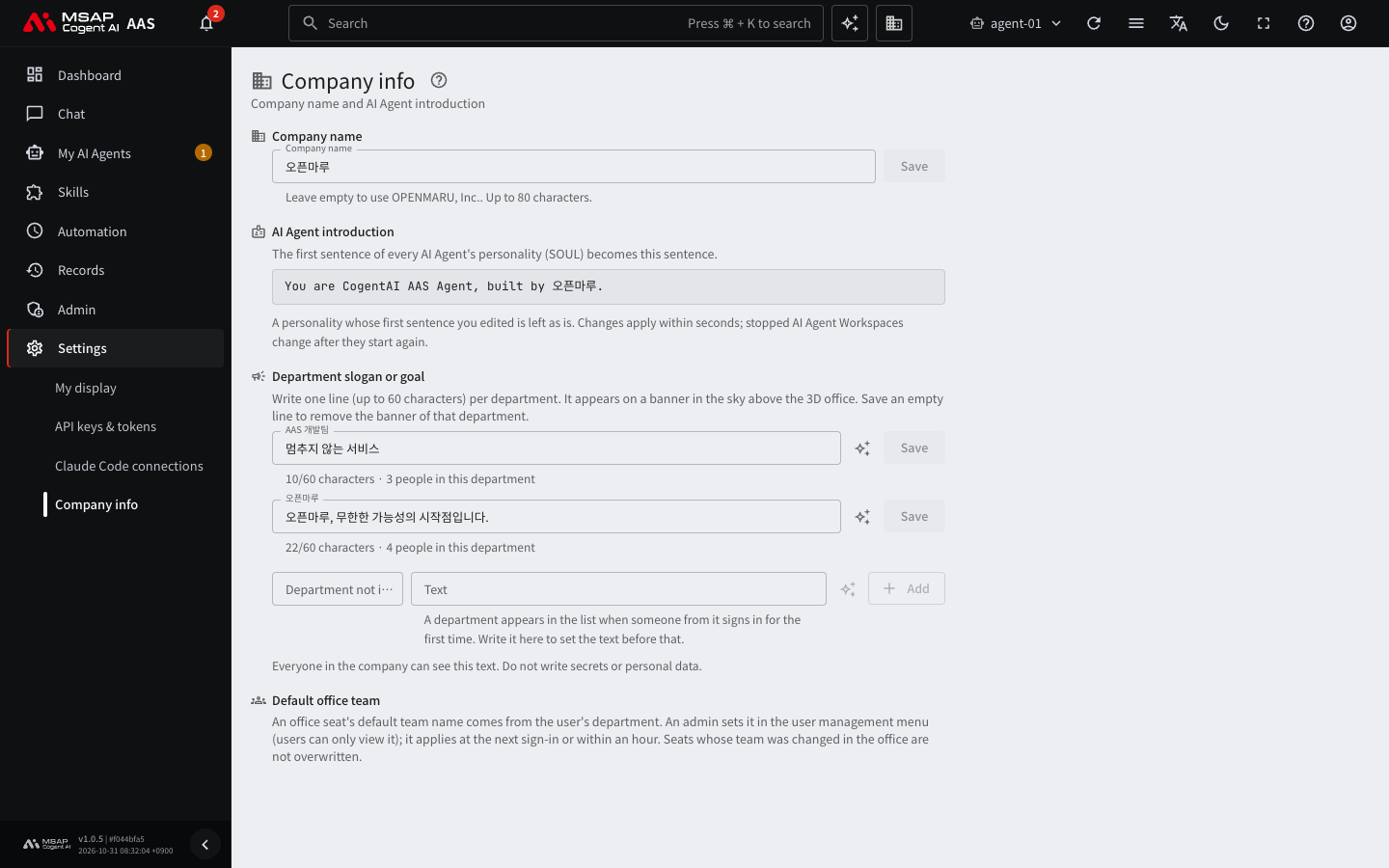
Figure 4.3-1. Company information screen
Administrators see four areas.
| Area | Content |
|---|---|
| Company name | Enter the company name and save it. |
| AI Agent introduction | Preview the introduction sentence made from the company name. |
| Department slogan or goal | Set one line per department that hangs above the 3D office. |
| Default office team | Explains where the default team name of an office seat comes from. |
Setting the Company Name
Caution: When you save, the first sentence of every user's AI agent personality changes. There is no function to undo this all at once. You revert each profile from the personality's "Versions" tab. For the exact scope, see "How the Introduction Sentence Changes" below.
- On the "Company info" screen, type the name in the "Company name" field.
- Click "Save".
When saved, "Company name saved" appears. If it is not saved, check the number of characters you entered and save again. If it is still blocked, tell the operator (the operator installs AAS and manages the server, see the A.3. Glossary).
- You can use up to 80 characters. Line breaks become spaces, and leading, trailing, and repeated spaces are reduced.
- If you leave the field empty and save, the default name
OPENMARU, Inc.is used. - If the company name is very long, the title row may overflow on a narrow screen.
Where the Company Name Is Used
| Place | Content |
|---|---|
| Titles of the Office and Chat screens | Shown like "Company name › {department} Office". The company name is added only when the viewer's department is set. |
| AI agent introduction sentence | The first sentence of every AI agent's personality (SOUL). |
| Role templates | When a template is applied, the introduction sentence is added to the first line. See 5.1. Role Templates. |
AI Agent Introduction Sentence
The introduction sentence is not a field you write yourself. It is built from the company name. The format is as follows.
You are CogentAI AAS Agent, built by <company name>.
This is the English first sentence that an AI agent uses to introduce itself. It is inserted in this format without translation.
If the company name ends with a period (for example, OPENMARU, Inc.), only one period is written. You can preview the current sentence in the "AI Agent introduction" area of the screen.
How the Introduction Sentence Changes
When you save the company name, AAS reads the personality of every profile (the bundle of settings of one AI agent in a workspace) in every AI Agent Workspace (the place where an AI agent works, one for each user, see the A.3. Glossary) and aligns the first sentence.
- It changes within a few seconds of saving. AAS also aligns it when a new workspace is created, and checks once more every 5 minutes.
- A workspace that is stopped changes after it is turned on again.
- AAS changes only a personality that starts with the sentence Hermes first put in,
You are Hermes Agent, built by Nous Research., or with an introduction sentence that AAS put in earlier. - A personality whose first sentence the user edited is left as it is.
- A personality that contains secrets is not changed.
- AAS records the change in the personality's "Versions" tab with the note "Set the first sentence of the personality to the company name". You can revert it if needed.
- Hermes re-reads the personality for every message, so the new sentence applies without a restart.
Caution: A personality whose first sentence was edited and a personality that contains secrets are not changed. No screen lists which profiles were not changed. In the change history described in "Checking the Recorded Changes" below, find the profiles that have no "Set the first sentence of the personality to the company name" row, then open the "Personality (SOUL)" tab of that profile and check the first sentence.
Checking the Recorded Changes
Two kinds of records appear on the Change history screen. Who made the change is shown with each record.
| Type | Meaning |
|---|---|
| Changed the company name | An administrator saved the company name. |
| Set the first sentence of the personality to the company name | AAS changed a profile's first sentence to the new name. "Who" is the administrator who changed the company name. |
For details, see 7.2. Change Log.
Department Slogan or Goal
When you write one line for a department, it appears as a banner in the sky above the 3D office. The character limit is shown below the input field.
- In the "Department slogan or goal" table, edit the row of the department.
- Click "Save" at the end of that row.
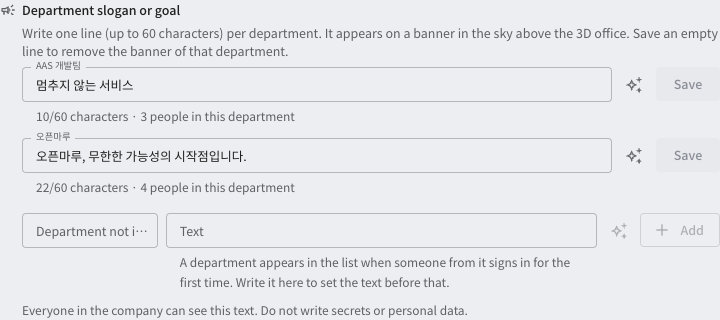
Figure 4.3-2. "Department slogan or goal" area
- If you save it empty, the banner of that department is removed.
- A department appears in the list when someone from it signs in for the first time (2.2. Managing Departments). To set the text of a department that is not in the list yet, enter "Department not in the list" and "Text", then click "Add".
- "Suggest slogans with AI" next to a department name gets suggested slogans from an optional keyword. When you choose a suggestion, you can put it in the field or save it right away.
- Anyone in the same department can edit that department's slogan. If one person saves, it overwrites what someone else wrote.
- Everyone in the company can see the slogan. Do not write secrets or personal data.
- Characters such as emoji are left out of the banner.
Default Office Team
The default team name of an office seat comes from the user's department. An administrator enters the department on the "Users & roles" screen. Users can only view it. When you change the department, it applies at the user's next sign-in or within 1 hour. A seat whose team was changed in the Office is not overwritten by the department.