3.4. Changing a Profile's Model and Settings on Someone's Behalf
Overview
A profile bundles the settings of one AI agent inside an AI agent workspace (the place where one user's AI agents work, created one per user). Each profile has its own personality (SOUL, the text that describes the agent's tone and role), model, skills, tools, scheduled jobs, and messenger connections. For terms, see the A.3. Glossary. Regular users edit the personality, skills, and other settings of their own profiles. Only administrators change the model. When a user asks for a model change, the administrator changes it for them. This chapter explains where the boundary of profile permissions lies, how to change a model, and how to edit another person's profile on their behalf.
Permission: Only administrators change the model and provider. Administrators, the workspace owner, and the team manager of the same department can change the other settings. For the full permissions, see 1.2. AAS Architecture and Permissions.
Who Changes What
| What is done | Administrator | Owner | Team manager | Person with view-only access |
|---|---|---|---|---|
| Personality (SOUL) and instructions (AGENTS) | Yes | Yes | Yes | No |
| Turning skills on and off, installing from the Skill Hub | Yes | Yes | Yes | No |
| Toolsets, MCP, settings files, messenger connections, secrets | Yes | Yes | Yes | No |
| Renaming and deleting a profile | Yes | Yes (except the main profile, main) | Yes (except the main profile, main) | No |
| Main model, provider, gateway, terminal location | Yes | No | No | No |
| Deleting a workspace, transferring ownership, count limit | Yes | Delete only | No | No |
| Allowing use of a namespace that requires permission (6.1. The Skill Hub and Namespaces) | Yes | No | No | No |
- The profile screen that an owner sees says "Only admins change the model, provider, gateway and terminal location."
- A team manager edits the same range as the owner in the workspace of a person in the same department. To assign team managers, see 2.3. Assigning Administrators and Team Managers.
- On the Settings (config) tab, the owner cannot change the model, provider, auxiliary model, gateway, or approval settings. Approval settings relate to blocking dangerous commands. See 4.2. Safeguards.
- A person with view-only access also cannot add an AI agent to a TFT room in the Office (a room where several AI agents take on one task together) or use scheduled jobs.
Opening Someone Else's Workspace
By default, the profile screen shows only the profiles of your own workspace. To edit another person's profile, switch to that person's workspace.
- Click the AI agent workspace picker on the bar at the top of the screen.
- In the list, choose that person's workspace. The list is divided into your own, "My team", and "Shared with me" groups.
- In the left menu, open "My AI Agents › Profiles".
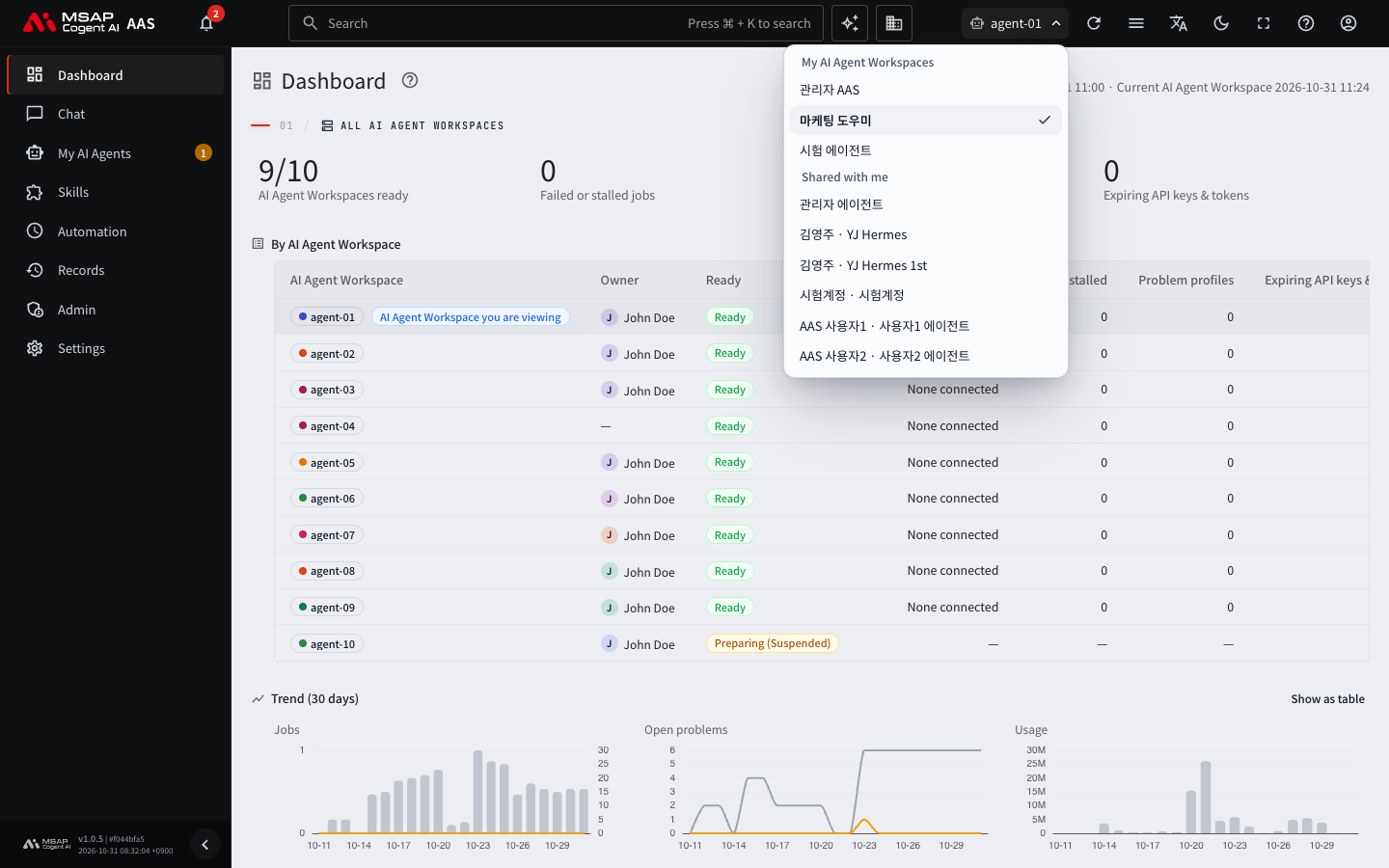
Figure 3.4-1. Workspace picker
You can also get there by clicking a profile name in the drawer (the detail window on the right) that opens when you click a row on the "AI Agent Workspaces" screen. If the link belongs to the screen of a different workspace, the screen asks: "This link is for {name}. Switch to that AI Agent Workspace and open it?" Click "Switch and open". When you switch workspaces, chat and the other screens also change to that workspace. When you finish, go back to your own workspace.
Changing the Model
- On the profile screen, click a profile row to open the drawer.
- On the "Overview" tab, find "Main model".
- Choose the new model from the list.
- Click "Change model".
- Read the confirmation window and confirm. It says: "Change the main model from {from} to {to}? It applies from the next chat and the next scheduled job run."
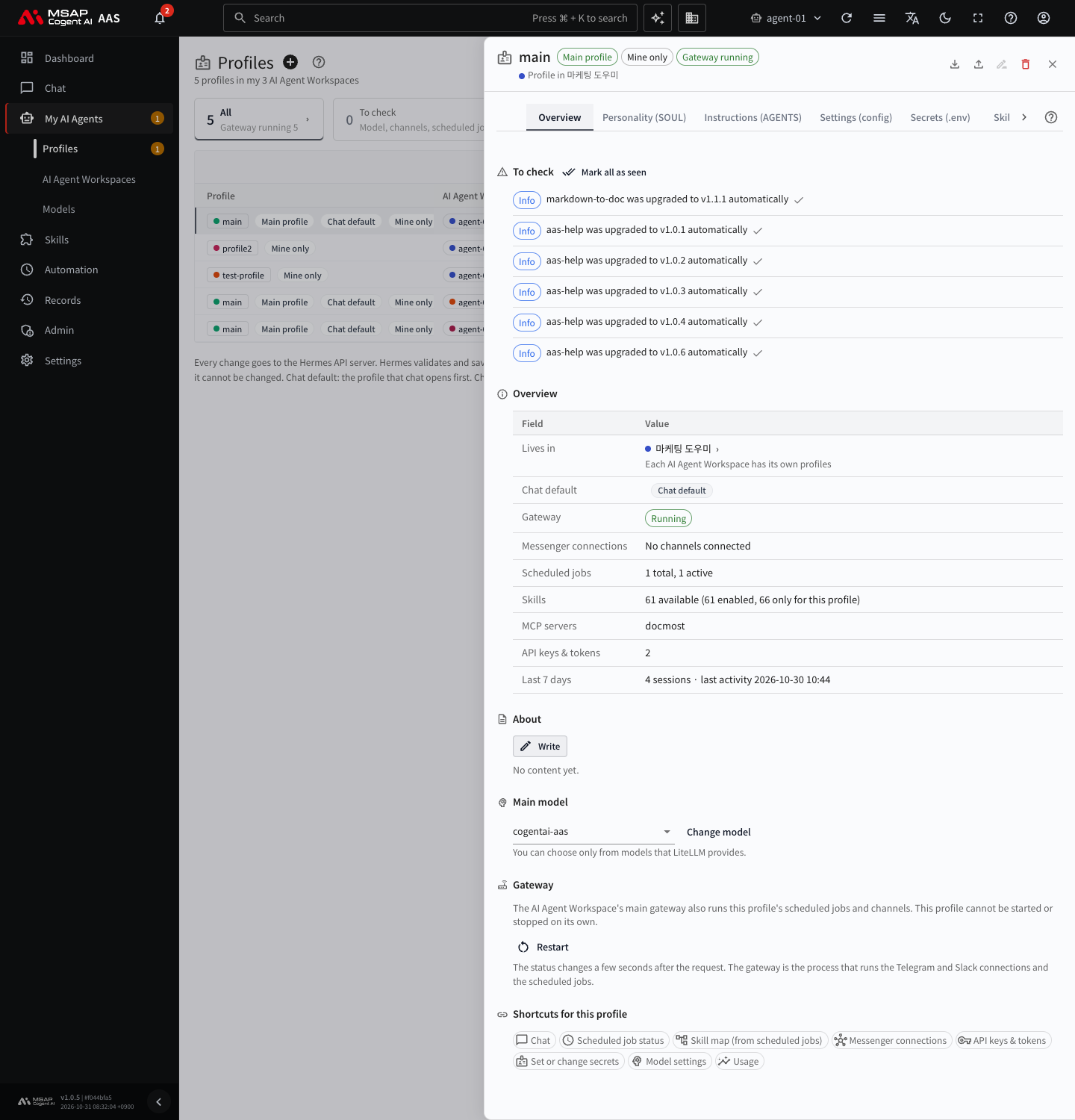
Figure 3.4-2. "Overview" tab of the profile drawer (closed without changing)
After you save, "Changed the model of profile {name} to {model}" appears. If you choose the same model as the current one, "Same as the current model" appears and nothing changes.
Keep the following about the model list in mind.
- "You can choose only from models that LiteLLM provides." LiteLLM is the model server (1.2. AAS Architecture and Permissions).
- The "AAS default model" entry follows the default model set by the AAS installation. If you choose the default model by its own name, the profile is fixed to that model.
- If the current model is not in the LiteLLM list, "(not in LiteLLM)" appears next to its name. This profile may not be able to answer, so change it to a model in the list.
- To check which models you can choose and their connection status, see 4.1. Models.
The change applies from the next conversation and the next scheduled job run. Tell the requesting user this. If a conversation does not answer after you change the model, check whether "(not in LiteLLM)" appears next to the model name. If it does, change the model again to one in the list.
Changing the Model at a User's Request
A user sends a request with "Ask an admin to change the model", next to "Main model" on the profile "Overview" tab. While the request waits to be handled, that place shows "Waiting to be handled (day {n})".
- Open the inbox (bell icon) button on the bar at the top of the screen. In the left menu, "{n} requests waiting" also appears next to "Profiles".
- In the "Request to admins" item, read the content of the request. Below the item, "{name} · Model change request" and "Waiting {n} d" appear.
- Click "Open profile" to open that profile's drawer.
- Change the model with the steps in "Changing the Model".
- Return to the inbox and click "Mark handled".
When you mark it handled, "An admin handled your request" appears in the requester's inbox. For a request you cannot grant, click "Decline" and enter a reason. For details on handling requests, see 5.3. Handling User Requests.
What to Know When Editing on Someone's Behalf
- What an administrator edits is recorded in the change log. In the owner's change log, the author's name is hidden and the entry shows "Changed by admin".
- What a team manager edits shows the "Team manager" mark and the name in the owner's change log. The owner does not receive a notification.
- Each time the personality (SOUL) is saved, the previous version is kept, so you can revert.
- You cannot see the value of a secret on the screen. You can only enter a new value or delete it.
- When a user creates many profiles and reaches the limit, a request "Ask an admin to raise the profile limit" arrives. This limit is not an item you change on the screen. It is a value set at installation. Pass the request to the operator (the person who installs AAS and manages the server). Example request: "Please raise the profile count limit to {n}." If you cannot raise it, click "Decline" with a reason. For how to handle it, see 5.3. Handling User Requests.
Caution: You cannot undo deleting a profile. Only administrators can retrieve the bundle file of a deleted profile. Before you delete another person's profile, check with the owner. Owners and team managers cannot rename or delete the main profile (main).