4.1. Models
Overview
AI agents call AI models through LiteLLM. LiteLLM is a relay server that lets you use many AI models through one address. The "Models" screen shows two things. One is the list of models that LiteLLM offers. The other is which model each profile uses (a profile is an AI agent's bundle of settings, see the A.3. Glossary). Use this screen when several AI agents do not answer or show errors, and before you change a model, to check which model is in use now.
Permissions: Every user can see the screen. The "Test" button, which tests the connection to a model, is visible only to administrators.
To change a model, see 3.4. Changing a Profile's Model and Settings on Someone's Behalf. Setting up the LiteLLM server and registering models is the operator's job (the operator installs AAS and manages the server, see the A.3. Glossary).
Opening the Screen
In the left menu, click "My AI Agents › Models". The keyboard shortcut is g then m.
Hover over the "CogentAI LiteLLM" label next to the title to see the LiteLLM address and the key source in a tooltip.
A fallback is a model that is used instead when the primary model cannot answer.
There are four view cards at the top. Click the "Models" or "Settings by profile" card to switch the tab below. The "Fallback failures" and "Unused models" cards show only a number.
| Card | Meaning |
|---|---|
| Models | Opens the "Models" tab. The second line shows the number of LiteLLM models and the name filter status. |
| Settings by profile | Opens the "Settings by profile" tab. The second line shows "Problems {n} · Warnings {n}". |
| Fallback failures | The number of scheduled jobs that failed because of a fallback setting error. It is green at 0 and red otherwise. |
| Unused models | The number of models that exist in LiteLLM but are in no profile's settings. |
If "Fallback failures" is not 0, open a profile row marked "Problem" in the "Settings by profile" tab and read "To check".
Models Tab
The "Models" tab shows each model that LiteLLM offers on its own line. The second line of the "Models" card shows "LiteLLM {n} · cogentai-aas* · {n} hidden".
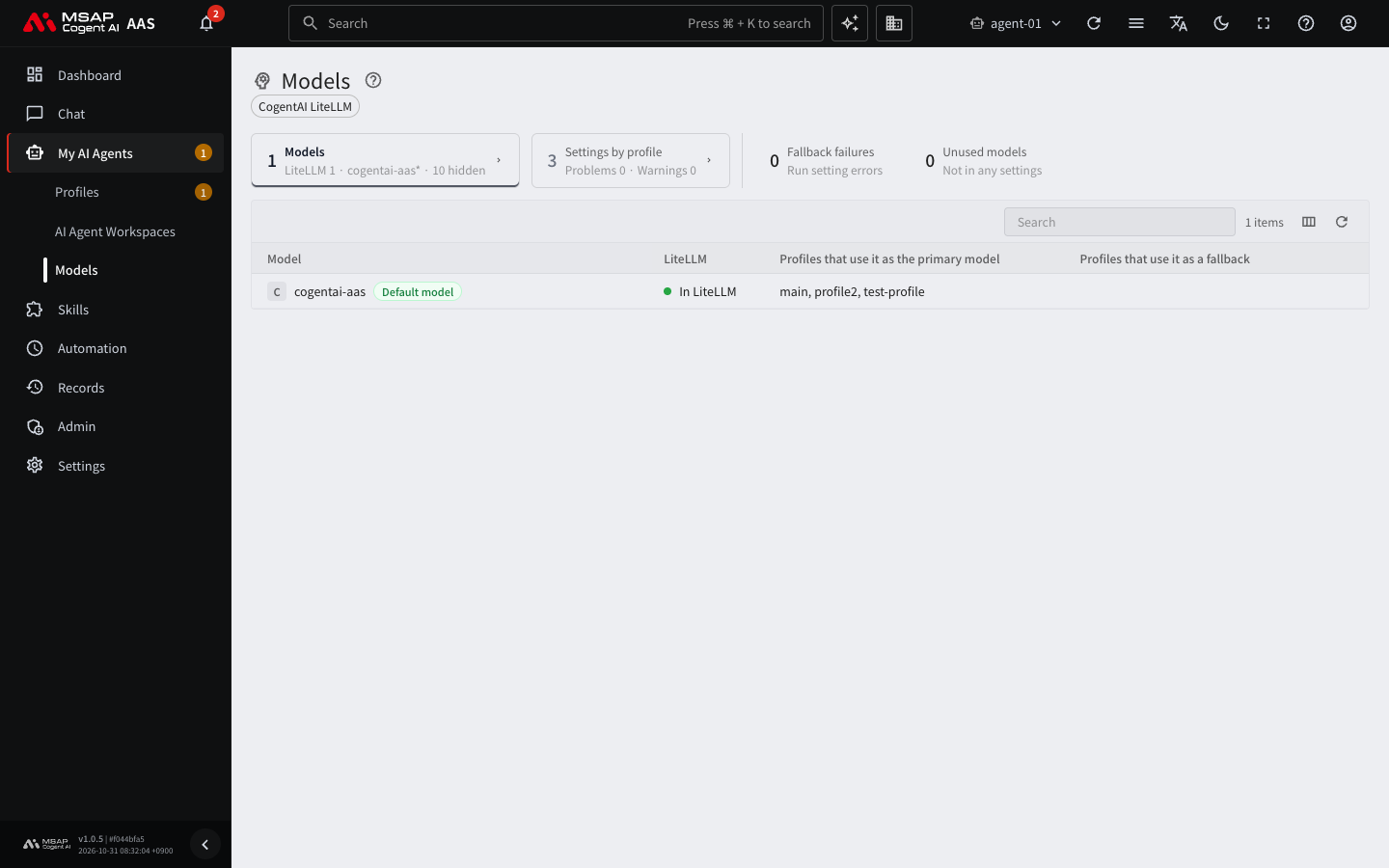
Figure 4.1-1. Model list
AAS lists only the LiteLLM models whose names start with cogentai-aas. Models with other names are counted as "hidden" and left out of the list. On installations that do not filter by name, "All shown" appears instead.
A model that a profile uses stays in the list even if it would be hidden, and "Not an AAS model" is added to its LiteLLM cell. This label is a warning about a model a profile is using now, not about a hidden model. The question guardrail may not apply to such a model.
| Column | Meaning |
|---|---|
| Model | The model name. A "Default model" label appears next to the AAS default model. |
| LiteLLM | One of "In LiteLLM", "Not in LiteLLM", or "LiteLLM status unknown". "Not an AAS model", "Not used", and the test result also appear in this cell. |
| Profiles that use it as the primary model | The profiles that use this model as their primary model. If there are 5 or more, only the count is shown. |
| Profiles that use it as a fallback | The profiles that use this model as a fallback. |
| Auxiliary and scheduled job overrides | The places where this model is set for auxiliary tasks or scheduled jobs. This column is hidden at first. Turn it on with "Columns" above the table. |
Reading the Labels
| Label | Meaning | What to do |
|---|---|---|
| Not in LiteLLM | The model is in a profile's settings, but LiteLLM does not offer it. It may not answer. | Change the model of that profile. |
| LiteLLM status unknown | AAS could not get the LiteLLM list, so it could not check. | See "When the list is empty or shows an error" below. |
| Not an AAS model | A profile uses it, but its name does not start with cogentai-aas. The question guardrail may not apply. | See 4.2. Safeguards and switch to an AAS model. |
| Not used | It is neither the primary model nor a fallback of any profile. | Usually no action is needed. |
Model Row Drawer
Click a model row to open a drawer. A drawer is a detail pane that opens from the right side of the screen (see the A.3. Glossary).
- "LiteLLM" line: shows whether the model is in the list and whether it is an AAS model.
- "Auxiliary and scheduled job overrides" line: the places where this model is used for auxiliary tasks and scheduled jobs.
- "Profiles that use it as the primary model" and "Profiles that use it as a fallback": click a profile name to find that profile in the "Settings by profile" tab.
- "Test": visible only to administrators.
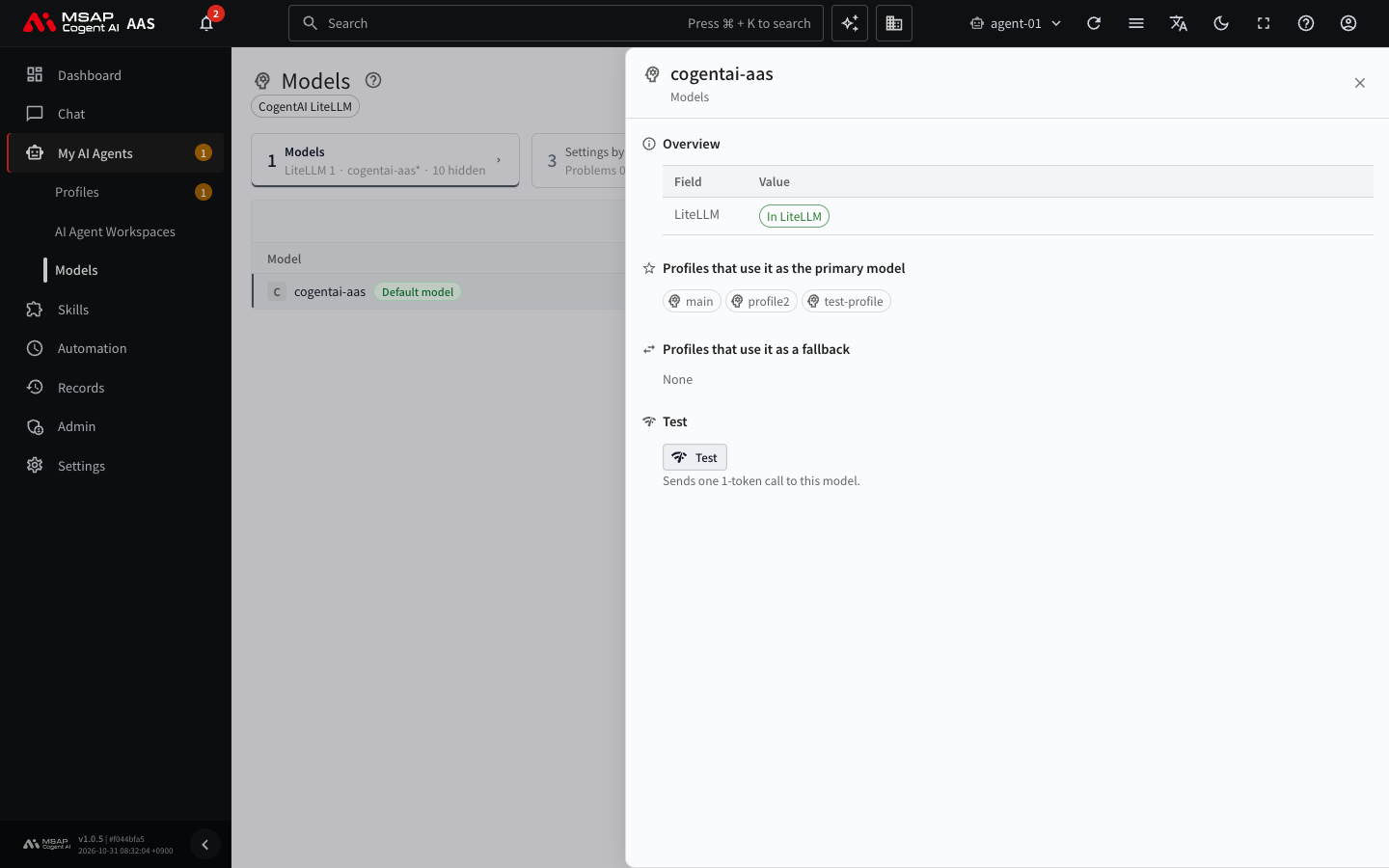
Figure 4.1-2. Model row drawer
Checking the Connection (Test)
The test checks whether the model actually answers. It sends one 1-token call to this model.
- Click a model row to open the drawer.
- In the "Test" area, click the "Test" button.
- Wait for "Calling…" to finish.
- Check the result.
| Result | Meaning |
|---|---|
| Response {n} s | The model answered. The response time is shown. |
| Failed | The model did not answer. The error that LiteLLM returned appears below. The LiteLLM cell in the list shows "Test failed". |
For a model that is "Not in LiteLLM", the "Test" button is disabled. Until you reload the screen, the result also stays in the LiteLLM cell of the list as "Response {n} s" or "Test failed". Each click on "Test" sends a request to the model server.
If the test shows "Failed", there is a problem with the model server or the model registration. Copy the error text as it is and report it to the operator.
Settings by Profile Tab
The "Settings by profile" tab shows whether each profile's model settings are correct.
| Column | Meaning |
|---|---|
| Profile | The profile name. |
| Status | One of "Problem", "Warning", or "No issues". |
| Primary model | The profile's primary model. If there is no settings file, "No settings file" appears. |
| Fallback | The fallback model. |
| To check | The reason for a problem or warning. |
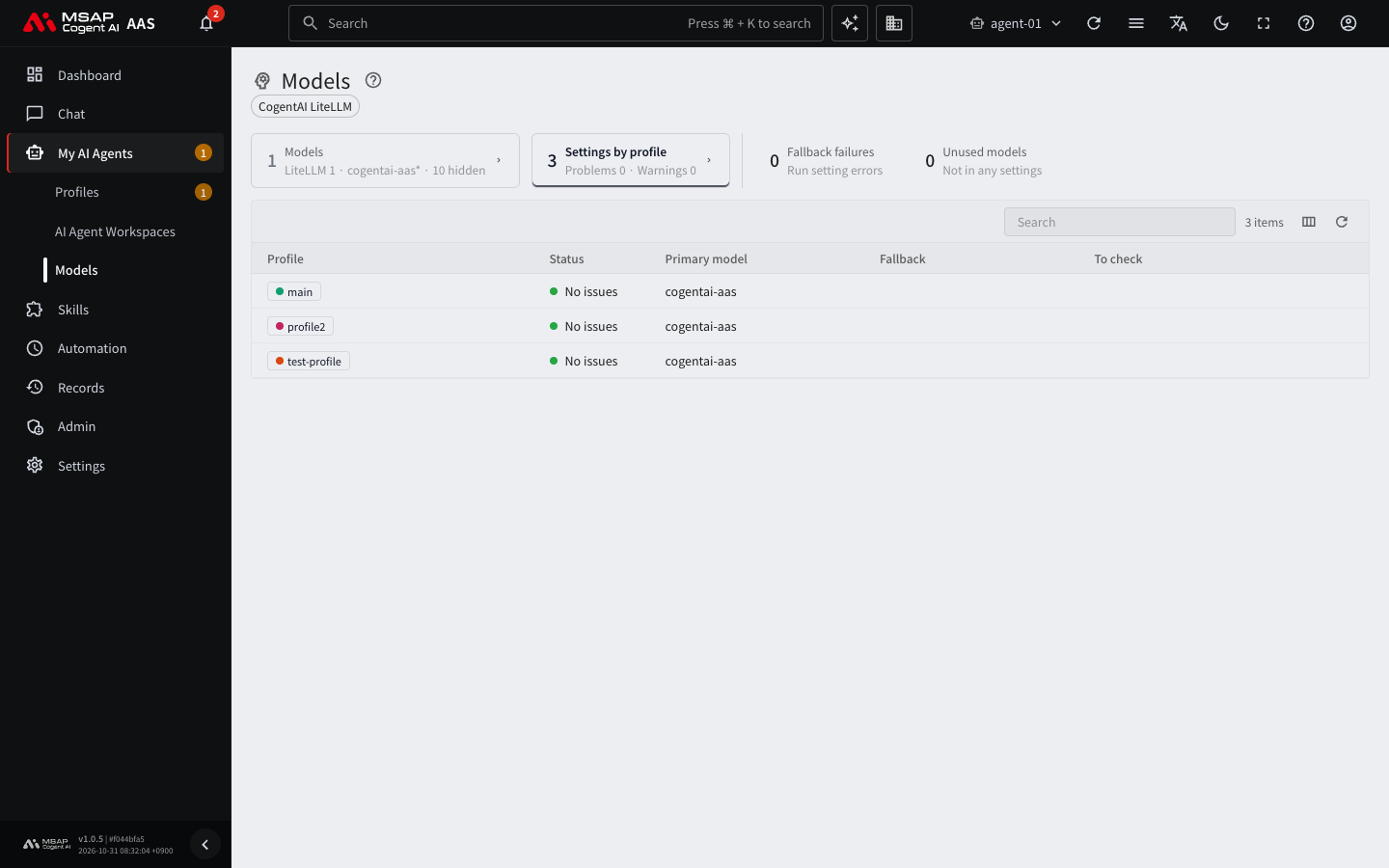
Figure 4.1-3. "Settings by profile" tab
The second line of the "Settings by profile" card shows "Problems {n} · Warnings {n}". If there are problems, the card appears in the warning color.
Typical contents of "To check" are as follows.
- Traces of a fallback path error: a scheduled job failed because of a fallback. If you have already removed the fallback, the status drops to "Warning". Check whether the message disappears after the next run.
- A model that is in the provider list but not in LiteLLM
- A warning that the profile uses a model that is not an AAS model: the guardrail does not apply.
Click a profile row to see "Primary model", "Fallback", "Auxiliary tasks", "Scheduled job overrides", and "To check" in the drawer. If there is no fallback, "Connected through LiteLLM only" appears. Use the links under "Related items" to go to the next screens.
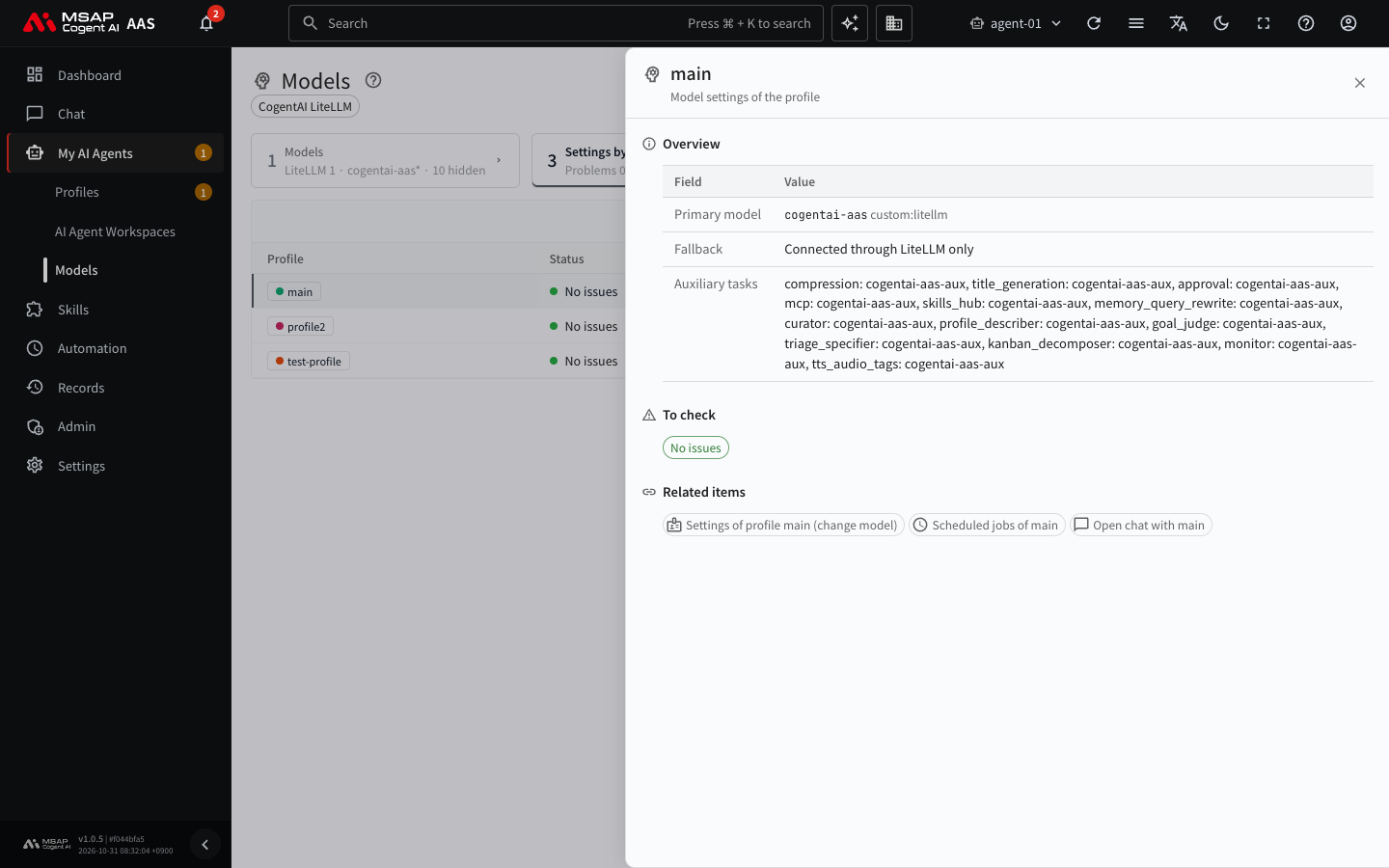
Figure 4.1-4. Profile row drawer
| Link | Where it goes |
|---|---|
| Settings of profile {name} (change model) | The drawer of that profile |
| Scheduled jobs of {name} | The Scheduled jobs screen |
| Open chat with {name} | Chat |
Default Model
The AAS default model is the model that a user's Hermes uses when nothing else is specified. It is the model with the "Default model" label in the model list. If a profile's primary model is set to "AAS default model", that profile follows when the default model changes. A profile that has a model chosen by name stays fixed to that model.
In the model list, the aliases reserved for auxiliary tasks (for example, cogentai-aas-aux) and the embedding, speech, and image models are left out of the model choices for chat.
When the List Is Empty or Shows an Error
| Symptom | Cause | Action |
|---|---|---|
| "The model server address is not set…" | The server has no model server address setting. | Report it to the operator. |
| "Could not get the LiteLLM list" or a connection error | LiteLLM is down, or the key does not match. | Report it to the operator. The list below is built only from the profile settings, so the "Not in LiteLLM" check was skipped. |
| The model list is empty | LiteLLM has no model whose name starts with cogentai-aas. | Ask the operator to check the model registration in LiteLLM. |
Setting up the LiteLLM server and registering models is outside the scope of this manual. When you ask the operator, pass on the screen text from the table above as it is.