2.3. Assigning Administrators and Team Managers
Overview
Administrators manage all of AAS. Team managers help the people in their own department with their AI agent workspaces. This chapter explains how to promote and demote administrators, how to assign team managers, and what team managers can do. You make both assignments on the "Users & roles" screen. For a full comparison of the roles, see 1.2. AAS Architecture and Permissions. Create the departments and users first (1.1. Administrator Screen Overview).
Permission: Administrator
Figure 2.3-1 shows which role manages what at each level of the organization. Team managers are described in a later section of this chapter.
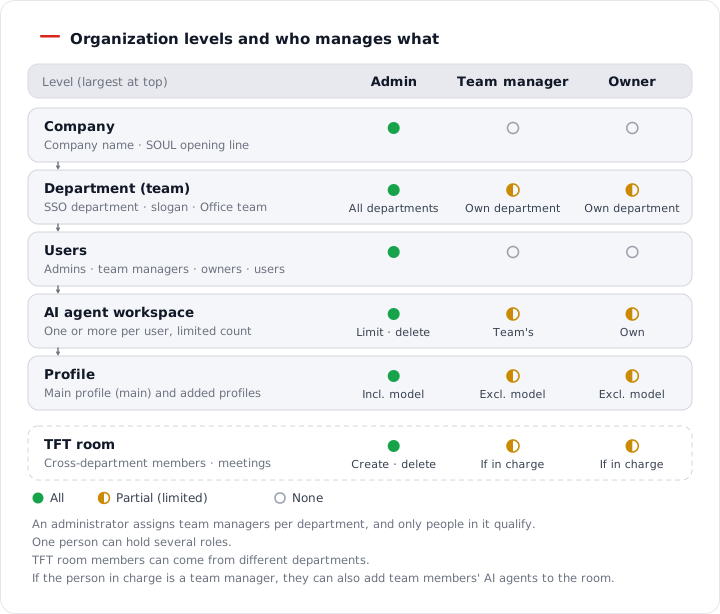
Figure 2.3-1. Organization levels and the range each role manages
Assigning Administrators
An administrator is a member of the group aas-admins on the SSO (Single Sign-On) server. When you change a role on the screen, AAS changes the group for you. Some administrators are set by the operator.
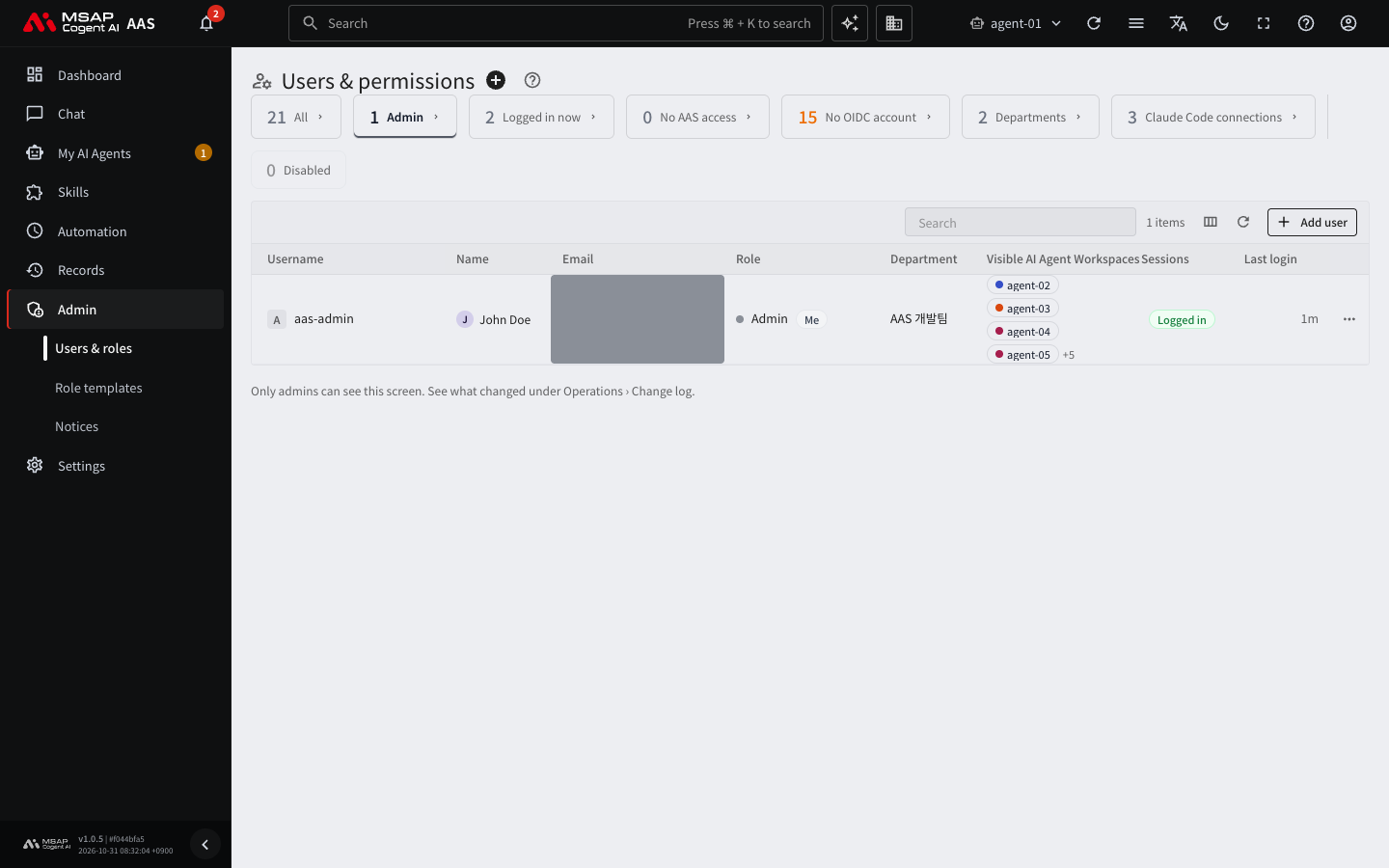
Figure 2.3-2. List on the "Admin" tab
Promoting a user to administrator
- In the left menu, open "Admin › Users & roles".
- On the row of the person to promote, open "Edit". To add a new person, open the "Add user" window instead.
- Under "Permissions", select the "Admin" option ("Admin: views and changes all AI Agent Workspaces").
- Click "Save".
- In the confirmation window, click "Make admin". The window says: "This makes {who} an admin. They will be able to change scheduled jobs, profiles, skills, and secrets."
The administrator role takes effect within 4 minutes. The administrator menu appears when the person reloads the screen or waits a few minutes. To check the result, look at the "Admin" card and the "Role" column in the table.
Removing administrator rights
- Open the "Edit" window of the person to demote.
- Under "Permissions", select "User".
- Click "Save".
- In the confirmation window, click "Remove from admins".
After the demotion, the person can no longer change scheduled jobs, profiles, skills, or secrets. The server ends their login immediately, and any screen they have open returns to the sign-in screen within 1 minute. They must sign in again.
When the role field is locked
If a reason appears below the "Permissions" field, you cannot change that person's role on this screen.
| Reason | What to do |
|---|---|
| Another admin must change your own account | Ask another administrator. |
| The last admin cannot be removed from admins | Promote someone else to administrator first. |
| An administrator set by "…" (the screen shows the name of the install setting) | The operator set this administrator. Tell the server operator. |
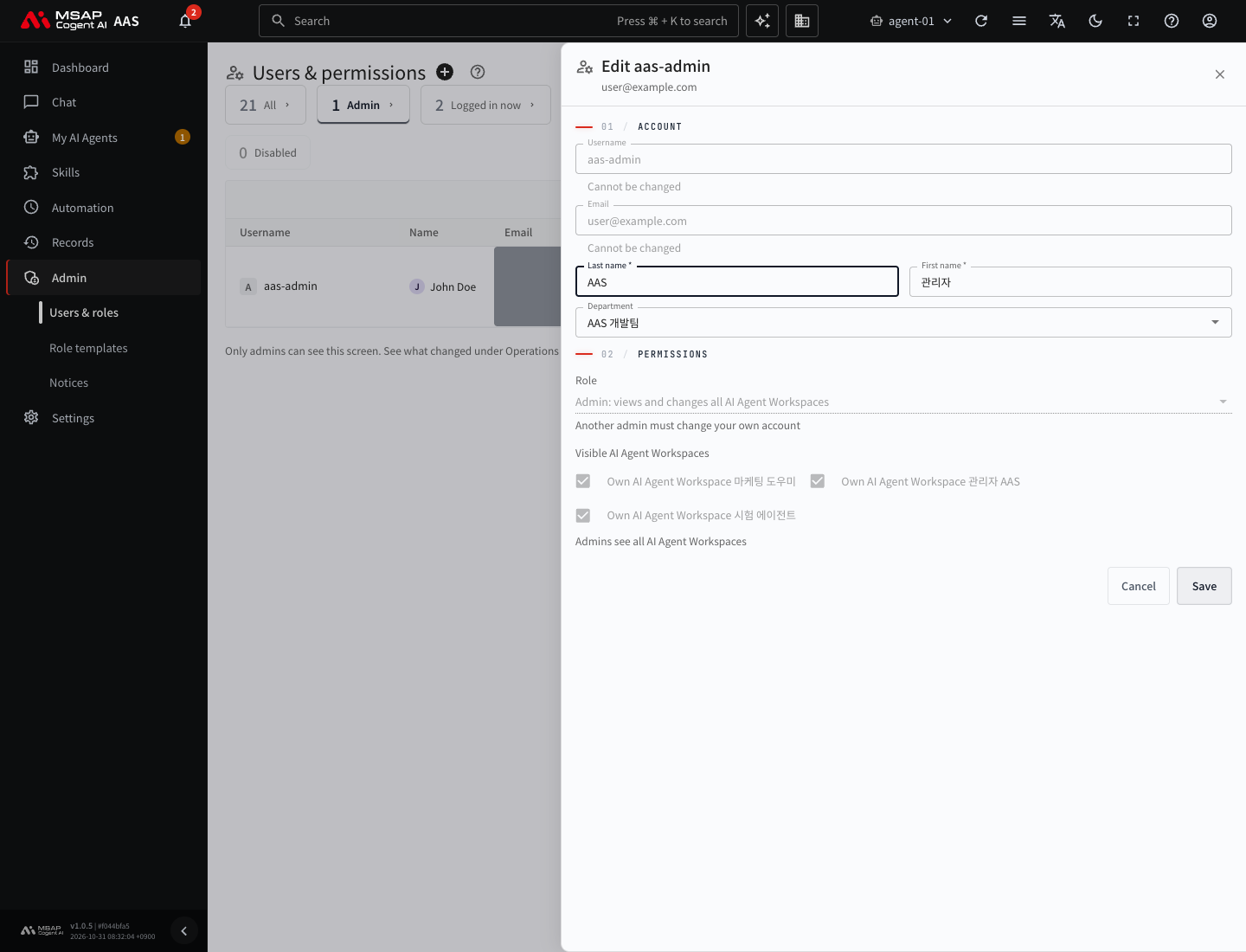
Figure 2.3-3. "Edit" drawer with a locked role field
If you keep only one administrator, you cannot disable or delete that person's account. Promote a new administrator first, for example before the person in charge changes.
Administrators not moved to OIDC
This means a person is listed as an administrator only in AAS and has no SSO account. A notice at the top of the screen says "Some admins could not be moved to OIDC: email", and the person's row in the list shows "Not moved to OIDC".
- On "Users & roles", click the "No OIDC account" card.
- On the row for that email, click "Create account with this email" to create the account (2.4. Clearing "No AAS Access" and "No OIDC Account").
When this succeeds, the administrator role moves to the SSO side and the notice disappears.
Assigning Team Managers
You assign team managers for each department (team). The rules are as follows.
- You can assign more than one person to a department.
- Only people who belong to that department can become team managers. Each person has one department, so each person manages only one team.
- If a team manager moves to another department, the role is removed automatically.
- You can assign team managers only in departments that are in the department list. For a department that shows "Not in list", first click "Add to list" (2.2. Managing Departments).
- You can choose only people whose department is recorded in AAS as that department. If you entered a department when you added the user, it is recorded even before the person signs in. If you turned off "Create the AI Agent Workspace now", it is recorded after the person signs in once.
Caution: A team manager can give instructions, so a team manager can make an AI agent work in external systems using the secrets and sign-in information that team members connected. This means the values are not shown on screen. It does not mean the work done with those values is blocked. Assign team managers only to people you trust.
Assigning
- On the "Users & roles" screen, click the "Departments" card at the top.
- In the "…" menu on the department row, or in the detail window, click "Assign team managers".
- In the "Assign team managers" window, click the "Team managers" field and select people. The candidates are the people in that department.
- Click "Save".
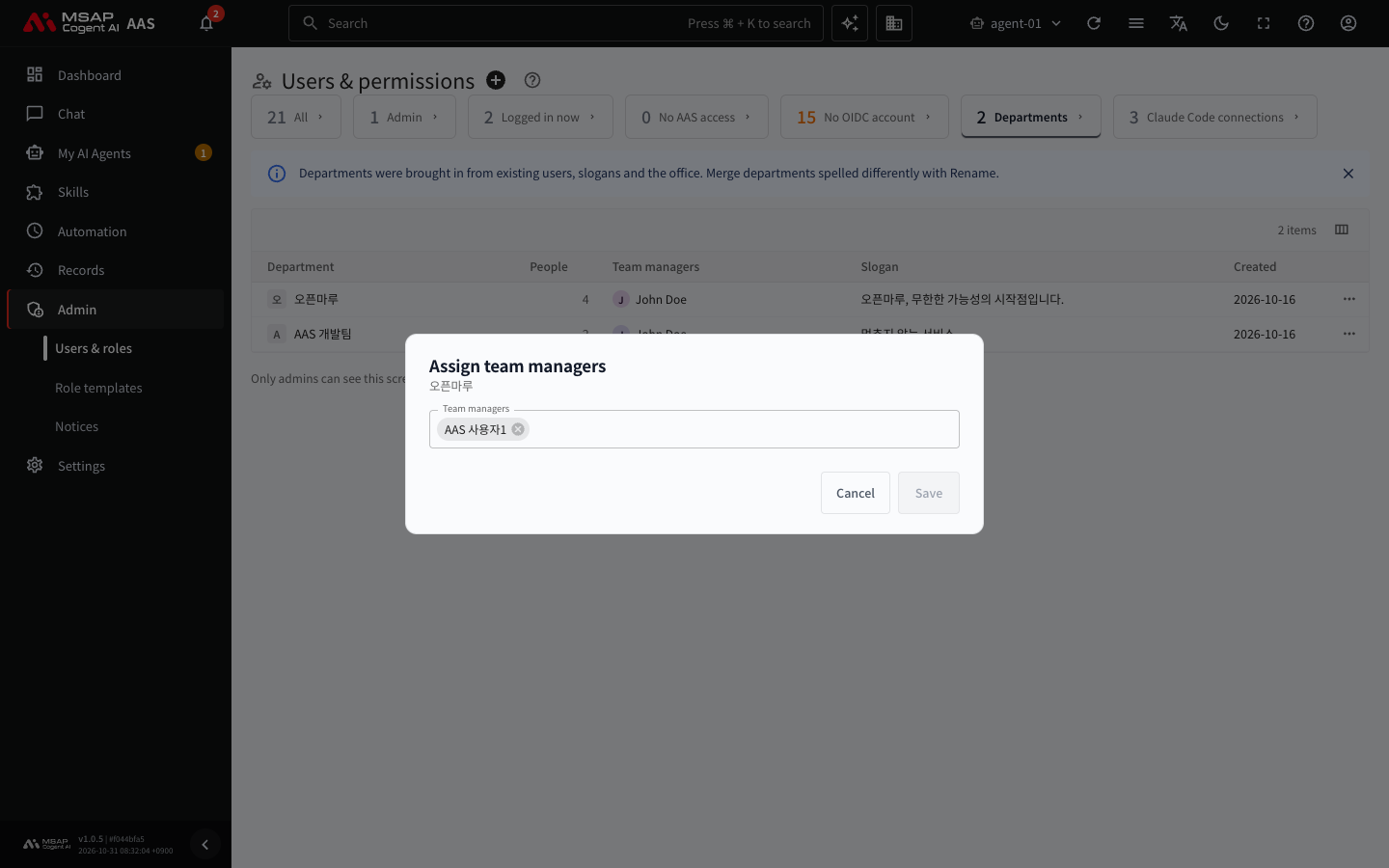
Figure 2.3-4. "Assign team managers" window (closed without saving)
After you save, the message Saved the team managers of "Department" appears, and the names appear in the "Team managers" column of the table. The column shows up to two names and abbreviates the rest as "+n more". "Save" stays disabled until something changes.
Removing
- In the same "Assign team managers" window, clear the chip of the person to remove.
- Click "Save".
- In the confirmation window, click "Remove and save". The window says: "Name will no longer be able to manage team members' AI Agent Workspaces".
If a team manager moves to another department, a faded "Moved n" appears in the "Team managers" column of the table. That person no longer has the role. In the window, the name appears as a gray chip with a line through it. Clear it and save to clean up the record.
The error "These people have never signed in under this department"
This error occurs when AAS has no department recorded for the person, or has a different department recorded. An account created directly on the SSO server can fall into this case. The server decides by the department value recorded in AAS, not by whether the person has signed in. To fix it, correct the user's department and save.
- On "Users & roles", click the person's row to open the detail window, then click "Edit".
- Select this department under "Department" and click "Save".
- Open "Assign team managers" on the department row again and assign the person.
If the person's department on the SSO server is already this department, saving does not change the AAS record because the department did not change. In that case, have the person sign in to AAS once, and then assign them again. If the result is the same, tell the server operator.
What Team Managers Can Do
A team manager works on a team member's AI agent workspace with the same range as the owner.
| What they can do | What they cannot do |
|---|---|
| Give work to team members' AI agents through chat, one-to-one conversation in the 3D Office, Kanban, scheduled jobs, and meetings | Delete an AI agent workspace or change its details |
| Read the conversation history of team members' AI agents | Transfer ownership or set the per-person count limit |
| Change personality (SOUL), instructions, skills, tools, external tools (MCP), and settings files | Change the model, provider, gateway, or terminal location |
| Add or delete messenger connections and secrets | View the value of a secret (neither owners nor administrators can see it) |
| View, save, and delete files in the working folder | Allow a Skill Hub namespace that requires permission |
| Install and delete Skill Hub items, and import and export profiles from a PC | Work with the AI agent workspaces of other departments |
Team managers' actions are not sent to team members as notifications. They are recorded only in the change log.
What team managers see
The first time a newly assigned team manager opens the screen, a notice such as "You have been assigned as the Dev Team 1 team manager" appears. In the list for choosing an AI agent workspace, team members' workspaces appear in the "My team" group with a "Team" badge, and the "Records › Change history" menu appears.
The range visible in the change log is explained in 7.2. Change Log. When you assign or change team managers, the administrators' change log records it as "Changed team managers".