2.1. Adding and Editing Users
Overview
For a new person to use AAS, an administrator must create an account. This chapter explains how to create an account on the "Users & roles" screen, edit its information, reset the password, disable it, and delete it. Accounts are created on the SSO (Single Sign-On) server, and are labeled "OIDC" (OpenID Connect) on the screen (1.2. AAS Architecture and Permissions).
Permission: Administrator
Adding a User
Before You Start
- This installation must manage accounts through the SSO server. If "OIDC admin access is not configured, so this screen only grants screen permissions" appears at the top of the "Admin › Users & roles" screen, you cannot create accounts. If "Could not reach OIDC. Only AAS records are shown and changes are locked." appears, the list shows only AAS records and changes are locked. Tell the server operator.
- The department for the person must exist. If it does not, add it first in 2.2. Managing Departments. You can leave the department empty. Departments are used for notice audiences, team managers, and grouping teams in the 3D Office, so we recommend setting them on the first day.
- If text such as "Only example.com accounts can log in" appears under the screen title, you can create accounts only for that email domain.
Steps
- In the left menu, open "Admin › Users & roles". Select the "+" ("Add user") next to the title. An input window opens on the right (a drawer, explained in 1.1. Administrator Screen Overview).
- Fill in the "Account" section.
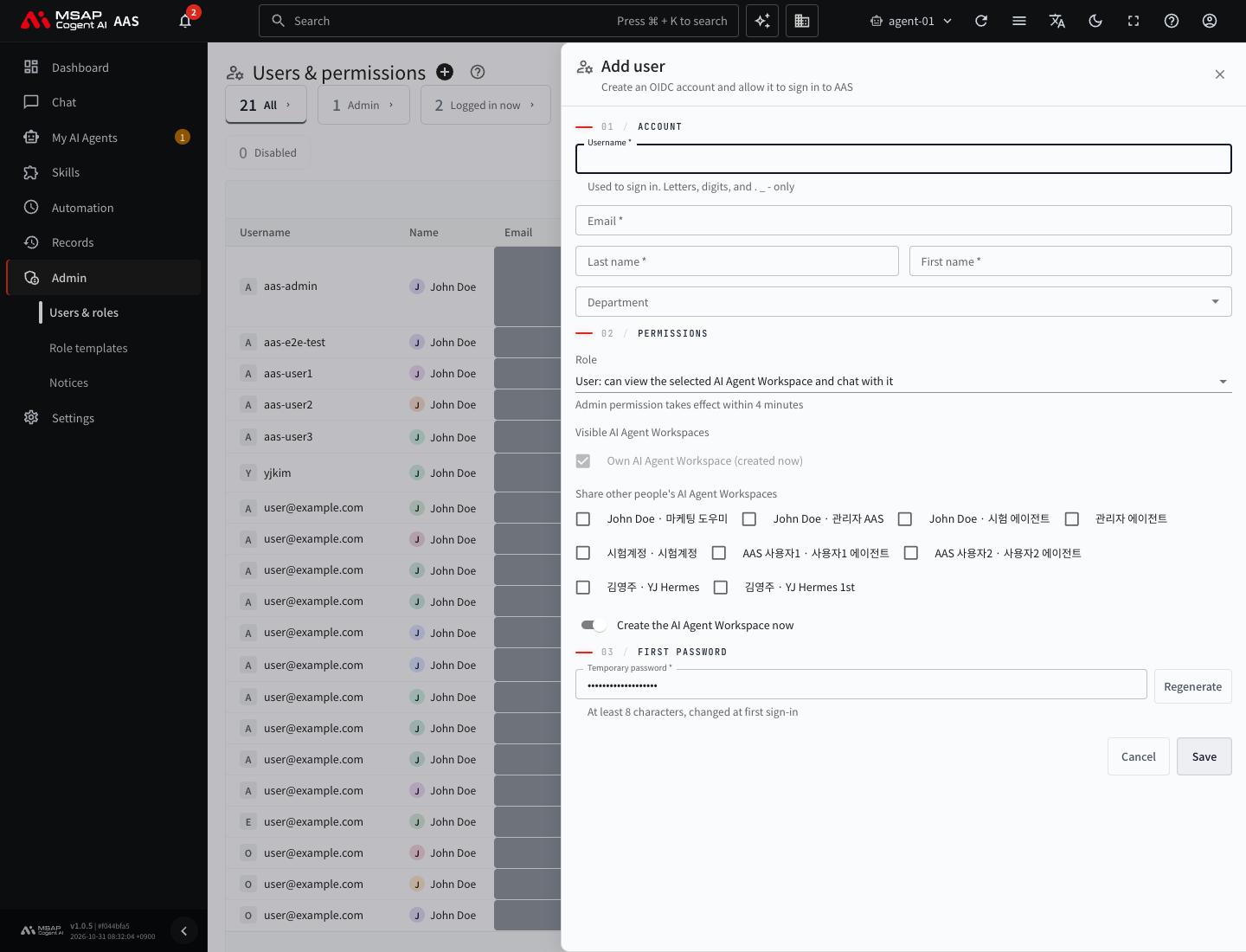
Figure 2.1-1. The "Add user" drawer
| Field | Input rules |
|---|---|
| Username | Used to sign in. Use only letters, digits, ., _, and -, and enter 3 to 63 characters. You cannot use an email address as a username. |
| You can enter only emails from allowed domains. | |
| Last name, First name | Both are required. |
| Department | Choose from the department list. You can leave it empty. |
- In the "Permissions" section, choose the "Role".
- "User": views the selected AI agent workspace and chats with it.
- "Admin": views and changes all AI agent workspaces. Because an administrator sees all workspaces, the share list does not appear. When you choose "Admin" and save, a confirmation window appears once. The administrator menu appears after up to 4 minutes.
- If you chose "User", choose the workspaces this person can view in "Share other people's AI Agent Workspaces". Leave it empty if not needed.
- If you leave "Create the AI Agent Workspace now" on, the person's AI agent workspace is created now. If you turn it off, it is created at first sign-in.
- In the "First password" section, check the temporary password. It is generated automatically. To enter your own, use 8 or more characters. Select "Regenerate" to create a new value.
- Select "Save".
The confirmation window tells you that an "Admin" will be able to change scheduled jobs, profiles, skills, and secrets.
Handing Off the Result Window
After you save, the "Account created" window opens. It shows the username, the temporary password, the sign-in URL, and the status of the AI agent workspace ("Created", "Created at first sign-in", "Not created (retried at first sign-in)"). Even if it says "Not created", the workspace is created when that person signs in. You have nothing else to do.
- Check the value with "Show" next to the password.
- Select "Copy handoff text" to copy the text that contains the username, the temporary password, and the sign-in URL.
- Pass it to the person in a secure way.
- Select "Handed off, close".
Caution: This window does not close when you click outside it. Once you close it, you cannot see the temporary password again. If you lose it, reset the password.
On first sign-in, the person changes the temporary password to a new password. For how to sign in, see 2.5. Sign-In and Sessions.
If it succeeds, a row for the new person appears in the "Users & roles" table. When that person signs in, the row shows "Logged in", and the dashboard opens on that person's screen. If the person cannot sign in, see "When sign-in fails" in 2.5. Sign-In and Sessions.
Input Errors
| Message | Cause |
|---|---|
| This username is already taken / This email is already taken | The same value exists on the SSO server. If that person is in the "No AAS access" state, a "Give that person AAS access" link appears next to the field. |
| Use a username, not an email | You entered an email in the username field. |
| Department is not in the list | The department must be created first (2.2. Managing Departments). |
| Username … may remain in OIDC | Only part of the account was created. Find that username in the "Users & roles" table and delete it with "Delete" in the detail window. If it is not in the table, tell the server operator. |
Editing User Information
- In the table, open the "…" menu at the end of the person's row and select "Edit". The "Edit" button in the detail window that opens when you select the row does the same.
- Edit the last name, first name, department, role, and the AI agent workspaces to share.
- Select "Save".
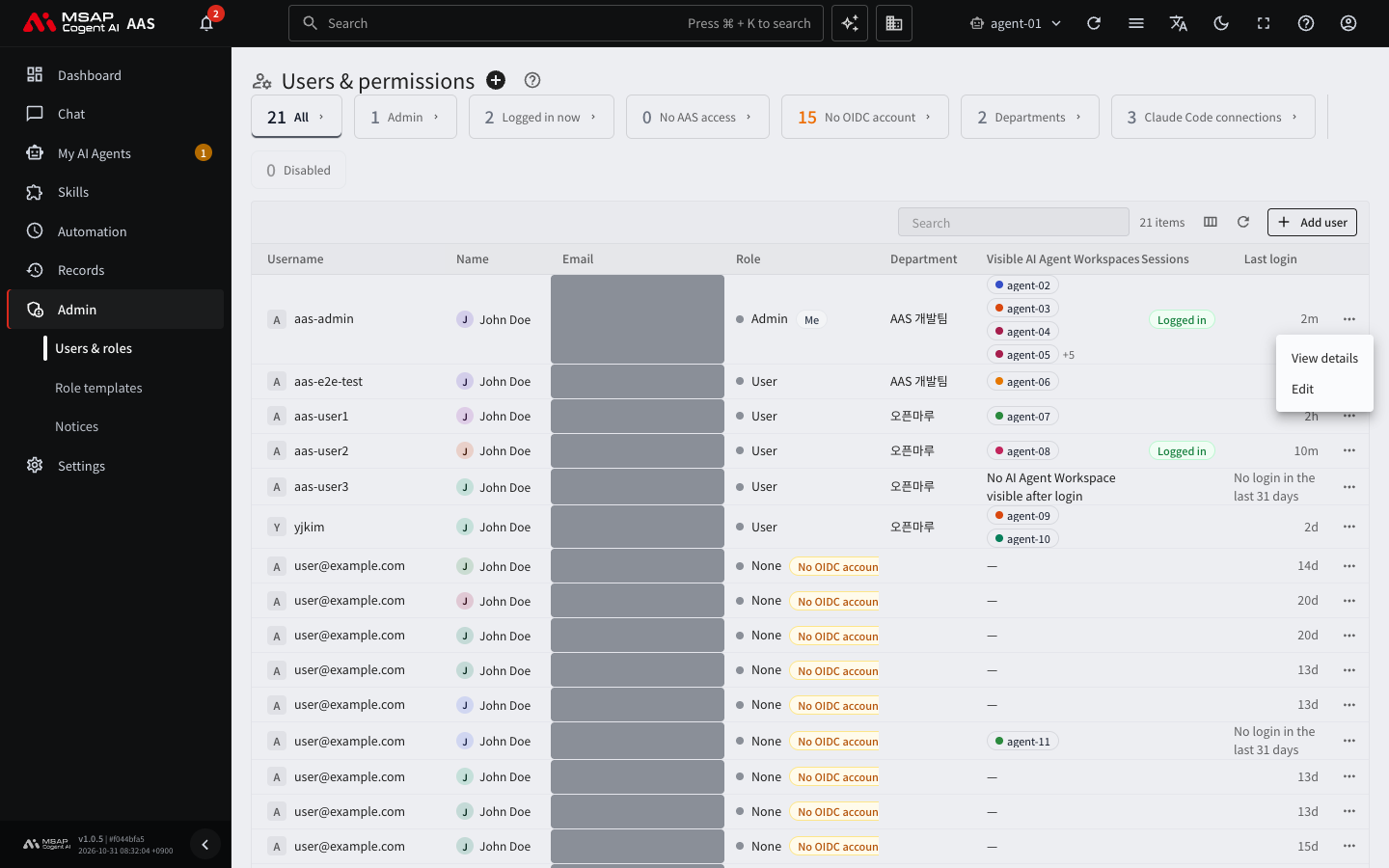
Figure 2.1-2. The "…" menu at the end of a row
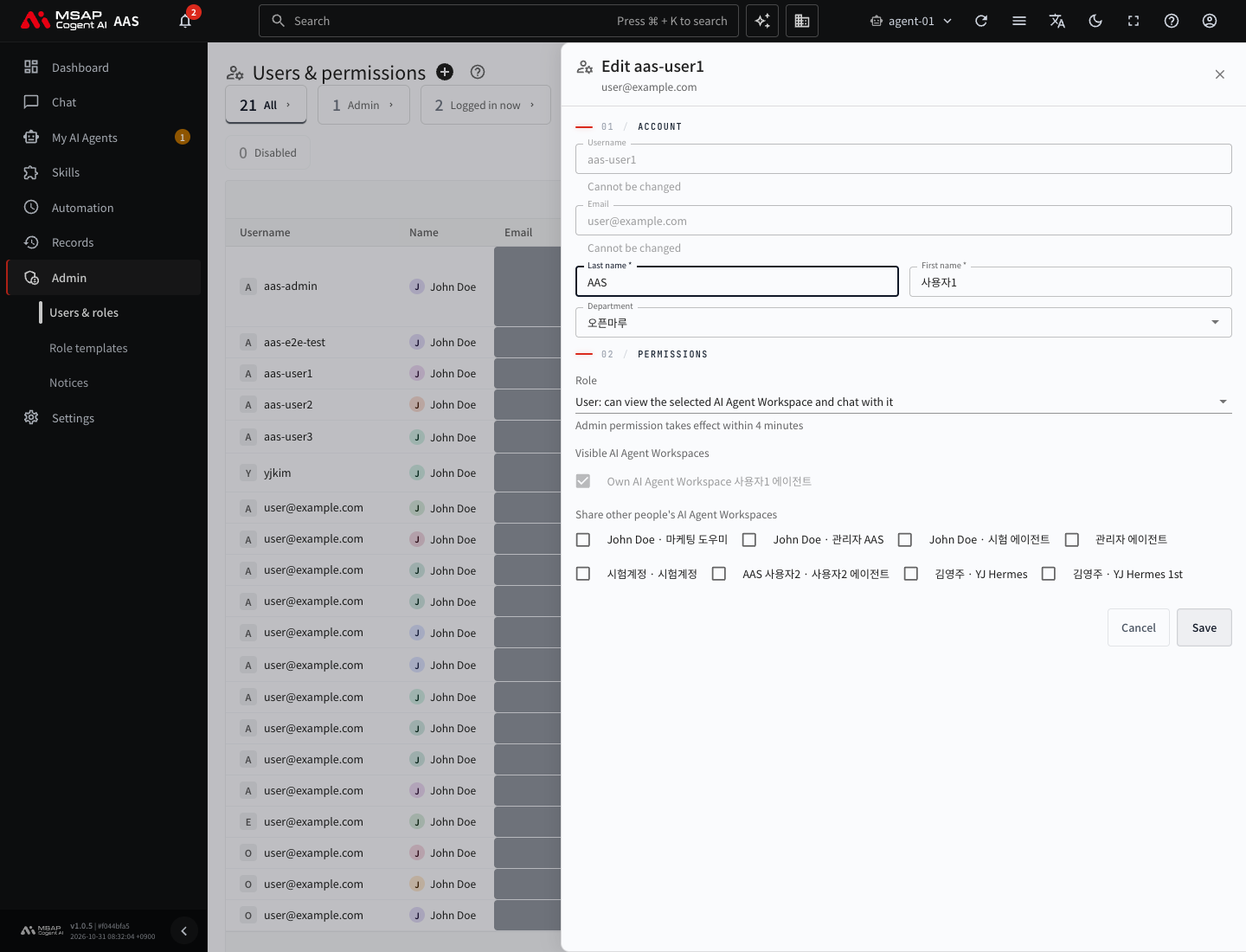
Figure 2.1-3. The "Edit" drawer (closed without saving)
The username and email are locked with "Cannot be changed" and cannot be edited. If you raise the role to "Admin", it takes effect within 4 minutes. If you remove someone from administrators, the server ends that person's sign-in right away, and a screen that is open changes to the sign-in screen within 1 minute. For the rules on assigning administrators and locks, see 2.3. Assigning Administrators and Team Managers.
Actions in the Detail Window
When you select a row, the detail window opens with action buttons at the top. The action buttons appear as icons without text. The buttons you see differ by state.
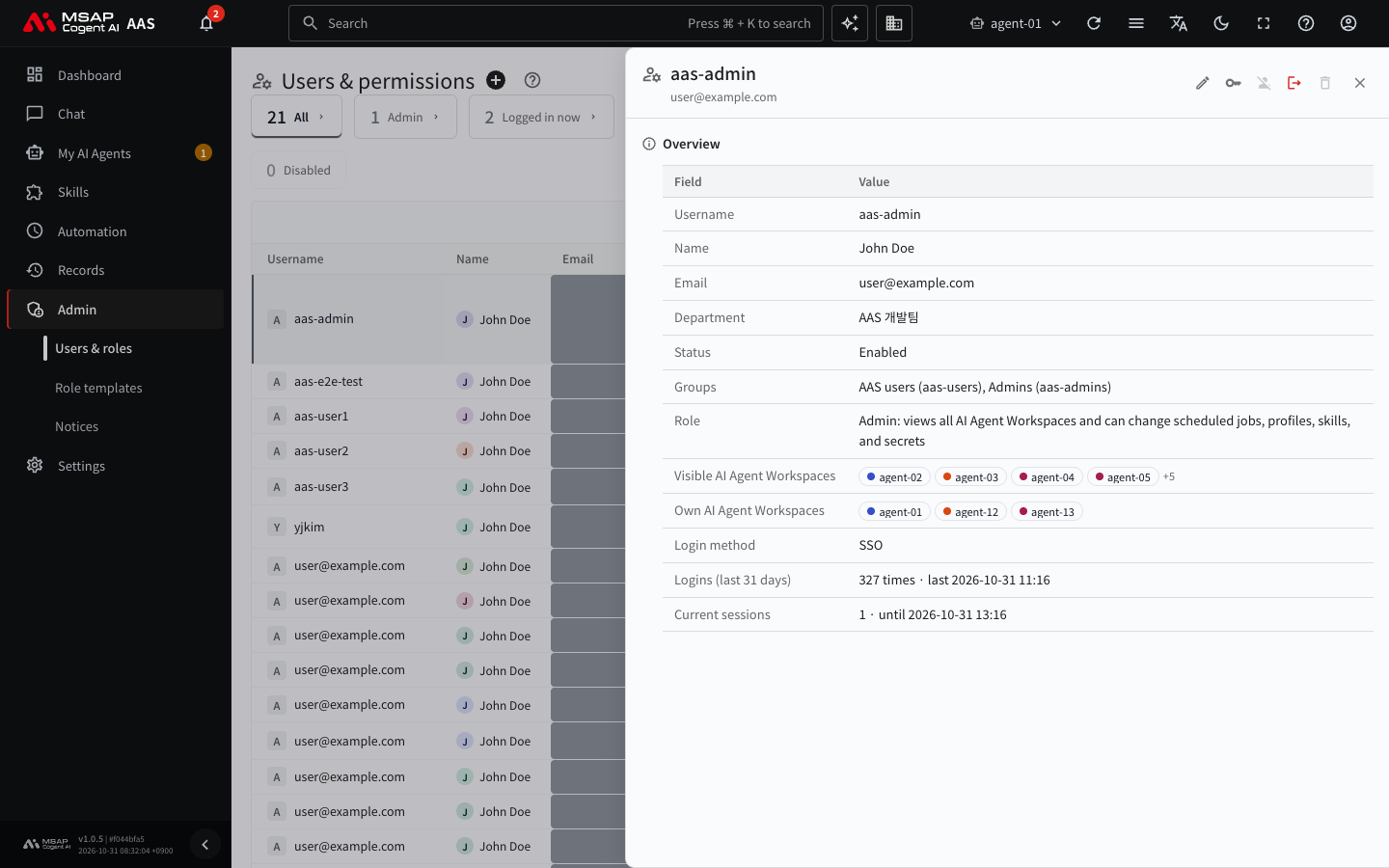
Figure 2.1-4. The user detail window
| Action | What it does |
|---|---|
| Edit | Edit the information using the steps above. |
| Reset password | Creates a new temporary password. The person can no longer sign in with the current password. A result window opens, and the handoff method is the same as for adding a user. |
| Add to AAS | Gives sign-in rights to a person with "No AAS access" (2.4. Clearing "No AAS Access" and "No OIDC Account"). |
| Create account with this email | Creates an account with the email of a person with "No OIDC account" (2.4. Clearing "No AAS Access" and "No OIDC Account"). |
| Disable / Enable | Stops or turns on the person's use. |
| End this person's logins | Ends all current sessions. Visible only while the person is signed in (2.5. Sign-In and Sessions). |
| Delete | Deletes the account. |
The body of the detail window shows the username, name, email, department, enabled state, groups, role, the AI agent workspaces the person can view, login method, number of logins in the last 31 days, and current sessions.
Disabling
- In the detail window, select "Disable".
- Read the confirmation window and select "Disable".
When you disable a person, their sign-in ends, and their AI agent workspaces and scheduled jobs stop. When it finishes, "Disabled …. Stopped n AI Agent Workspaces" appears. The row of a disabled person gets a "Disabled" mark.
When you select "Enable", the workspaces that stopped when the person was disabled start again. Workspaces that an administrator stopped separately do not start again.
Use disabling when you want to block an account for a while without deleting it. Ending only the sign-in is not a way to block someone. If the person signs in again, they can get in.
Deleting
- In the detail window, select "Delete".
- Read the guidance in the confirmation window.
- Type the username again in the input field.
- Select "Delete".
The confirmation window tells you the following.
- This cannot be undone.
- The person's n AI agent workspaces stop. The data is kept.
- The workspaces lose their owner. Set a new owner on the "AI Agent Workspaces" screen.
- Re-creating the account with the same email does not reconnect the old workspaces.
If you select "Transfer ownership in AI Agent Workspaces" in the notice after deleting, you go to that screen. Transferring ownership is explained in 3.1. Workspace List and Count Limits.
Locks
In the following cases a button is locked and the reason is shown.
| Reason | Locked actions |
|---|---|
| "Another admin must change your own account" | Disabling, deleting, and removing administrator rights for your own account |
| "The last admin cannot be disabled" (deleting and removing from administrators use the same format) | Disabling, deleting, and removing administrator rights for the only active administrator |
| "This admin was set by the operator at installation" (the screen also shows the name of the installation value) | Disabling, deleting, and changing the role of an administrator set by the operator. Password reset and editing information are allowed. To change this, tell the server operator. |
| "Cannot change this because OIDC is unreachable" | All actions that write to the SSO server. Ending a sign-in is allowed. |
Screen Layout
At the top of the "Admin › Users & roles" screen there are view cards. Selecting a card changes the table below.
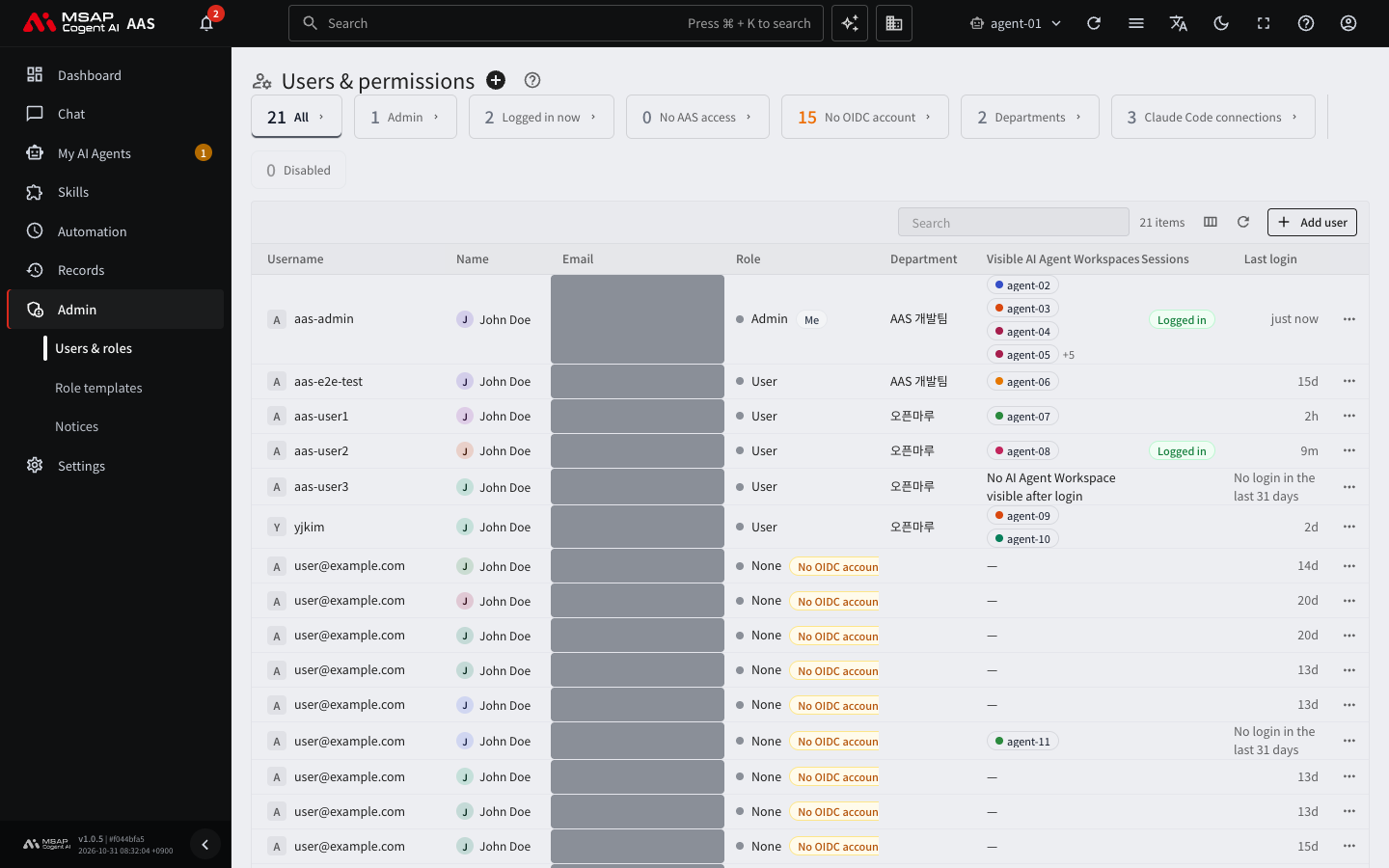
Figure 2.1-5. The user list
| Card | Who is shown |
|---|---|
| All | Everyone |
| Admin | Administrators |
| Logged in now | People who have a sign-in session now |
| No AAS access | People who have an SSO account but no right to enter AAS (2.4. Clearing "No AAS Access" and "No OIDC Account") |
| No OIDC account | People who are in AAS records but have no SSO account (2.4. Clearing "No AAS Access" and "No OIDC Account") |
| Departments | The department list (2.2. Managing Departments) |
| Claude Code connections | Claude Code connections of all users (7.4. Managing Claude Code Connections) |
When you turn on the "Disabled" filter above the table, only disabled people are shown. The table columns are Username, Name, Email, Role, Department, Visible AI Agent Workspaces, Sessions, and Last login. The text in the row of a disabled person appears dimmed.