1.2. AAS Architecture and Permissions
Overview
CogentAI AAS (AAS) has administrators, team managers, AI agent workspace owners, and general users. This chapter first summarizes what each role can do, then explains the components that make up AAS and where data is stored. Read it before you answer user questions or set permissions.
Permission: Administrator
Roles of People
AAS has four roles. One person can hold more than one.
| Role | How it is assigned |
|---|---|
| Administrator | In "Users & roles", set "Permissions" to "Admin". The person joins the group aas-admins on the SSO server. Some administrators are set at installation. |
| Team manager | An administrator assigns several people for each department in "Users & roles › Departments". Only people in that department can be team managers. |
| Workspace owner | The person who created the AI agent workspace. An administrator can transfer ownership. |
| General user | A member of the group aas-users. Uses their own workspace and can view other workspaces that an administrator shared. |
A general user becomes the owner of their own workspace, so most users are both general users and owners. A person who can only view a workspace that an administrator shared is not an owner.
What Each Role Can Do
"Yes" means the role can do it. The Team manager column shows permissions for the workspaces of team members.
| Task | Administrator | Team manager | Owner | Person it was shared with |
|---|---|---|---|---|
| View a workspace and chat with the AI agent | All workspaces | Team members' workspaces | Own workspace | Shared workspaces |
| Change personality (SOUL, the text that describes an AI agent's tone and role), work instructions, skills, tools, setting files, and external tools (MCP, Model Context Protocol) | Yes | Yes | Yes | No |
| Connect messengers, and enter or delete secrets | Yes | Yes | Yes | No |
| Create and change scheduled jobs | Yes | Yes | Yes | No |
| Install and delete skills from the Skill Hub | Yes | Yes | Yes | No |
| Change the model, provider, gateway (the path through which an AI agent receives messenger messages and scheduled jobs), and terminal location | Yes | No | No | No |
| Delete a workspace and change its information | Yes | No | Yes | No |
| Transfer ownership, set per-person count limits | Yes | No | No | No |
| Allow namespaces that need approval (sections that divide skill packages in the Skill Hub) | Yes | No | No | No |
| View the change log | All | Team members' workspaces | Own workspace | No |
| Users, Role templates, and Notices screens | Yes | No | No | No |
| Manage the department list and assign team managers | Yes | No | No | No |
| Change the company name and the AI agent introduction sentence | Yes | No | No | No |
| Change a department slogan and goals | All departments | Own department | Own department | Own department |
| The "All AI Agent Workspaces" section of the dashboard | Yes | No | No | No |
Some settings are blocked even for owners and team managers. For example, you need an administrator to change the model. Users can ask an administrator to change the model, and the requests are collected in the inbox.
Figure 1.2-1 shows the table above as dots. The table is the authoritative source for details.
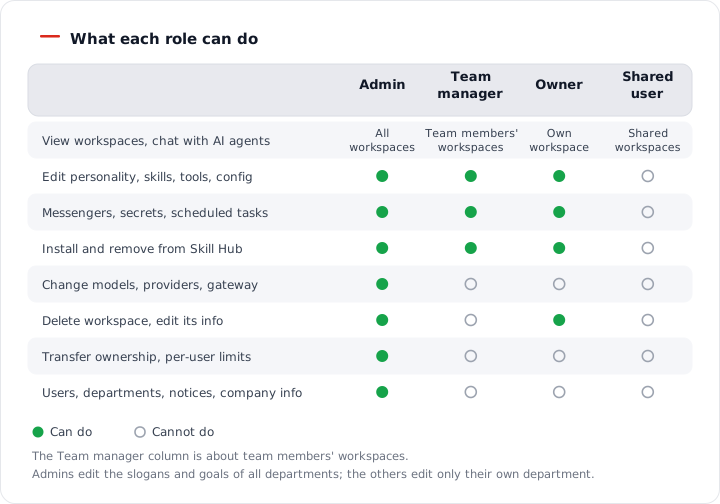
Figure 1.2-1. What each role can do
Differences You See on the Screen
- Only administrators see the "Admin" group (Users & roles, Role templates, Notices) in the left menu.
- "Records › Change history" is visible to administrators, owners, and team managers. The scope of the content differs by role.
- In the workspace selection list, team managers see team members' workspaces separated by the "My team" group and the "Team" badge.
- A person who is not an administrator and goes straight to the "Users & roles" address sees the message "Only admins can use this screen. Ask an admin to add users or change permissions."
When Permissions Take Effect
| Change | When it takes effect |
|---|---|
| Promoting a user to administrator | Takes effect within 4 minutes. |
| Removing a user from administrators | The server ends that person's sign-in right away. A screen that is open changes to the sign-in screen within 1 minute. The person must sign in again. |
| Assigning or removing a team manager | Applies again right away, even to screens that are open. |
| A team manager moves to another department | The permission disappears automatically. The assignment record remains and is marked "Moved". |
Hiding a menu on the screen is for convenience. The server checks permissions again on every request and rejects the request if the person has no permission.
Components
Administrators need to know five components. Installation and server operation are outside the scope of this manual and are handled by the operator.
| Component | What it does | Where administrators meet it |
|---|---|---|
| AAS server and screens | Provides the screens you see in the browser, checks permissions, and connects the components. | All screens |
| SSO server | Handles sign-in and accounts. SSO (Single Sign-On) is a method of signing in once to use several services. The product is Keycloak, and it is labeled "OIDC" (OpenID Connect) on the screen. | "Admin › Users & roles", the sign-in screen |
| Model server | Provides the AI models that AI agents use. The product is LiteLLM. | "My AI Agents › Models", "Operations" on the dashboard |
| Skill Hub | Stores and distributes skill packages. | "Skills › Skill hub", "Operations" on the dashboard |
| AI agent workspace | The runtime environment for AI agents; one or more are created for each user. The internal component is named Hermes. | "My AI Agents › AI Agent Workspaces", "Profiles" |
A profile is the set of settings for one AI agent in a workspace. It holds the personality, model, skills, tools, scheduled jobs, and messenger connections. Each workspace starts with one main profile (main). For other terms, see A.3. Glossary.
Figure 1.2-2 shows how the five components connect and where data is stored.
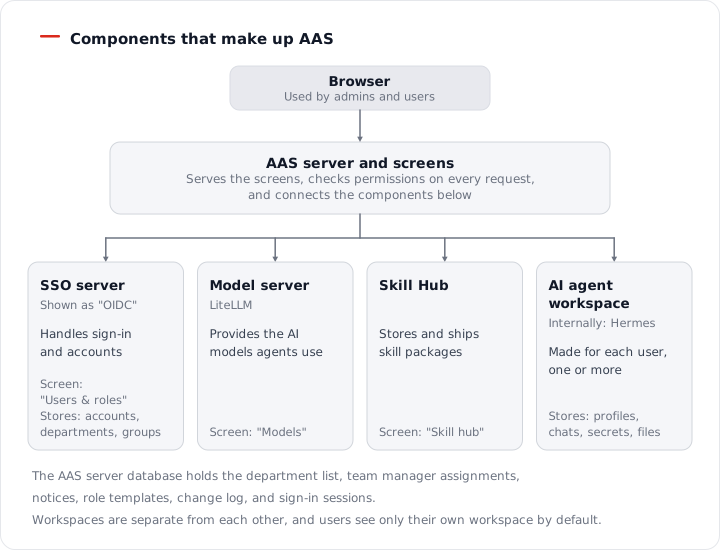
Figure 1.2-2. The components that make up AAS
What the SSO Server Does
- Stores user accounts (username, email, name, department) and passwords.
- Gives members of the group
aas-usersthe right to enter AAS. - Recognizes members of the group
aas-adminsas administrators.
When an administrator adds or edits a person on the "Users & roles" screen, AAS writes to the SSO server directly. You do not need to create accounts separately in the SSO server admin console.
AI Agent Workspaces
A user receives their own AI agent workspace the first time they sign in. An administrator can also create it in advance while adding the user. Workspaces are separated from each other. By default, a user sees only their own workspace.
Where Data Is Stored
The information that users see on screen is stored in three places.
| Storage location | What it holds |
|---|---|
| SSO server | Accounts, passwords, enabled state, departments, group membership (AAS users, administrators) |
| Database of the AAS server | Department list and department slogans, team manager assignments, permissions to view other people's workspaces, notices, role templates, the change log, sign-in sessions, 3D Office layout and Kanban cards, values collected for the dashboard |
| Each user's AI agent workspace | Profiles (personality, skills, setting files), chat history, secrets, work files |
Even if you delete a user, the data in that person's AI agent workspace remains. The workspace stops and its owner is cleared. An administrator chooses the new owner. For details, see 2.1. Adding and Editing Users and 3.1. Workspace List and Count Limits.
Note: No one can see the value of a secret on the screen, including owners and administrators. You can only enter a new value or delete it.