3.3. Rolling Out a New User Hermes Image
Overview
One Hermes runs in each user's AI agent workspace (the place where one user's AI agents work, created one per user; see the A.3. Glossary). Hermes is the program that actually runs the AI agents. To switch this program to a new version, you must restart the workspaces. A rollout does this in turn, not all at once. First it switches one canary (a test workspace that is switched first), and after the administrator checks it, it switches the rest in batches of a few. Use this chapter when a new version is released, or when a workspace stays on an old version.
Permission: Rollouts are visible only to administrators. The server also rejects requests from people who are not administrators.
Administrator tasks and operator tasks
| Who | What they do |
|---|---|
| Operator (the person who installs AAS and manages the server) | Builds the new Hermes version and uploads it to the server. Gives the administrator the values that point to that version. |
| Administrator | Pastes the received values into the "Roll out a new version" screen, chats with the canary to check it, and then continues or rolls back. |
Building the new version and uploading it to the server are outside the scope of this chapter. Administrators do not do that work.
Before You Start
Ask the operator for the name of the new version and the "value that selects the new version". Example request:
I want to roll out a new Hermes version. Please tell me the version name and the Hermes image digest (the long value, starting with
repository@sha256:, that points to the new version). Also give me the sidecar image digest only if the read sidecar (a helper program that reads the workspace's files) is changing as well.
| What you need | Description |
|---|---|
| Version name | The name shown on the screen. Example: 1.0.6-0.23.0 |
| Hermes image digest | The value that points to the new Hermes version. It is repository@sha256: followed by 64 characters. You get it from the operator. |
| Sidecar image digest | Needed only when the read sidecar also changes. The format is the same. Enter at least one of the Hermes and sidecar digests. |
| Canary | A workspace that the administrator can chat with directly. |
| Notice to users | User connections drop briefly. Tell users in advance with a "Maintenance" notice in 5.2. Notices. |
Checking Versions
In the left menu, open "My AI Agents › AI Agent Workspaces". The "Version" column is visible only to administrators.
- The first line is the version name. If there is no name, it shows the first 12 characters of the digest (the value that selects the new version).
- The second line is the first 12 characters of the digest. Hover over it to see the full value in a tooltip, and copy it with the copy button ("Copy digest").
- The sidecar digest appears only on the "Sidecar" line of the workspace drawer (the detail window that opens on the right when you click a row).
- If no Hermes is running, as with a suspended workspace, the version cell is empty.
The indicators next to a version mean the following.
| Indicator | Meaning |
|---|---|
| Outdated | It is not the target version. |
| Pinned | A different version was assigned to this workspace only. It is excluded from rollouts. |
| Unknown | No rollout has run yet, so there is no target to compare with. |
The "Outdated" view card at the top of the screen counts outdated workspaces, and its second line shows "Target {version name}". If there are no outdated workspaces, it shows "Every AI Agent Workspace runs the target version". Before the first rollout, the card shows no count, and the band shows "No rollout has run yet, so outdated AI Agent Workspaces are unknown". This state disappears after you run one rollout. The first time, get the value of the version in use from the operator and create a rollout with it.
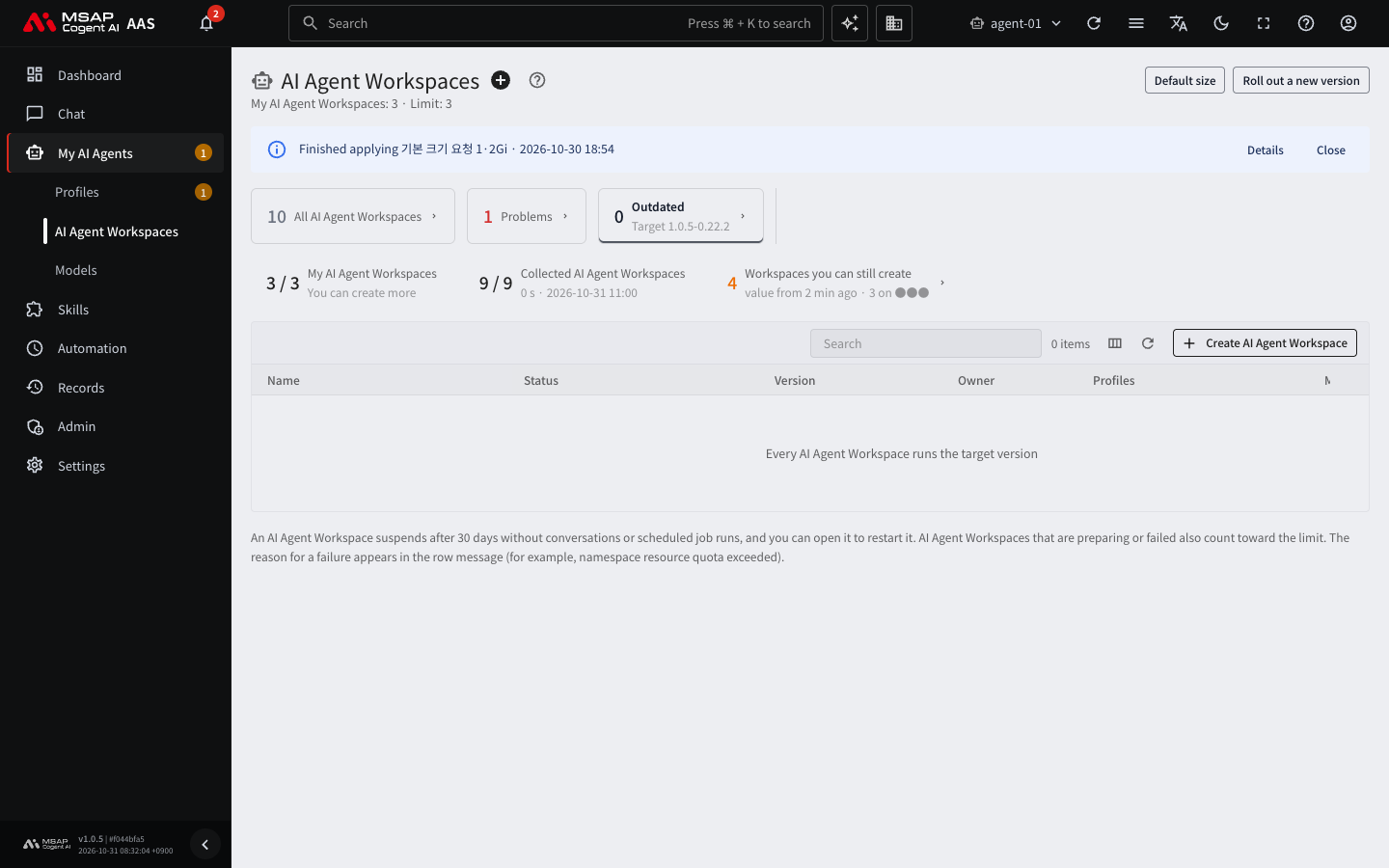
Figure 3.3-1. List filtered by the "Outdated" card
Starting a Rollout
- On the "AI Agent Workspaces" screen, click "Roll out a new version" at the top right.
- In "Version name", enter the new version name.
- In "Hermes image digest", paste the value. If the format is wrong, "Not in repository@sha256:<64 hex> form" appears.
- If the sidecar also changes, paste the value in "Sidecar image digest".
- In "Canary", choose the workspace to switch first. Suspended workspaces and "Pinned" workspaces are not in the list.
- In "Batch size", choose a number from 1 to 5. The default is 2.
- Check "Defer AI Agent Workspaces in a chat". The default is on.
- Read the summary below: "{n} targets · {k} pinned excluded · {j} suspended (applied when resumed)".
- Click "Start" and confirm in the confirmation window.
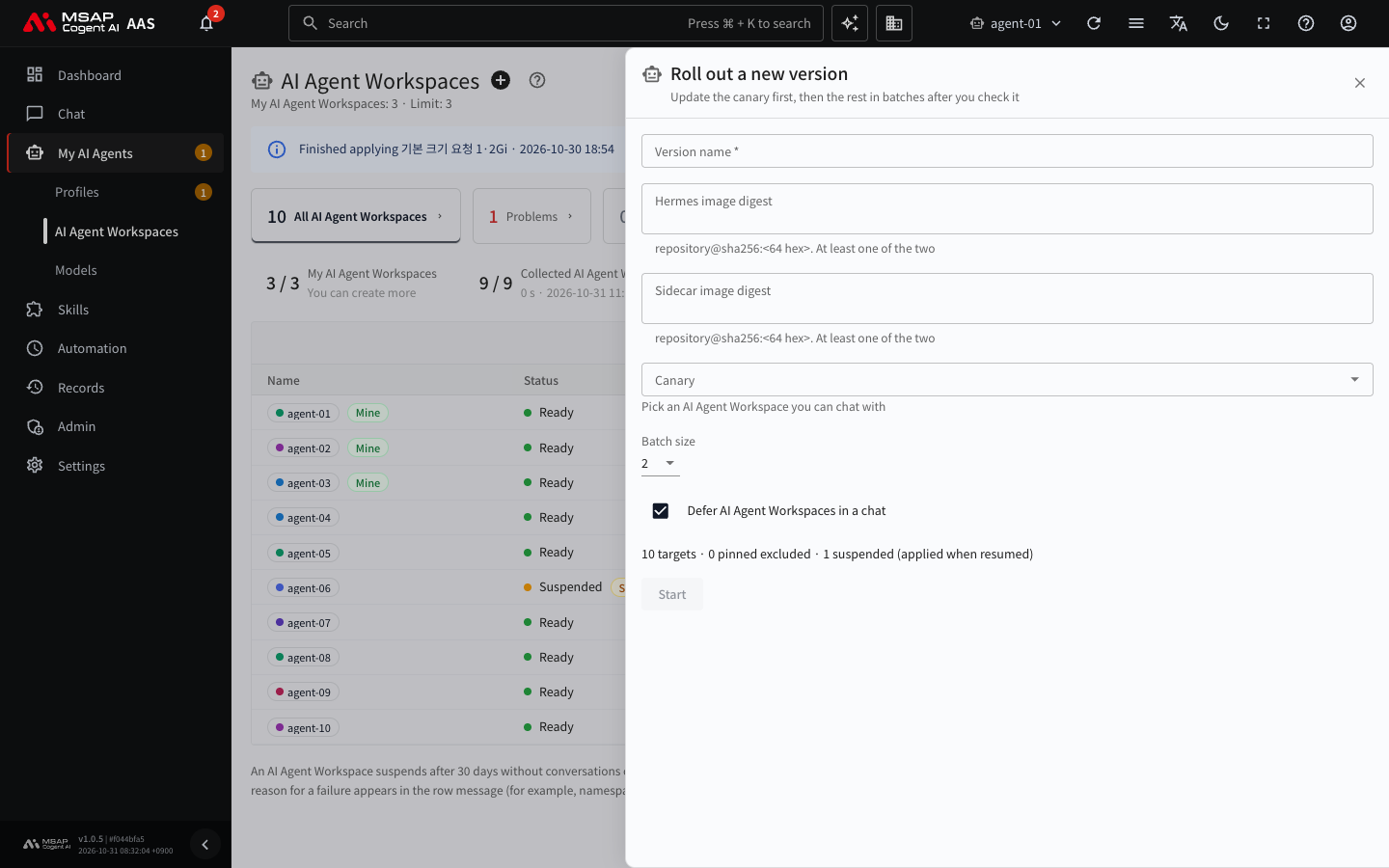
Figure 3.3-2. "Roll out a new version" drawer (closed without starting)
When you start, "Started the {version} rollout" appears and a progress band appears at the top of the screen. If the repository address differs from the one in use, a warning appears below the field. The warning does not block the start. Check that the value you got from the operator is correct. If you set "Canary" to "No canary", the rollout goes straight to batches without a checking step.
If a rollout is in progress, or if the rollout state cannot be read, the "Roll out a new version" button is disabled and a tooltip gives the reason. Only one rollout runs at a time. The button is also disabled while a rollout that applies a size (3.5. Workspace Size and Node Capacity) is in progress.
Progress Stages and What to Do
The band at the top of the screen shows the current stage.
| Stage | Band text | Buttons | What to do now |
|---|---|---|---|
| Preparing | "Preparing the rollout" and the version name | Pause, Details | Wait. |
| Updating the canary | Updating the canary {name} · {n} min (limit 15 min) | Pause, Details | Wait. |
| Waiting for canary approval | The canary {name} is up on {version} · ready in {n} min · waiting {n} min | Continue, Open canary, Roll back | Open the canary and chat with it, then click "Continue" or "Roll back". |
| Updating in batches | Rollout {version} · batch {n} · {done}/{total} done | Pause, Details | Wait. |
| Paused | "Paused", done/total, "The batch in progress finishes" | Continue, Roll back, Details | Check the reason, then click "Continue" or "Roll back". |
| Done | All {n} AI Agent Workspaces now run {version} | Details, Close | Click "Close". |
| Failed | The rollout failed | Roll back all {n} changed, Start again with the same target, Details, Close | See "When a rollout fails". |
In the "Waiting for canary approval", "Paused", and "Failed" stages, the band is in warning color. These are the stages where the administrator must act.
Figure 3.3-3 shows the order of the stages in the table above and their branches.
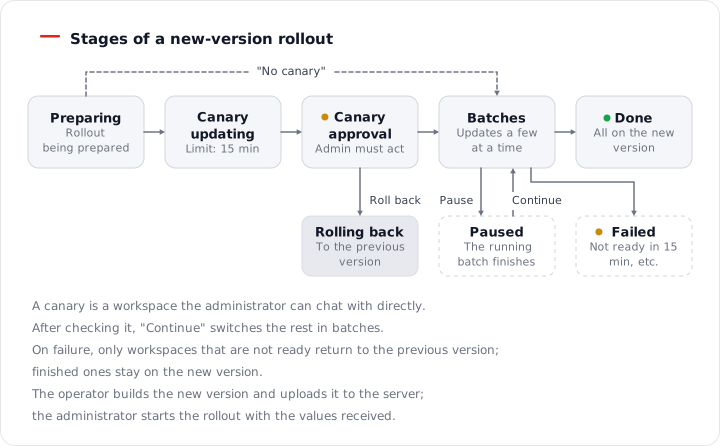
Figure 3.3-3. Stages of a new version rollout
Checking the canary and continuing
- When the band changes to "The canary {name} is up on {version}", click "Open canary".
- In the canary workspace's drawer, check "Version" and the status.
- In chat, talk with that workspace and check that the new version answers normally.
- If nothing is wrong, click "Continue" on the band.
- Read the confirmation window, "Update the next batch of {n} ({names}). Their users are disconnected briefly.", and confirm.
On success, the band changes to "Updating in batches" and the done count increases. If something is wrong, click "Roll back". The changed workspaces return to their own previous versions.
Pausing and rolling back
- "Pause" pauses right away, without confirmation. The batch in progress finishes switching.
- "Continue" resumes from the next batch.
- "Roll back" shows the number and names of the changed workspaces in a confirmation window. When you confirm, a rollout back to the previous versions starts, and the band shows "Rolling back".
How a Rollout Chooses Workspaces
- Workspaces in a chat: If "Defer AI Agent Workspaces in a chat" is on, they are postponed to the last batch. The second line of the band shows "{n} deferred while chatting".
- Suspended workspaces: They are not switched now. They come up on the new version when they turn on again. The band shows "{n} suspended (applied when resumed)".
- Pinned: They are excluded from the rollout. The band shows "{n} pinned, excluded".
- Workspaces running a task: The rollout waits until the running task ends, and then switches them.
- Workspaces created during a rollout: They are created on the new version from the start.
When a Rollout Fails
If a workspace in a batch is not ready within the 15-minute time limit, or if the server has no room, the rollout stops and is marked as failed. At that point, only the workspaces in that batch that are not ready return to the previous version automatically. Workspaces that already finished stay on the new version.
- Click "Details" on the band to check the status and message of each workspace. The table shows "AI Agent Workspace", "State", "Previous → target", "Started", "Finished", and "Message".
- Resolve the cause of the failure. If the server has no room, the band adds "Node room ran short, so it could not start". To resolve it, see "When there is no node room" in 3.5. Workspace Size and Node Capacity.
- To roll back everything, including workspaces that stayed on the new version, click "Roll back all {n} changed".
- To try again with the same version, click "Start again with the same target". The start drawer opens filled with the same values.
- If you do not know the cause, tell the operator. Include the message from "Details" and the names of the failed workspaces.
The per-workspace state indicators are as follows.
| Indicator | Meaning |
|---|---|
| Waiting | Its turn has not come yet. |
| Updating | It is switching to the new version. |
| Done | It switched to the new version. |
| Reverted | It returned to the previous version. |
| Failed | It could not be switched. |
What Users See
The owner of a workspace that is being switched sees "Hermes is being updated to a new version. It usually takes 1-2 minutes, at most 15. Your chats and files stay." In the administrator list, that workspace shows "Updating" and is not counted under "Problems". If it fails after the time limit, it is counted under "Problems" again.
After It Ends
- The "Done" band stays visible for 24 hours after the rollout finishes. When you click "Close", the band for that rollout disappears in this browser.
- If another administrator already did the same action, "Another admin already changed it" appears and the screen reloads.
- If the band shows "The last rollout image differs from the chart value" and "use a rollout to upgrade", the version set at installation differs from the version of the last rollout. Tell the operator.
- The same band is used when you apply a size. Only one rollout runs at a time, regardless of type. For sizes, see 3.5. Workspace Size and Node Capacity.