3.2. Workspace Status and Restarting
Overview
The status of an AI agent workspace (the place where one user's AI agents work, created one per user; see the A.3. Glossary) changes over time. It suspends when it goes unused for a long time or when the user leaves the organization, and it briefly restarts when you switch it to a new version. This chapter explains how to read the status indicators on the "AI Agent Workspaces" screen, how to restart a suspended workspace, and the notice about data volumes (disks) of deleted workspaces. When a user reports that "my AI agent does not answer," check the status on this screen first.
Permission: Administrators and the workspace owner can view the status and restart. Only administrators see the full list. The operator (the person who installs AAS and manages the server) deletes data volumes.
Reading the Status
In the left menu, open "My AI Agents › AI Agent Workspaces". The "Status" column shows one of the following.
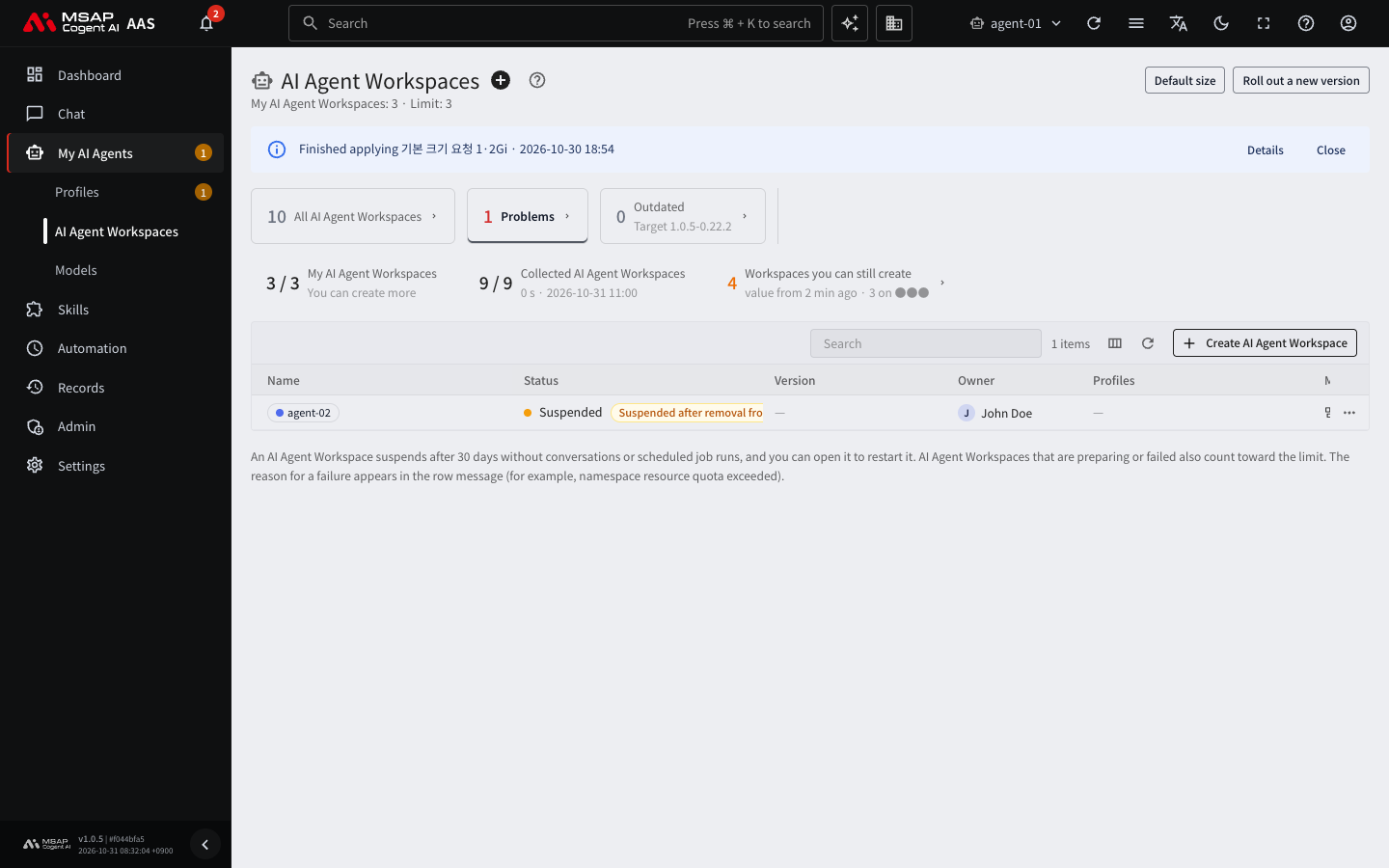
Figure 3.2-1. List on the "Problems" tab
| Status | Meaning | What to do |
|---|---|---|
| Ready | The workspace is prepared and can chat. | Nothing. |
| Preparing | It was just created, or it is pulling the image and attaching the disk. | Wait. |
| Creating | The workspace is being created. | Wait. |
| Failed | It could not be created. The "Message" column shows the reason. | Read the reason and act on it. |
| Suspended | It is stopped. The data is unchanged. | Check the reason and click "Restart". |
| Disconnected | The workspace is not in a ready state. It may be starting again. | If it stays the same after a few minutes, read the "Message" column. If there is no reason, try "Restart". If it still stays the same, tell the operator the workspace name and the time. |
A small indicator can appear next to the status.
| Indicator | Meaning |
|---|---|
| Suspension reason | One of "Suspended after a long idle period", "Suspended after removal from the OIDC group", and "Suspended by an admin". |
| Updating | It is switching to a new version. It is not counted under "Problems". |
| Preparing main | The workspace is up, but the main profile (main) is being created. |
| Waiting for node room | It is waiting because the server has no room. It is counted under "Problems". To resolve it, see "When there is no node room" in 3.5. Workspace Size and Node Capacity. |
If the "Message" column shows that a resource limit was exceeded, the server is short of resources. Tell the operator. Example: "AI agent workspace {name} failed because it exceeded the resource limit. Please add server resources."
When a Workspace Suspends
A suspension does not delete data. The "Stopped because" line in the drawer (the detail window that opens on the right when you click a row) shows the reason and the time it stopped.
| Reason | When it suspends | How to turn it back on |
|---|---|---|
| Suspended after a long idle period | When there have been no conversations or scheduled job runs for 30 days. AAS checks once a day. | Click "Restart". |
| Suspended after removal from the OIDC group | When the owner has been removed from the OIDC group (the group of people who can use AAS; 2.4. Clearing "No AAS Access" and "No OIDC Account"). AAS compares with the group members once a day. | When the owner returns to the group, the workspace turns on by itself at the next check. |
| Disabled | When you disabled that person on the "Users & roles" screen. | It turns on when you enable that person again. |
| Account deleted | When you deleted that person's account. The owner is empty. | Assign a new owner and click "Restart". |
In the following cases, the check does not suspend a workspace.
- A workspace that is less than 30 days old
- A workspace whose last activity could not be read
- When more than half of the workspaces (two or more) appear to have left the OIDC group at once: AAS treats it as a configuration error and suspends nothing.
- When the OIDC group has 0 members: AAS does not compare.
Note: In the drawer, the "Stopped because" line shows the disabled and account-deleted reasons as "Stopped because the user was deactivated" and "Stopped because the user account was deleted". The status column shows "Suspended".
Restarting a Suspended Workspace
The owner and administrators can restart a workspace. The data is unchanged. There are two ways.
From the list
- On the "AI Agent Workspaces" screen, open the "…" menu on the row of the suspended workspace.
- Click "Restart". It starts right away, without a confirmation window.
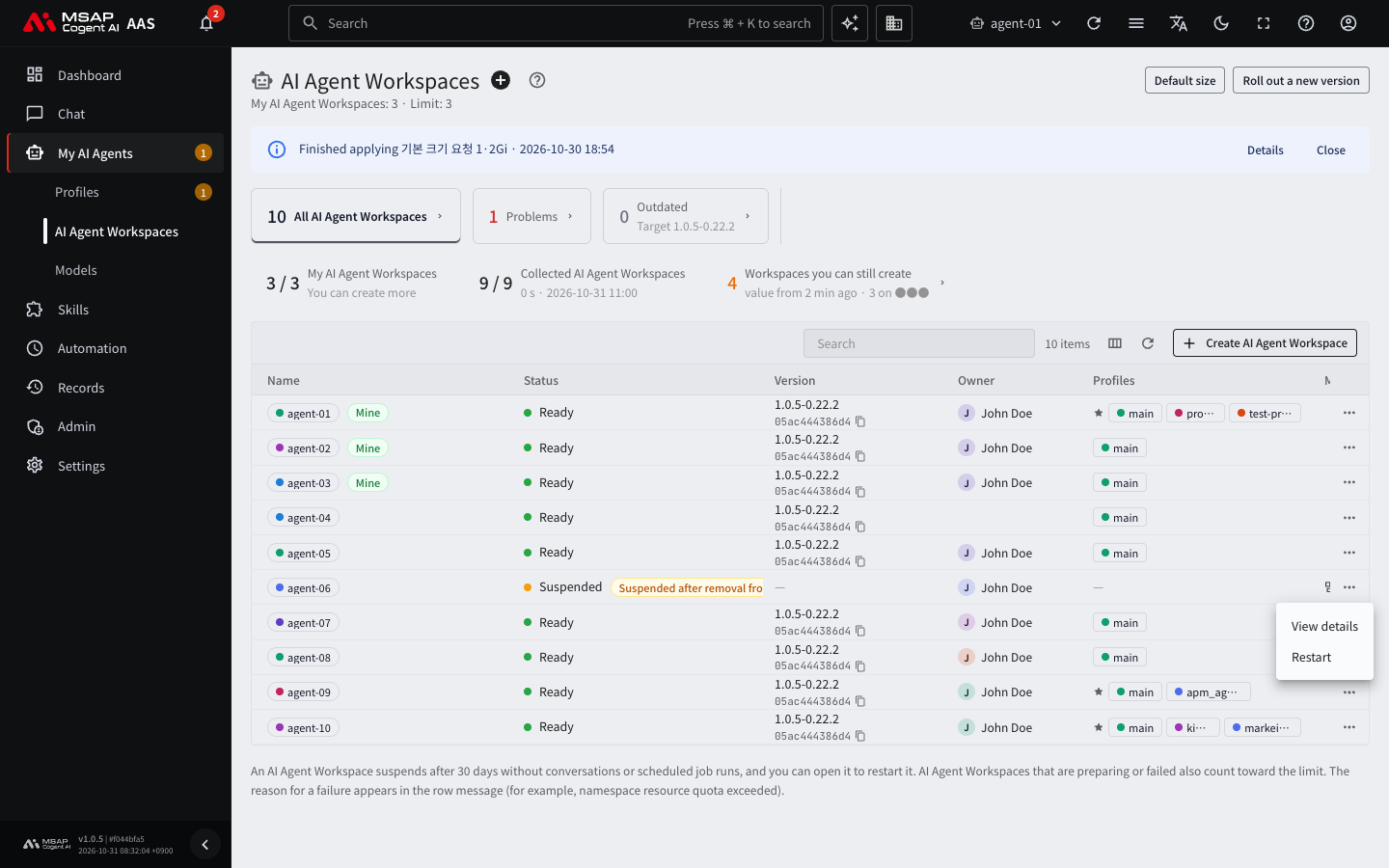
Figure 3.2-2. "…" menu on the row of a suspended workspace (closed without clicking)
From the drawer
- Click the workspace row to open the drawer.
- Click "Restart" at the top of the drawer.
- Read the confirmation window, "Starts the AI Agent Workspace {name} again. You can use it once it is ready.", and confirm.
After you start it, "Restarting {name}. You can use it once it is ready" appears. When the status changes to "Ready", the user can chat again.
What Users See While a Workspace Restarts
When you switch to a new version or apply settings, the workspace briefly restarts. The user's screen then shows the following notices.
- Band at the top of the screen: "The {name} AI Agent Workspace is restarting. Lists and chats may not load for a moment; it continues by itself when done"
- Profile drawer: "The AI Agent Workspace is restarting, so the profiles could not be read. They are read again by themselves when it is done."
- While switching to a new version: "Hermes is being updated to a new version. It usually takes 1-2 minutes, at most 15. Your chats and files stay."
While a workspace restarts, the current workspace on the screen does not change to another workspace. The same is true when an administrator is viewing another person's workspace. For switching to a new version, see 3.3. Rolling Out a New User Hermes Image. For changing the size, see 3.5. Workspace Size and Node Capacity. To tell users in advance, post a "Maintenance" notice in 5.2. Notices.
Data Volumes of Deleted Workspaces
Note: This notice is information to pass to the operator. The administrator reads the notice and decides whether to keep the volumes. You cannot delete a volume from the screen.
Even when you delete a workspace, its data volume (disk) remains. This is deliberate, so that you can restore the deleted workspace or recover its data. AAS counts the period from the time of deletion, and when the period passes, it notifies the administrator's inbox.
| Item | Content |
|---|---|
| Period | 30 days by default. It is set at installation. If you set it to 0, AAS does not notify. |
| Check | Once a day. |
| Notice | Collected into one item: "{n} data volume(s) of deleted AI Agent Workspaces have been kept for more than {days} days" |
| What each line shows | The former owner and name, "deleted {n} days ago", the size, and "export {file name}" |
For a volume whose deletion time AAS does not know (a volume deleted before this function existed, or deleted by another method), the line shows "first seen {n} days ago". AAS counts from the time it first saw the volume.
Checking the notice
- Click the inbox (bell icon) button on the bar at the top of the screen.
- Find the "Leftover data volumes" item.
- For each line, check which workspace the volume belongs to.
- If you might need to restore it or recover data, leave the notice as it is.
- If it is not needed, pass the command shown in the item to the operator to delete it. Example request: "Please delete the data volume of the deleted AI agent workspace {name}. I am sending the command shown in the notice."
- If you decided to keep it, click "Mark handled". AAS does not notify again until the same period passes.
Caution: Deleting a volume permanently deletes data, so the operator does it directly on the server. A deleted volume cannot be restored. First check whether an export file exists.