7.2. Change Log
Overview
The change log is the screen that records who changed what and when. An administrator sees the records of all AI agent workspaces on one screen. Use this screen when an AI agent suddenly behaves differently and you need to find the change that caused it, or when a security check needs to confirm the change history.
Permissions: Administrator. Workspace owners and team managers see only their own scope (see the table below).
Note: Adding users, changing permissions, and sign-in records are on the "Access" tab, not the "Changes" tab. The change log does not record secrets or the contents of text. Only the fact that something changed is recorded. To see what changed in the personality (SOUL), settings, skill documents, and instructions, use "Previous version" in each editor.
Who Sees What
| User | Change log screen | Scope |
|---|---|---|
| Administrator | "Records › Change history" | All AI agent workspaces and access records |
| Workspace owner | "Records › Change history" (title: My AI Agent Workspace change history) | The workspace you are viewing now that is your own, with records from after the current owner became the owner |
| Team manager | "Records › Change history" (title: Team AI Agent Workspace change log) | The team member's workspace you are viewing now, with records from after the current owner became the owner |
| Other users | Not in the menu | Cannot view |
What the "Who" Column Shows
The "Who" column of the same record looks different depending on who is viewing.
| The person | Administrator's screen | Workspace owner's screen |
|---|---|---|
| Administrator | The name is shown. | Shown as "Changed by admin", without the name. |
| Team manager | The name and a "Team manager" mark are shown. | The name and a "Team manager" mark are shown. |
| A person who is not an owner, team manager, or administrator (for example, someone who only has access permission) | The name and a "Someone else" mark are shown. | The name and a "Someone else" mark are shown. |
In old records from before AAS kept who made the change, the "Who" column is empty.
Opening the Screen
- Open "Records › Change history" in the left menu.
- In the period selector at the top right, choose 7 days or 30 days. The default is 30 days. The Usage screen starts at 7 days, so the default period differs between the two screens.
Tabs
| Tab | Content |
|---|---|
| Changes | Changes that succeeded |
| Rejected or failed | Requests that were rejected or failed |
| Access | Records of sign-ins, failed sign-ins, session endings, and user and permission management |
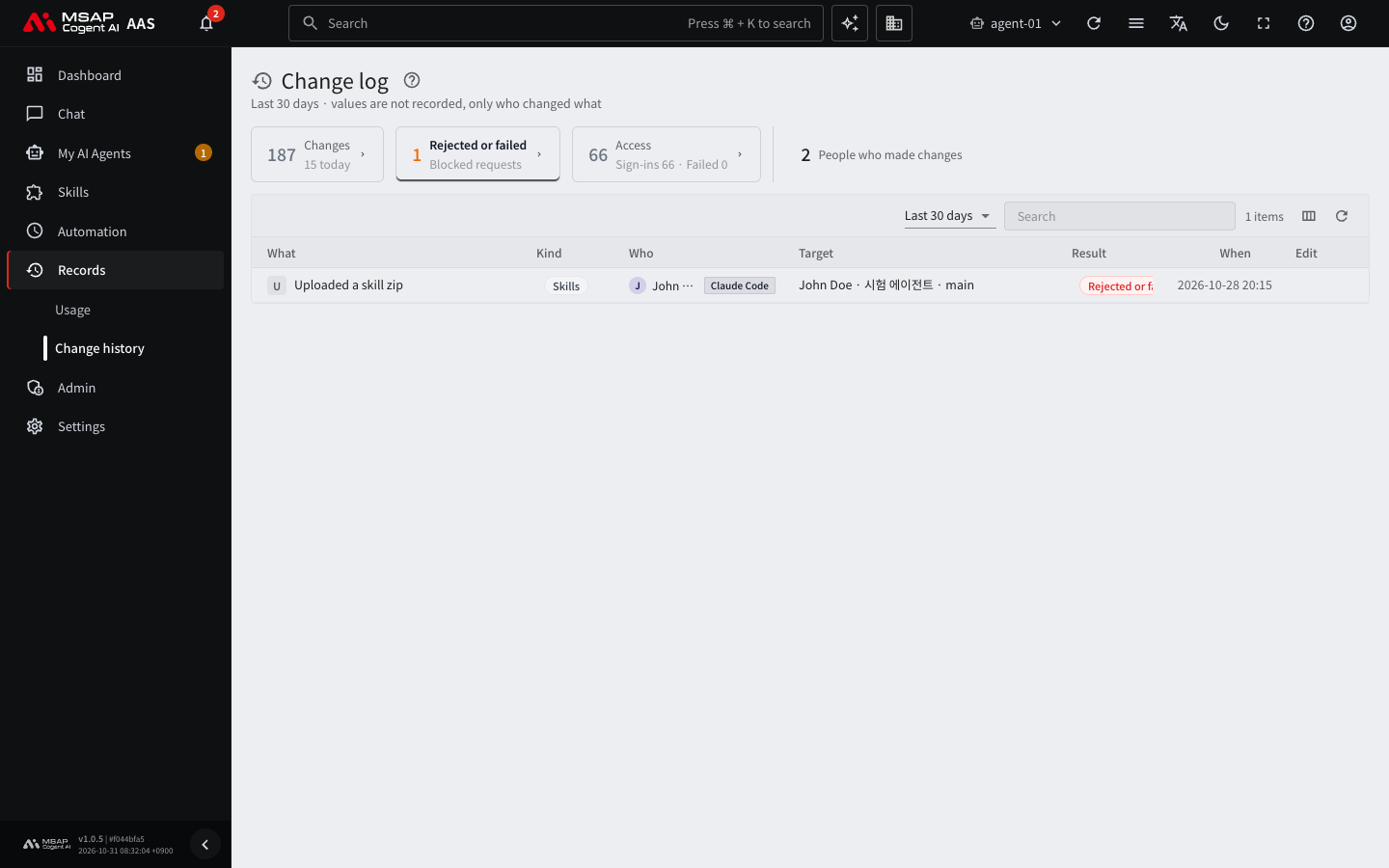
Figure 7.2-1. The "Rejected or failed" tab
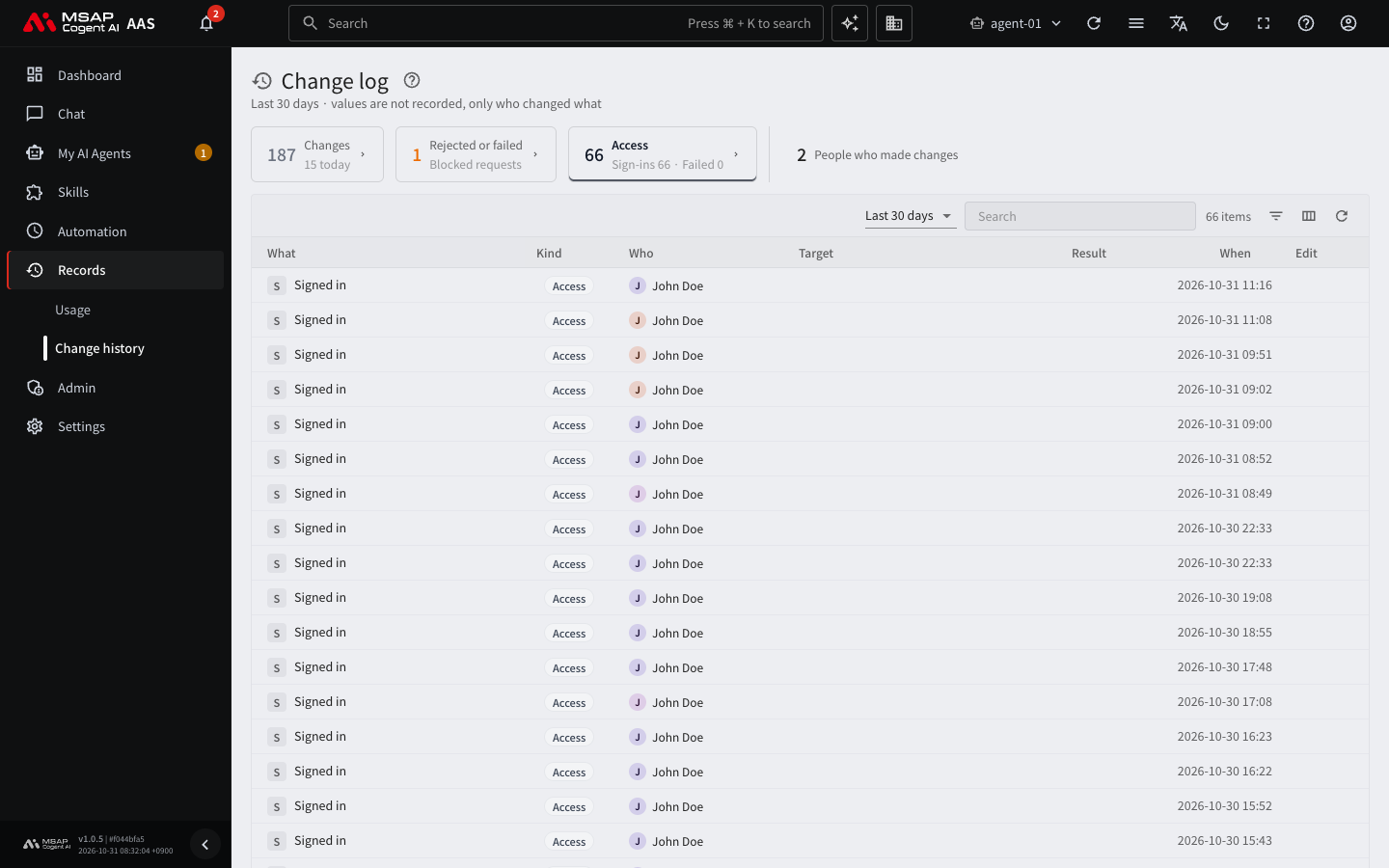
Figure 7.2-2. The "Access" tab
The cards at the top show the number of "People who made changes" and a summary for each tab (the number of today's records, and the number of sign-ins and failures).
Table Columns
| Column | Content |
|---|---|
| What | What changed. Examples: "Changed the main model", "Deleted a skill" |
| Kind | The group the change belongs to (see the "Kind Groups" table below) |
| Who | The person who made the change. If it was not a person, one of "AAS (automatic)", "AI Agent", or "Not signed in" is shown. Old records from before AAS kept who made the change show "No record". |
| Target | What was changed. On the administrator's screen it appears in the form "Owner · Target", so you can see whose AI agent workspace it is. |
| Result | Whether it was rejected or failed, and the processing state of an install request |
| When | The time of the change |
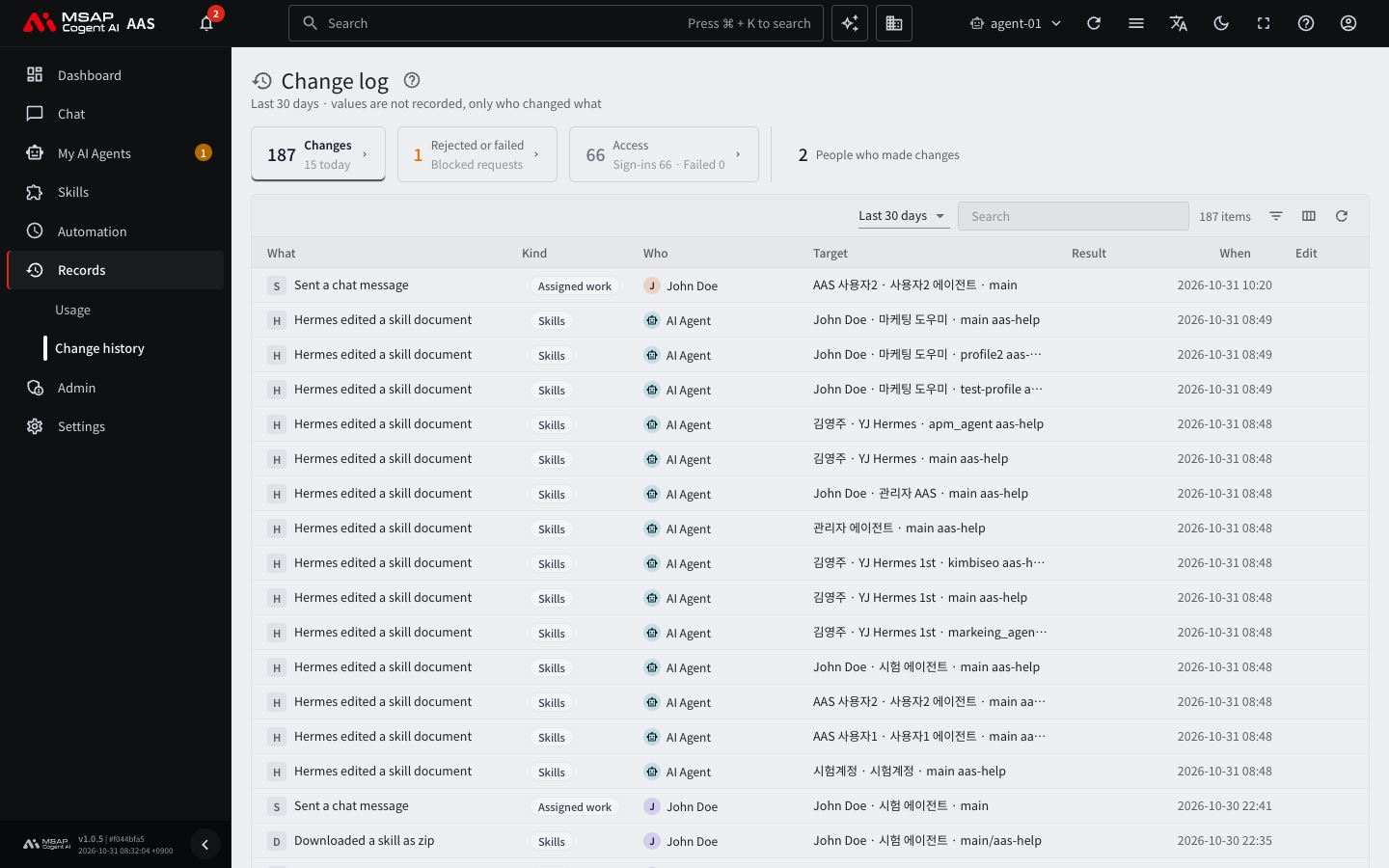
Figure 7.2-3. The change log screen
Clicking a row shows the time, person, change, AI agent workspace, target, and result in the detail pane on the right. If the change has an install request, you can go to "View skill hub requests".
Kind Groups
| Group | What it includes |
|---|---|
| Scheduled jobs | Creating, deleting, changing the schedule, instructions, or delivery target, pausing and resuming, requesting an immediate run |
| Profiles | Creating, deleting, renaming, changing the personality, settings, or model, starting and stopping the gateway, enabling or disabling skills, toolsets, and MCP servers |
| Secrets | Saving and deleting secrets, adding and removing credential files |
| Skills | Editing and reverting skill documents, creating, deleting, uploading and downloading zip files |
| Office | Changes to placements, rooms, Kanban, and meetings |
| Skill hub | Package install and removal requests, changes to namespace allowances, restoring archived skills |
| Assigned work | Records of giving work to an AI agent through chat or the Office (records with the same person, target, and date are grouped into one line) |
| Access | Sign-ins, failed sign-ins, session endings, adding users, changing permissions, resetting passwords, disabling and deleting users, changing team managers, ending sign-ins |
| Settings | Company name, posting and taking down notices |
Records in the "Access" group appear only on the "Access" tab. They do not appear on the "Changes" and "Rejected or failed" tabs.
Finding the Record You Want
- In the search box, enter text such as an AI agent workspace name, a person's name, or a target.
- In the filters, choose "Kind". It is one of the groups such as Scheduled jobs, Profiles, and Secrets.
- In the filters, choose "Who". You can choose a specific person, or "AAS (automatic)" or "AI Agent".
- In the filters, choose "Through". It separates whether the change was made through the "Screen" or through "Claude Code".
- Click a column header to sort.
The "Who" filter list also has "No record" as one item. If you choose it, only old records remain.
Examples for Common Situations
| Situation | How to check |
|---|---|
| An AI agent suddenly answers differently. | Choose "Profiles" in "Kind" and look for "Edited the personality", "Edited settings", and "Changed the main model" for the target AI agent workspace. |
| A scheduled job stopped. | Choose "Scheduled jobs" in "Kind" and look for "Paused a job". |
| A skill disappeared. | Choose "Skills" in "Kind" and look for "Deleted a skill". |
| You need to know who changed a secret. | Choose "Secrets" in "Kind". Values are not recorded, so only the fact of the change is shown. |
| You need to check sign-in attempts, added users, or permission changes. | Look at the "Access" tab (they do not appear on the "Changes" tab). Check whether "Sign-in failed" rows repeat and whether there is "Granted, changed, or revoked access". |
| You need to know who allowed a "Restricted" package. | Choose "Skill hub" in "Kind" and look for "Changed access to a namespace that needs an allowance". |