3.5. Workspace Size and Node Capacity
Overview
An AI agent workspace (the place where one user's AI agents work, created one per user) has a size. The size is the amount of CPU, memory, and disk that one workspace uses. This chapter explains how to set the default size of new workspaces and the size for each person, how to apply a new size to workspaces that already exist, and how to see how many more workspaces the server can create. Use this chapter when a workspace stays in "Waiting for node room", or when some users need a larger workspace.
Permission: Only administrators can view and change these settings. Regular users and team managers do not see the size settings or the "Workspaces you can still create" card.
Note: The screens in this chapter work only on installations where AAS can create and delete workspaces. Otherwise, the screen shows "This server is not in Kubernetes mode". If you see this message, tell the operator (the person who installs AAS and manages the server).
Terms You May Not Know
| Term | Meaning |
|---|---|
| Node | The server computer that workspaces run on. Several workspaces run on one server. |
| Request | The amount a workspace is always guaranteed on the server. |
| Limit | The amount a workspace cannot exceed. |
| PVC | The disk of a workspace. The "PVC size" field on the screen is this size. |
Opening the Screen
In the left menu, click "My AI Agents › AI Agent Workspaces". The keyboard shortcut is g followed by n. The drawer (the detail window that opens on the right; see the A.3. Glossary) opens when you click a row in the list.
The following relate to size. For the list and count limits, see 3.1. Workspace List and Count Limits.
| Place | What it does |
|---|---|
| "Default size" button (top right of the screen) | Sets the default size of new workspaces. |
| "Settings for this person › Size" in the drawer | Sets the size of one person's workspaces separately. |
| "Differs from settings" view card | Collects the workspaces whose running size differs from the settings. |
| "Size" column | Shows the size set for each workspace. It is hidden at first. |
| "Workspaces you can still create" card | Shows how many more workspaces the server can create. |
The Order in Which a Size Is Decided
For each field (CPU request, CPU limit, memory request, memory limit, PVC size), the value is decided in the following order. The earlier value wins.
| Order | Value | Where it is set |
|---|---|---|
| 1 | Per-person value | "Settings for this person › Size" in the workspace drawer |
| 2 | Administrator default | The "Default size" button |
| 3 | Install default | The value the operator set at installation. You do not change it on this screen. |
If you leave a field empty, it follows the value below it in the order. You can leave each field empty separately. Example: if you set only one person's memory limit to 8 GiB and leave the other fields empty, that person gets a memory limit of 8 GiB and the administrator defaults for the rest.
Figure 3.5-1 shows the order above and the example.
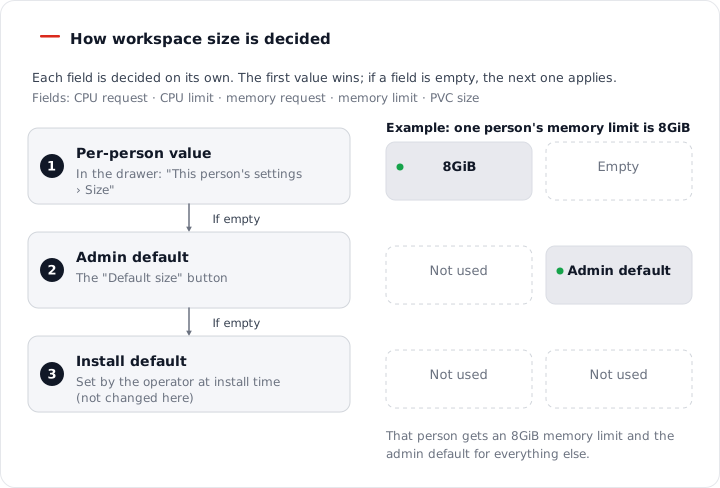
Figure 3.5-1. The order in which a workspace size is decided
Units and Input
- CPU is in "CPU" units, entered in steps of 0.05. Example: 0.5 CPU
- Memory and PVC are in GiB, entered in steps of 0.25 GiB.
- If the request is larger than the limit, "The request is larger than the limit" appears. If the value is not a number, "Enter a number above zero" appears.
- CPU and memory show "Request" and "Limit" fields together with a range bar. When you drag a handle on the bar, the value at the tick goes into the field. Enter exact values directly in the field.
- On the bar, a filled dot is a value you set yourself, and a hollow dot is a value that follows the default because you left the field empty.
- PVC shows one field and quick values (5, 10, 20, and 50 GiB). The disk size applies only to newly created workspaces. Disks that already exist do not change.
Setting the Default Size
The default size is the size given to newly created workspaces.
- On the "AI Agent Workspaces" screen, click the "Default size" button at the top right.
- In the drawer, set a value for each field. Each field shows the install default as "Default {value}".
- Below, check how many more workspaces you can create at this size with "{n} more at this size".
- Click "Save size".
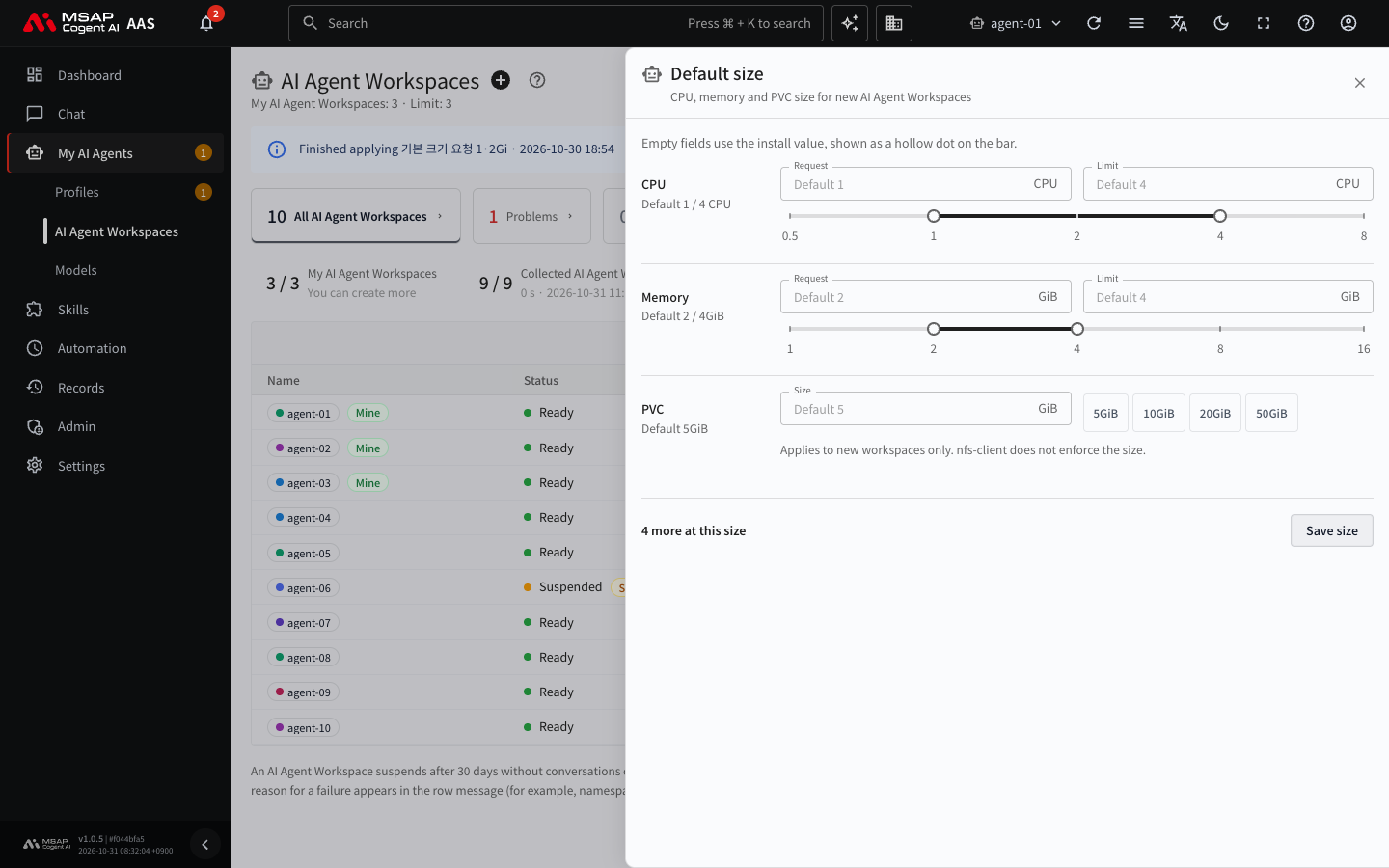
Figure 3.5-2. "Default size" drawer (closed without saving)
After you save, "Saved the default size · applies to new AI Agent Workspaces" appears. Existing workspaces do not change, and they are marked "Differs from settings". To apply the size to existing workspaces, see "Applying a size to existing workspaces" in this chapter. If the check before saving blocks you, the reason appears. See "Check before saving".
Setting a Size for One Person
Caution: When you save a per-person size, all of that person's workspaces restart one at a time. While they restart, user connections drop briefly. Tell users in advance with a "Maintenance" notice in 5.2. Notices.
- Click that person's workspace row to open the drawer.
- In the "Settings for this person" area, under "Size", set a value for each field.
- Click "Save size".
- In the confirmation window, read the list of workspaces that will be recreated. A workspace that is in a chat has an "In a chat" mark and is postponed.
- Confirm.
After you save, "Saved the size of {name} · recreating {n} workspaces" appears. The workspace status shows "Changing size". Follow the progress in "Size rollout progress" in this chapter.
- When you save a per-person value, the administrator default also applies to that person's workspaces.
- If you clear the per-person value, the workspaces follow the administrator default.
- If another rollout is in progress, only the values are saved, and "Saved the size of {name} · use "Apply again" after the running rollout ends" appears. After it ends, click "Apply again".
There is no button to undo a wrong value. Change the value, save again, and apply again.
Check Before Saving
When you save, AAS checks how much room is left on the nodes.
| Situation | Result |
|---|---|
| The request is larger than the allocatable amount of any node | Rejected. It cannot fit on any node. |
| You raised the request of running workspaces, and no node has room | Blocked. The reason and "Free room by node" appear. |
| A value that applies only to new workspaces does not fit on the nodes that have room now | A warning only. |
| The sum of memory limits exceeds the node memory | A warning only. |
When you are blocked, the "Save anyway (may wait)" button appears. When you click it, you confirm "{n} workspaces may stay waiting for node room. Save anyway." and then it saves. A workspace without room cannot start and waits. If it is rejected, lower the request or ask the operator to add nodes. For the wording of the request, see "When there is no node room".
Applying a Size to Existing Workspaces
"Differs from settings" means a workspace whose running size differs from the current settings in even one field.
- Click the "Differs from settings" view card at the top. This card appears only when there are matching workspaces.
- Click the "Apply to existing ({n}, one at a time)" button above the list.
- Read the confirmation window, "Recreates {n} workspaces one at a time at the configured size. User connections drop briefly. It pauses when no node has room.", and confirm.
When you start, a progress band appears at the top of the screen. To apply to only one workspace, click "Apply again" in the "…" menu of that row. This menu appears only when the workspace differs from the settings. If another rollout is in progress, the button is disabled and shows "You can apply after the rollout ends". If another administrator started it, "A rollout started by {name} is in progress" also appears. Wait for it to end and click again.
Size Rollout Progress
Applying a size uses the same band as a new version rollout. It recreates workspaces one at a time and postpones workspaces that are in a chat. Only one rollout runs at a time, regardless of type. You read the band the same way as in 3.3. Rolling Out a New User Hermes Image.
| Stage | Band text | Buttons | What to do now |
|---|---|---|---|
| In progress | "Applying {name} {done} / {total}" | Pause, Details | Wait. |
| Paused | "Paused at {done} / {total}". If a node has no room, "{name} has no node room" also appears. | Continue, Stop, Details | Make room, then click "Continue". |
| Done | "Finished applying {name}" | Details, Close | Click "Close". |
| Failed | "Applying the size failed" and the reason | Details, Close | Read the reason in "Details". |
- "Continue" resumes applying after you make node room.
- "Stop" stops after you confirm the window "The {done} of {total} already changed keep the new size; the rest stay as they are." It then shows "Stopped applying the size".
- A size rollout has no "Roll back" or "Start again with the same target". To undo it, change the values and apply again.
When applying ends, the workspace status returns to "Ready", and the "Differs from settings" mark disappears.
Workspaces You Can Still Create
The "Workspaces you can still create" card at the top is the number of workspaces that can be started on the current nodes. At the default size, for each node, AAS calculates from the scarcest of CPU, memory, and workspace count, and subtracts the share that workspaces waiting for node room will use. Users do not see this number. When there is no node room, the user's create drawer shows "Nodes have no room now, so a new one will stay waiting. Let an admin know". The create button stays enabled.
| Second line of the card | Meaning | What to do |
|---|---|---|
| {n} on {node name} | Many workspaces are concentrated on one node. | Nothing. |
| Out of memory ({n} nodes), Out of CPU ({n} nodes), Pod count limit ({n} nodes) | The reason there are 0 slots. The card is in warning color. | Ask the operator to add nodes. |
| Limited by the namespace quota | The resource limit set for the whole server is smaller than the node room. | Tell the operator. |
| Value from {n} min ago | The calculation has not been updated for a long time. It is in warning color. | Tell the operator. |
| Not known yet | The calculation of remaining room is off or has no result yet. A dash appears instead of a number. | Tell the operator. |
| Could not read | Reading the value failed. | Click "Retry", and if it stays the same, tell the operator. |
When you click the card, the "Room by node" drawer opens. For each node, it shows the number of slots, a CPU bar, a memory bar, the memory request ratio, and the memory limit total. The whole bar is the total capacity of the node, and the filled part is the amount already requested. Above 90%, it is in warning color. "All nodes" at the top is the total. For a node with 0 slots, the reason is one of "Out of memory", "Out of CPU", and "Pod count limit reached". At the bottom of the drawer, the basis of the calculation appears (the CPU and memory of one workspace). It also notes that resuming a suspended workspace uses room, and that disk room is not included in the calculation.
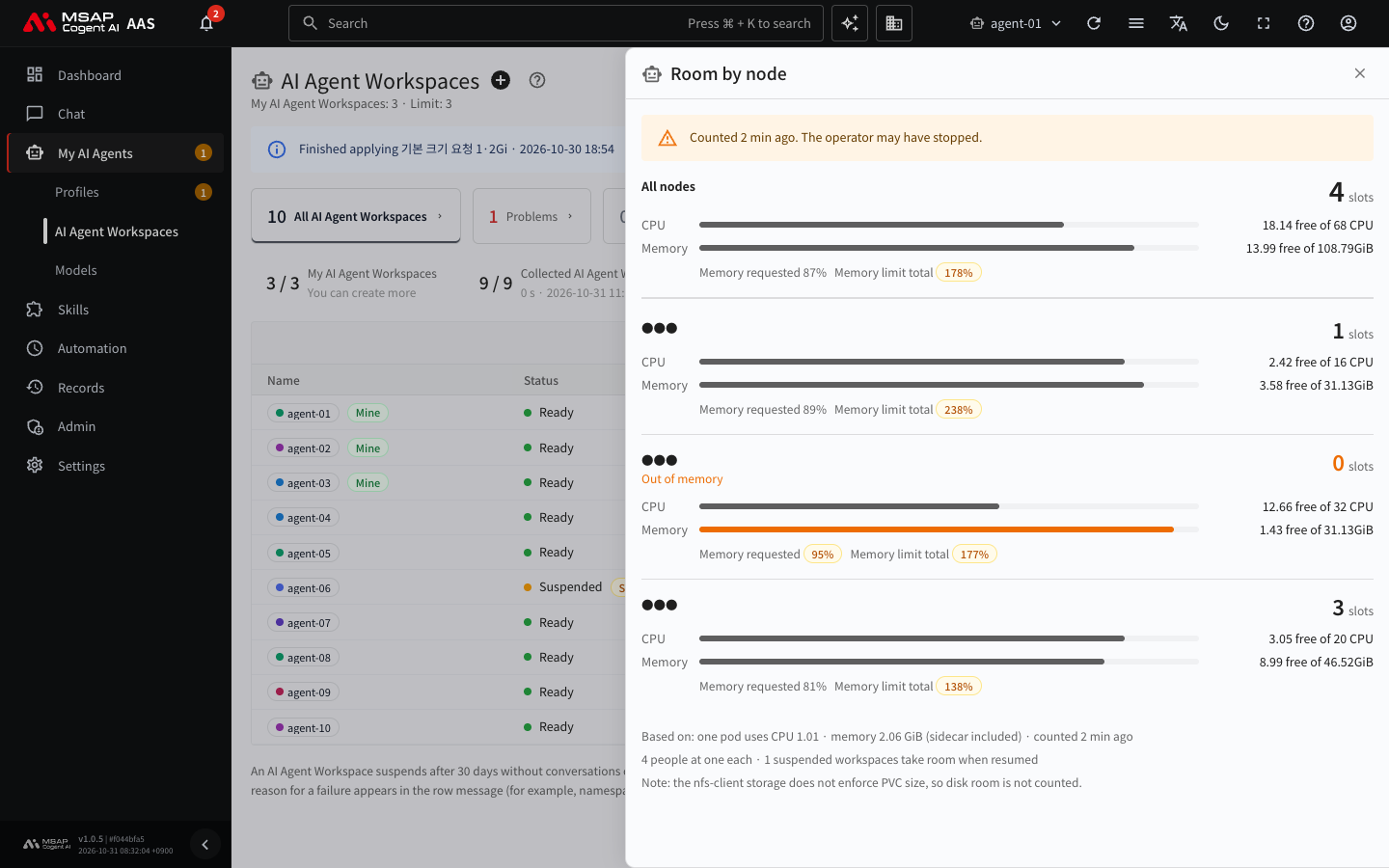
Figure 3.5-3. "Room by node" drawer
When There Is No Node Room
If a workspace is in "Waiting for node room", it cannot start because no node has room. This state is counted under "Problems". When a size rollout or a new version rollout stops for lack of room, you resolve it the same way.
- Suspend workspaces that are not in use to make room. For how to suspend, see 3.2. Workspace Status and Restarting.
- If you need more, ask the operator to add nodes. Example: "AI agent workspaces are waiting for node room. 'Workspaces you can still create' is 0, and the reason is memory. Please add nodes or increase resources."
- When room is available, click "Continue" on the paused rollout.
Checking
- The "Size" column in the list: turn it on in the column picker above the table. Only the fields you set appear, such as "Memory limit 8GiB". If nothing is set, it shows "Default". Workspaces that differ from the settings get a "Differs from settings" mark.
- The "Size" line in the workspace drawer: it shows the CPU request and limit, the memory request and limit, and the PVC size. If the actual disk size differs, " (actual {size})" is added.
- "Changing size" in the workspace status: a size rollout is recreating the workspace. It is not counted under "Problems".
- "Waiting for node room" in the workspace status: see "When there is no node room" in this chapter.