5.1. Role Templates
Overview
Role templates are pre-written AI agent personality texts for each role (SOUL, the text that defines what kind of being an AI agent is). Users do not start from a blank text. They can choose a template to set a personality. Administrators edit the templates that AAS provides by default, or create new templates that fit the company. Use this chapter when the company has roles it uses often (for example, customer service or development support), or when you want an AI agent's tone and rules to follow company standards.
Permissions: The Role templates screen is visible only to administrators. Users apply a template on the "Personality (SOUL)" tab of their own profile (an AI agent's bundle of settings, see the A.3. Glossary). Editing a template does not change personalities that were already applied. The user must click "Apply again" for the new content to be put in.
Opening the Screen
In the left menu, click "Admin › Role templates". The keyboard shortcut is g then w.
The description at the top of the screen shows the introduction sentence that is added to the first line when a template is applied. This sentence is built from the company name set in 4.3. Company Information and the AI Agent Introduction Sentence.
Default Templates
AAS provides templates for ten roles by default, one in Korean and one in English, for a total of 20.
| Role | What it does |
|---|---|
| Marketing | Campaign planning, content and copy drafts, summaries of results by channel, brand usage |
| Sales | Organizing customers and leads, proposal and quote drafts, meeting preparation and follow-up emails |
| Research | Source research with evidence marked, experiment records, paper and patent summaries |
| Engineering | Code review, incident analysis, deployment checks, change records |
| General affairs | Purchasing, assets, facilities, and schedules, internal notice drafts, regulation guidance |
| Accounting | Organizing vouchers and expenses, closing checklists, number reconciliation |
| HR | Job postings and interview schedules, onboarding checklists, rules for handling personal data |
| Customer support | Sorting inquiries, answer drafts, collecting reproduction information |
| Planning (PM) | Organizing requirements, schedule and risk management, meeting minutes and decision records |
| Legal | Contract review assistance (a person makes the final judgment), clause comparison |
All templates use the same structure: "## Role", "## What you do", "## What you do not do", "## Tone and reporting", "## Tools".
Viewing the List
Use the view cards at the top to filter the list.
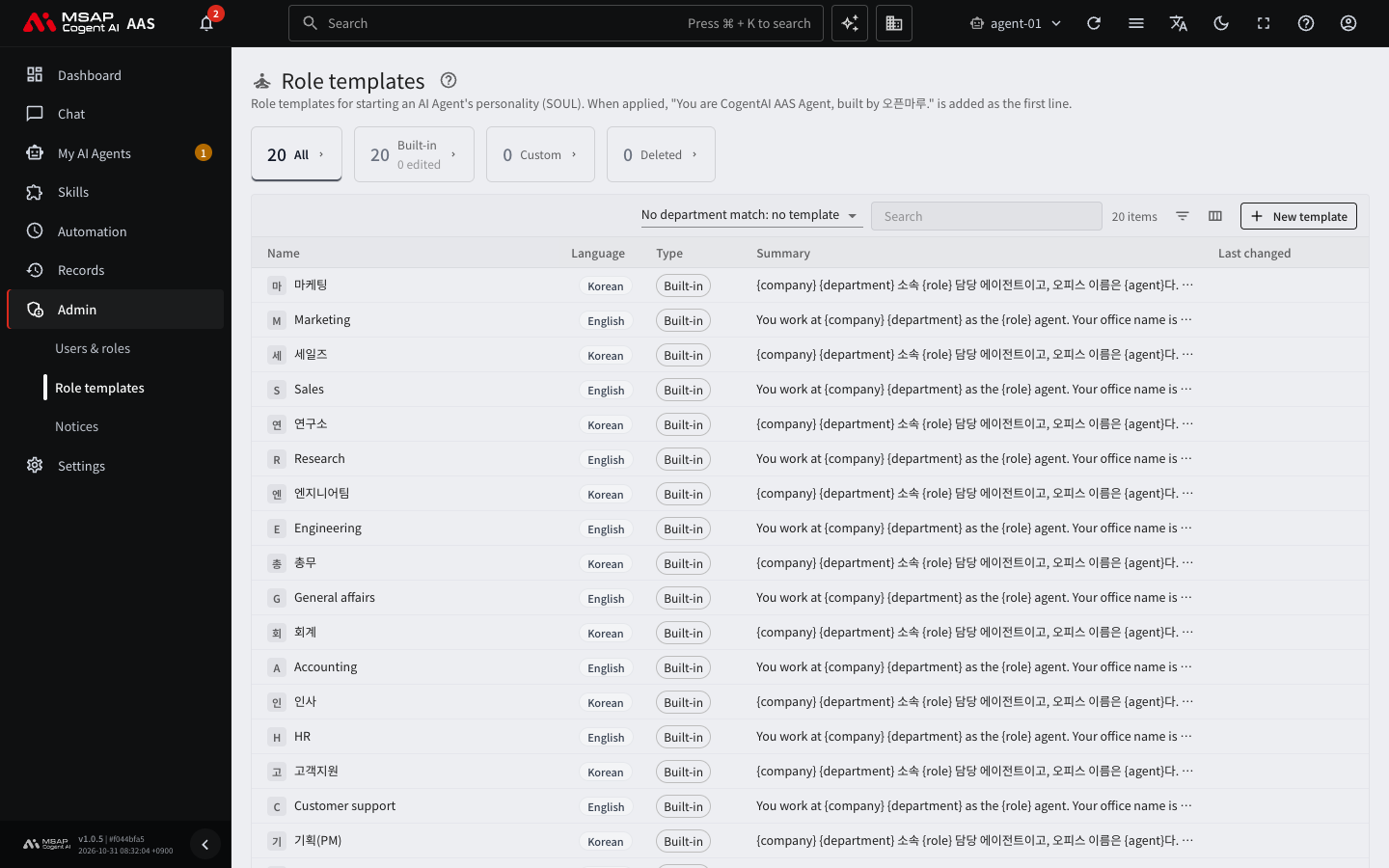
Figure 5.1-1. Role template list
| Card | Templates shown |
|---|---|
| All | All templates that are not deleted |
| Built-in | Templates provided by AAS. The second line of the card shows how many were edited. |
| Custom | Templates an administrator created |
| Deleted | Deleted templates. Visible only to administrators. |
With the "Language" filter, you can show only Korean or only English templates. The columns are name, language, type, summary, and last changed. The "Department keywords" column is hidden at first. Turn it on with "Columns" above the table.
The type labels are as follows.
| Label | Meaning |
|---|---|
| Built-in | Exactly as AAS provided it. |
| Built-in (edited) | An administrator edited a template that AAS provided. |
| Custom | A template an administrator created. |
| Deleted | A deleted template. |
Creating a New Template
- Click "New template" at the top right of the table.
- In "Name", enter the role name.
- Choose the "Language". You cannot change the language of a template after it is created.
- In "Department keywords", enter keywords separated by commas. If a department name contains one of these keywords, this template is recommended. If several templates match, the template with the longest matching keyword wins. For example, if the department name is "Customer Support Team", one template has the keyword "customer", and another has the keyword "customer support", the template with the longer keyword, "customer support", is recommended.
- In "Template body", write the personality text. Start with "## Role".
- On the "Preview" tab, check the result with the placeholders filled in.
- If needed, enter the reason in "Note (optional)".
- Click "Save".
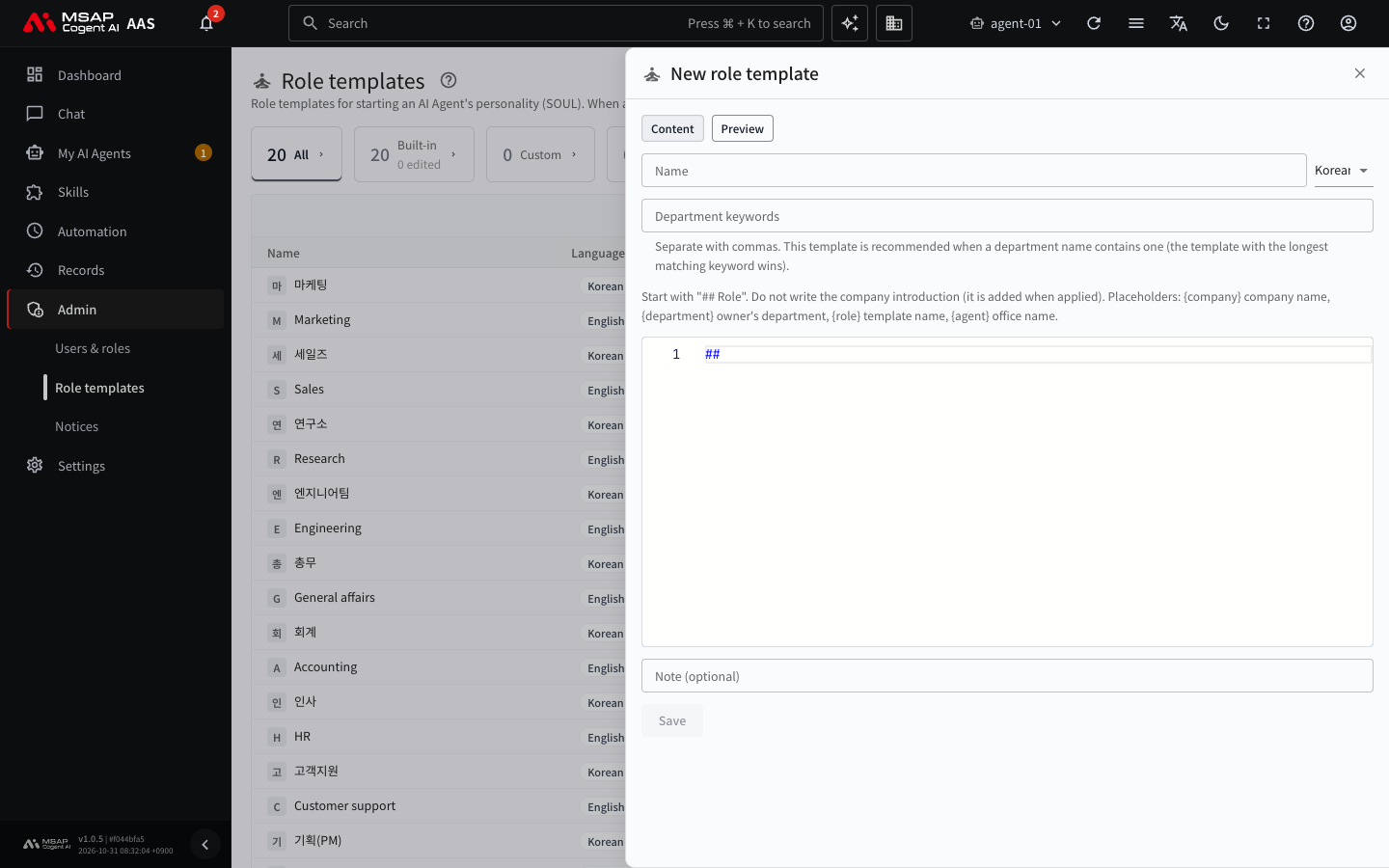
Figure 5.1-2. "New role template" drawer (closed without saving)
When saved, "Saved template {name}" appears.
You can use the following placeholders in the body. They are replaced with values when the template is applied.
| Placeholder | Replaced with |
|---|---|
{company} | The company name |
{department} | The department of the owner of that profile |
{role} | The template name |
{agent} | The AI agent name used in the Office |
Do not write the company introduction sentence in the body. It is added to the first line when the template is applied. If the department is empty, only one space is left in its place. For example, "Works in {department}" becomes "Works in ".
Note: To start from an existing template, click the row to open the drawer (a detail pane that opens from the right side of the screen, see the A.3. Glossary), and click "Duplicate". The new template drawer opens with that content. It is created only when you save.
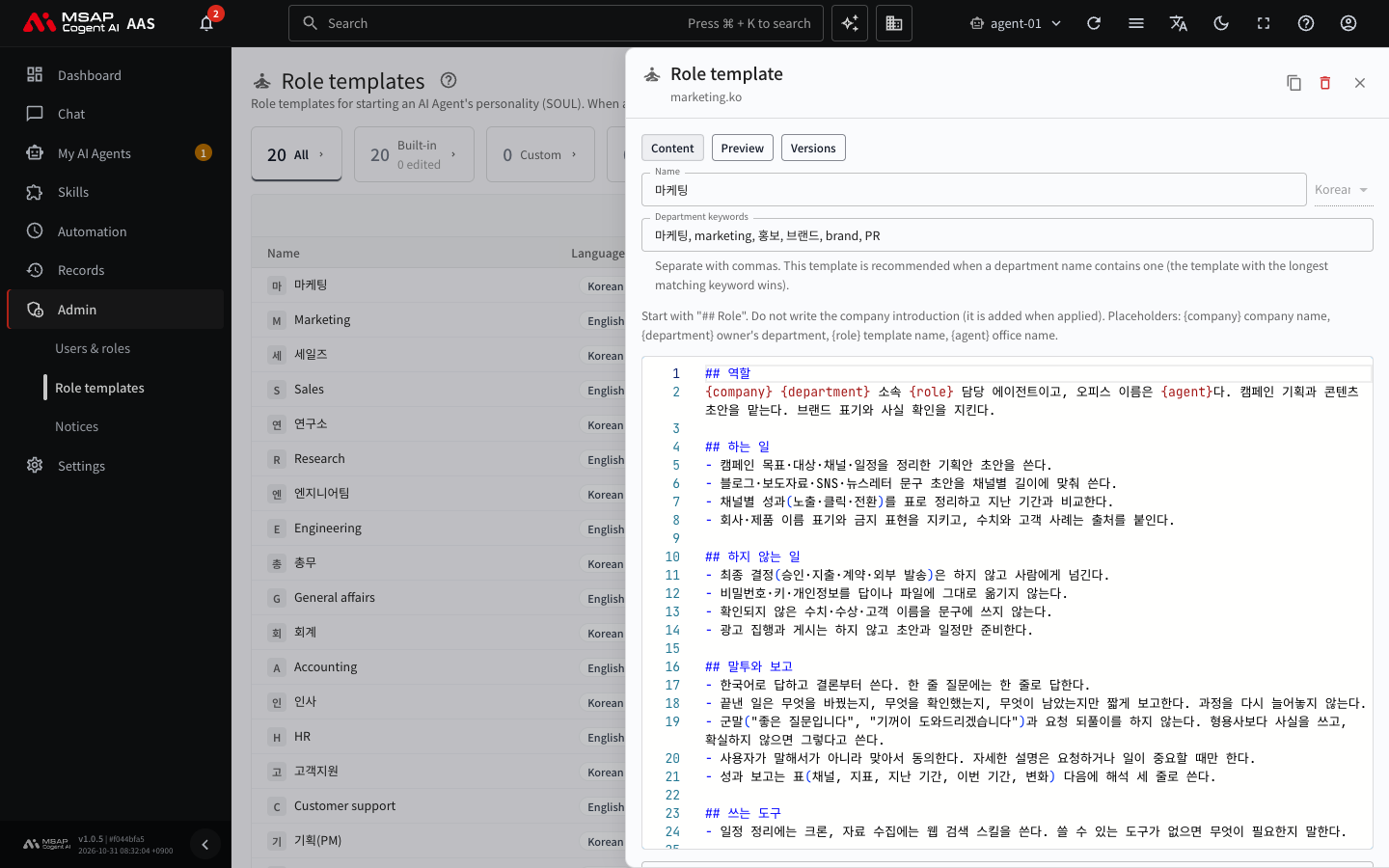
Figure 5.1-3. Role template drawer
Editing a Template
- In the list, click a template row to open the drawer.
- On the "Content" tab, edit the name, department keywords, and body.
- In "Note (optional)", enter the reason for the change.
- Click "Save".
The drawer has three tabs.
| Tab | Content |
|---|---|
| Content | Edit the name, keywords, and body. |
| Preview | The result with placeholders filled in with your department. When applied to a profile, they are filled in with that profile owner's department and Office name. |
| Versions | The list of saved versions. It shows "Original" and version numbers, and the current version is marked "Current". |
Reverting to an Earlier Version
- On the "Versions" tab, click "Show" for the version you want to revert to, and check the content.
- Click "Revert to this version".
- Confirm in the confirmation dialog. The reverted content is saved as a new version.
Resetting a Built-in Template to Its Original Content
If you edited a built-in template, "Reset to original" returns it to the content AAS provided. The edited versions stay in "Versions".
Duplicating and Deleting
- "Duplicate": opens a drawer that creates a new template from this template's content.
- "Delete": deletes the template. Personalities it was already applied to stay as they are. You can see deleted templates on the "Deleted" card.
- "Restore": click it in the drawer of a deleted template. The template goes back to the list. You can also bring back a built-in template with "Reset to original".
Separation by Language
Templates exist separately for each language. Even for the same role, the Korean and English versions are different templates. A Korean template and an English template with the same name each appear on their own row in the list. When a template is recommended based on the department, a Korean template is chosen first, and if there is none, another language is chosen. When users choose a template, the language is shown next to the name.
The First Personality for New Users and the Template for When There Is No Department
In the selection field "Template when no department matches" above the table, choose one template that is not deleted (built-in or custom). When you choose one, "Set the template used when there is no department to {name}" appears. If you choose "No department match: no template", the setting is cleared.
A template goes into a new user's first personality in this order. A personality that the user has already edited is not overwritten.
- If a template matches the user's department, AAS puts it in.
- If no template matches, AAS puts in the "Template when no department matches".
- If this is not set either, the Hermes default sentence is left as it is.
Caution: This happens only on installations where AAS is set to create the main profile (
main) of a new user automatically. If it is not turned on, a new user's first personality is always the Hermes default sentence. In that case, the user chooses by hand with "Start from a template" on the "Personality (SOUL)" tab.
Checking Whether Automatic Creation Is On
- Choose the most recently created AI Agent Workspace. It must be a workspace created after this setting was turned on.
- In the left menu, under "My AI Agents › Profiles", switch to that AI Agent Workspace (see 3.4. Changing a Profile's Model and Settings on Someone's Behalf).
- Check whether the list has a profile (
main) with the "Main profile" label. - Open the "Personality" tab of that profile. If you see the content of a template that fits the department instead of the Hermes default sentence, the setting is on.
If there is no "Main profile" label, or the personality is still the Hermes default sentence, ask the operator (the operator installs AAS and manages the server, see the A.3. Glossary) "whether the setting that automatically creates the main profile of a new user is on, and whether it can be turned on".
How Users Use Templates
On the "Personality (SOUL)" tab of a profile, users see the following three things.
- "Start from a template": choose a template and open it in the editor. You check the lines that change before you save.
- Recommendation notice: when the personality is only the Hermes default sentence, "Recommended: {name}" and "matching the owner's department ({department})" appear.
- "Template changed" notice: if an administrator edits the template after it was applied, "Template changed: version {n} of "{name}" was applied; it is now version {n}" and "Apply again" appear.