7.1. Operations Checks
Overview
An operations check is the work of finding where a problem is, in a fixed order. You read the numbers on the dashboard. If a number is not 0, you look for the cause on the scheduled jobs, messenger connections, and API keys & tokens screens.
Permissions: Administrator. Only administrators can use the top "All AI Agent Workspaces" section of the dashboard and the actions in this chapter (such as starting and stopping a gateway).
Terms are in A.3. Glossary. The terms used in this chapter are as follows.
- AI agent workspace: The place where an AI agent works, created one per user. It holds settings, skills, memory, and files.
- Profile: The set of settings for one AI agent inside a workspace.
- Gateway: The channel through which an AI agent receives messenger messages and scheduled jobs.
When to Check
| Situation | What to do |
|---|---|
| Regular check (once a day or once a week) | In step 1, look at the numbers on the dashboard. If all are 0, you are done. If any number is not 0, go to the matching step. |
| A report that "the AI agent does not answer" | In step 1, look at the LiteLLM status in "Operations" and the ready state of that workspace. Then see A.2. Troubleshooting. |
| A report that "notifications or scheduled jobs do not arrive" | Look at steps 2 and 3. |
| A report that "a key has expired" | Look at step 4. |
Reading the Menu Numbers
The numbers in the left menu show where a check is needed.
| Menu | Number color | Meaning |
|---|---|---|
| Chat | Orange | Number of chats waiting for an answer or approval |
| Profiles | Orange | Number of requests waiting for an administrator |
| Skill hub | Gray | Number of skills that can be upgraded to a new version |
| Scheduled jobs | Red | Issues that are still failing, plus jobs whose last run failed |
| API keys & tokens | Red | Expired keys and tokens |
| Claude Code connections | Red | Manual tokens, among the connections you created yourself, that end within 7 days |
The group title shows the sum of the numbers inside it. The gray number of the Skill hub is not a fault, so it is not added to the group title. The "Claude Code connections" number counts only your own connections. To check other people's connections, see 7.4. Managing Claude Code Connections.
Order of Checks
| Order | Screen | What to look at |
|---|---|---|
| 1 | Dashboard | The state and problem counts of all AI agent workspaces |
| 2 | Automation › Scheduled jobs | Jobs that failed or stalled |
| 3 | Automation › Messenger connections | The state of gateways and messenger connections |
| 4 | Settings › API keys & tokens | Values that have expired or will expire soon |
The scheduled jobs, messenger connections, and API keys & tokens screens show the content of the "AI agent workspace you are viewing". To check another workspace, switch workspaces first. Use "Switch AI Agent Workspace" in the top bar or the table on the dashboard.
Step 1: Look at the Dashboard
Look at the four number cards in the top "All AI Agent Workspaces" section of the "Dashboard". How to read the whole section is in 1.3. Administrator Dashboard. Clicking a card whose number is not 0 leads you to the next step.
| Card | Meaning | When clicked | Next step |
|---|---|---|---|
| AI Agent Workspaces ready | Number of ready workspaces / total | The "AI Agent Workspaces" screen | 3.2. Workspace Status and Restarting |
| Failed or stalled jobs | Sum of jobs whose last run failed and jobs that stalled | Filters the table to that workspace | Step 2 |
| Profiles with problems | Number of profiles whose messenger connection has a problem | Filters the table to that workspace | Step 3 |
| Expiring API keys & tokens | Number of keys and tokens that have expired or will expire soon | The "API keys & tokens" screen | Step 4 |
If a dash (-) appears instead of a number, the first collection has not happened yet. If "Based on N of N · N failed to collect" appears, some workspaces are missing from the total. Clicking that text filters the table to only the workspaces that failed to collect. To clear the filter, click close on the filter mark above the table.
Clicking a row in the table switches to that workspace and moves to the "Current AI Agent Workspace" section below. A workspace that is not ready cannot be switched to.
Reading Operations
The "Operations" line in the top section shows the state of the services.
| "Operations" text | Meaning | Action |
|---|---|---|
| LiteLLM OK | The model server is connected. | None |
| LiteLLM unreachable | The model server cannot be reached. Chat answers may not appear. | Tell the operator. See 4.1. Models and A.2. Troubleshooting. |
| Skill hub helper OK | The helper that processes skill install requests is running. | None |
| Skill hub helper stopped | Skill install requests are not being processed. | Tell the operator. See A.2. Troubleshooting. |

Figure 7.1-1. The "Operations" line
Note: The numbers on the dashboard are values collected at regular intervals. Even after you fix a problem, a number may not drop right away. If a "Next collection" time is shown, the first collection has not happened yet.
On success, all four numbers are 0 and "LiteLLM OK" is shown. If a number does not drop, open the screen again after the collection time has passed.
Step 2: Check Scheduled Jobs
- Switch to the AI agent workspace you want to check.
- Open "Automation › Scheduled jobs" in the left menu. A red number in the menu means there is an issue that is still failing.
- Look at the tabs below in order.
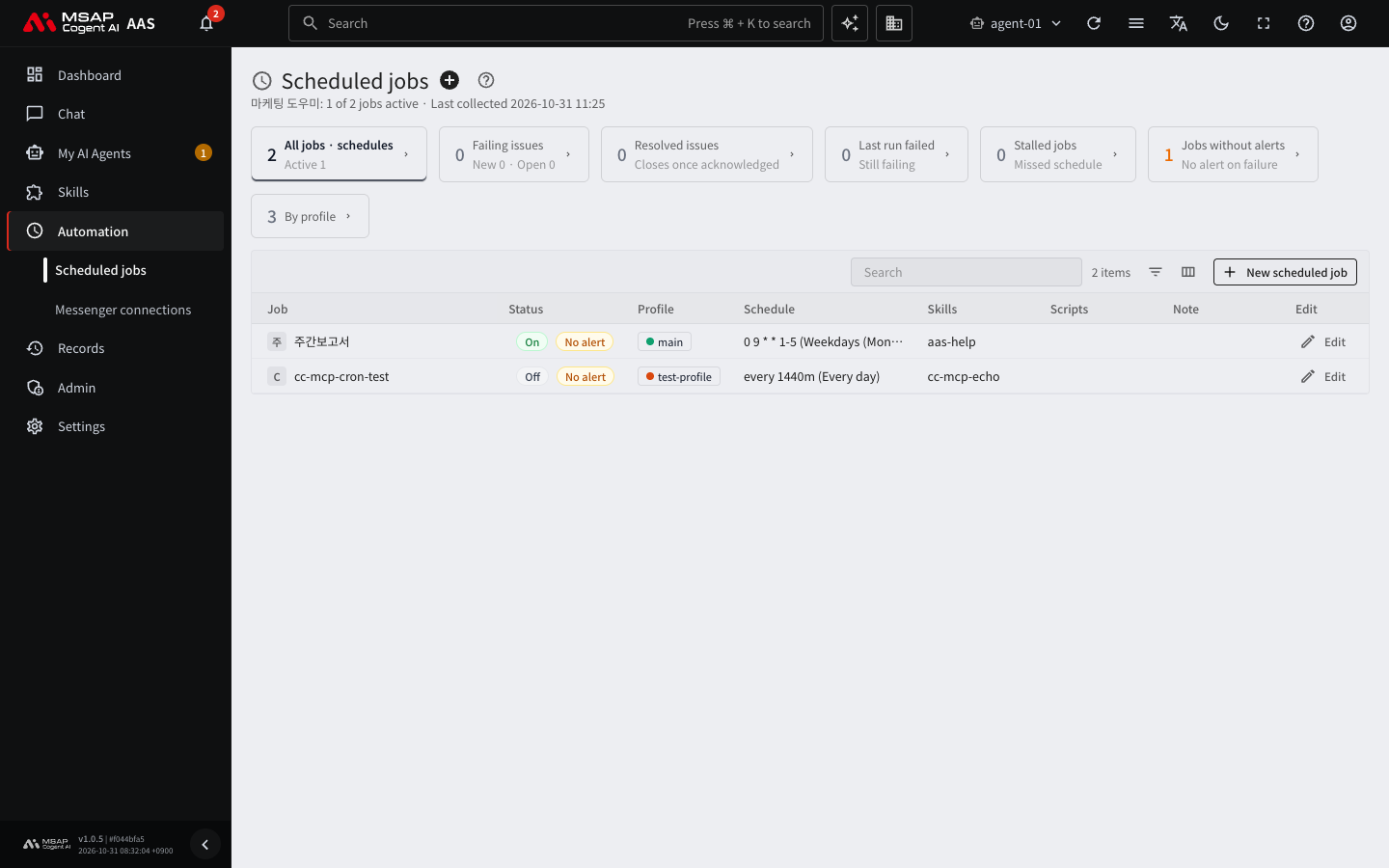
Figure 7.1-2. The scheduled jobs screen
| Tab | Content |
|---|---|
| Last run failed | Jobs whose last run failed |
| Failing issues | Issues that are still failing |
| Stalled jobs | Jobs that did not run although their scheduled time passed |
| Jobs without alerts | Jobs that have no alert target, so no alert is sent even if they fail |
| Resolved issues | Issues that leave "To check" once you only click "Mark as seen" |
- Click a row to see the failure reason and the run history.
Administrators, workspace owners, and team managers can pause or edit scheduled jobs. If there are many "Stalled jobs", go to step 3 and check whether the gateway is stopped. On success, the "Failing issues" tab is empty.
Step 3: Check Messenger Connections
- Open "Automation › Messenger connections" in the left menu. This screen is read-only and does not read token values.
- Look at "Channels to check" and "To check".
- If the gateway is "Stopped", the scheduled jobs and messenger connections of that profile do not work. Open the profile's drawer (the detail pane that opens on the right), go to the "Gateway" section of the "Overview" tab, and click "Start". Only administrators can start and stop a gateway. If you are not an administrator, "Only admins can change this." is shown in the same place.
- If the gateway is "Running" but the messenger is disconnected, reconnect it on the "Channels" tab of the profile detail window.
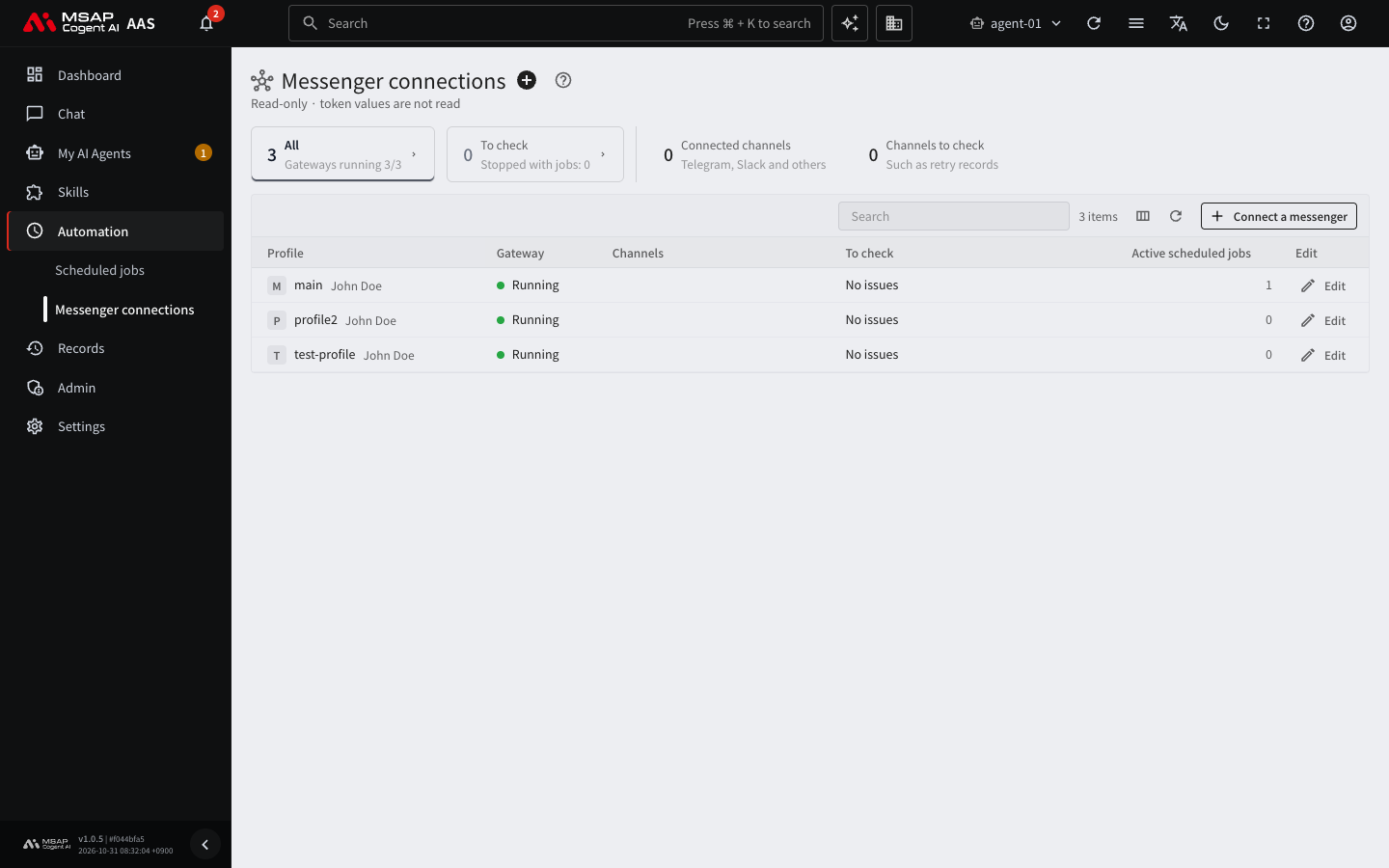
Figure 7.1-3. The messenger connections screen
A profile that shares the workspace's default gateway has no "Start" or "Stop", only "Restart". Restarting briefly stops the channels and scheduled jobs of all profiles in that workspace. It takes a few seconds for the state to change after the request.
On success, the gateway state changes to "Running". If it does not change, tell the operator.
Note: If a user asks you to turn on a gateway, an administrator does it for them. Ask for the name of the profile and start it the same way.
Step 4: Check API Key and Token Expiry
- Open "Settings › API keys & tokens" in the left menu. A red number in the menu means there are expired values.
- Click the "Expired or expiring" card. "Includes the next 14 days" appears under the card.
- Use the "Empty values" card to also check items that have only a name and an empty value.
- Click a row to see where to enter the value.
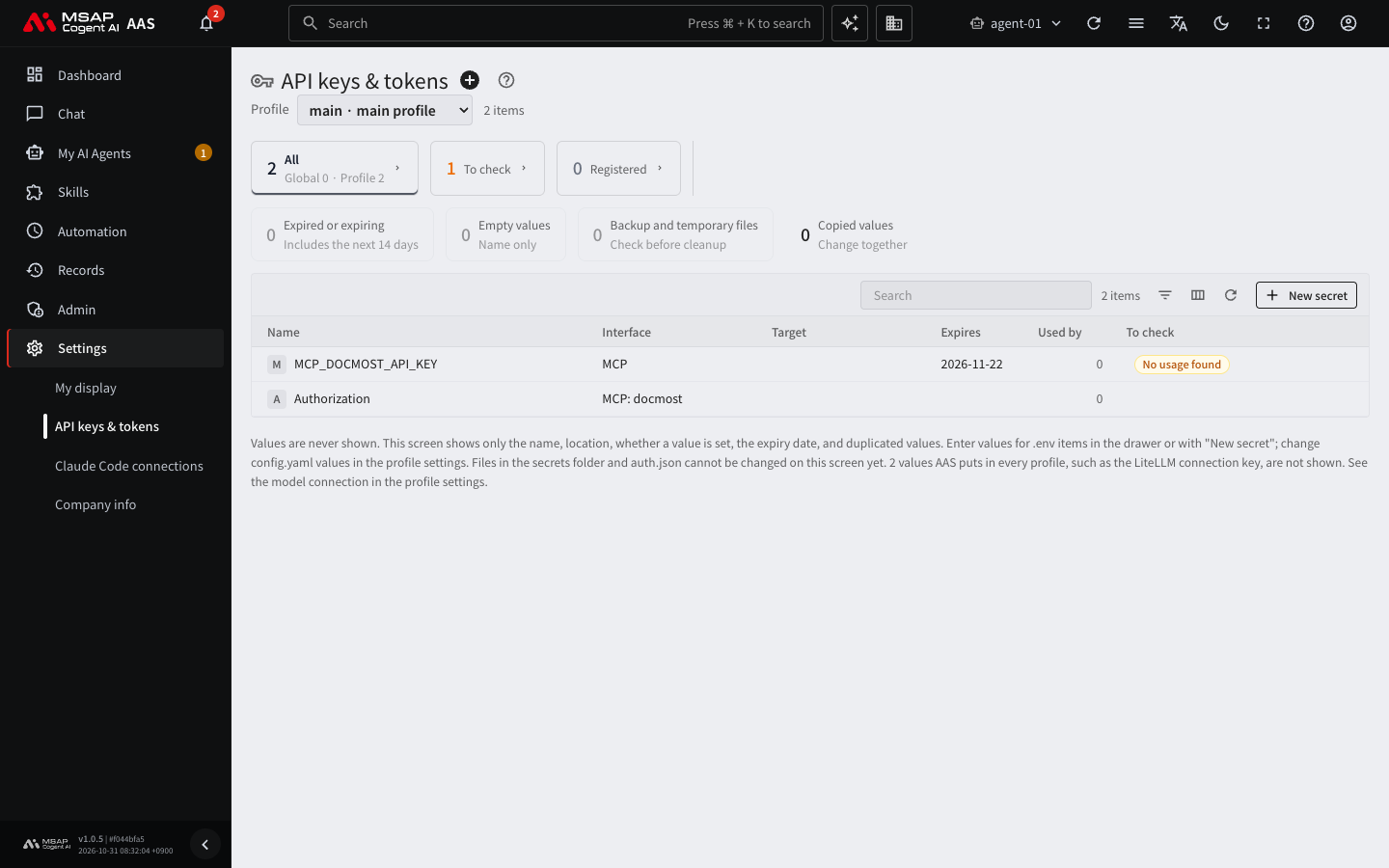
Figure 7.1-4. The API keys & tokens screen
Values are not shown on the screen. It shows only the name, the location, whether it is filled in, the expiry date, and whether the same value is duplicated. Only administrators record status, owner, and notes. The user who uses the key, or an administrator, enters a new value for an expired one. On success, the "Expired or expiring" card becomes 0.
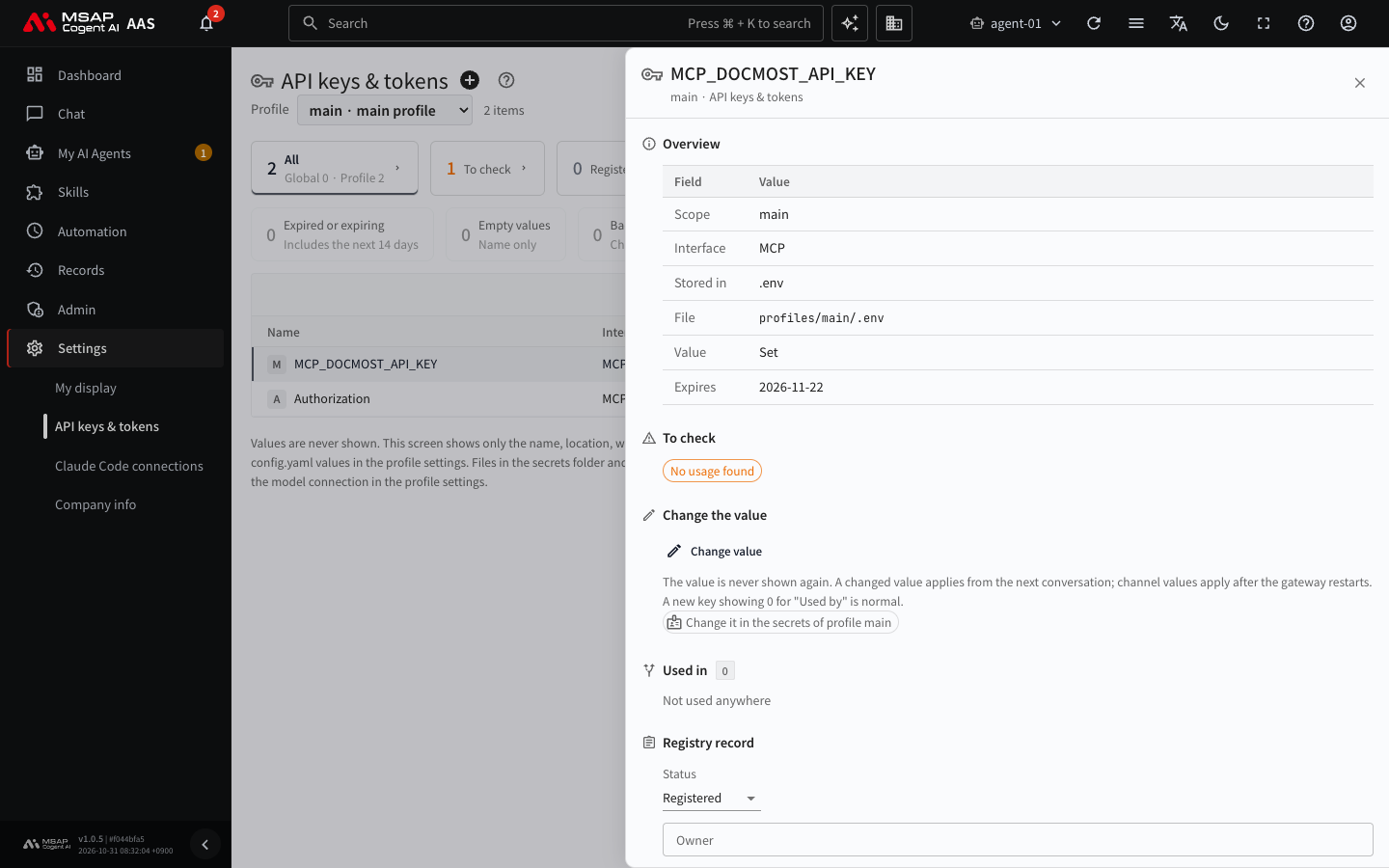
Figure 7.1-5. The API keys & tokens drawer