3.1. Workspace List and Count Limits
Overview
CogentAI AAS (AAS) creates one or more AI agent workspaces for each user. An AI agent workspace is the space where one user's AI agents live. It contains several profiles (settings that bundle personality, model, and skills). For terms, see the A.3. Glossary. On the "AI Agent Workspaces" screen, an administrator sees everyone's workspaces in one list. The administrator changes the limit on how many workspaces each person can create, and chooses a new owner for a workspace whose owner is gone. Use this chapter when a user reports that they cannot create a workspace because of the limit. The size of a workspace (CPU, memory, disk) is explained in 3.5. Workspace Size and Node Capacity.
Permission: Only administrators can view the list, set count limits, and assign a new owner. The workspace owner and administrators can delete a workspace.
Note: This screen works only on installations where AAS can create and delete workspaces. Otherwise, the screen shows "This server is not in Kubernetes mode". If you see this message, tell the operator (the person who installs AAS and manages the server).
Opening the Screen
In the left menu, click "My AI Agents › AI Agent Workspaces". The keyboard shortcut is g followed by n. When you click a row, a drawer (a detail window) opens on the right.
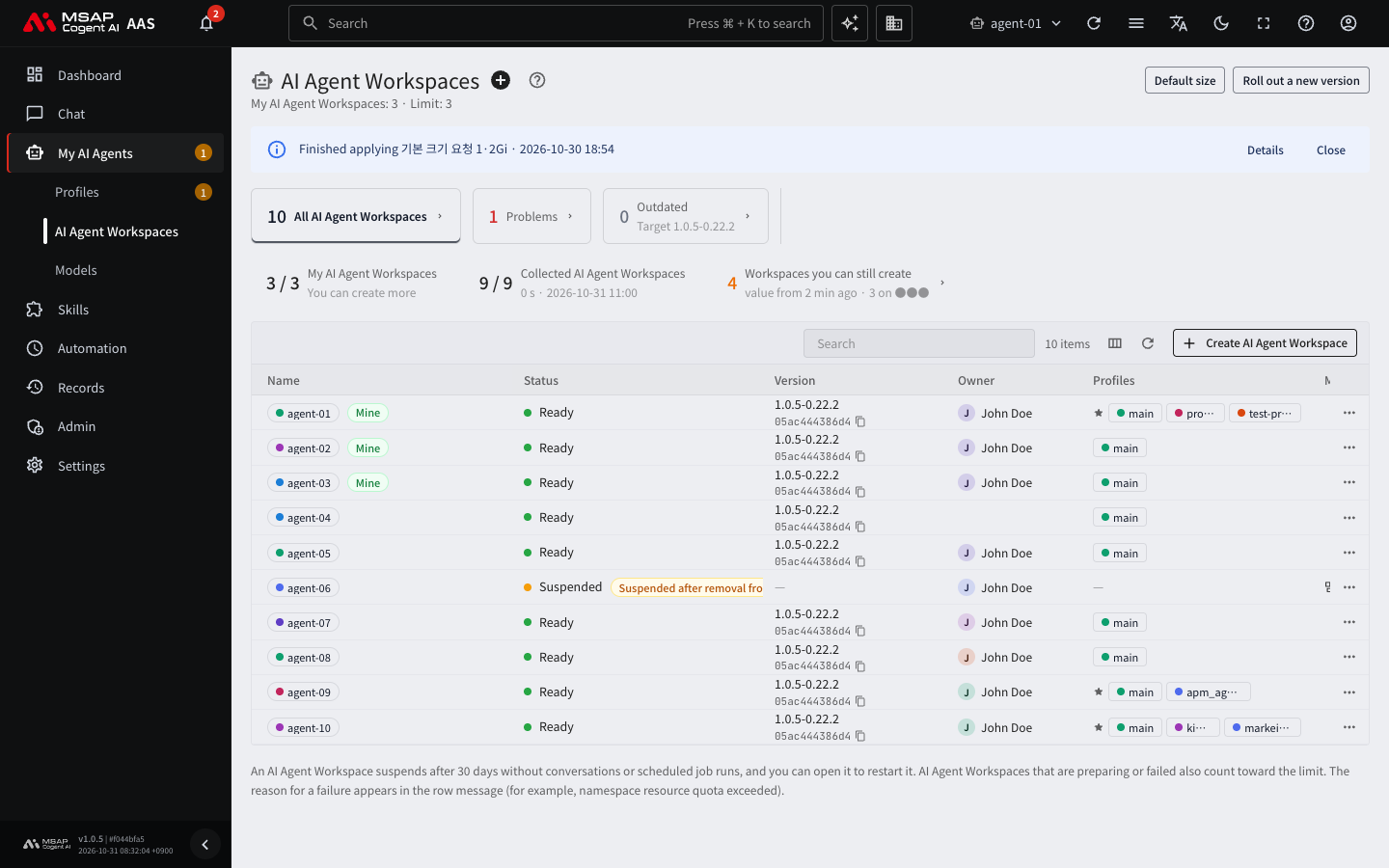
Figure 3.1-1. AI Agent Workspaces list
Regular users see only their own workspaces on the same screen. Administrators also see the following.
List
| Place | Content |
|---|---|
| "All AI Agent Workspaces" view card | Everyone's workspaces. Regular users see it as "Visible AI Agent Workspaces". |
| "Collected AI Agent Workspaces" card | The number of workspaces read in the last collection (for example, 9 / 9), the time it took, and the workspaces that failed to be collected. If any failed, their names appear. |
| "Problems" view card | Shows only workspaces that failed or are disconnected. |
| "Owner" column | The owner of the workspace. |
Count limit
| Place | Content |
|---|---|
| "Settings for this person › Workspace count" in the drawer | The limit on how many workspaces that person can create. |
Size and new version (not covered in this chapter)
| Place | Description |
|---|---|
| "Default size" button, "Differs from settings" view card, "Size" column, "Workspaces you can still create" card | 3.5. Workspace Size and Node Capacity |
| "Roll out a new version" button, "Outdated" view card, "Version" column | 3.3. Rolling Out a New User Hermes Image |
What to Check in the List
| Column | Meaning |
|---|---|
| Name | The workspace name. A workspace you own has the "Mine" mark. |
| Status | One of "Ready", "Preparing", "Creating", "Failed", "Suspended", and "Disconnected". See 3.2. Workspace Status and Restarting. |
| Owner | The owner of the workspace. |
| Profiles | The profiles in the workspace. The starred profile is the one that chat opens first. |
| Message | The reason for a failure or for preparing. |
| Created | The time it was created. |
A workspace that is switching to a new version is not counted under "Problems".
Per-Person Count Limit
The limit is the number of AI agent workspaces each person can create. There is a default set at installation, and you can set a different value for each person from 0 to 50. When a per-person value exists, the "Reset to default ({n})" button in the drawer shows the current default.
Keep the following rules in mind.
- Workspaces that are preparing or have failed also count toward the limit, because they already use resources.
- When the limit is reached, the user's "Create AI Agent Workspace" button is disabled and the screen shows "You reached the limit of {n}".
- The server also checks the limit. A request over the limit gets a reply that tells the user to ask an administrator to raise the limit.
- When an administrator creates their own workspace, the same limit applies.
When a user cannot create a workspace because of the limit, the user tells an administrator directly. There is no button on the screen for sending this report. Raise the limit under "Changing the limit" below. For the kinds of requests that arrive in the inbox, see 5.3. Handling User Requests.
Changing the limit
- On the "AI Agent Workspaces" screen, click that person's workspace row. The drawer opens.
- In the "Settings for this person" area at the bottom of the drawer, find "Workspace count".
- In the "Maximum" field, enter a number from 0 to 50.
- Click "Save".
- Read the confirmation window, "Changes the AI Agent Workspace limit of {name} to {n}.", and confirm.
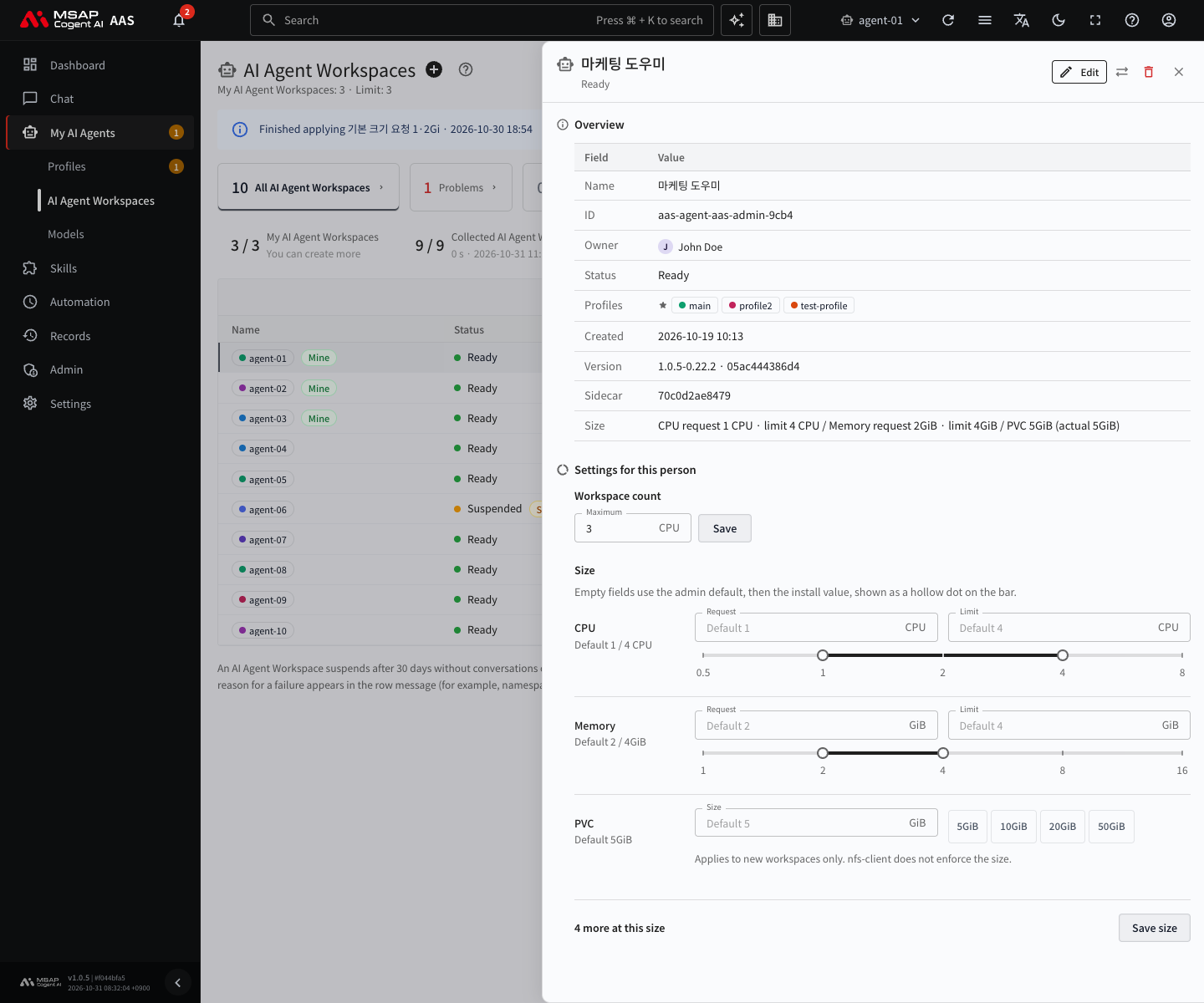
Figure 3.1-2. "Settings for this person" in the workspace drawer (closed without saving)
After you save, "Saved the AI Agent Workspace limit of {name}: {n}" appears. The same value shows on all workspace rows of the same person. If it does not save, check that the number is between 0 and 50.
Returning to the default
If a limit was set for a person individually, the "Reset to default ({n})" button appears.
- Open that person's workspace drawer.
- Click "Reset to default ({n})" next to "Workspace count".
- Confirm in the confirmation window.
Assigning a New Owner (Transferring Ownership)
When you delete a user's account, that person's workspaces stop with no owner. The data remains. Even if you re-create the account with the same email, the old workspaces do not reconnect by themselves. To let another person take over, assign a new owner. Use the same steps when you change the owner of a workspace.
- On the "AI Agent Workspaces" screen, click the workspace row.
- Click "Transfer ownership" at the top of the drawer.
- In the "New owner email" field, select a person.
- Click "Transfer".
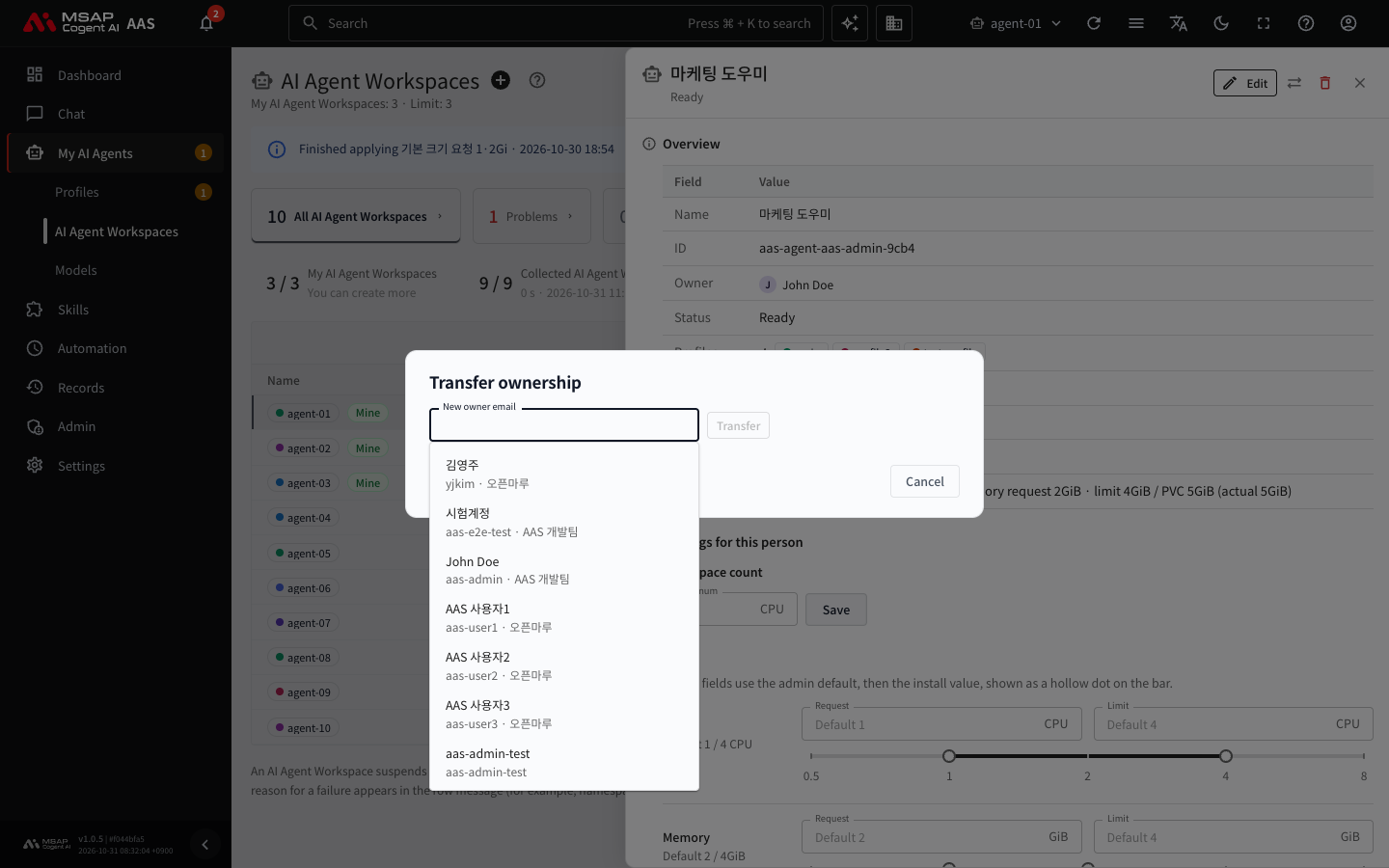
Figure 3.1-3. "Transfer ownership" window (closed without transferring)
When it finishes, "Changed the owner of {name} to {new owner}" appears.
- Transferring ownership does not clear a suspension. If needed, click "Restart" in the drawer.
- If the new owner's workspace size differs from the current one, a notice says the workspace will be recreated. If the server has no room, a warning appears, and you must click "Move anyway (may wait)" to transfer. For sizes and room, see 3.5. Workspace Size and Node Capacity.
Renaming and Deleting
Use "Edit" at the top of the drawer to change the workspace name and the profile that chat opens first. A name can have up to 80 characters.
"Delete" removes the workspace. The owner and administrators can do this.
- Click "Delete" at the top of the drawer.
- Read the notice. Settings, scheduled jobs, skills, and memory are kept as an export file, and the disk is not deleted right away.
- In the "Retype the AI Agent Workspace id" field, type the workspace id exactly.
- Click "Delete".
When you delete a workspace, the Office placements and Skill Hub allowances used by its profiles are also cleaned up.
Caution: The screen has no button to restore a deleted workspace. If you need to recover data while the disk still exists, ask the operator. Example request: "Please recover the data of the deleted AI agent workspace {name}." For the remaining disk, see "Data volumes of deleted workspaces" in 3.2. Workspace Status and Restarting.