6.1. The Skill Hub and Namespaces
Overview
The Skill Hub collects the skill packages used inside the company and lets users install them to profiles. Packages are divided by namespace (a named area). This chapter explains the namespace types and how they appear on the screen. It also covers how to allow a namespace that needs an allowance for an AI Agent Workspace (the place where an AI agent works, one for each user, see the A.3. Glossary). Use this chapter when a user asks why they cannot install a "restricted" package.
Permissions: The Skill hub screen is visible to all users. Only administrators can allow a namespace and remove the allowance.
Opening the Skill Hub Screen
In the left menu, open "Skills › Skill hub". All users can see this screen. It has the following tabs at the top.
| Tab | Content | Who sees it |
|---|---|---|
| Packages | The list of packages published in the Skill Hub | Everyone |
| Installed packages | Packages installed in the AI Agent Workspace you are viewing now | Everyone |
| New versions | Skills that can be upgraded to a new version | People with install permission (administrators, owners, team managers) |
| Request log | The results of install and removal requests | Everyone |
| Publish requests | Requests to publish a skill to the hub | Administrators, or people who have a publish request in their own AI Agent Workspace |
| Archived | Skills that Hermes archived because they were not used for a long time | When there are archived skills |
| Hidden in hub | Packages an administrator removed from the hub list | Administrators |
Namespace Types
The AAS screen shows namespaces under these names.
| Name on Korean screens | Name on English screens | Description | Who can install |
|---|---|---|---|
| 공용 | shared | Packages that every AI Agent Workspace can receive | Everyone with install permission |
| 제한 | restricted | Packages that an AI Agent Workspace can receive only after an administrator allows it for that workspace | Only in AI Agent Workspaces that an administrator allowed |
| community | community | An area with copies of skills published outside, for which the license was checked. It appears in English on the screen as well. | Everyone with install permission |
Note: "shared" and "restricted" show the range of who can receive a package, not a price. They are not connected to payment.
The community namespace is read-only. By default, only "shared" and "restricted" appear in AAS's list of publish targets.
What You See in the Package List
The table on the "Packages" tab has two columns that classify packages.
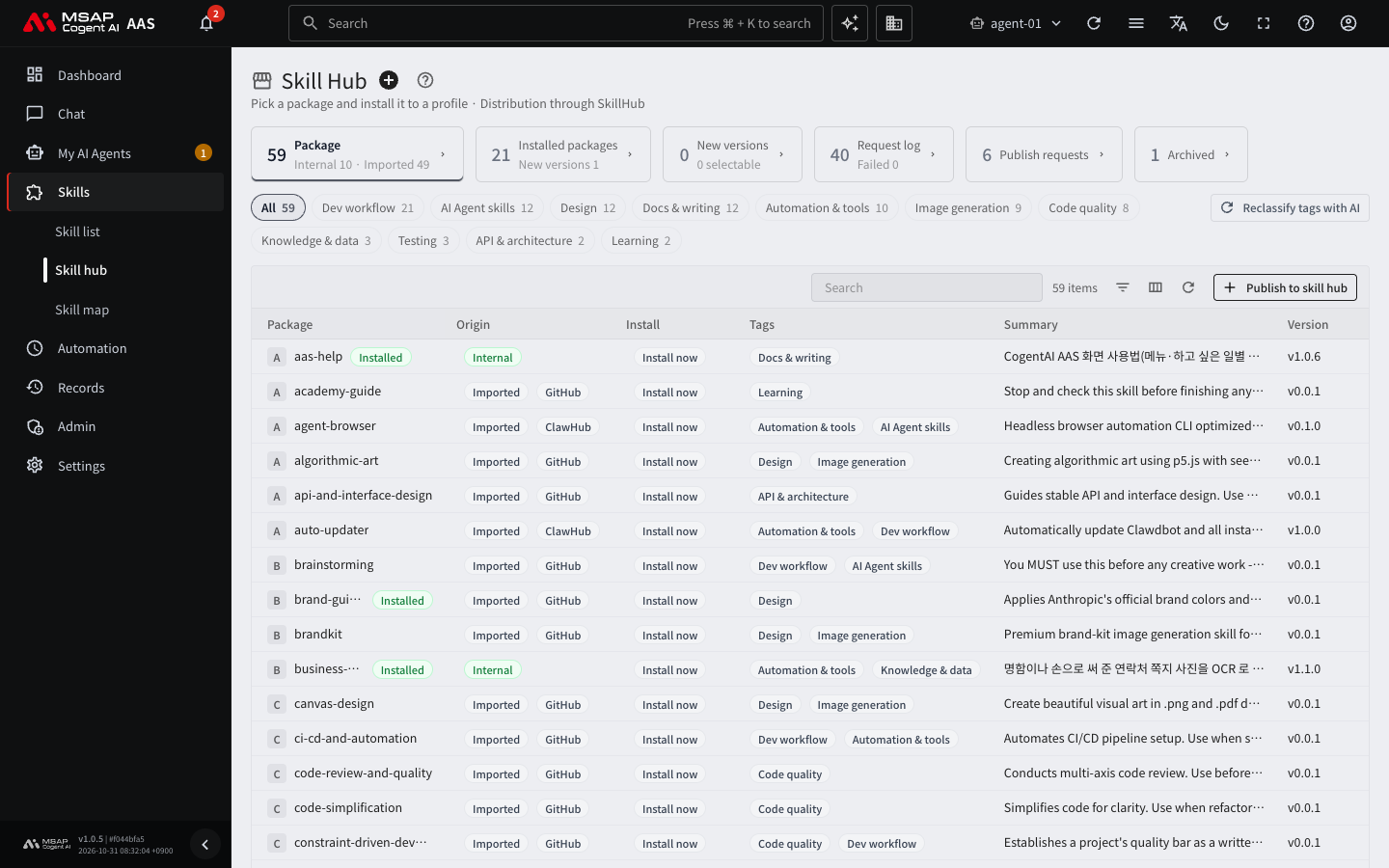
Figure 6.1-1. Skill hub screen
| Column | Value | Meaning |
|---|---|---|
| Origin | Internal / Imported | Whether the package was uploaded inside the company or imported from outside |
| Install | Install now / Admin allowance needed | Whether it can be installed right away or an administrator must allow it |
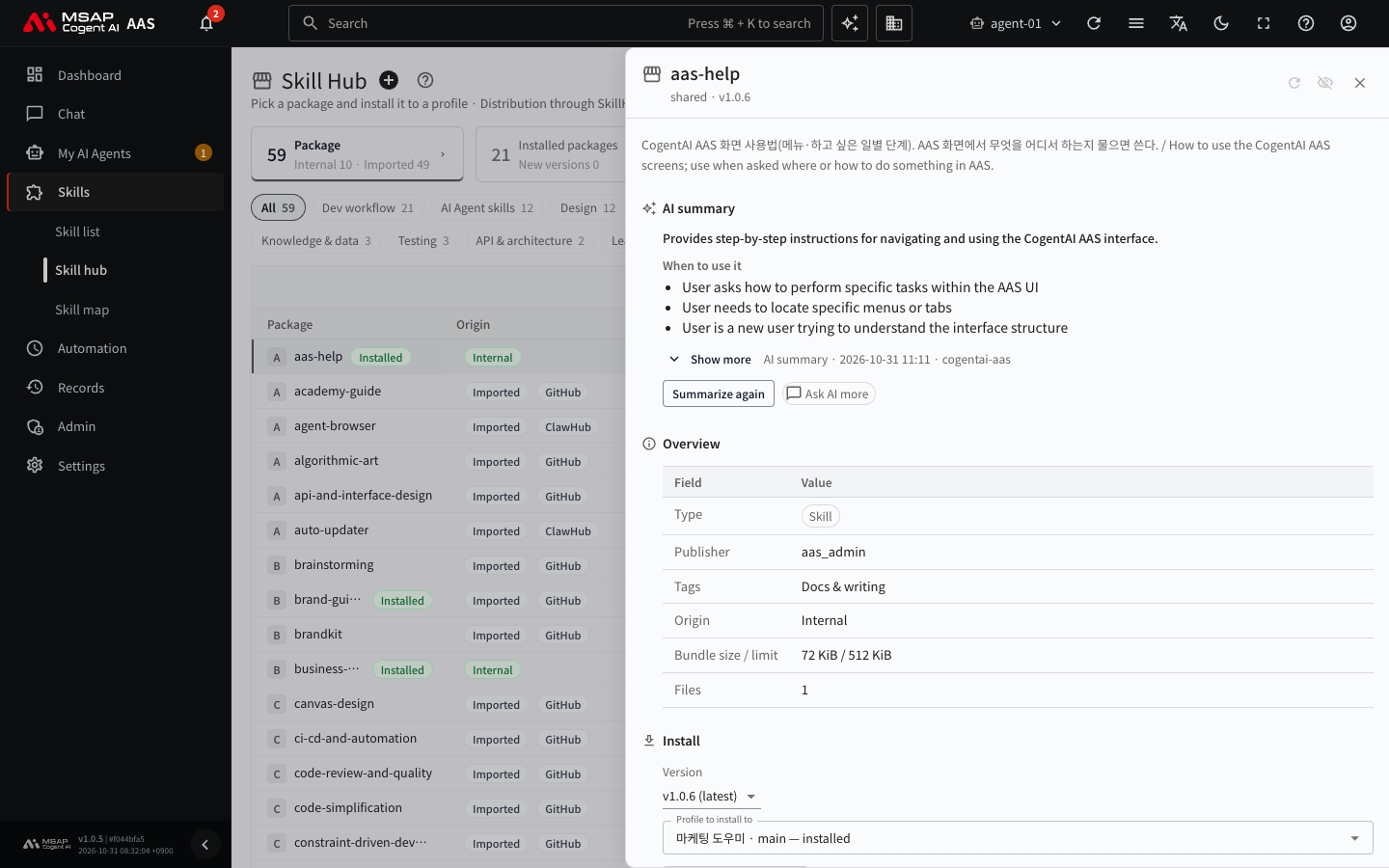
Figure 6.1-2. Package drawer
"Admin allowance needed" is attached to packages in the "restricted" namespace. If someone tries to install one in an AI Agent Workspace that is not allowed, this message appears.
This AI Agent Workspace is not allowed to use the namespace 'restricted', which needs an allowance. Allow it below, then install.
Allowing a Namespace That Needs an Allowance
This function is visible only to administrators. An allowance applies to the one AI Agent Workspace you are viewing now. You allow it separately for each AI Agent Workspace.
- Choose the AI Agent Workspace of the user who asked. Use "Switch AI Agent Workspace" on the top bar. If you do not know which workspace it is, find it by user name in the table on the "AI Agent Workspaces" screen.
- On the "Packages" tab under "Skills › Skill hub", click the row of a "restricted" package to open the drawer (a detail pane that opens from the right side of the screen, see the A.3. Glossary).
- Click the "Allow 'restricted'" button at the top of the drawer.
- Confirm the allowance in the confirmation dialog.
- If the drawer shows "Allowed for this AI Agent Workspace", it succeeded. If not, read the confirmation dialog again and redo step 4. If it keeps failing, tell the operator (the operator installs AAS and manages the server, see the A.3. Glossary).
After you allow it, the owner of that AI Agent Workspace or a team manager can install "restricted" packages.
Removing the Allowance
- Switch to the AI Agent Workspace that you allowed.
- In the drawer of a "restricted" package, click the "Remove allowance" button.
- Confirm in the confirmation dialog.
After you remove the allowance, new "restricted" packages cannot be installed in that AI Agent Workspace. Packages that were already installed stay.
Note: Who allowed it and when is recorded in "Records › Change history" as "Changed access to a namespace that needs an allowance". For how to read it, see 7.2. Change Log.
Permissions for Installing and Allowing
| Task | Administrator | Workspace owner or team manager | Other users |
|---|---|---|---|
| Install or remove a "shared" package | Yes | Yes, in their own AI Agent Workspace | No |
| Install a "restricted" package | Yes, in an allowed AI Agent Workspace | Yes, in an allowed AI Agent Workspace | No |
| Allow or remove the allowance for the "restricted" namespace | Yes | No | No |
The server puts an install request in a queue, and the AAS install helper handles requests in order. You can see the results on the "Request log" tab.
Things to Check
- If the screen shows "The skill hub URL is not set", the installation is not connected to a Skill Hub. Tell the operator. For how to set it up, see 8.1. Integrated Services.
- If "The install helper is not responding" appears, install requests stay in the queue and are not processed. On the dashboard, check the status of the "Skill hub helper" under "Operations". For the detailed order of checks, see A.2. Troubleshooting.