5.2. Notices
Overview
A notice appears as a one-line band (a horizontal area that shows notices) at the top of every screen of the target people for a period you set. Use it to announce maintenance or an outage, or to introduce a new feature. Announce work that briefly cuts off user connections, such as a Hermes update, in advance with a notice. This chapter explains the notice types, how to post a notice, how to extend the period, how to take a notice down, and how to copy a notice into a new one.
Permissions: Only administrators post notices. Team managers cannot post them. Notices are not sent by email or messenger, and there is no function to notify only one chosen user.
Opening the Screen
In the left menu, click "Admin › Notices". The keyboard shortcut is g then y.
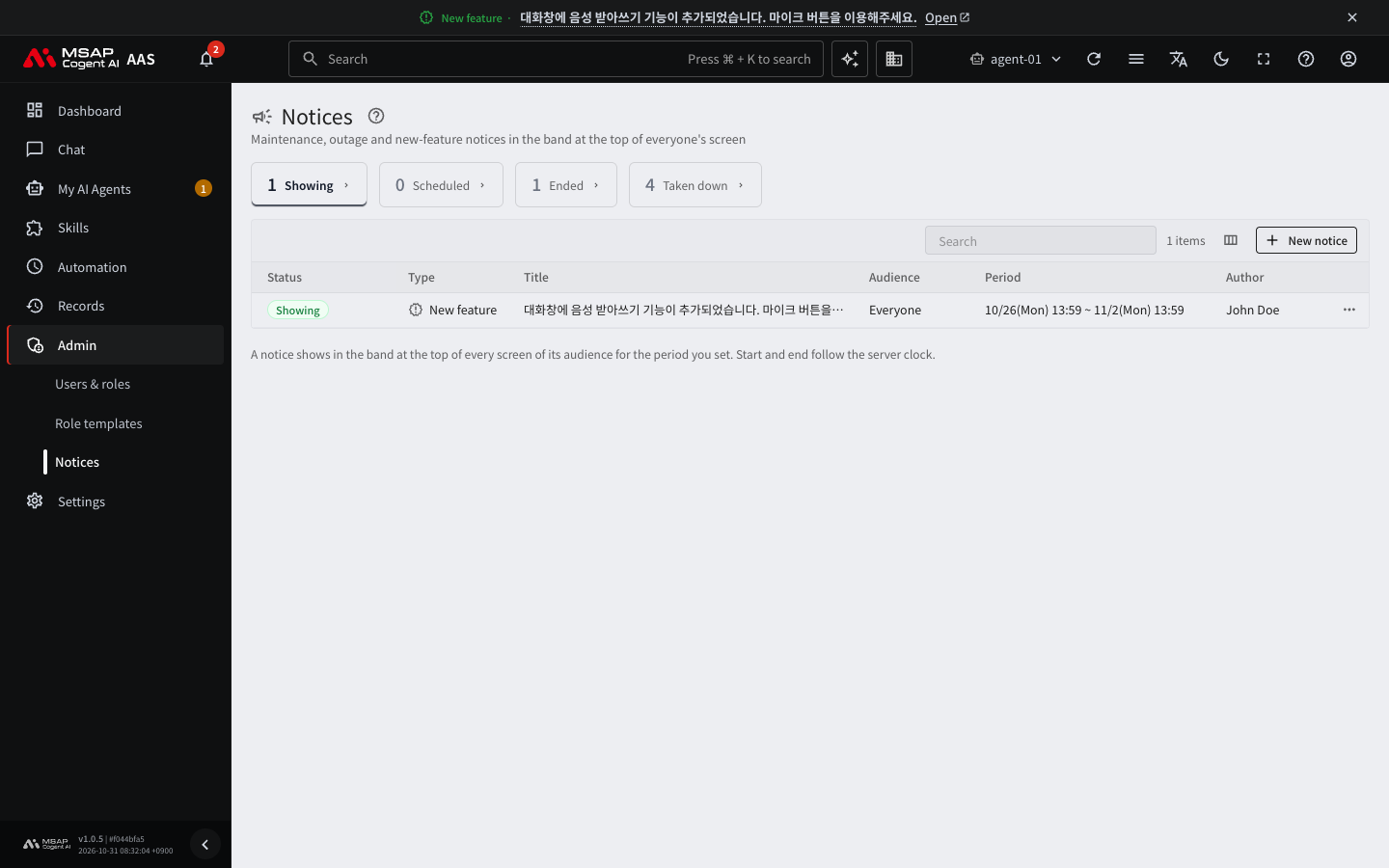
Figure 5.2-1. Notice list and notice band
Use the view cards at the top to see notices by status.
| Card | Notices shown |
|---|---|
| Showing | Notices that appear on user screens now. This is the card that opens first. |
| Scheduled | Notices whose start time has not come yet |
| Ended | Notices whose end time has passed |
| Taken down | Notices that an administrator took down |
The list columns are status, type, title, audience, period, and author. The author appears as a person's name instead of an email address. A notice whose target departments were all deleted is marked "Target department removed". Such a notice is shown to no one. If there are more than 1,000 notices, "Only the latest 1,000 are shown" appears.
Notice Types
When you choose a type, the icon and color are set. You cannot choose the color yourself.
| Type | When to use it | Can users close it? |
|---|---|---|
| Info | General news that fits no other type | Can be closed |
| New feature | Introducing a new or improved feature | Can be closed |
| Maintenance | Upcoming or ongoing maintenance or an update (for example, a short interruption from a Hermes update) | Can be closed by default. An administrator can turn this off. |
| Deprecation | Advance notice of a feature or connection that will go away soon or can no longer be used | Can be closed by default. An administrator can turn this off. |
| Outage | A service or feature is down and cannot be used | Cannot be closed |
"Maintenance" and "Deprecation" use the same amber color, and you tell them apart by the icon and the type name. Red is used only for outages.
Posting a New Notice
- On the "Notices" screen, click "New notice" at the top right of the table. A drawer opens (a detail pane that opens from the right side of the screen, see the A.3. Glossary).
- Choose the "Type".
- Enter the "Title". You can use up to 80 characters.
- Enter the "Content". You can use up to 300 characters. It appears as plain text without formatting.
- If needed, enter an "Open" address. You can enter only an AAS screen address that starts with
#/or an http(s) web address. If you leave it empty, there is no "Open" button. - Choose "Start" and "End". The default is from now until 1 day later.
- Choose the "Audience".
- Check "Let users close it".
- Click "Save".
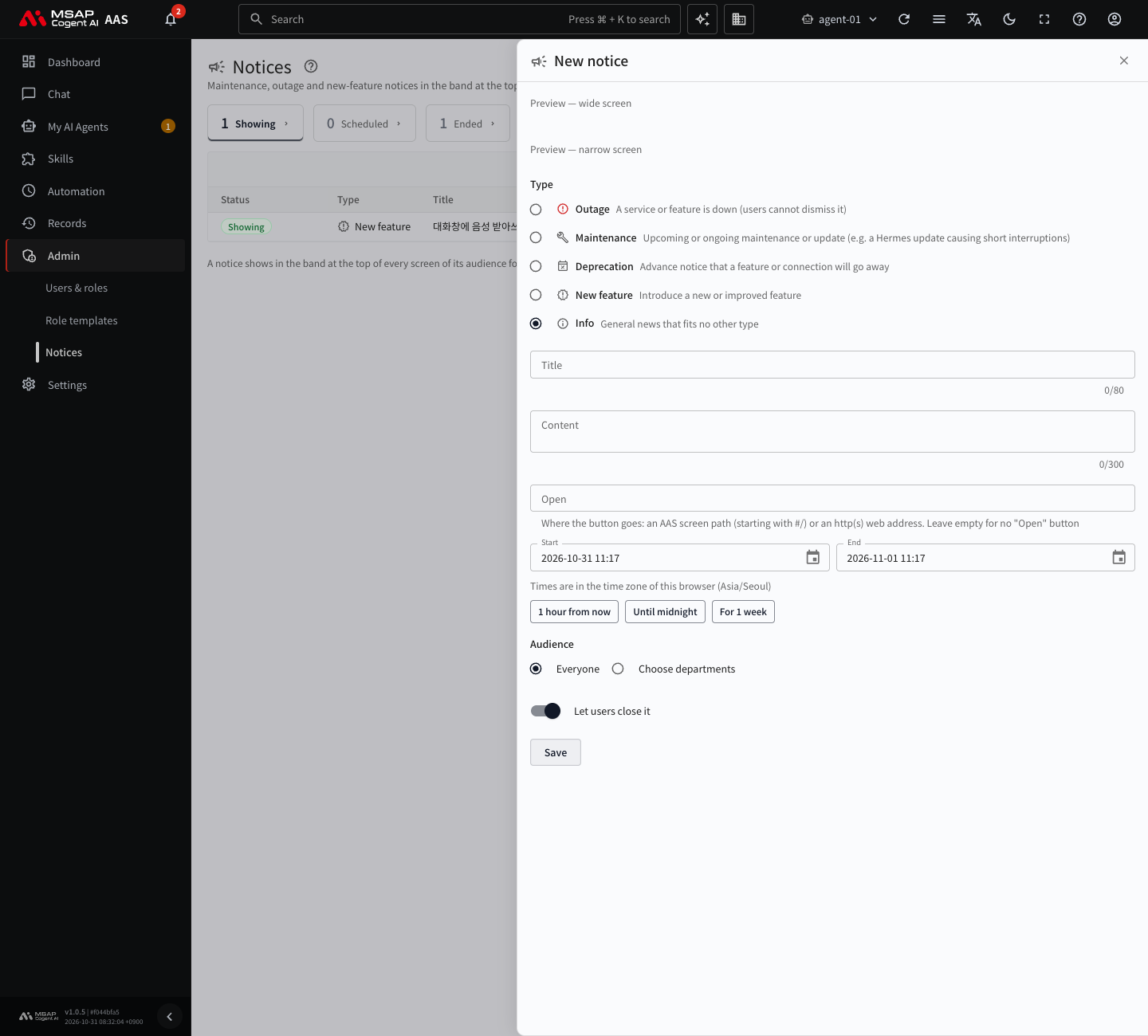
Figure 5.2-2. "New notice" drawer
Note: While you type, the preview at the top of the drawer shows right away how the notice looks on a "wide screen" and a "narrow screen". In step 6, you can also use the quick buttons "1 hour from now", "Until midnight", and "For 1 week".
Enter times in the time zone of this browser. Below the field, "Times are in the time zone of this browser ({time zone})" appears. You must set an end time. You cannot create a notice that never ends. This prevents a notice that someone forgot to take down from staying.
Choosing the Audience
| Choice | Who sees it |
|---|---|
| Everyone | All users |
| Choose departments | People in the departments you choose |
When you choose departments, the number of target people appears as "About {n} people (including people who have not signed in yet)".
- If no departments are registered, "No departments yet. Create one first in the Departments tab of Users & access." appears. See 2.2. Managing Departments.
- People who have no department see only notices for "Everyone".
- An administrator also must be in the audience to see the notice in the band. On the administrator screens, you can see all notices in the list and the preview.
- If you rename a department, the target department of the notice also changes to the new name. If you delete a department, a notice that targets only that department is shown to no one.
Checks Before Saving
| Error text | Cause |
|---|---|
| Enter a title | The title is empty. |
| Up to {n} characters | The title or content is too long. |
| Only an AAS screen path starting with #/ or an http(s) web address | The format of the "Open" address is wrong. |
| Choose a time | The start or end time is empty. |
| The end must be after the start | The order of the period is wrong. |
| Choose at least one department, or everyone | You chose "Choose departments" but did not choose any department. |
When you save, a result message appears. For a notice that shows now, "Saved. About {n} people will see it shortly" appears. For a scheduled notice, "Saved. It will show from {time}" appears. The server clock decides the start and end. The same notice appears even if the user's browser clock is wrong. The notice appears and disappears soon after the start and end times.
What Users See
- A notice appears as a one-line band at the top of the screen. The band shows the type icon, the type name, and the title.
- The content appears in a tooltip when you hover over the title or move keyboard focus to it. The period appears with it.
- On a narrow screen such as a phone, only the icon and title appear. Click "Details" to expand the content, the period, and "Open".
- Maintenance and outage notices show the end time in the band, like "until 22:00". It is shown in the user's browser time zone.
- When there are several notices, they appear one at a time, with "1/3" and previous and next buttons. The order is outage, maintenance, deprecation, new feature, then info. Within the same type, the newer notice comes first.
- A notice that can be closed has a close button at the right end. A closed notice can be shown again from "Current notices {n}" in the account menu, with "Show at the top of the screen again".
- When an outage notice is hidden and another notice is showing, a dot "There is an outage notice" appears next to the next and previous buttons.
- Notices do not appear on the sign-in screen.
- Notices also appear on the "Preparing" screen that the server shows to users who have no workspace. On this screen, notices cannot be closed, and up to 3 are shown, followed by "and {n} more".
Editing
- In the list, click a notice row to open the drawer.
- Edit the content and click "Save".
When the content has changed and you are not just fixing a typo, turn on "Show again to people who closed it" and save. The notice then appears again on the screens of people who already closed it. When you only fix a typo, leave it off. The default is off.
Extending the Period
If maintenance runs long, extend the end time.
- On the "Showing" card, open the "…" menu of the notice row.
- Click "Extend 1 hour".
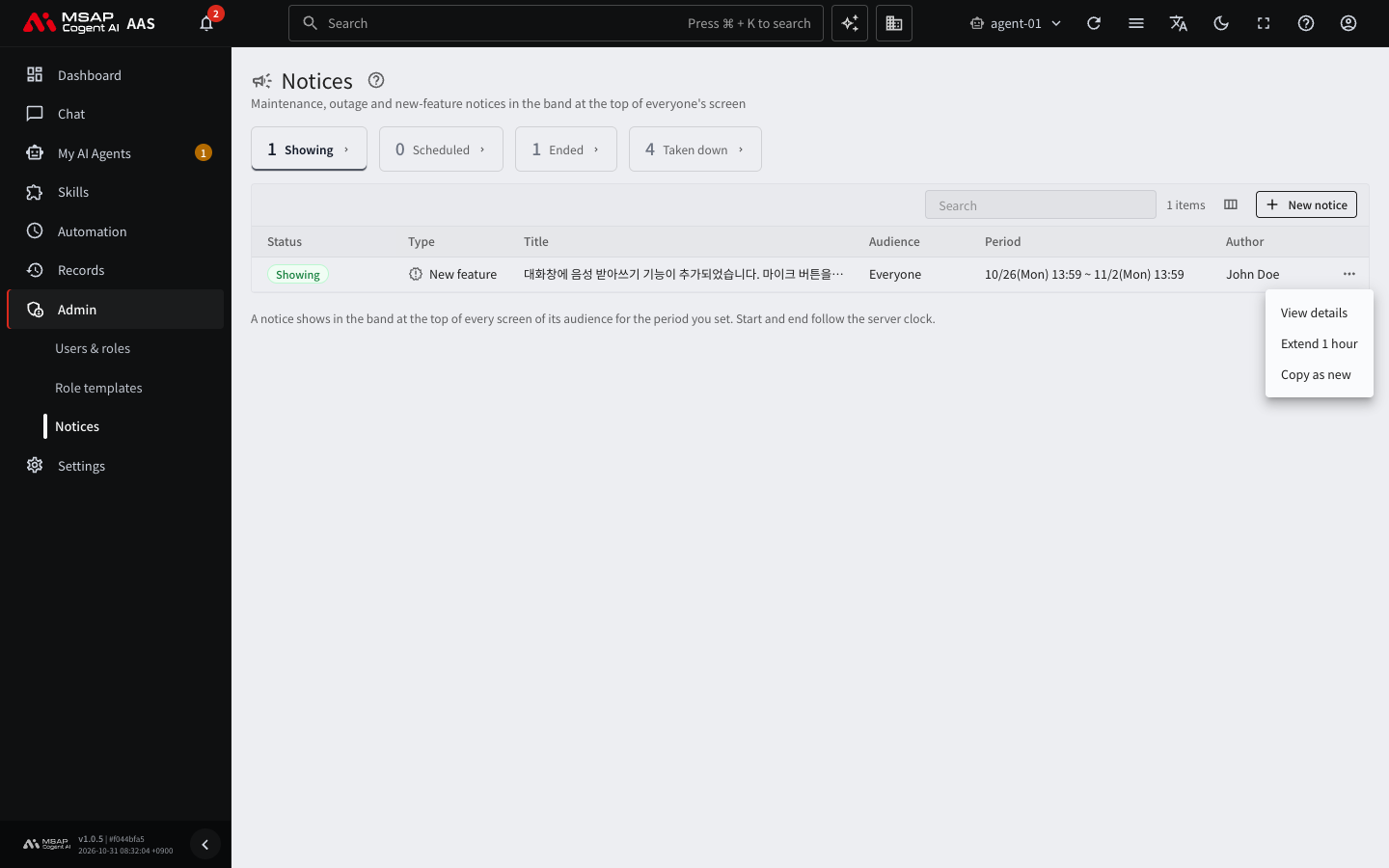
Figure 5.2-3. "…" menu of a notice row
"Moved the end time to {time}" appears. If another administrator changed it first, the list is read again after a message appears.
Taking a Notice Down
If the work ends early, take the notice down. You cannot restore a notice that was taken down. To post it again, use "Copy as new" below.
- In the list, click a notice that is showing or scheduled to open the drawer.
- Click "Take down now".
- Read "Take down the notice ‘{title}’?" and the explanation in the confirmation dialog.
- To follow up with a notice that the work is finished, check "Then create a "completed" notice".
- Click "Take down".
If you choose the "completed" notice, a new notice drawer opens with "(Completed) " added before the title, the type "Info", and a period of 1 hour. Check the content and save. A notice that was taken down can be viewed as a record on the "Taken down" card. Its original period also stays.
Copy as New
Use this to post the same notice again for a different period, for example a weekly maintenance notice. You can also copy a notice that was taken down.
- In the "…" menu of the row in the list, click "Copy as new". You can also use the same button at the bottom of the drawer.
- The new notice drawer opens with the same content. The period is reset to 1 day from now.
- Check the period and audience, and click "Save".
Change Records
When you post, edit, or take down a notice, it is recorded in the change history as "Posted or edited a notice" or "Took down a notice". The content of the notice is not recorded. For details, see 7.2. Change Log.