2.2. Managing Departments
Overview
Departments are a list that you pick from on the screen for adding and editing users. When an administrator sets the company's department names once, you can prevent the same department from being written in different ways, such as "DevTeam" and "Dev Team". This chapter explains how to add, rename, and delete departments, and where department information is used. After a new installation, follow this chapter before you add users (1.1. Administrator Screen Overview).
Permission: Administrator
Where Departments Are Used
A user's department affects the following.
| Where it is used | Content |
|---|---|
| 3D Office | Groups the seats of people in the same department into one team. The default team name of a seat is the department name. |
| Department slogan | When you write one line for a department, it appears as a banner in the sky above the 3D Office. |
| Notices | Set the audience of a notice to everyone or to specific departments. |
| Team managers | A team manager handles the AI agent workspaces of people in their own department. |
| Role templates | If a department name matches a template's department keyword, that template is recommended. |
A user's department is based on the user information on the SSO server. The department list is a set of choices that keeps those values from being written in different ways. Department names are compared ignoring leading and trailing spaces and ignoring case.
Figure 2.2-1 shows the places in the table above as branches from the department list.
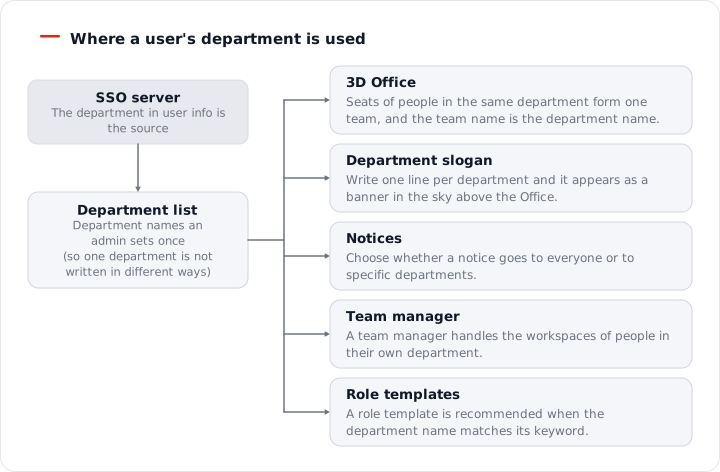
Figure 2.2-1. Where a user's department is used
Opening the Department List
- In the left menu, open "Admin › Users & roles".
- Select the "Departments" card at the top of the screen.
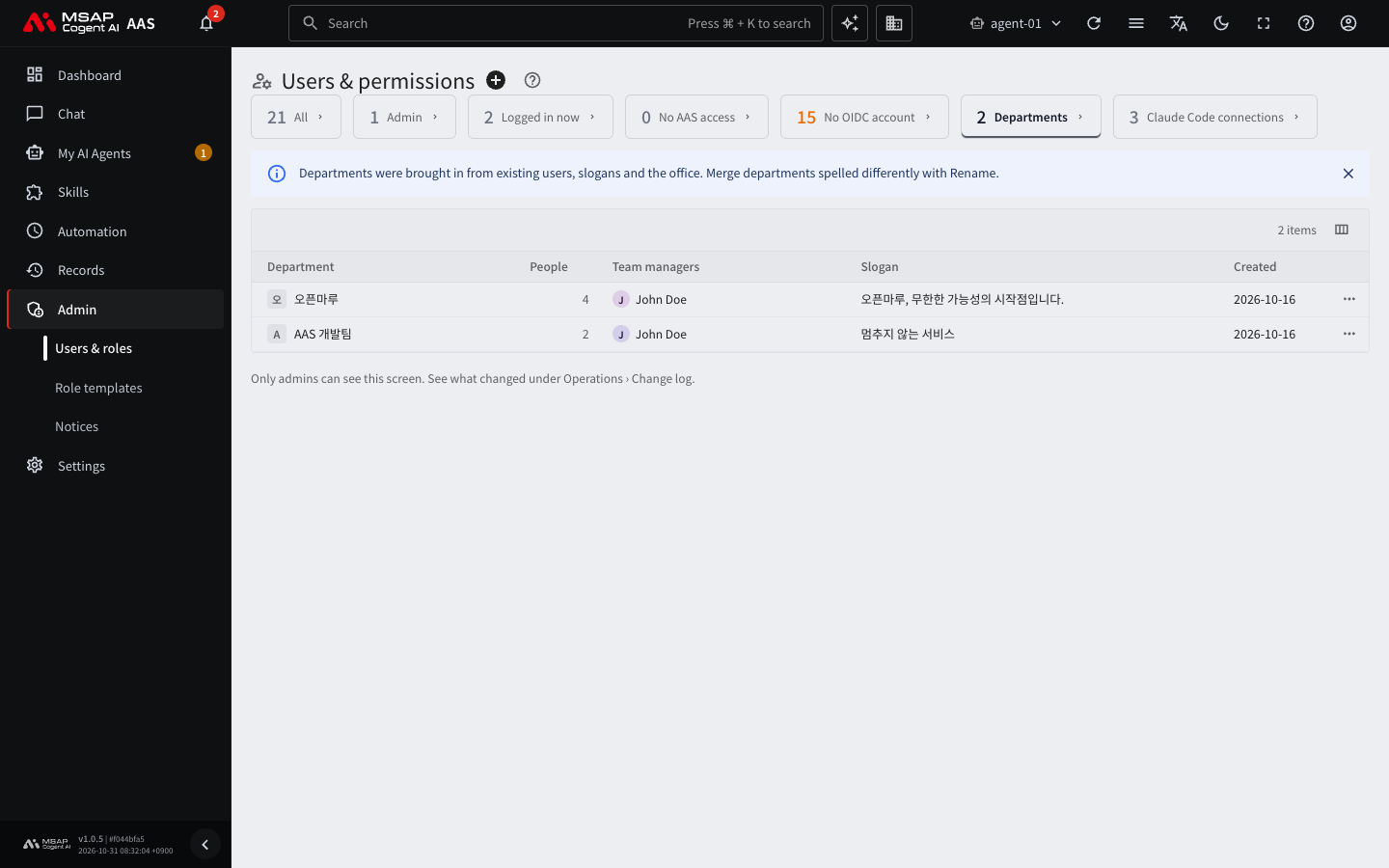
Figure 2.2-2. The department list
The "Departments" card exists only on installations that manage accounts through the SSO server. If the card is missing, you cannot use the department list. Tell the server operator. The number on the card is the number of departments, and it also counts departments that are not in the list.
The table has the following columns.
| Column | Content |
|---|---|
| Department | Department name |
| People | The number of people in the department. "Unknown" if the SSO server cannot be reached |
| Team managers | The assigned team managers (2.3. Assigning Administrators and Team Managers). Empty if none |
| Slogan | The department slogan |
| Created | The date the department was put in the list |
The notice "Departments were brought in from existing users, slogans and the office. Merge departments spelled differently with Rename." appears above the table. It means that departments you were already using were put in the list. If any departments are spelled differently, merge them into one with Rename. If you close the notice, it does not appear again in this browser.
Rows Marked "Not in list"
If a user has a department that is not in the list, it appears at the top of the table with a warning-colored "Not in list" mark. This happens when the department is written only in the user information on the SSO server.
- Open the "…" menu of that row.
- Select "Add to list".
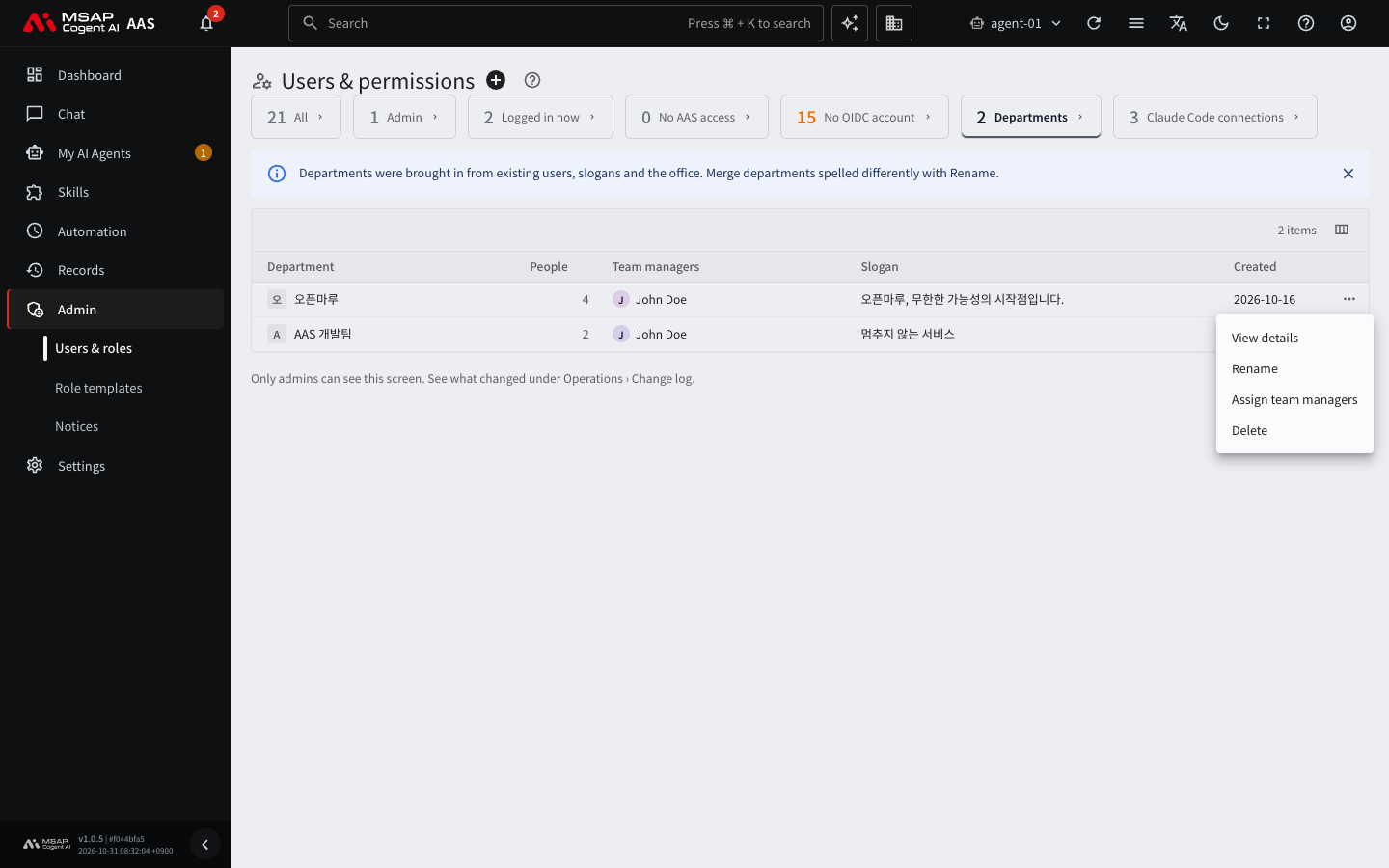
Figure 2.2-3. The "…" menu of a department row
When "Added department "name"" appears, it has been put in the list.
Adding a Department
You add departments one at a time. On a new installation the list is empty and "No departments yet" appears. Add all the departments you need before you add users. If you try to choose a department that is not in the list, adding a user gives the error "Department is not in the list".
- With the "Departments" card open, select the "+" ("Add department") next to the title.
- Enter the "Department name". You can use up to 80 characters. The character count appears below the field.
- Select "Add".
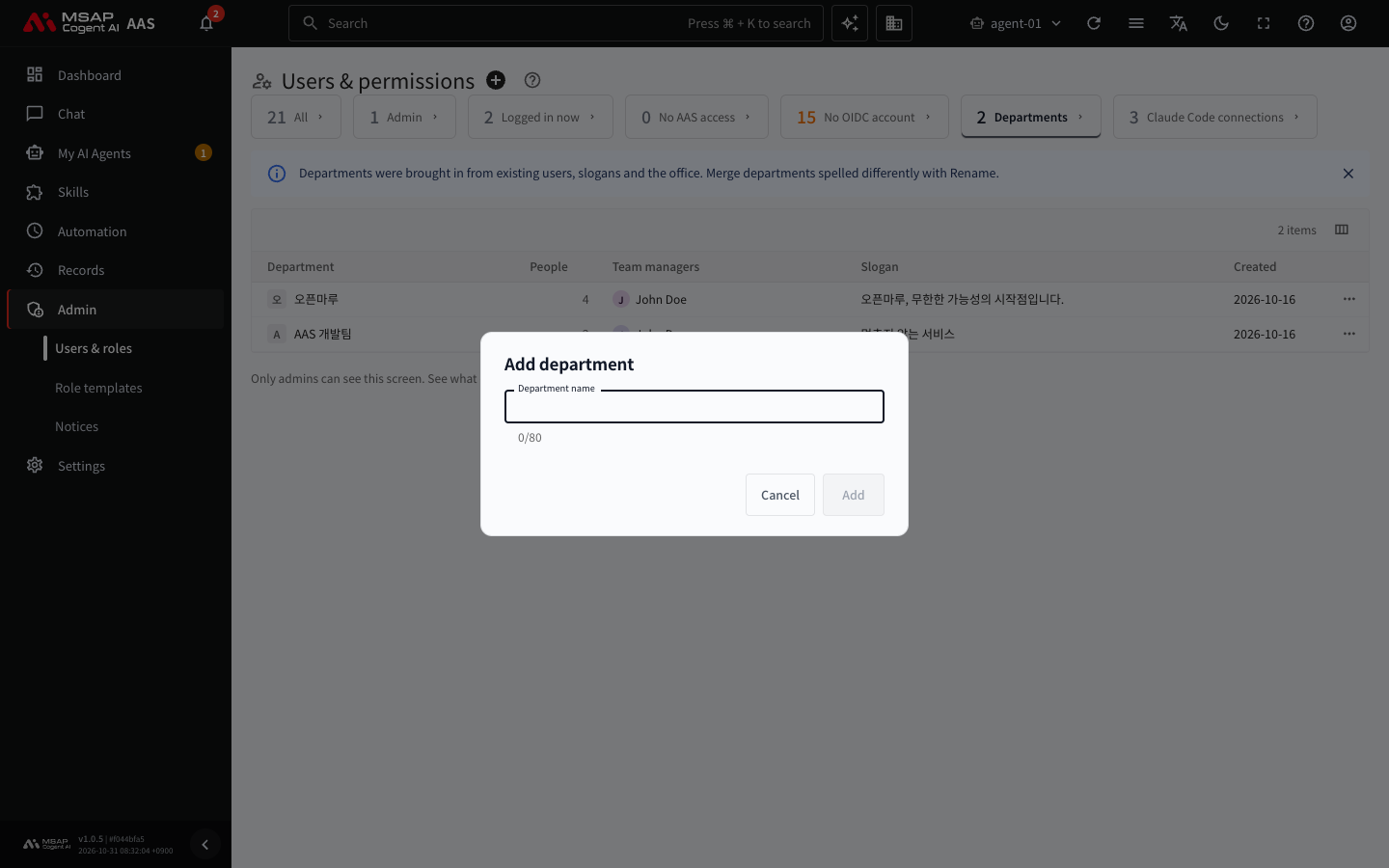
Figure 2.2-4. The "Add department" window (closed without adding)
If the department already exists, "This department already exists" appears. When you add one, "Added department "name"" appears, and you can choose that department right away in the "Department" field when you add or edit users.
Setting a User's Department
The "Department" field in the add and edit user windows is an autocomplete field where you choose from the list. When you type part of a name, matching departments appear. The field shows the following messages.
| Message | What to do |
|---|---|
| Loading the department list | Wait a moment. |
| Could not load the department list. | Select "Try again". |
| There are no departments. | Add a department in the "Department list", then select "Refresh list". |
| This department is not in the list. Keep it as is or pick again from the list. | Leave it or choose again from the list. It appears when an existing person's department is outside the list. |
Renaming a Department
- Select "Rename" in the "…" menu of the department row, or in the detail window that opens when you select the row.
- Enter the new name. The window shows "The department of this department's n people changes too."
- Select "Rename".
When you rename it, the following change together.
- The department of the people in it (the user information on the SSO server)
- The department slogan
- The audience departments of notices
- Team manager assignments
- The team name of 3D Office seats (follows within a few seconds)
When it finishes, "Renamed the department to "name" (n people)" appears.
When Only Some Were Changed
If an SSO server error changes only some people, the "Only some were changed" window opens. It shows "Changed m of n people." and the names of the people who were not changed. Select "Try again" to continue the same rename. In this state, the old name and the new name are both in the list.
Merging Departments That Are Spelled Differently
If rows marked "Not in list" mean the same department, use Rename to match them to the name in the list. If you rename a department that is outside the list to a name that already exists, it is merged into that department. A department that is in the list cannot be renamed to the same name as another department ("This department already exists").
Deleting a Department
- Select "Delete" in the "…" menu of the department row, or in the detail window.
- Select "Delete" in the confirmation window. If the department has a slogan, "Its slogan is deleted too." appears.
You cannot delete a department that has even one person. The "Cannot delete" window opens and shows "This department has n people, so it cannot be deleted. Change their department first." Select "Show members" to check those people in the detail window. A department is also not deleted when the number of people could not be checked.
Department Detail Window
When you select a department row, the detail window opens on the right.
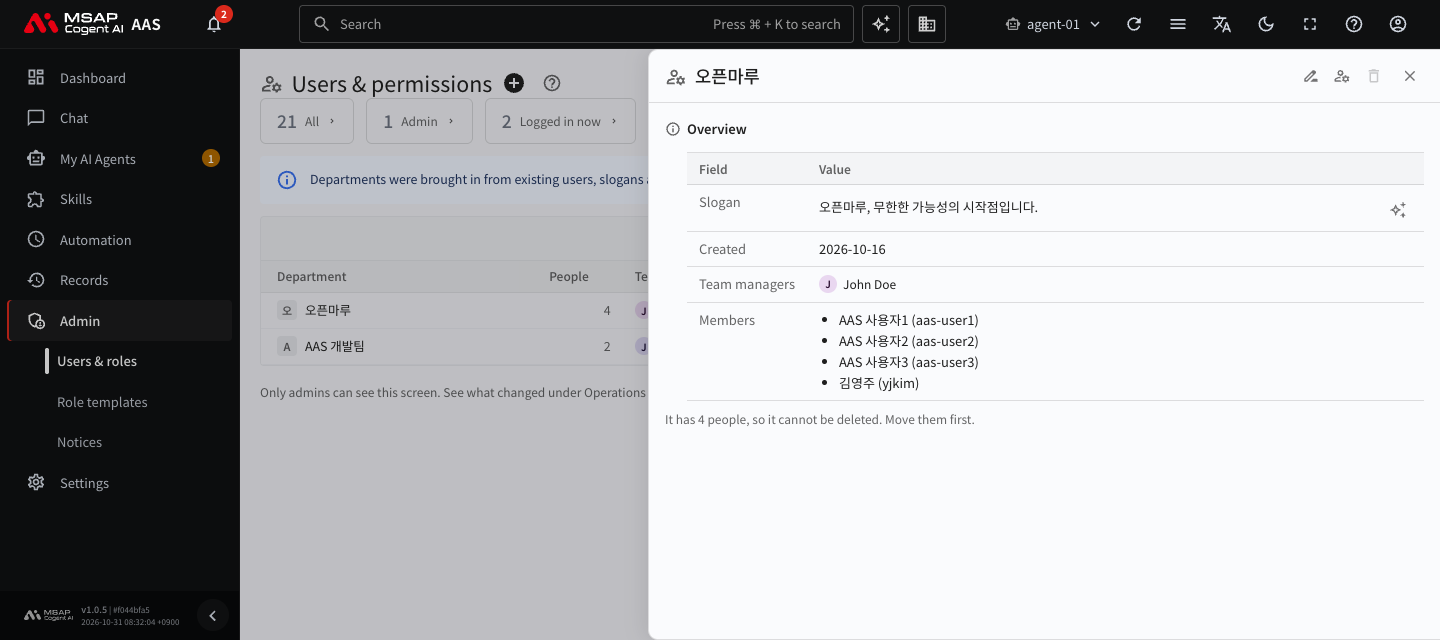
Figure 2.2-5. The department detail window
- Action buttons at the top: "Rename", "Assign team managers", and "Delete". For a department that is not in the list, "Add to list" comes first, and "Assign team managers" and "Delete" are not shown.
- Slogan: you see the text, and the "Suggest slogans with AI" button gives you suggested candidates. Select "Save this slogan" on a candidate to save it right away. You can edit it after saving.
- Created date, team managers, and the member list
You can also edit the slogan in "Settings › Company info". Administrators edit the slogans of all departments, and general users edit the slogan of their own department.