2.5. Sign-In and Sessions
Overview
After a user signs in to AAS, they stay signed in for a set time. This chapter explains the sign-in screen and the SSO (Single Sign-On) sign-in process, how long a session lasts, signing out, and how an administrator ends another person's login. Use this chapter when a user reports that "I was signed out" or "I cannot get in." A session is the sign-in state that the server remembers after sign-in.
Permission: The sections on signing in and passwords apply to all users. Only administrators can end another person's login.
Sign-In Screen
When you open the address, the "Welcome to AAS" screen appears first. If you open the address of another screen without being signed in, this screen also appears, and after you sign in you return to the screen you were trying to open.
Signing in with SSO
On installations that sign in through an SSO server, there is one "Sign in with SSO" button. Below the button, the screen shows "A new window opens to sign in."
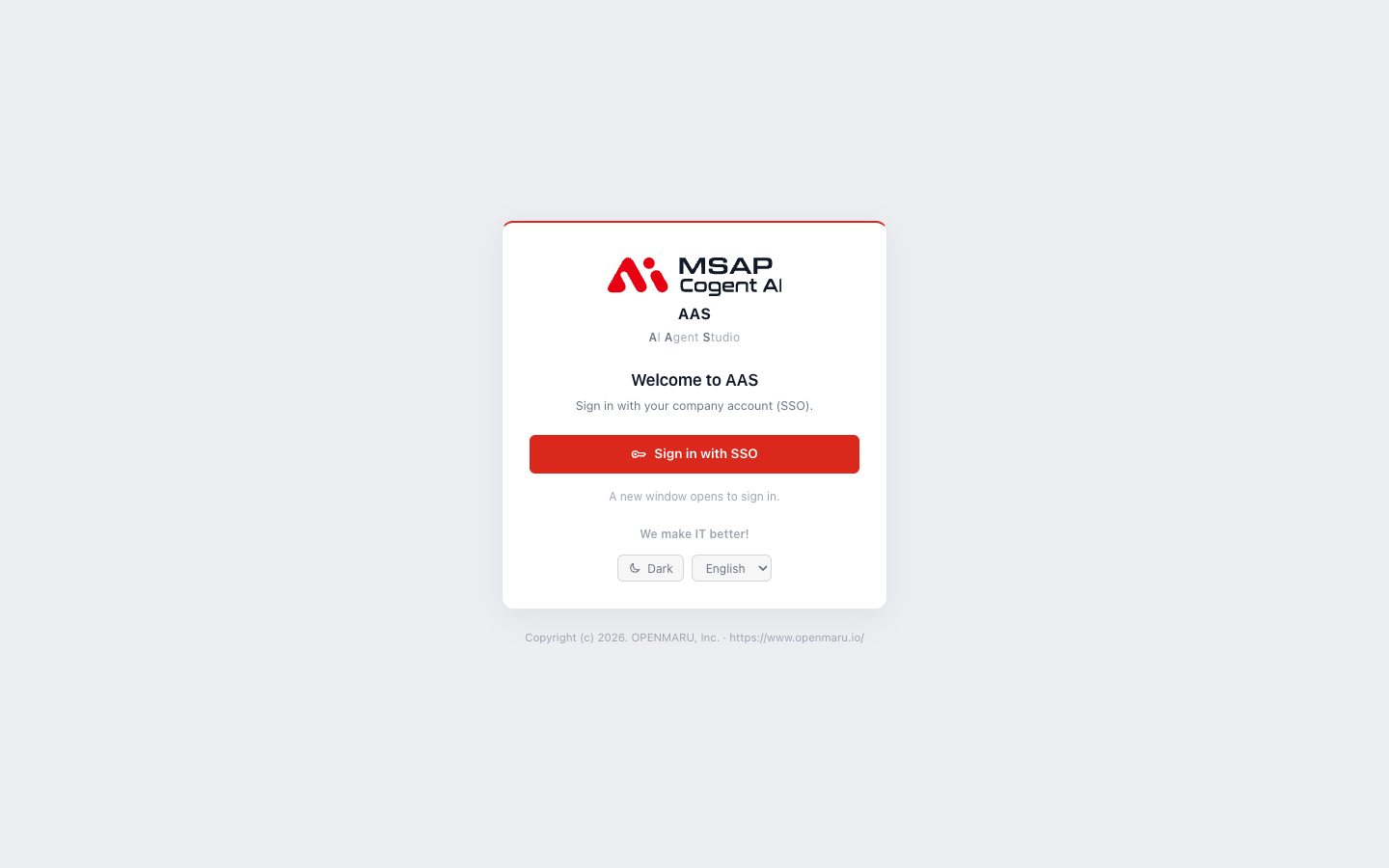
Figure 2.5-1. Sign-in screen
- Click "Sign in with SSO".
- In the small window that opens, enter your username or email and your password.
- When sign-in finishes, the new window closes and the original window moves to the AAS screen.
If the new window does not close, click the "Click here if it does not close" link in the window. If the browser blocks the new window, the sign-in moves to the SSO sign-in screen in the same window. In this case, AAS opens automatically when sign-in finishes. If you click the button while holding Ctrl or Shift, it follows the link normally instead of opening a new window.
The SSO sign-in screen appears in English if the browser language is English, and in Korean otherwise.
Signing in with a username or an email
On the SSO sign-in screen, you can sign in with either a username (for example, hong) or an email (for example, hong@example.com). When you add a user on the screen, you can use only a username that differs from the email, so new accounts work both ways. Some older accounts have a username that is the same as the email. Those accounts sign in with the email. The result window shown after you add a user tells the person to sign in with the username.
First sign-in
A person signs in for the first time with the temporary password from the account an administrator created. At first sign-in, a screen for choosing a new password appears. If the person does not have an AI agent workspace yet, it is created at this time. You create and hand over the temporary password in 2.1. Adding and Editing Users.
Sign-in that differs by installation
| Screen | Situation |
|---|---|
| "Email" and "Password" fields and a "Sign in" button, with "or" and "Sign in with SSO" below | An installation where sign-in with an AAS account is also on. The password of an AAS account is set on the server and appears in the user detail window as "AAS password (for internal IP access)". |
| "This connection is not encrypted (http). Use it only inside the internal network or VPN." | You opened an address that is not https. |
| "Login is off. Only this computer can connect" (below the title of the "Users & permissions" screen) | A development installation. In a production environment, tell the server operator. |
When Sign-In Fails
If an error occurs during sign-in, the "Sign-in failed" screen appears with the reason. Click the "Sign in again" link on the screen to start over.
| Message | Cause and what to do |
|---|---|
| Only members of the {group name} group are allowed. Ask an admin to add you to the group. | The SSO account exists, but there is no AAS access. Give access with "Add to AAS" (2.4. Clearing "No AAS Access" and "No OIDC Account"). |
| Only {domain} accounts are allowed | The account is not in an allowed email domain. The allowed domain appears below the title of the "Users & permissions" screen. |
| This account has no verified email | The SSO account has no email. Add an email. |
| The login request expired or is unknown. Try again. | The sign-in window stayed open too long. Sign in again from the start. |
| SSO sign-in is not available at this address | The address you opened is not an access address registered on the SSO server. Tell the server operator. |
| Cannot reach the login provider | The AAS server cannot reach the SSO server. Tell the server operator. |
A disabled account cannot sign in. For disabling, see 2.1. Adding and Editing Users.
How Long a Session Lasts
A person stays signed in while they work on the screen.
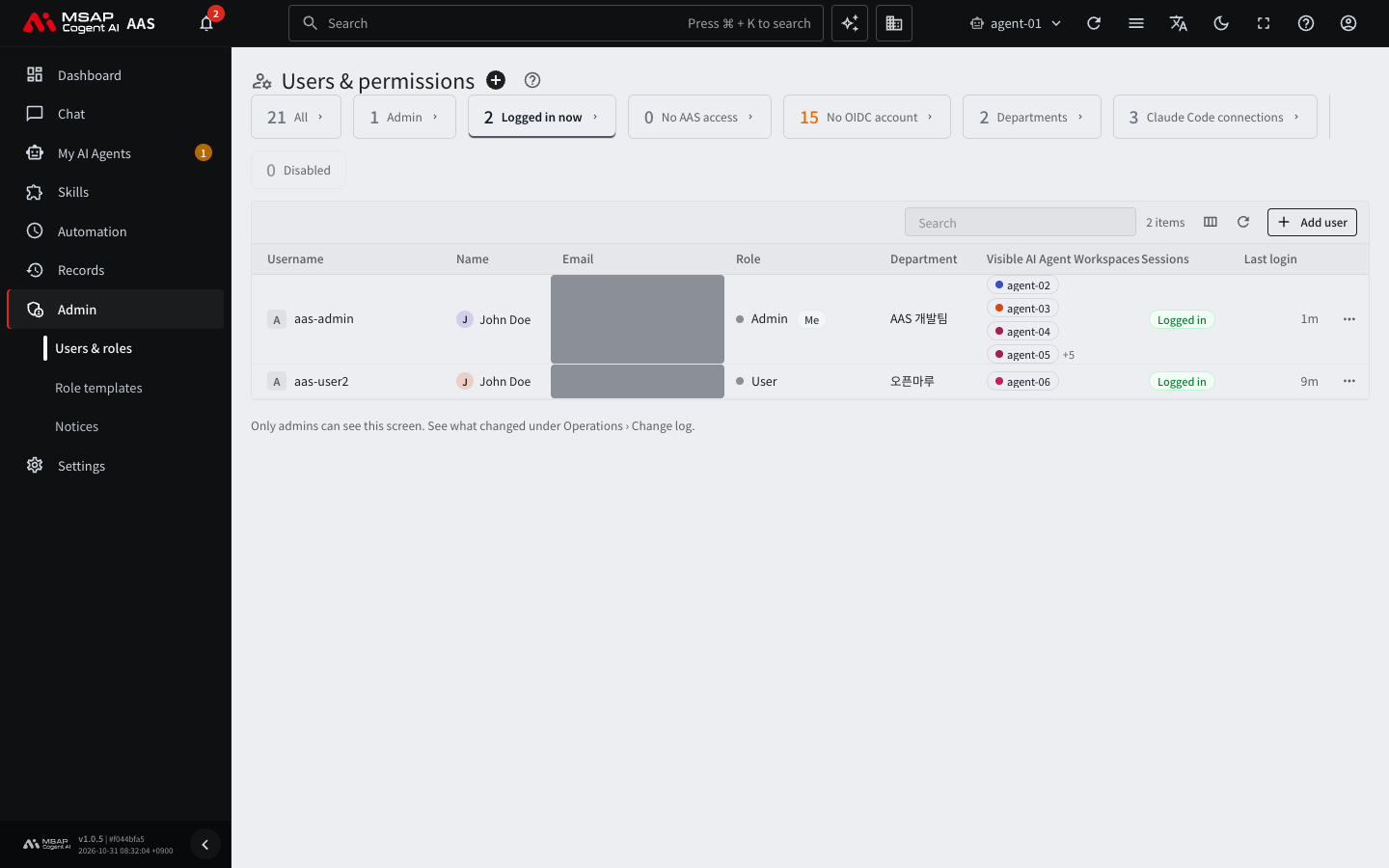
Figure 2.5-2. List on the "Logged in now" tab
| Item | Default |
|---|---|
| Time after which the session ends if there is no activity | 2 hours |
| Maximum time before the person must sign in again, even with continuous activity | 24 hours after sign-in |
- Activity means clicks, key presses, scrolling, and touch. Requests that the screen sends automatically do not extend the time.
- When there is activity, the screen notifies the server once every 5 minutes. A person who only leaves the screen open is signed out after 2 hours.
- If the person acts after the session has ended, the sign-in screen appears.
- When a session ends, the sign-in state on the SSO server also ends. This prevents an earlier SSO sign-in from letting the person back in automatically.
- The operator sets these times. You do not change them on the screen. To change the values, ask the server operator.
Where to check sessions
- The "Logged in now" card in "Users & roles": people who have a sign-in session now. The "Sessions" column of the table shows "Logged in".
- A person's detail window: "Logins (last 31 days)" shows the number of logins and the time of the last one, and "Current sessions" shows the number of sessions and when they end.
- The "Last login" column of the table: if there is no sign-in record in the last 31 days, it shows "No login in the last 31 days".
Signing Out
Users sign out as follows.
- Click the name at the top right of the screen.
- In the menu, click "Sign out".
The sign-in screen appears with "You have signed out." Other tabs open in the same browser are treated as signed out.
Ending Another Person's Login
Only administrators see this function. Use it when a sign-in remains on a shared PC, or when you want a permission change to apply right away. For a person who has left the company, use 2.1. Adding and Editing Users, not ending the login.
- In "Users & roles", click the row of the person to sign out to open the detail window.
- Click "End this person's logins" in the action buttons at the top. If the person has no session now, the button is not shown.
- Click "End this person's logins" in the confirmation window.
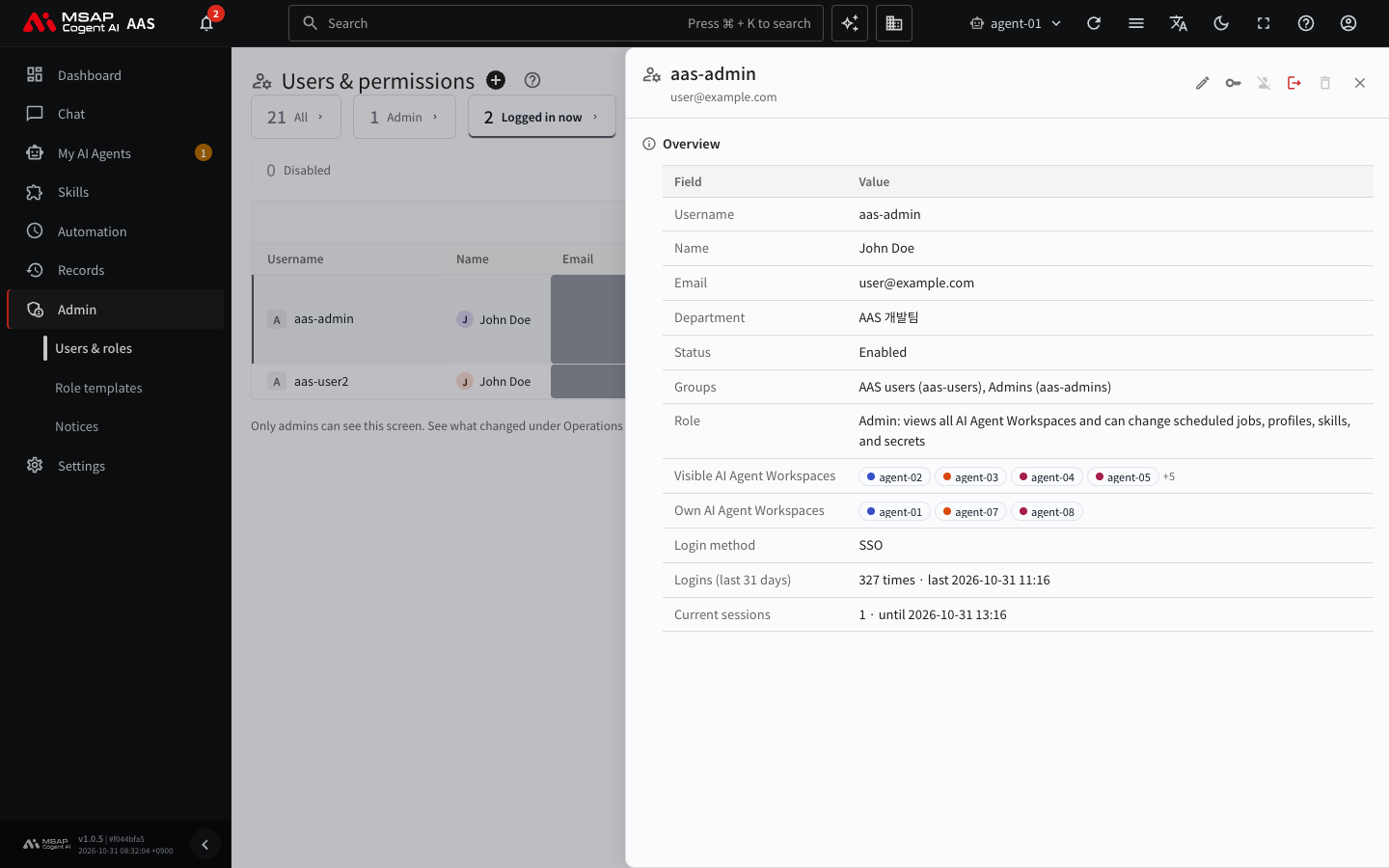
Figure 2.5-3. Detail window of a signed-in person
When it finishes, "Ended {n} sessions" appears. If you end your own login, the confirmation window says "This also ends your own login.", and after the login ends you move to the sign-in screen.
Caution: Even after you end a login, the person can get in again by signing in again. To keep the person out, use "Disable". Disabling ends both the login and the sign-in state on the SSO server.
On the server, the login ends immediately, and the screen the person has open changes to the sign-in screen within 1 minute. The sign-in may remain on the SSO server after you end the login. When the person connects to AAS again, the SSO sign-in ends at that time as well.
Passwords
- Users change their own passwords. Click your name at the top right of the screen, open "My account", and in the "Change password" section enter the current password and the new password (at least 8 characters). Changing it ends the logins on other devices. This function is available when the sign-in method is SSO ("OIDC") or an AAS account.
- If a user forgets the password, an administrator creates a new temporary password with "Reset password" in the detail window. The user signs in with the temporary password and then sets a new password.