1.3. Administrator Dashboard
Overview
The "Dashboard" is the first screen that opens when you sign in. For administrators it has two sections. In the upper section, "All AI Agent Workspaces", you see the status of every AI agent workspace at a glance. In the lower section, "Current AI Agent Workspace", you see the items to check for the one workspace you have selected. Open this screen first when you start the day and when a user reports a problem.
This chapter explains what to look at and what to do in each section. For the check order after you find a problem, see 7.1. Operations Checks.
Permission: Only administrators see the upper section. All users see the lower section, based on their own workspace.
Opening the Screen
- Select "Dashboard" at the top of the left menu.
- Check the collection time at the upper right of the screen. "All AI Agent Workspaces collected" is the time the values in the upper section were collected, and "Current AI Agent Workspace" is the time for the lower section.
If it succeeds, four number cards and a workspace table appear at the top.
All AI Agent Workspaces
The server collects and stores the values of all workspaces, and the screen reads the stored values. So the numbers may not drop right away even after you fix a problem. Check the collection time.
The Four Number Cards
| Card | What the administrator does |
|---|---|
| AI Agent Workspaces ready (for example, 12/12) | If the number ready is smaller than the total, select the card and check the workspaces that are not ready on the "AI Agent Workspaces" screen (3.2. Workspace Status and Restarting). |
| Failed or stalled jobs | Select the card to filter the table below to the matching workspaces. Open the workspace and check its scheduled jobs. |
| Profiles with problems | Select the card to filter the table below to the matching workspaces. This counts messenger connection problems. |
| Expiring API keys & tokens | Select the card to open the "To check" view on the "Settings › API keys & tokens" screen. Replace them with new values. |
On a new installation where collection has never run, dashes and the "Next collection" time appear instead of numbers.
If collection fails for some workspaces, text such as "Based on 10 of 12 · 2 failed to collect" appears under the numbers. The totals count only the workspaces that were collected successfully. Select the text to filter the table to the workspaces that failed to collect. If a workspace keeps failing, tell the server operator.
Note: "Profiles with problems" counts only messenger connection problems. The profile list in the lower section also shows other kinds of problems, so the two values can differ.
Status Table by Workspace
There is one row for each workspace, and the workspaces with the most problems come first. The columns are Name, Owner, Ready, Messenger connection, Failed/stalled, Problem profiles, Expiring API keys & tokens, Last used, and Collected. Read the state of each value in the "Collected" column.
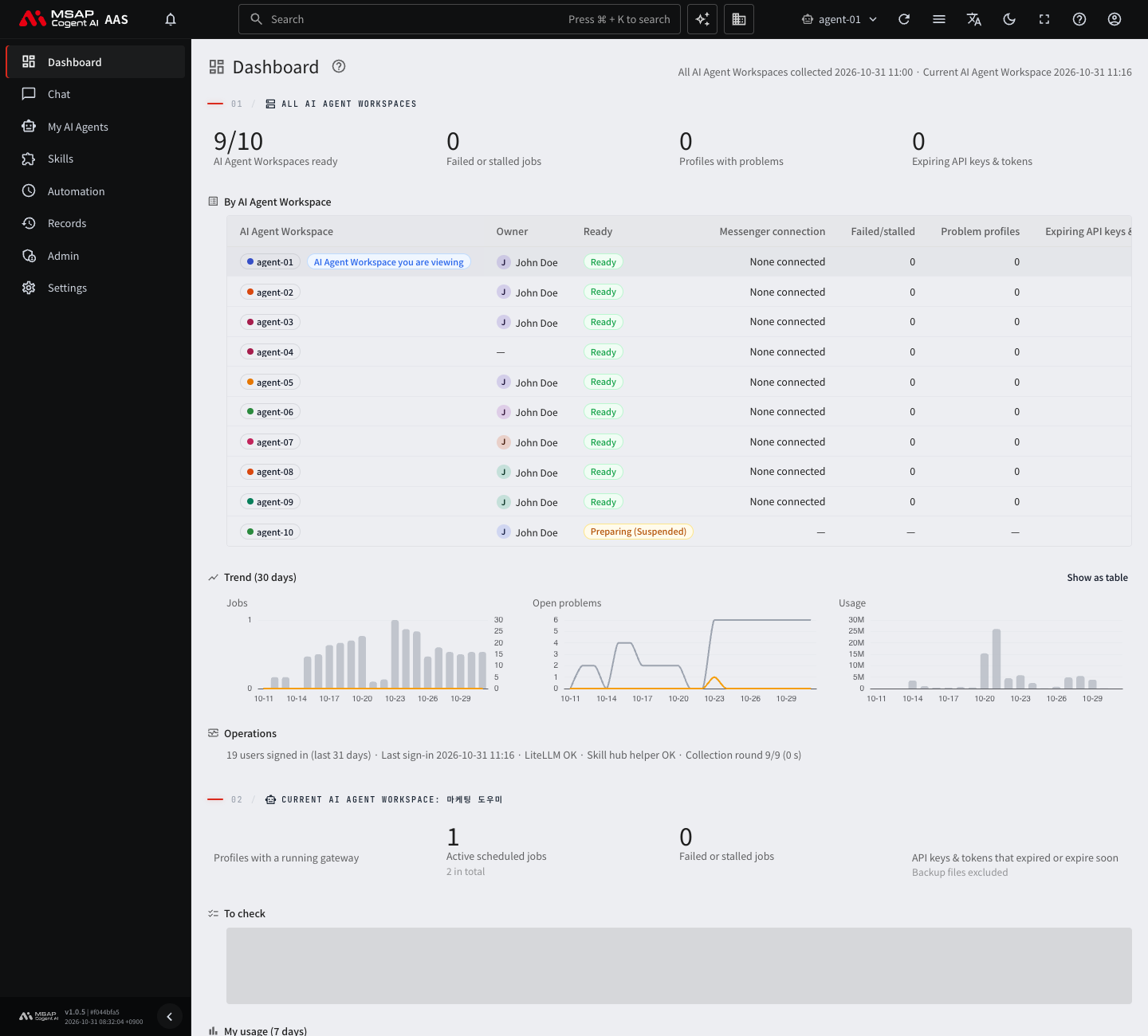
Figure 1.3-1. The overall section of the dashboard
| "Collected" column shows | Meaning and what to do |
|---|---|
| A time | Collected normally. Nothing to do. |
| Not collected yet | It has never been collected. Wait for the next collection. |
| Collection failed · value from (time) | This collection failed, so the value from the time shown is displayed instead. If it continues, tell the server operator. |
| Value from n h ago | The last collection is more than 1 hour old. If it continues, tell the server operator. |
| Preparing (phase) | The workspace is not ready yet. Wait until it finishes preparing. |
When you select the row of a ready workspace, the screen switches to that workspace and moves to the lower section. When you filter the table, a "Filter: …" label appears above the table. Select the "×" ("Clear filter") next to the label to return to the full list.
Trend (30 days)
Three charts (Jobs, Open problems, Usage) show the changes over the last 30 days. Select "Show as table" to see the same values as a table. Select "Show as chart" to go back. Until values accumulate, "No trend yet" appears. It appears after collection has run for a day or more.
Operations
One line tells you the following.
| On-screen display | Meaning |
|---|---|
| Number of users who signed in in the last 31 days, and the last sign-in time | Usage status. |
| "LiteLLM OK" / "LiteLLM unreachable" / "LiteLLM not checked yet" | The status of the model server that provides the AI models. |
| "Skill hub helper OK" / "Skill hub helper stopped" | The status of the program that puts Skill Hub skills into users' profiles. |
| "Collection round 12/12 (8 s)" | The number of workspaces collected successfully in this collection, the total, and the time it took. |
If you see "LiteLLM unreachable" or "Skill hub helper stopped", users' chats or skill installs may be affected. Tell the server operator.
Current AI Agent Workspace
The title shows the name of the workspace you have selected. When you select another row in the table, this section changes to the values of that workspace. The values in this section refresh automatically while the screen is open.
The Four Number Cards
| Card | When you select it |
|---|---|
| Profiles with a running gateway | Goes to the "Profiles" screen. The gateway is the path through which an AI agent receives messenger messages and scheduled jobs. |
| Active scheduled jobs | Goes to the "Scheduled jobs" screen. |
| Failed or stalled jobs | Goes to the "Last run failed" view of the "Scheduled jobs" screen. |
| API keys & tokens that expired or expire soon | Goes to the "API keys & tokens" screen. |
To Check
Only items that have a problem appear, in groups. Each group shows up to five items, and you can open the rest with "Show n more". Select a row to go to the matching screen and act on it right away.
| Group | What the administrator does |
|---|---|
| Conversations waiting for a reply | Open the conversation and approve or answer. |
| Jobs still failing | Check the cause of the scheduled job failure and fix it. |
| Stalled jobs | Look at how long the job has been stalled and the cause, then act on the matching screen. |
| Profiles with problems | Check the problem on the Profiles screen. |
| API keys & tokens that expired or expire soon | Replace them with new values. |
| To tidy up | Check and tidy up issues that are already resolved, jobs with no notification target, muted jobs, and new skill versions. |
If there is nothing to handle, "Nothing to handle now · last checked (time)" appears.
In the same list that general users see, items other than "Conversations waiting for a reply" cannot be selected and are marked "Needs an admin". When a user sees this mark and asks you about it, open the screen for that item (for example, Scheduled jobs) and act on it yourself.
Other Items
- "My usage (7 days)": the number of conversations, the number of messages, input tokens, and output tokens for the last 7 days. Select it to go to the "Usage" screen.
- "Changes in the last 7 days": the five most recent change log entries. Select it to go to the "Change history" screen.
Messages on the Screen
| Message | Meaning and what to do |
|---|---|
| There are no AI Agent Workspaces yet | There is no workspace at all. Select the "AI Agent Workspaces screen" button to go there. |
| Preparing your AI Agent Workspace | The workspace you selected is still being prepared. The values appear when preparation finishes. |
| Could not load | Only that section shows the error. Select "Try again". Other sections stay as they are. |