9.4. User Settings
When to Look at This
- When you want to switch the screen to dark colors
- When changing the display language
- When changing list times to absolute times
- When the screen is narrow and you want to collapse the menu
General Settings
Select Settings at the very bottom of the left menu.
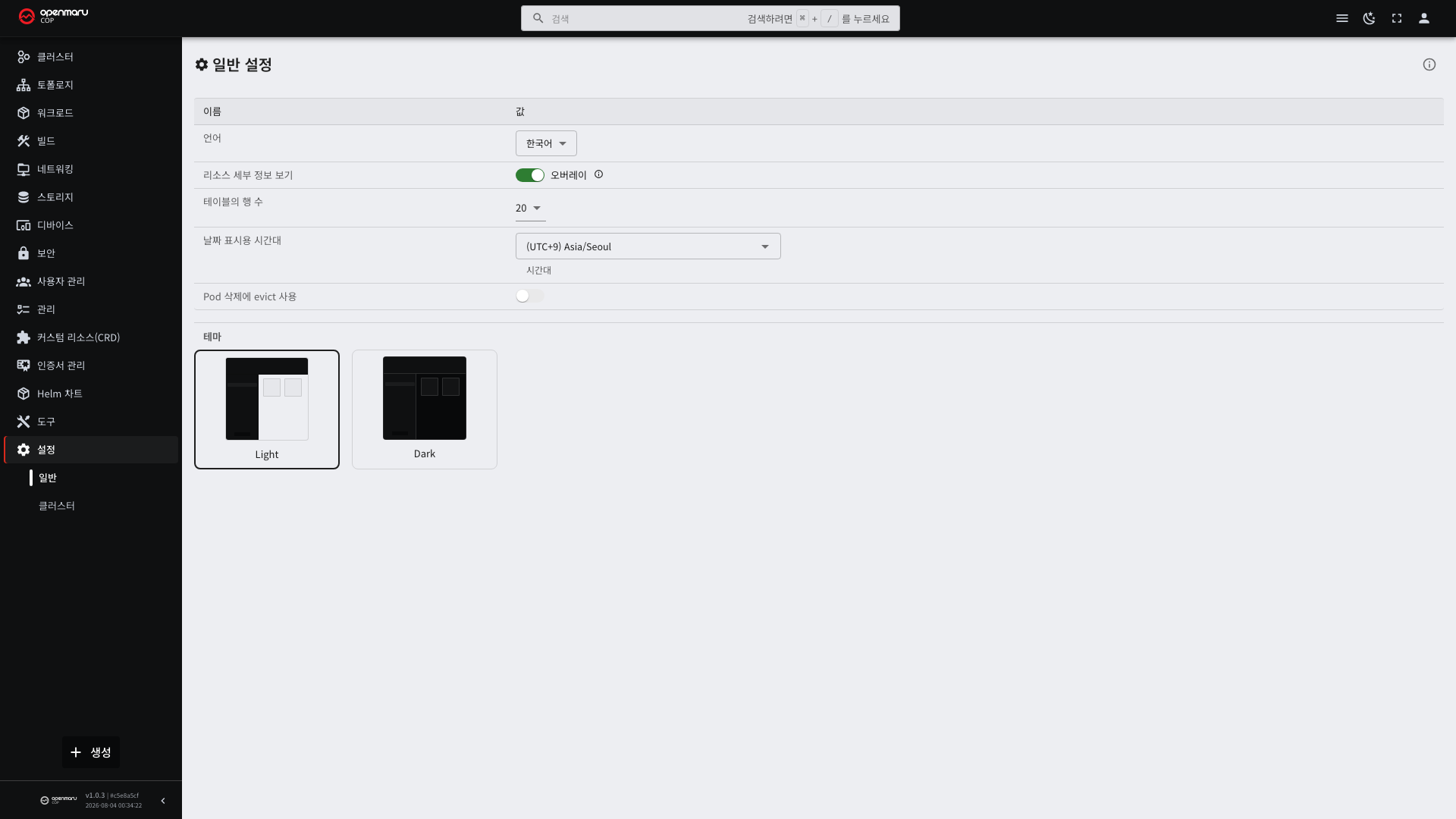
Screen Theme
Choose between the light and dark screen. You can also switch directly with the moon or sun icon in the top bar.
Without a setting, it follows the operating system or browser setting. The dark screen is easier on the eyes for night work, while the light screen prints better when you capture screens for documents.
Display Language
Choose between Korean and English. Changing it switches the menus and guidance text immediately.
Some things are translated and some are not.
| Target | Translated |
|---|---|
| Menu names, buttons, guidance text | Translated |
| Resource names, namespaces | Not translated (values stored in the cluster) |
| Container logs | Not translated |
| Kubernetes status and reason codes | Partly translated |
Logs and event messages appear in their original form. When searching, using English words is more reliable.
Time Notation
This sets how times are shown in lists.
| Style | Example | When it fits |
|---|---|---|
| Age | 5m, 2d | Finding what was just created |
| Absolute time | 2026-08-04 10:30:00 | Aligning the time of a failure with other records |
Switch to absolute time when investigating a failure. Aligning with log and monitoring records is difficult with an elapsed time.
Collapsing the Sidebar
Collapse the left menu with the list-shaped icon on the right of the top bar, or the arrow at the bottom of the sidebar. Collapsed, only icons remain and the main area widens.
It is useful on screens with many columns (pods, builds).
Cluster Settings
View the settings for the cluster you are connected to under Settings > Cluster.
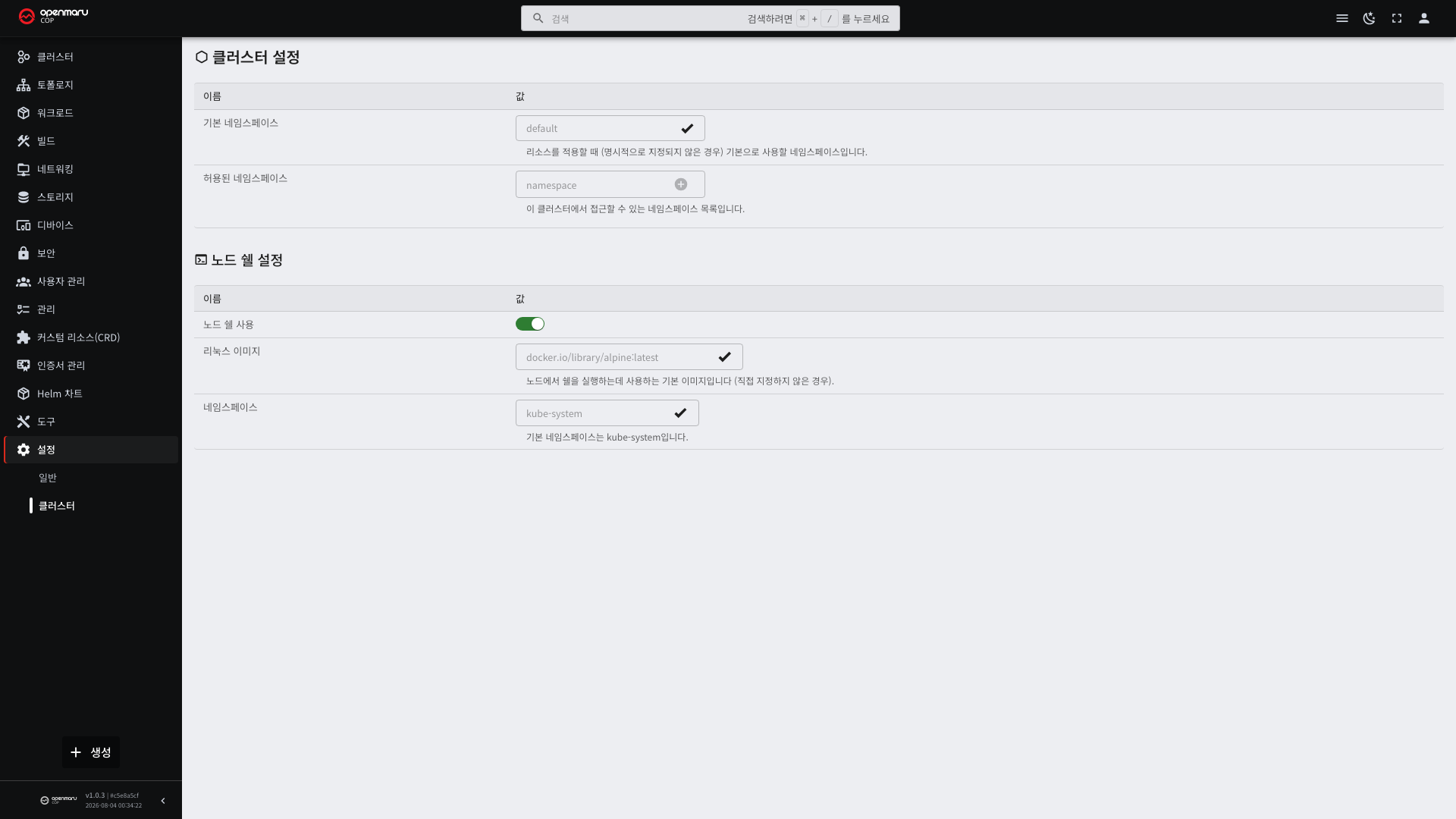
| Item | Description |
|---|---|
| Cluster name | The name used in the Console. It is the /c/<name>/ part of the address |
| Server address | The cluster API address |
| Default namespace | The namespace selected first when a screen opens |
Setting a default namespace means you do not have to choose it every time you open a screen. Setting it to your own team's namespace is recommended.
Where Settings Are Stored
Values changed here are saved only in the browser you are using. They have to be set again on another PC or in another browser. Clearing browser data returns them to their initial values.
They are not values stored in the cluster, so changing them does not affect other users.