3.3. Jobs
When to Use It
- When checking whether a batch job ran on time
- When viewing the log of a failed batch
- When pausing a scheduled job briefly or running it once now
Jobs and CronJobs
| Resource | What it does |
|---|---|
| Job | Work that runs once and finishes |
| CronJob | Repeatedly creates Jobs at set times |
Use them for work that does not need to stay up, such as data cleanup, backups, and report generation.
The difference from a Deployment is that finishing is considered normal. When a Deployment's pod terminates it is started again, whereas a Job's pod is left alone once it finishes successfully.
The CronJob List
Go to Workloads > CronJobs.
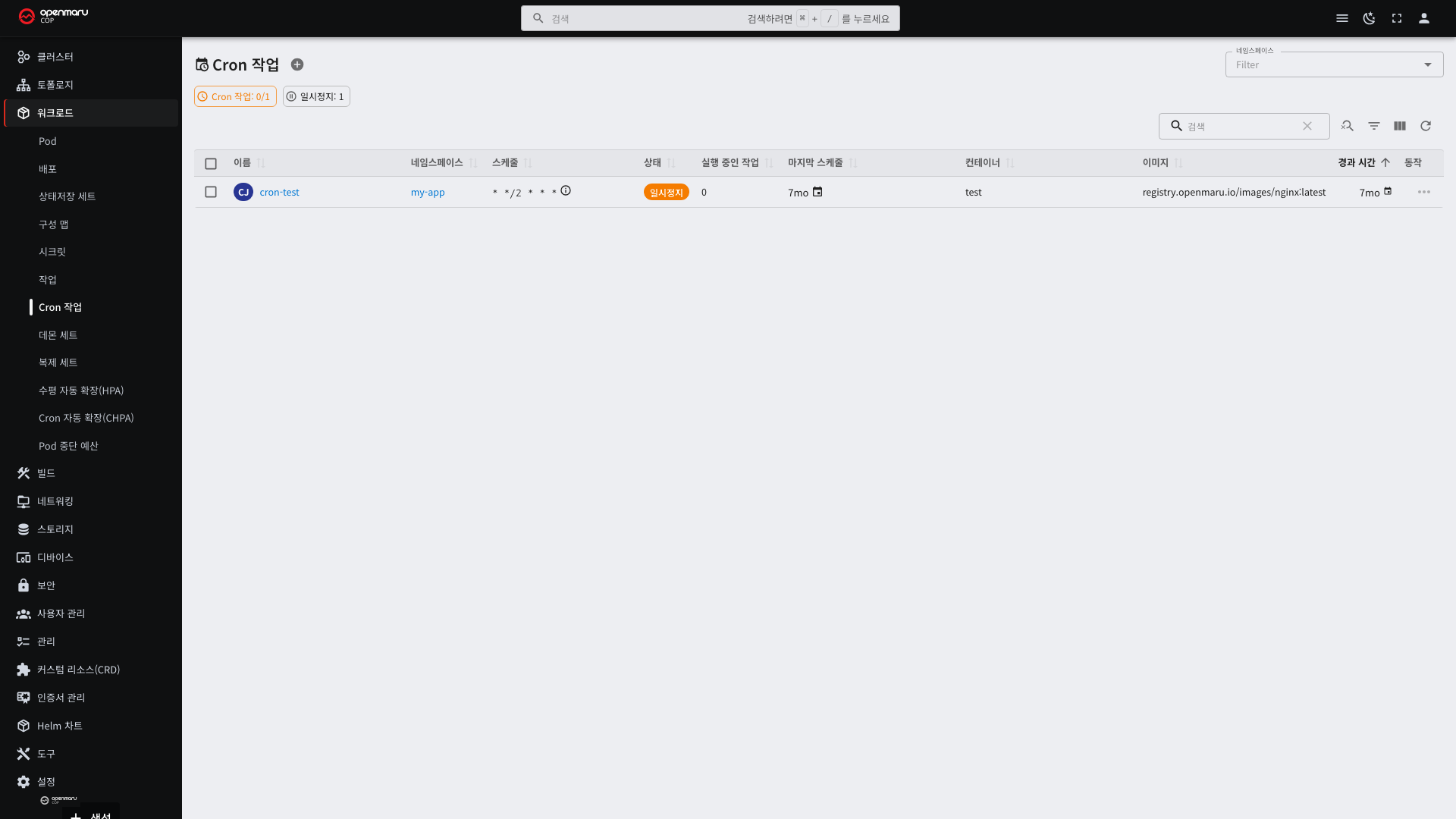
| Column | Description |
|---|---|
| Name | The CronJob name |
| Namespace | The namespace it belongs to |
| Schedule | The rule for run times |
| Suspended | Whether it is paused |
| Last run | The most recent run time |
| Age | Time elapsed since creation |
If the last run time does not match the schedule, either it is suspended or the previous run has not finished.
Reading the Schedule Notation
The schedule is written in five fields. From the left: minute, hour, day of month, month, day of week.
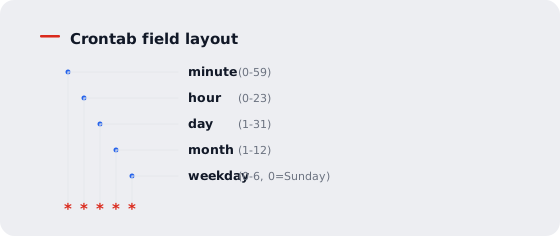
| Notation | Meaning |
|---|---|
0 2 * * * | Every day at 02:00 |
*/10 * * * * | Every 10 minutes |
0 0 * * 0 | Every Sunday at 00:00 |
0 3 1 * * | The 1st of every month at 03:00 |
0 9-18 * * 1-5 | On the hour from 09:00 to 18:00 on weekdays |
| Symbol | Meaning |
|---|---|
* | Every value |
*/N | Every N |
A-B | From A to B |
A,B | A and B |
Time Zone Caution
Times are based on the cluster. In an environment running on Coordinated Universal Time (UTC), there is a
nine-hour difference from Korean time. 0 2 * * * runs at 11:00 Korean time.
Ask your installation staff for the cluster time zone. To run at 02:00 Korean time in a UTC environment, you have to
write 0 17 * * *.
Concurrency Policy
This decides what to do when the next schedule arrives before the previous run has finished. You can check it on the detail screen.
| Policy | Behavior |
|---|---|
| Allow | Simply runs them together (the default) |
| Forbid | Skips until the previous one finishes |
| Replace | Stops the previous one and starts anew |
Set Forbid or Replace for batches that modify the same data. Left at the default Allow, two runs can touch
the same data at once.
Creating One — YAML
apiVersion: batch/v1
kind: CronJob
metadata:
  name: nightly-report
  namespace: my-app
spec:
  schedule: "0 3 * * *"              # every day at 03:00 (five fields)
  timeZone: "Asia/Seoul"             # without this, UTC applies
  concurrencyPolicy: Forbid          # skips if the previous run has not finished
  startingDeadlineSeconds: 300       # gives up on that occurrence if it cannot start within five minutes
  successfulJobsHistoryLimit: 3      # keeps only 3 success records
  failedJobsHistoryLimit: 3          # keeps only 3 failure records
  jobTemplate:
    spec:
      backoffLimit: 2                # retries up to twice on failure
      activeDeadlineSeconds: 3600    # aborts if it exceeds one hour
      template:
        spec:
          restartPolicy: OnFailure   # Jobs cannot use Always
          containers:
            - name: report
              image: registry.example.com/report:1.0
              command: ["/bin/sh", "-c", "generate-report.sh"]
| Field | Description |
|---|---|
schedule | Five fields. This differs from CronHPA, which uses six (see 3.5) |
timeZone | Without it, UTC applies, which is nine hours from Korean time |
concurrencyPolicy | See the table above |
startingDeadlineSeconds | The deadline after which to give up when the cluster was too busy to start on time |
backoffLimit | How many retries within one occurrence. 0 means no retries |
activeDeadlineSeconds | Aborts beyond this duration. Prevents waiting forever |
restartPolicy | OnFailure (restart) or Never (create a new pod) |
timeZone is easy to forget. You write 03:00 and it runs at noon.
Set the retention counts. The defaults are 3 successes and 1 failure, but batches on a short cycle accumulate Jobs and pods that fill the list.
For work that runs only once, use a Job rather than a CronJob.
apiVersion: batch/v1
kind: Job
metadata:
  name: db-migration
  namespace: my-app
spec:
  backoffLimit: 0                    # retrying a migration is dangerous
  ttlSecondsAfterFinished: 86400     # deleted automatically one day after finishing
  template:
    spec:
      restartPolicy: Never
      containers:
        - name: migrate
          image: registry.example.com/migrate:1.0
Set backoffLimit: 0 for work that modifies data. A retry can apply the same change twice.
Checking Run Results
View the list of Jobs created so far on the detail screen.
- Select a Job name.
- It leads to the pods that Job created.
- Check the logs on the pod (see 3.1).
An empty Job list means it has never run yet, or completed ones were deleted according to the cleanup settings.
Handling Failed Runs
The pods of failed Jobs remain, so you can view their logs. Pods of successful runs may be deleted automatically depending on the settings.
A Job retries a set number of times on failure. Check the retry limit on the detail screen. Beyond the limit, the whole Job is marked failed and no further attempts are made.
| Symptom | What to check |
|---|---|
| Keeps failing | Pod logs. Usually a problem with input data or the connection target |
| Does not even start | Events. Resource shortage or an image problem |
| Takes so long it overlaps the next schedule | The concurrency policy |
Running On Demand and Suspending
| What you want to do | How |
|---|---|
| Run once now, regardless of the schedule | The run button on the detail screen |
| Stop running for a while | Turn on the suspend field in the editor |
| Start running again | Turn the suspend field off |
Schedules that passed while suspended are not run in a batch afterwards. Turning it back on resumes normal operation from the next schedule.
It is safer to suspend batches just before a deployment or during maintenance.
When Records Pile Up
Set how many completed Jobs to keep on the detail screen. Beyond the default, the oldest are deleted.
Retention counts for success records and failure records can be set separately. Failure records are needed for investigation, so it is better to keep more of them than of successes.