8.3. Devices (GPU Sharing)
When to Look at This
- When deploying an application that uses a GPU
- When a GPU pod does not move past
Pending - When checking whether any GPUs are left
- When checking whether several teams are sharing GPUs
Why GPUs Are Hard to Share
CPU and memory can be split into fractions. Requesting "0.5 CPU" lets the scheduler divide it for you.
GPUs are not like that.
| CPU · memory | GPU | |
|---|---|---|
| Dividing | Can be split into fractions | The device is the basic unit |
| Kinds | None | Models and memory sizes all differ |
| How to request | Written as a number | You have to state "a device meeting these conditions" |
| Sharing among many | Taken for granted | The driver has to support it |
Writing just "1 GPU" gives no way to know which model you will get. Some work cannot run on an 8GB card, and some libraries run only on particular generations.
What DRA Is
DRA (Dynamic Resource Allocation) is the Kubernetes allocation mechanism for handling such complex devices.
Instead of requesting a number, you create a separate request resource and have the pod reference it. The request states "which class of device is needed and which conditions it must satisfy".
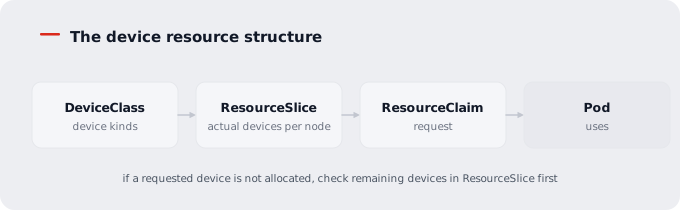
Here is what this gives you.
| What you can do | Description |
|---|---|
| Select by condition | Request something like "a GPU with 16GB or more of memory" |
| Share among several pods | If the driver supports it, one device is shared |
| Share across namespaces | Different teams use the same device together |
| Check per-device status | See on screen which device is allocated where |
A driver is required for it to work. DRA is the Kubernetes framework; discovering and allocating actual devices is done by the driver the GPU vendor provides. Without a driver, all the lists are empty.
The Four Resources and Their Roles
| Resource | Scope | Who creates it | Role |
|---|---|---|---|
| DeviceClass | Cluster | Driver or operators | The kind of device and the conditions for selecting it |
| ResourceSlice | Cluster | The driver, automatically | The list of actual devices per node |
| ResourceClaim | Namespace | Users | The request to use a device |
| ResourceClaimTemplate | Namespace | Users | A mold that generates a request per pod |
The first two are read-only. Users create the last two.
Device Classes
These define the kind of device. Go to Devices > Device Classes.
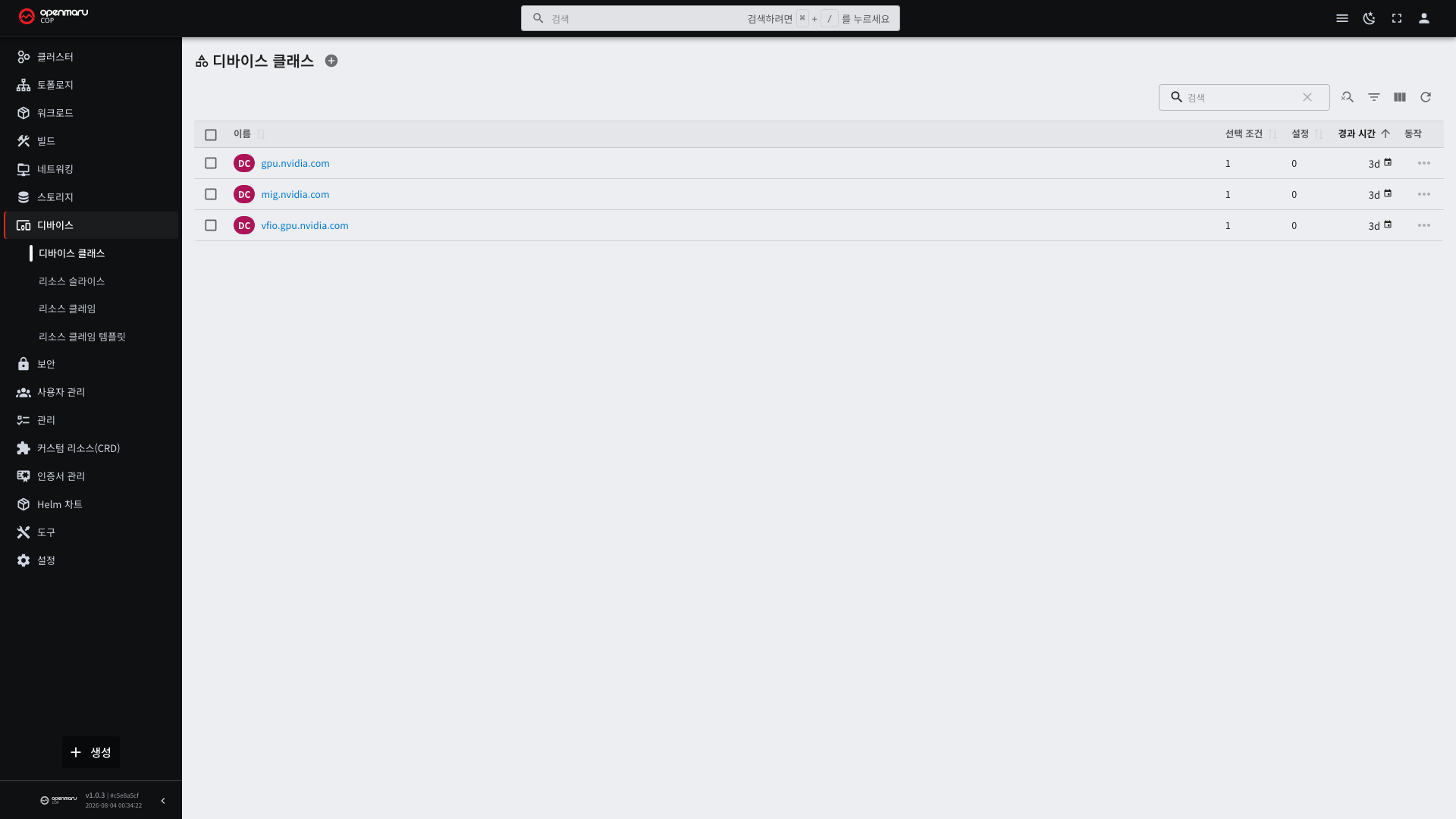
| Item | Description |
|---|---|
| Name | The name used when requesting |
| Selectors | The conditions for devices belonging to this class |
| Default configuration | Settings attached automatically when requesting with this class |
Classes are registered per GPU model. A pod requests "a device of this kind" by class name and does not specify which device on which node.
Resource Slices
This is the list of devices actually installed on nodes. View them under Devices > Resource Slices.
The driver inspects the nodes and registers them automatically. Users neither create nor edit them.
| What to check | Description |
|---|---|
| Driver | The driver that published this list |
| Node | Which node they are installed on |
| Device list | That node's devices and each of their attributes |
If a requested device is not allocated, check here first whether any devices are left.
How to Read Shareable Devices
A device is shareable among several pods if the following values appear on its detail.
| Item | Meaning |
|---|---|
| Shareable | Whether several parties can share this device |
| Capacity | The total amount available to share. For example, 16311Mi of memory |
| Request range | The range and unit a single request can take |
With sharing on, the same device is shared even across namespaces. Team A holding a GPU still leaves the remainder for team B.
With sharing off, one pod occupies the whole device. Other requests then wait until the first holder releases it.
Sharing support depends on the driver version. If sharing seems not to work, ask operations staff for the driver version.
Resource Claims
This is the request to use a device. View them under Devices > Resource Claims.
| Status | Meaning |
|---|---|
| Pending | Looking for a device to allocate |
| Allocated | A device has been allocated |
The detail screen shows the following.
| Item | What it tells you |
|---|---|
| Request | Which class of device, how many, and under what conditions |
| Allocation result | Which device on which node was allocated |
| Consumers | Which pods are using this request |
| Device state | The driver, pool, and name of the allocated device, and the sharing identifier |
If the consumers are empty while the status is Allocated, the device is being held without being used. If other
pods are waiting, it is a candidate for cleanup.
Resource Claim Templates
If several pods repeat the same request, create one under Devices > Resource Claim Templates.
When a Deployment starts three pods, three claims are created automatically from the template. You do not have to create a claim per pod by hand.
| Situation | What to use |
|---|---|
| One pod uses a particular device for a long time | A resource claim |
| There are several replicas and each needs a device | A resource claim template |
| The request should disappear when the pod does | A template |
Claims created from a template share the pod's lifetime. When the pod is deleted, the claim is deleted with it and the device is released. Claims created by hand remain after the pod is gone and have to be cleaned up manually.
The Order for Using a GPU
- Check the available device kinds under Device Classes.
- Look at the remaining devices and whether they are shareable under Resource Slices.
- Put a resource claim (or template) into the pod definition and deploy.
- Confirm that the resource claim turns
Allocated. - Confirm that the pod turns
Running(see 3.1).
Using a GPU From a Pod — YAML
First Choose Between the Two Request Methods
There are two ways to attach a device to a pod, and which one you use decides whether it is shared.
| Reference method | Result | When to use it |
|---|---|---|
resourceClaimName — points at a pre-created claim by name | Several pods share the same device | When GPUs are short and several workloads must share |
resourceClaimTemplateName — points at a template | A new claim is created per pod, each occupying one device | When each replica needs its own device |
Confusing the two makes the symptoms puzzling. Using a template where you meant to share leaves the second pod
onward in Pending on a node with one GPU. The first pod is fine, which makes the configuration look correct.
Method 1 — Several Pods Sharing One GPU
First create a claim. It has to exist before the pods.
apiVersion: resource.k8s.io/v1
kind: ResourceClaim
metadata:
  name: shared-gpu
  namespace: my-app
spec:
  devices:
    requests:
      - name: gpu
        exactly:
          deviceClassName: gpu.nvidia.com   # the name from the device class screen
          allocationMode: ExactCount
          count: 1
| Field | Description |
|---|---|
deviceClassName | Write the name from the device class screen exactly. A nonexistent name leaves the claim in Pending |
allocationMode | ExactCount takes as many as count; All takes every device matching the conditions |
count | How many to request |
Then the pod points at it by name. It has to be written in two places: the pod spec and the container spec.
apiVersion: apps/v1
kind: Deployment
metadata:
  name: my-gpu-app
  namespace: my-app
spec:
  replicas: 3
  selector:
    matchLabels:
      app: my-gpu-app
  template:
    metadata:
      labels:
        app: my-gpu-app
    spec:
      resourceClaims:                    # (1) which claims the pod uses
        - name: gpu                      #     the name used inside the pod
          resourceClaimName: shared-gpu  #     the actual ResourceClaim name
      containers:
        - name: app
          image: registry.example.com/my-gpu-app:1.0
          resources:
            claims:                      # (2) which of those this container uses
              - name: gpu                #     must match the name in (1)
            limits:
              cpu: "2"
              memory: 4Gi
| Place | What it does |
|---|---|
spec.resourceClaims | The list of claims the pod will use. These names are local to the pod |
containers[].resources.claims | Which of what the pod received to attach to this container |
Writing only one of the two leaves the device unattached. Written only on the pod, the GPU is not visible in the container; written only on the container, pod creation is rejected.
In this example, all three replicas use the same single GPU. The consumers on the resource claim detail show three pods together.
Method 2 — Each Replica Taking Its Own GPU
Create a template and have the pod point at it.
apiVersion: resource.k8s.io/v1
kind: ResourceClaimTemplate
metadata:
  name: dedicated-gpu
  namespace: my-app
spec:
  spec:
    devices:
      requests:
        - name: gpu
          exactly:
            deviceClassName: gpu.nvidia.com
            allocationMode: ExactCount
            count: 1
spec appearing twice is correct. The outer one is the template's specification, and the inner one is the
specification of the claims the template will stamp out.
    spec:
      resourceClaims:
        - name: gpu
          resourceClaimTemplateName: dedicated-gpu   # the template name
      containers:
        - name: app
          image: registry.example.com/my-gpu-app:1.0
          resources:
            claims:
              - name: gpu
You need as many devices as replicas. Three replicas require three GPUs, and if there are not enough, the
remaining pods stay in Pending.
How It Differs From the Old Way
Previously you wrote the GPU count in the container's resource limits.
          resources:
            limits:
              nvidia.com/gpu: "1"      # the old way
Remove this line when moving to DRA. Using both requests the device twice. Leave the CPU and memory limits as they are (see 3.1).
| The old way | DRA | |
|---|---|---|
| Where you request | The container's resource limits | A ResourceClaim |
| What you can request | A count only | A count plus conditions (model, memory, whether partitioned) |
| Sharing | A node-level setting, so it applies to the whole node | Per claim, so only among the workloads that need it |
| Where to check | Allocatable resources on the node detail | The Devices menu |
What to Check After Applying
| Order | Where | If it is fine |
|---|---|---|
| 1 | Devices > Resource Claims | Status is Allocated |
| 2 | The detail on the same screen | The allocation result names a node and device |
| 3 | The detail on the same screen | Your pod is among the consumers |
| 4 | Workloads > Pods | Running (see 3.1) |
If step 1 is Pending, the pod will not start. See "When Nothing Is Allocated" below.
Common Mistakes
| Symptom | Cause |
|---|---|
The second pod onward is Pending | You meant to share but used resourceClaimTemplateName |
| The GPU is not visible in the container | containers[].resources.claims was omitted |
| Pod creation is rejected | spec.resourceClaims was omitted, or the name values in the two places differ |
The claim stays Pending | deviceClassName differs from the actual device class name |
| It takes twice as many devices | The old way (limits.nvidia.com/gpu) was left in place as well |
| Sharing with pods in another namespace does not work | Claims are namespace-scoped. Whether it is possible depends on the driver version, so check with operations staff |
You cannot pin a node directly. DRA requires the scheduler to allocate the device, so hard-coding a node name on the pod prevents allocation. To send it to a particular node, use node selection conditions (
nodeSelector).
When the Device List Is Empty
If both Device Classes and Resource Slices are empty, there is no driver or it is not working.
| Check | Description |
|---|---|
| Whether GPU nodes exist | Confirm GPU nodes in the node list (see 2.1) |
| Whether the driver pods are up | The driver runs as a pod on every GPU node |
| Whether the cluster supports DRA | Check with operations staff |
This screen is read-only. Driver installation and configuration are performed by operations staff.
When Nothing Is Allocated
| Symptom | Cause | What to check |
|---|---|---|
The claim is Pending | No devices left | Check devices in use under Resource Slices |
The claim is Pending | No device matches the conditions | Whether the requested class and attributes match the actual devices |
The claim is Pending | Sharing is off and another pod took it first | Whether that device is shareable |
The pod is Pending | The claim was allocated but the node lacks resources | The CPU and memory headroom on that node |
| Several teams cannot use it at once | The driver does not support sharing | The driver version |
GPUs are usually fewer than nodes, so contention is high. Check in the resource claim list whether unused pods are holding devices. Cleaning up development and test pods frees space.
The Relationship Between MIG and DRA
The two are easy to confuse, but they are at different layers.
| MIG | DRA | |
|---|---|---|
| What it is | A feature that splits GPU hardware into several pieces | The Kubernetes device allocation mechanism |
| Where it lives | Inside the GPU | Inside Kubernetes |
| What it provides | Dedicated compute and memory per piece, plus fault isolation | Finding and allocating a device matching the conditions |
| Which GPUs | Only some data center models | Every GPU the driver supports |
"Using DRA means MIG is unnecessary" is not the case. MIG splits the GPU into pieces, and DRA allocates those pieces to pods. The two can be used together.
Hardware-level isolation (one job not affecting the performance or stability of another) is provided only by MIG. DRA's sharing is software-level, so the parties can affect each other.
Which approach is in use depends on the cluster configuration. If partitioned devices appear in the device list under Resource Slices, MIG is applied.