2.4. Clearing "No AAS Access" and "No OIDC Account"
Overview
This chapter explains how to clear the people who collect on the "No AAS access" and "No OIDC account" cards of the "Users & roles" screen. Use it when a user reports that they cannot sign in. The screen labels the SSO (Single Sign-On) server as "OIDC" (1.2. AAS Architecture and Permissions).
Permission: Administrator
Comparing the Two States
| Item | No AAS access | No OIDC account |
|---|---|---|
| SSO account | Exists. | Does not exist. |
| Eligibility to enter AAS | None. The person is not a member of the group aas-users and is not an administrator. | The person cannot sign in because there is no account. |
| Shown in the table | Warning color "No AAS access", role "None" | Warning color "No OIDC account", role "None" |
| AAS records | May or may not exist. | Exist. At least one of these: a sign-in record, ownership of an AI agent workspace, permission to view a workspace, or an email of an administrator set by the operator. |
| Action that resolves it | "Add to AAS" | "Create account with this email" |
Both cards show in warning color when they have a count. If there is nobody to review, the card shows "Nobody to review".
Figure 2.4-1 shows the question that separates the two states and the action that resolves each.
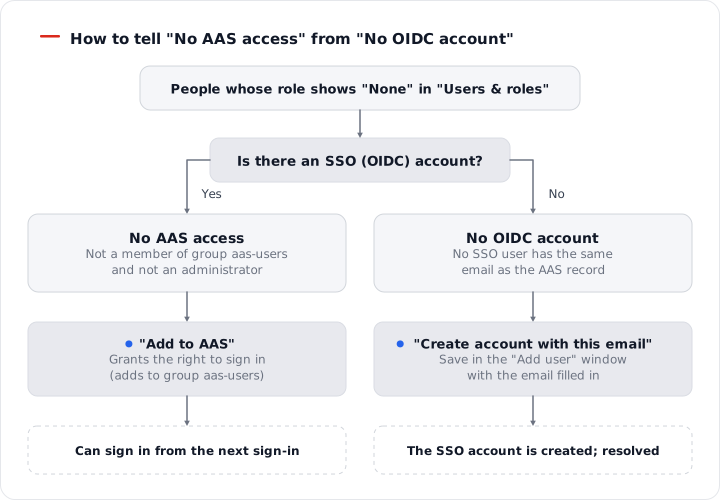
Figure 2.4-1. The criterion that separates "No AAS access" from "No OIDC account"
Clearing "No AAS Access"
When this person signs in
The SSO sign-in works, but AAS refuses it. The "Sign-in failed" screen shows "Only members of the aas-users group are allowed. Ask an admin to add you to the group." The group name can differ depending on the install settings.
Giving access
- On the "Users & roles" screen, click the "No AAS access" card.
- Click the row of the person to give access to, and open the detail window.
- Click "Add to AAS" in the action buttons at the top.
- In the confirmation window, click "Add to AAS". The window says: "Allow {who} to sign in (adds them to group aas-users)."
When "Gave AAS access to {who}" appears, you are done. The person can enter from their next sign-in. If needed, use "Edit" to set the department, role, and visible workspaces.
If you see "This username is already taken" or "This email is already taken" while adding a user, and the person who overlaps is in the "No AAS access" state, a "Give that person AAS access" link appears beside the field. Click it to open the same confirmation window.
When not to give access
If the person should not enter, leave them as they are. To clean up the account itself, click "Delete" in the detail window. To block the person temporarily, use "Disable". For both actions, see 2.1. Adding and Editing Users.
Effect on AI agent workspaces
Once a day, AAS compares the SSO server's members with the owners of AI agent workspaces. The workspace of a person removed from the group is suspended at that time. The data remains. If you give the person access again, the suspended workspace is restarted at the next comparison. If the comparison would suspend more than half of all workspaces at once, AAS treats it as a configuration error and suspends nothing. In that case, tell the server operator.
Clearing "No OIDC Account"
Why this happens
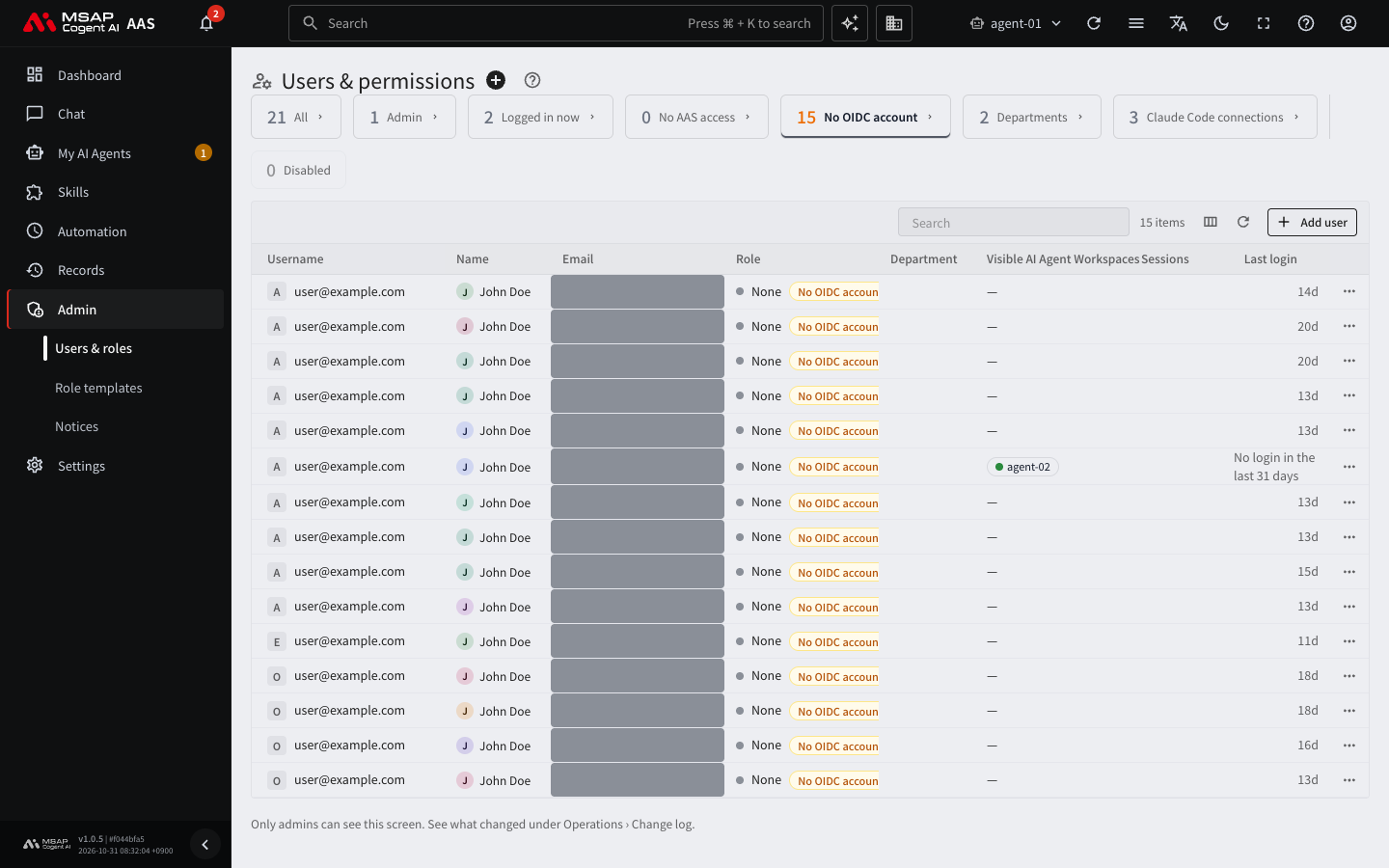
Figure 2.4-2. List on the "No OIDC account" tab
This state occurs when an email in the AAS records does not match the email of any SSO user. The possible cases are as follows.
- The account was deleted on the SSO server.
- The email of the SSO account changed and no longer matches the email left in AAS.
- The email was entered in AAS before the account was created in SSO.
These rows have no username, and the first part of the email appears in the name field.
Creating the account
- Click the "No OIDC account" card.
- Click the person's row to open the detail window.
- Click "Create account with this email". The "Add user" window opens with the email filled in.
- Set the username, last name, first name, department, role, and temporary password.
- Click "Save", and give the temporary password in the result window to the person.
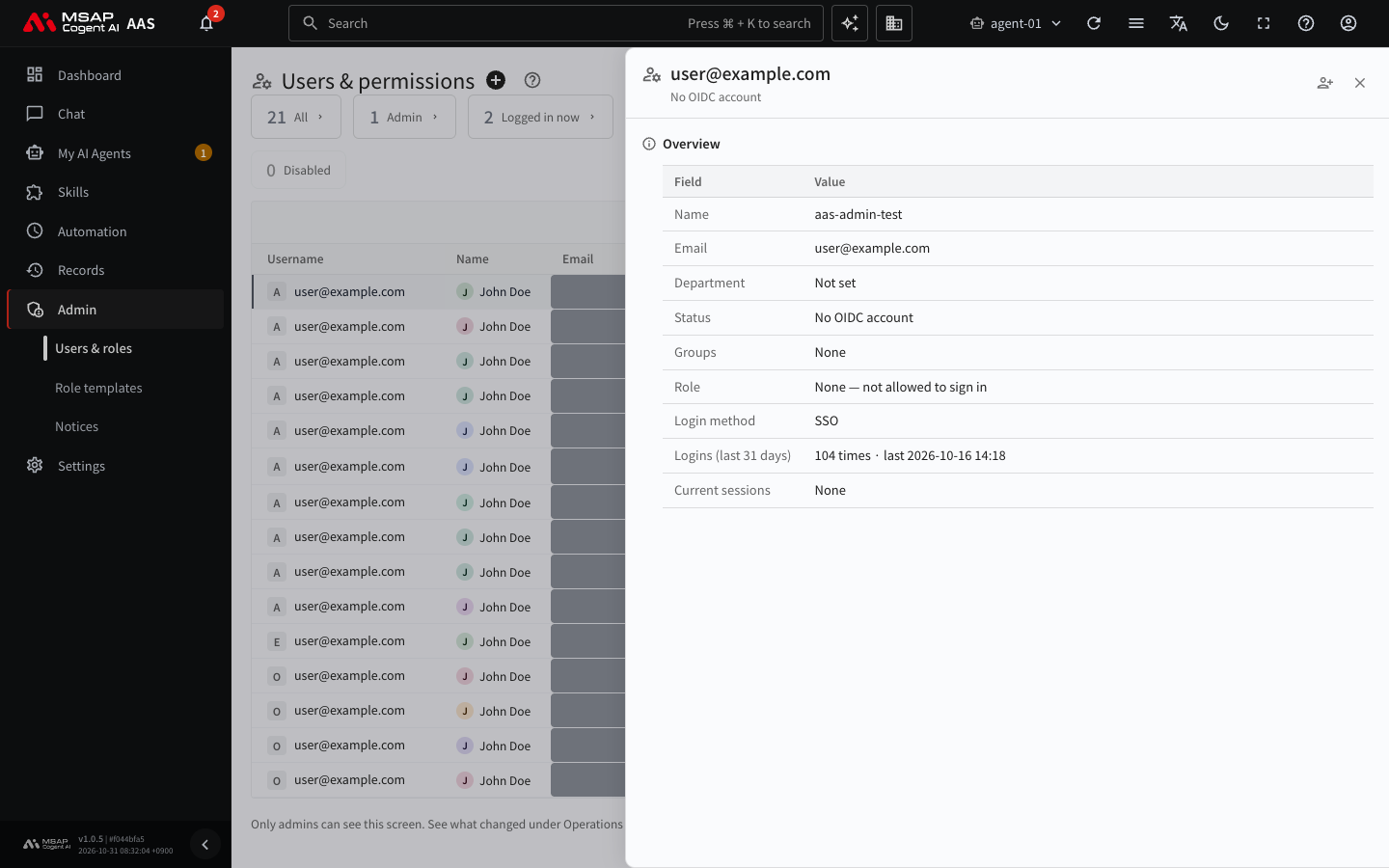
Figure 2.4-3. Detail window of a person with no OIDC account
When you save, the account is created in SSO and the row changes to a normal user. The input rules and the result window are the same as for "Add user" in 2.1. Adding and Editing Users. When this succeeds, the person drops out of the counts on both cards.
If the email of an administrator set by the operator is in this state, that person cannot enter through SSO sign-in until you create the account.
When no account is needed
These rows have no "Delete" action. The rows come from AAS records, so they remain, and the card counts remain, unless you create the account. These people stay as they are: they cannot sign in because they have no SSO account. You do not have to clear them. If the person has a session that is signed in now, you can end it with "End this person's logins" in the detail window (2.5. Sign-In and Sessions). To delete the records themselves, tell the server operator.
Order of Cleanup
- For each person on the "No AAS access" card, decide whether to give access. Click "Add to AAS" for people who need it, and leave the others as they are.
- On the "No OIDC account" card, create accounts for the people who need one, and check the counts on both cards again.
If a notice "Could not reach OIDC" appears at the top of the screen, both cards may look empty. In this state, only AAS records are shown, and AAS cannot determine the SSO state. Check again after the connection is restored. If it is not restored, tell the server operator.