7.4. Managing Claude Code Connections
Overview
Claude Code is an AI coding tool that users run on their own PCs. Users can connect this tool to AAS and give work to their own AI agents. Each connection creates a connection record, and an administrator sees everyone's connections on one screen. An administrator can also disconnect a connection by force. There is no screen where an administrator sets the allowed scope or whether connections are allowed in advance. Disconnecting is the only thing an administrator can decide.
Permissions: Administrator. Only administrators can view everyone's connections and force a disconnect. Users see only their own connections. Use this chapter when a PC has been lost, when you need to clean up the connections of someone who left the company, or when a security check needs the connection list.
For how to create a connection, see 7.5. Connecting Claude Code in the User Manual.
Types of Connections
| Type | How it is created | Features |
|---|---|---|
| OAuth | The user runs the connect command on their PC, signs in in the browser, and clicks "Allow". | The expiry extends each time it is used, and it renews by itself. |
| Manual | The user creates a token in "Settings › Claude Code connections". | Used where there is no browser (CI, remote servers). Choose the expiry from 7, 30, 60, or 90 days (default 30 days). There are no tokens without an expiry. |
The scope a connection allows is one of three groups.
| Group | What it allows |
|---|---|
| Everything (my AI agents) | Everything the user can do on the screen |
| Skill development | Chats, reading and writing files, writing skills, writing secrets, and approvals. The holder of this connection can enter and change secrets from their PC, so in a security check, first look at whether the PC was lost or the person left the company. |
| Read only | Reads chats and gets results. |
One person can create up to 10 connections.
Permission Rules
- A connection works with the permissions of the person who created it.
- Even an administrator's connection cannot use administrator permissions. Administration tasks such as viewing all AI agent workspaces, managing users, and approving publish requests cannot be done through a Claude Code connection. They can be done only by signing in through the browser.
- The original token text is shown only once, when it is created. Even an administrator cannot see it again.
Viewing All Connections
This feature is visible only to administrators. It is visible only in installations where sign-in is turned on. In an installation where sign-in is off, Claude Code cannot be connected, and "Login is off" appears under the title of the "Users & permissions" screen. If you see this text, tell the operator.
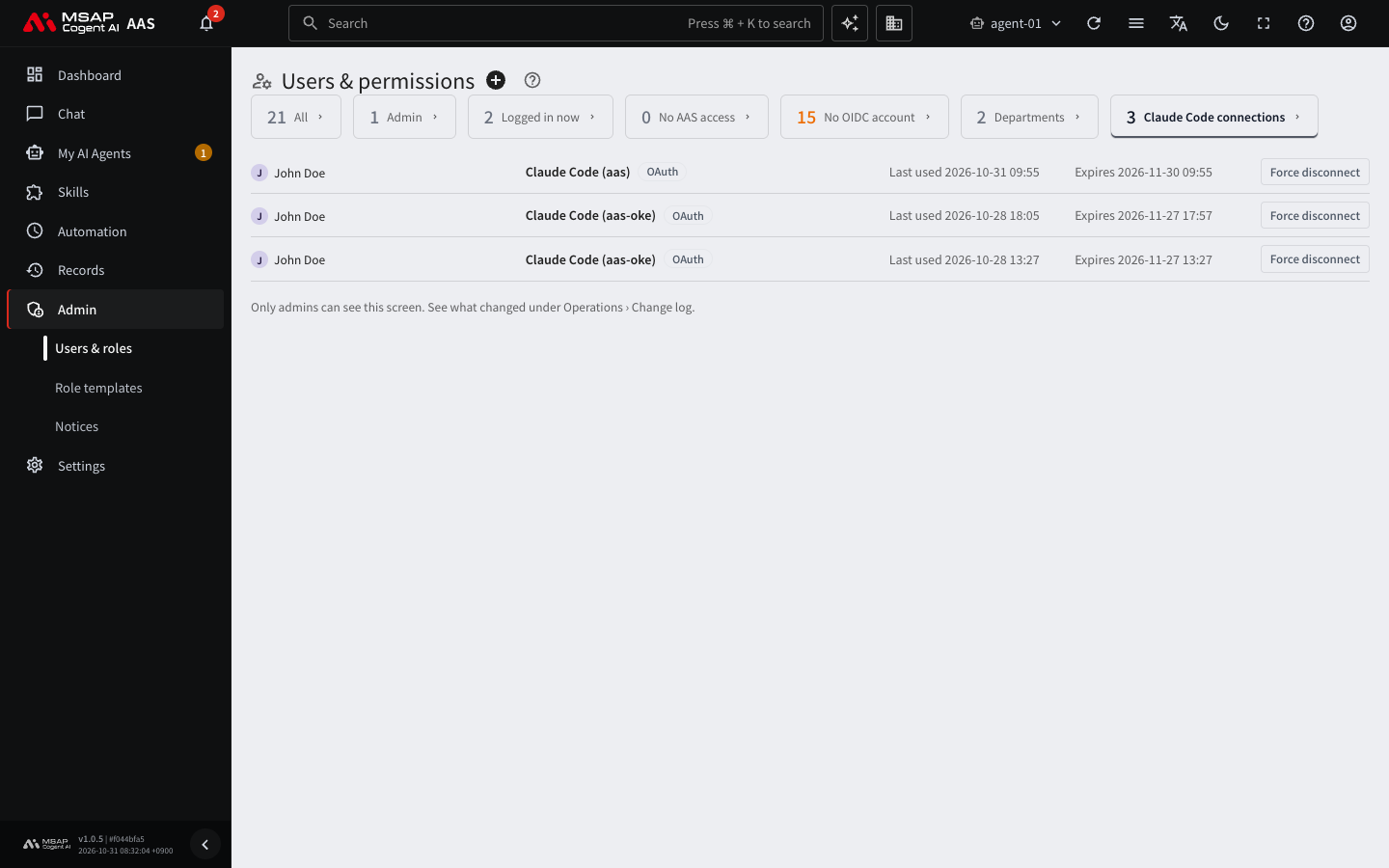
Figure 7.4-1. The "Claude Code connections" list
- Open "Admin › Users & roles" in the left menu.
- Click the "Claude Code connections" tab.
On success, the connection list appears.
The list shows only active connections. Each row has the following values.
| Item | Content |
|---|---|
| Person | The user who created the connection |
| Name | The connection name |
| Kind | "OAuth" or "Manual" |
| Last used | The time it was last used |
| Expires | The expiry time. If it is within 7 days, it is shown in orange. |
If there are no connections, "No one has connected Claude Code yet." appears.
Disconnecting a Connection by Force
- On the "Claude Code connections" tab, click the "Force disconnect" button on the row you want to disconnect.
- In the "Reason" field of the confirmation window, write why you are disconnecting. It must be 2 to 200 characters.
- Click the "Force disconnect" button.
When you disconnect, that person's Claude Code connection ends immediately. There is no way to undo it. To use it again, the user must connect anew. If you do not write a reason, the button cannot be clicked. On success, the row disappears from the list and "Disconnected {name}" appears. If it does not disconnect, reload the screen and try again, and if it continues, tell the operator.
What the User Sees
- In the user's inbox, a notice appears with the connection name, the administrator who disconnected it, and the reason.
- In the user's "Settings › Claude Code connections", the ended connection row shows "Disconnected" and the reason. Ended connections can be viewed for 30 days with "Show ended connections (30 days)".
When Cleaning Up an Account
When you clean up a user account, such as for someone who left the company, also check on this tab whether that person's connections remain, and disconnect them if needed. The steps for disabling and deleting a user are in 2.1. Adding and Editing Users. The steps in that chapter have no step for disconnecting Claude Code connections, so check separately on this tab after you clean up the account.
Expiry Notices
- For a connection that ends within 7 days, a notice appears in the user's inbox. An OAuth connection extends its expiry when it is used, so no notice is sent for it. For a manual token, a "Create a new token" link appears with the notice.
- In the user's left menu "Settings › Claude Code connections", the number of manual tokens ending within 7 days also appears as a red number.