6.3. Built-in Skills and New Version Notices
Overview
AAS puts built-in skills, such as document conversion, business card organizing, and screen usage help, into the Skill Hub (the place that stores skill packages and lets you install them into profiles) and delivers them to every profile (an AI agent's set of settings). Both terms are in the A.3. Glossary. When a new version appears in the Skill Hub, the profiles that use that skill get a notice. If an administrator turns on auto upgrade, skills that nobody has modified are upgraded on their own. This chapter explains how built-in skills are delivered, where new version notices appear, how to use the "New versions" tab, and how to set auto upgrade.
Permissions: Notices and the "New versions" tab are visible to administrators, AI agent workspace owners, and team managers who have permission to upgrade skills. The auto upgrade switch is visible only to administrators.
AAS Built-in Skills
There are six AAS built-in skills. All of them are published as packages in the "Shared" namespace of the Skill Hub.
| Package name | What it does |
|---|---|
| hwp-to-markdown | Converts Hangul (HWP, HWPX) documents to Markdown and reads them. |
| doc-to-markdown | Converts docx, pptx, xlsx, pdf (with text), html, and similar files to Markdown and reads them. |
| ocr-to-markdown | Reads the text in images and scanned PDFs with OCR (optical character recognition) and converts it to Markdown. |
| markdown-to-doc | Creates files such as hwpx, docx, pptx, xlsx, and pdf from Markdown text. |
| business-card-ocr | Reads business card photos with OCR, adds them to the business card list, searches them, and exports them to Excel. |
| aas-help | Lets an AI agent guide users on how to use AAS screens. |
What Administrators Need to Know
- The AAS server publishes the built-in skills to the "Shared" namespace of the Skill Hub and puts them into users' profiles by itself. An administrator does not need to upload them from the screen.
- A newly created profile receives them at the next check. They are not put into the shared (root) profile.
- A built-in skill that a user deleted is not put back. To use it again, install it directly from the Skill Hub.
- If an installation fails, AAS tries that version only once and reports it in the profile's "To check".
Note: You cannot publish or hide AAS built-in skills from the screen. New versions go out when a new AAS server version is deployed. Changing the list of built-in skills is the work of the operator (the person who installs AAS and manages the server; see the A.3. Glossary).
Where New Version Notices Appear
Notices are visible only to people who have permission to upgrade skills: administrators, the owner of that AI agent workspace, and team managers.
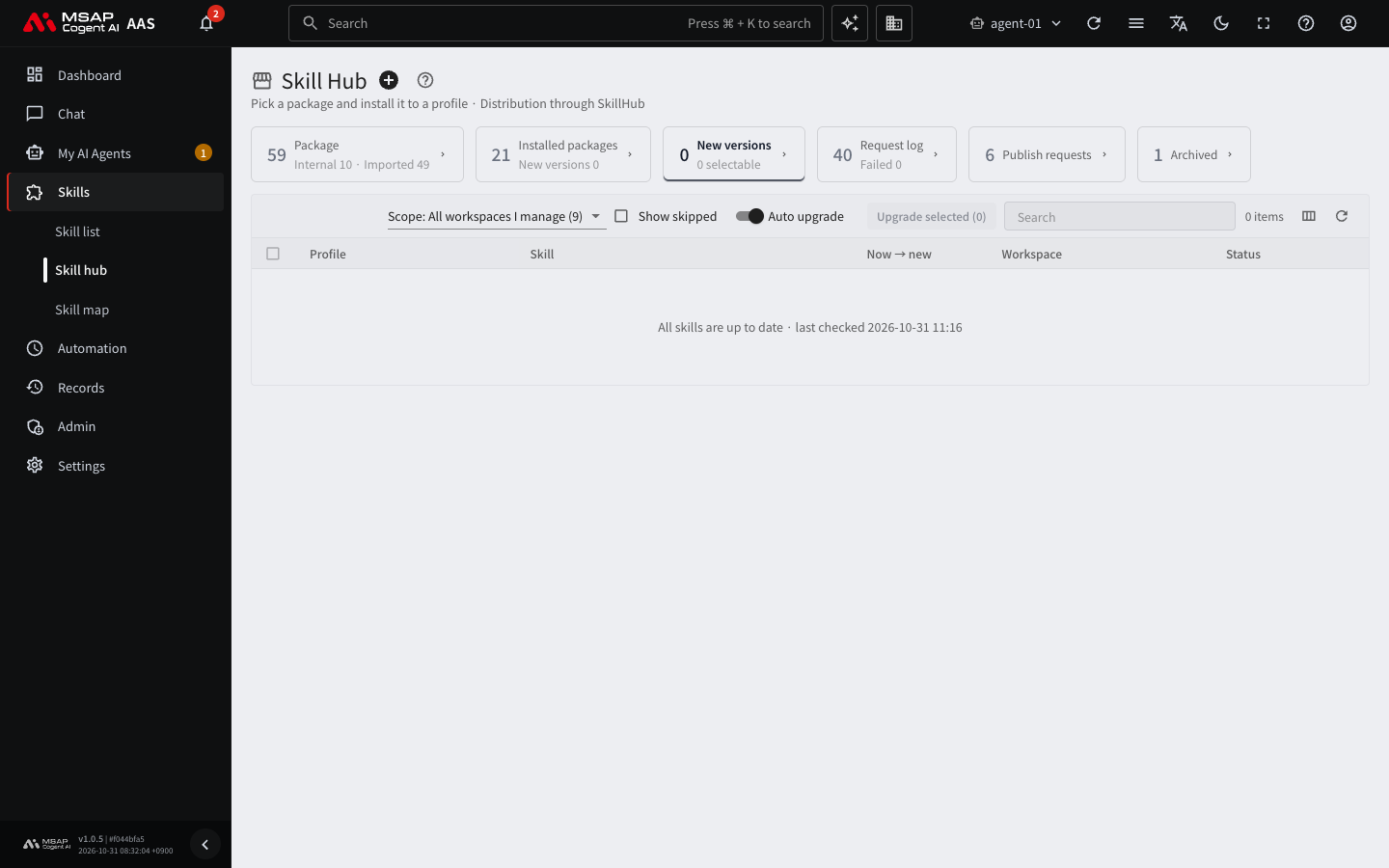
Figure 6.3-1. The "New versions" tab
| Location | Appearance |
|---|---|
| The "New versions" tab on the "Skill Hub" screen | The number of skills you can upgrade appears next to the tab name. |
| The left menu "Skills › Skill hub" | A gray number is attached. Because this is not a fault, it does not use red or orange. It counts only the AI agent workspace you are viewing now. |
| "To check" in a profile | "N skills have new versions" appears as a guidance step. Clicking it moves you to the "New versions" tab. |
| Dashboard | A line "N new skill versions" appears. |
| A profile's skill list | "New version v…" is attached to the skill row. |
When auto upgrade has upgraded a skill, a notice stays in "To check". The notice disappears after 7 days, and you can also clear it earlier with the confirm button.
Using the "New Versions" Tab
- Open "Skills › Skill hub" in the left menu.
- Click the "New versions" tab.
- If needed, change "Scope" to "All workspaces I manage". An administrator can see all AI agent workspaces in one list. In that case the "AI Agent Workspace" column is also shown.
- Select the check box of each row you want to upgrade.
- Click the "Upgrade selected (N)" button.
- Confirm in the confirmation window.
Once the upgrade starts, it continues even if you close this screen. The strip at the top shows "X of N done · X failed · X waiting". The new version applies from the next chat.
The table columns are "Profile", "Skill", "Now → new", and "Status". The "Basis" column is hidden by default and can be turned on in the column picker.
Meaning of Each Status
| Status | Meaning | Can you select it? |
|---|---|---|
| New version | It can be upgraded right away. | Yes |
| Waiting, Installing | It is being processed. | No |
| Failed, Auto upgrade failed | You can upgrade it again. It also appears in "To check". | Yes |
| Has local changes | The user modified the skill. Open the row and handle it one at a time. | No |
| Unknown, Checking | The local changes are not known yet. | No |
| Cannot upgrade: shared profile | AAS does not upgrade the shared profile. | No |
| Cannot upgrade: needs approval | This AI agent workspace has not been given an allowance for the "Restricted" package. | No |
| Cannot read version | The skill version in the profile could not be read. | No |
| Keeping local changes, Skipped | Hidden on the default screen. They appear when you turn on "Show skipped". | No |
| Done | The upgrade is finished. | No |
A row whose "Basis" is "Folder name" is marked "Estimated". It means there was no install record, so the package was found by folder name.
Handling Modified Skills
Skills that a user modified are not upgraded in bulk. Click the row to open the drawer (the detail pane that opens on the right side of the screen; see the A.3. Glossary) and choose one option.
| Choice | Result |
|---|---|
| Keep a local copy and upgrade | Keeps the current skill in the profile's "Skills" list under the name "<name>-local" and installs the new version. The kept skill stays usable no matter what the Skill Hub updates. |
| Overwrite | Backs up the current content for 30 days, then replaces it with the new version. |
Skipping a Version
- Click "Skip this version" in the row menu.
- You can cancel with "Undo" in the notice at the bottom of the screen.
- To receive it again later, turn on "Show skipped" and click "Notify again".
If an even newer version comes out after you skip, you are notified again.
When an Error Strip Appears
| Strip | Meaning |
|---|---|
| Could not read the skill hub | The Skill Hub is not responding. Click "Reload", and if it continues, see A.2. Troubleshooting. |
| Could not read N workspaces | Some AI agent workspaces are stopped or being prepared. |
Auto Upgrade
An administrator can have new versions of built-in skills upgraded automatically. This switch is visible only to administrators.
The switch is on at first. In an installation where it has never been changed, upgrades are already happening automatically.
- Find the "Auto upgrade" switch in the toolbar at the top of the "New versions" tab.
- Check whether the switch is on. If it is on, there is nothing more to do.
- If it is off and you want to turn it on, click the switch.
- When you turn it on, the confirmation window shows the number of profiles that will be upgraded right now. Read the number and click confirm.
To turn it off, click the same switch and confirm in the confirmation window. When it is off, a new version only sends a notice and is not upgraded automatically. Skills that are already upgraded stay as they are.
Auto upgrade follows these rules.
- Only built-in skills are covered. Skills that users uploaded themselves or installed separately from the hub are not covered.
- Skills that users modified are skipped. Only a notice is sent.
- AAS tries the same version in the same profile only once. If it fails, it stays as "Auto upgrade failed" and appears in "To check".
- When it is off, a new version only sends a notice.
Note: Right after a new version is published to the Skill Hub, it may not appear on the screen immediately. Wait a moment and click "Reload". If it still does not appear, tell the operator.