7.3. Usage
Overview
Usage is the screen that shows how much work AI agents have done, in session counts and token counts. An administrator sees usage in two places. The "Trend" on the dashboard combines the usage of all AI agent workspaces. The "Records › Usage" screen shows usage by profile, model, and source for the one AI agent workspace you are viewing now. See this chapter when token use grows and you need to find the cause, or when you want to find profiles that nobody uses. This screen shows session and token counts, not CPU or memory.
Permissions: An administrator sees the usage of all AI agent workspaces. Other users see only the usage of their own workspaces that they have access permission for.
The usage screen shows one workspace at a time. There is no screen that shows the total of all workspaces split by person.
Viewing Overall Usage
- Open "Dashboard" in the left menu.
- In the top "All AI Agent Workspaces" section, find "Trend (30 days)".
- In the "Usage" graph, look at the token count for each date.
- If you need the numbers, click "Show as table".
The trend appears only after collection has run for at least one day. This graph is an overall total, so you cannot split it by AI agent workspace. See usage per AI agent workspace on the screen in the next section.
Viewing Usage per AI Agent Workspace
- Switch to the AI agent workspace you want to check. Use "Switch AI Agent Workspace" in the top bar or a row in the table on the dashboard.
- Open "Records › Usage" in the left menu.
- At the top right, choose the period, 7 days or 30 days. The default is 7 days. The change log starts at 30 days, so the default period differs between the two screens.
The screen reads only values aggregated from session records. The usage screen has no function for changing values.
Cards at the Top
| Card | Content |
|---|---|
| Sessions, Last N days | Number of sessions in the period. The message count and tool call count appear below it. |
| Input tokens | Number of input tokens in the period. The second line of the card shows the output token count separately. For what the two values mean, see "Token" in A.3. Glossary. |
| Idle profiles | Number of profiles that had no session in the period |
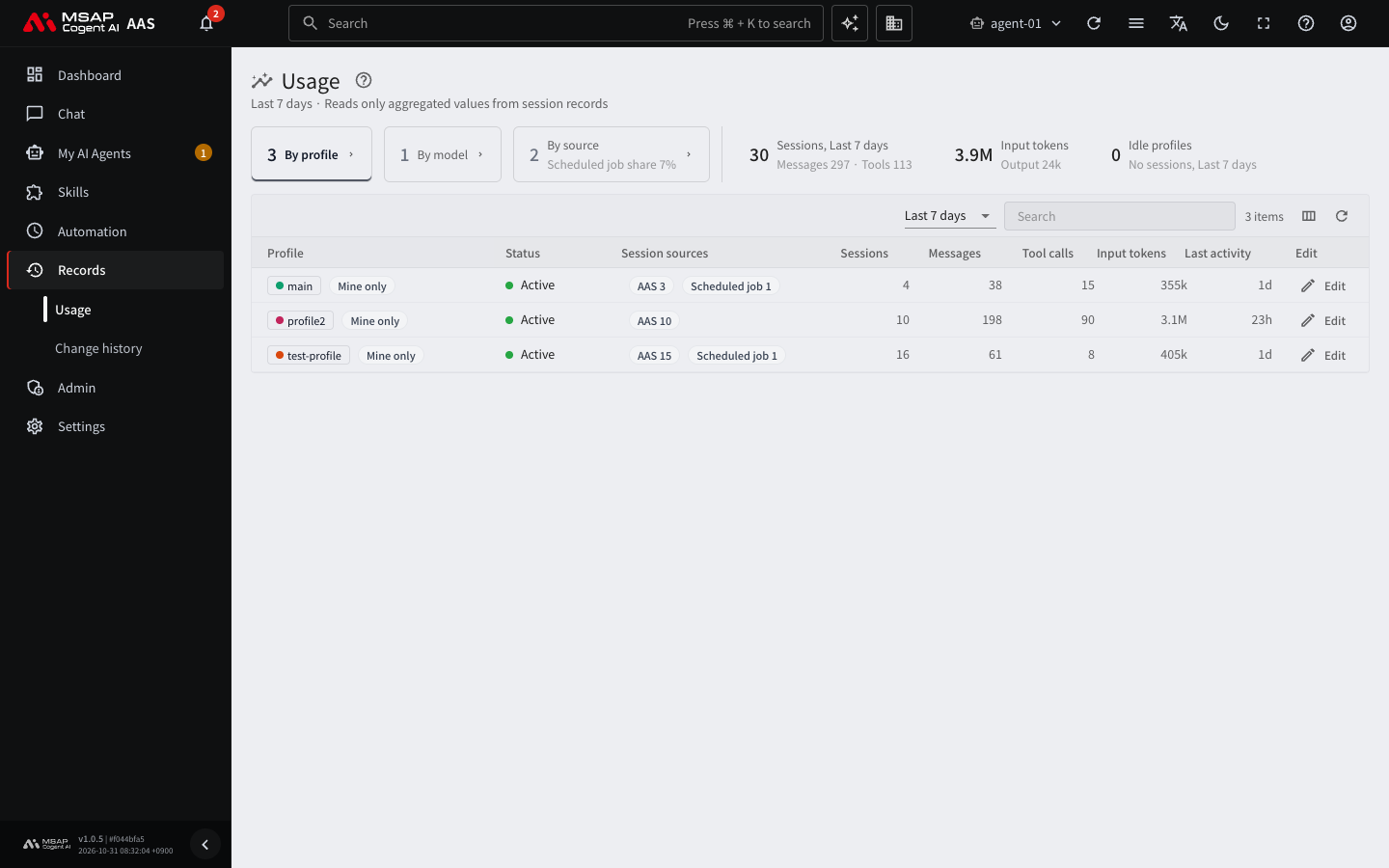
Figure 7.3-1. The usage screen
Tabs
| Tab | What you see |
|---|---|
| By profile | For each profile: status, session sources, sessions, messages, tool calls, input tokens, output tokens, last activity |
| By model | For each model: number and share of sessions, input and output tokens |
| By source | Number and share of sessions by where the session started |
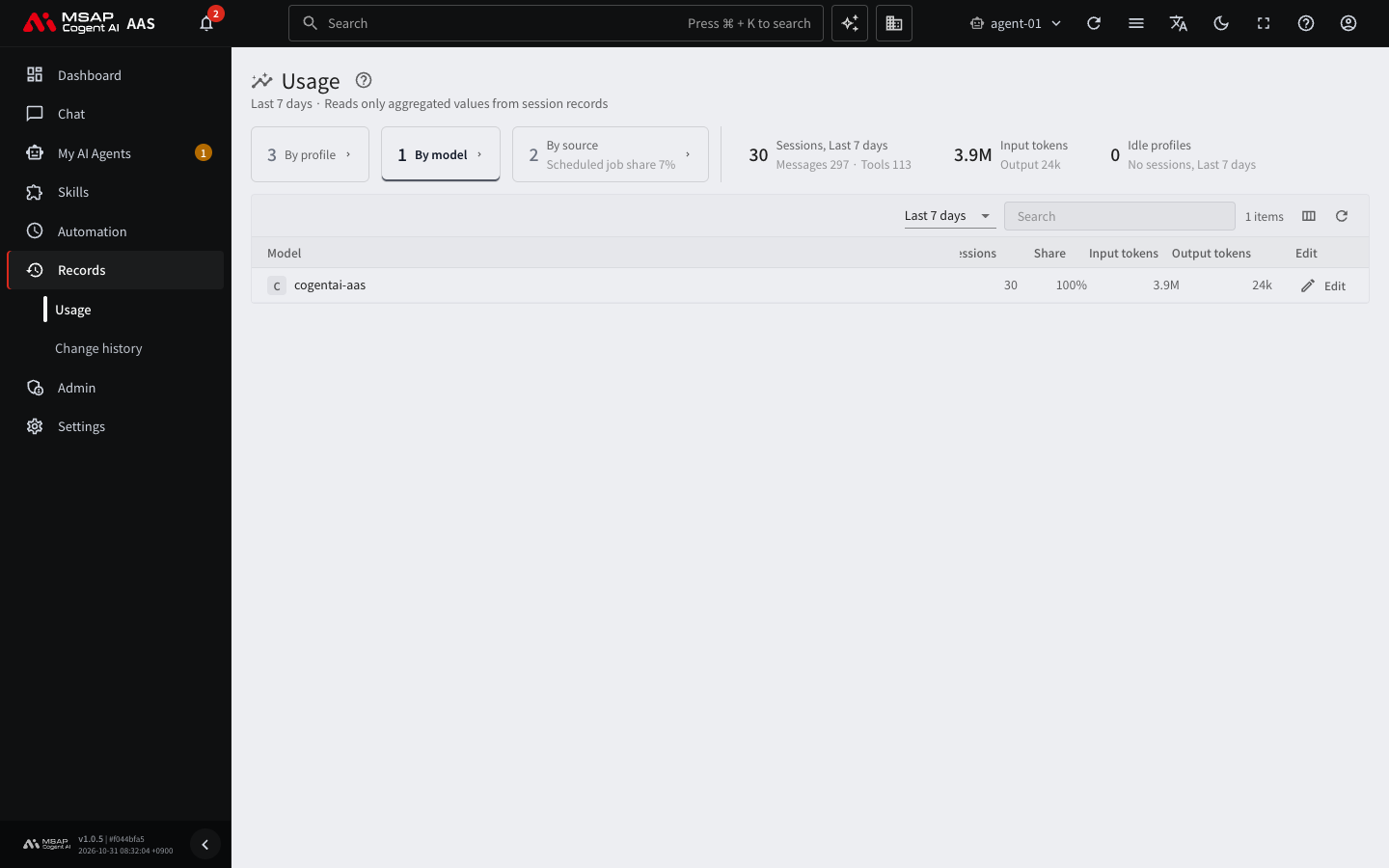
Figure 7.3-2. The "By model" tab
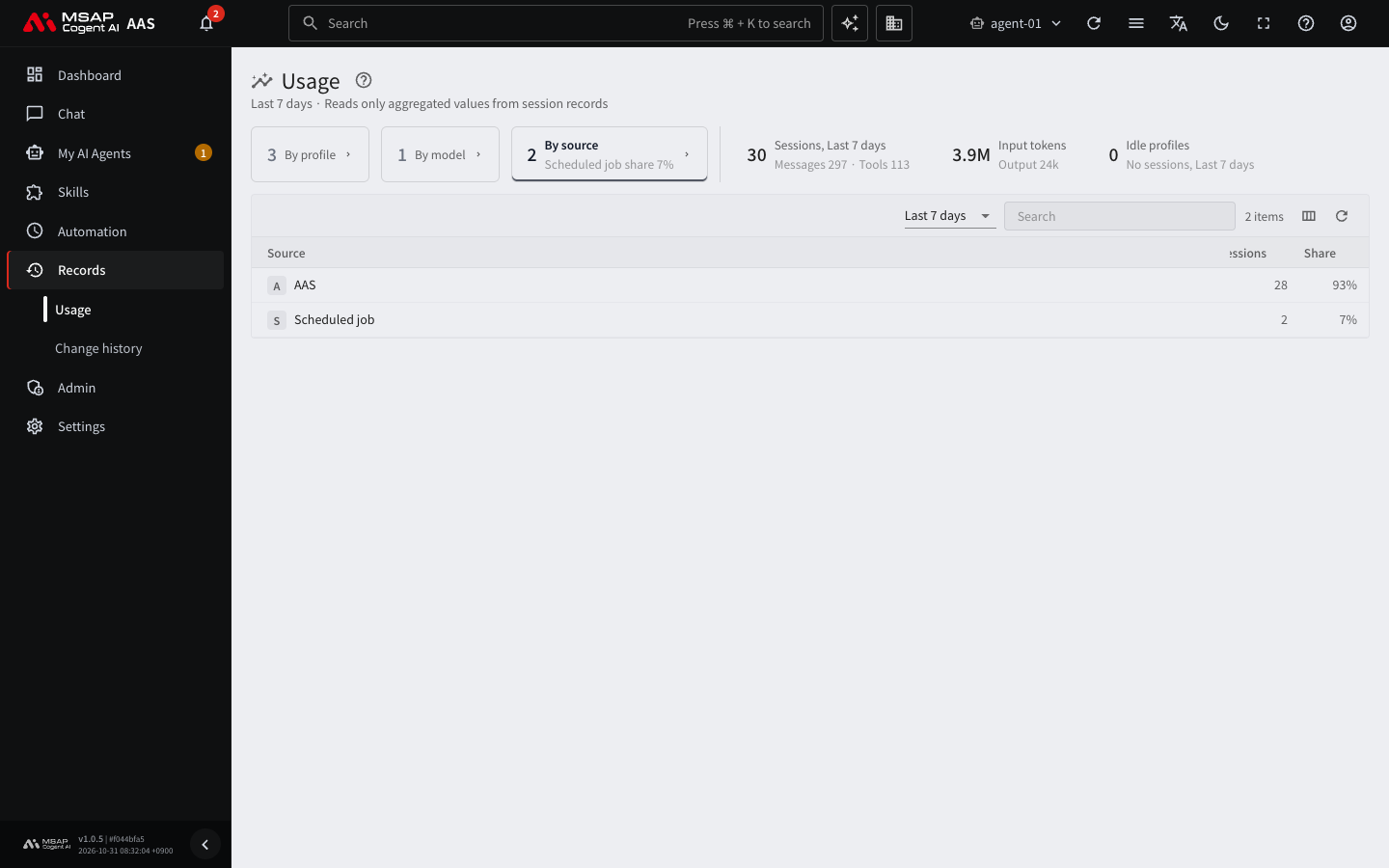
Figure 7.3-3. The "By source" tab
The "Status" column on the "By profile" tab is one of "Active", "No activity", or "No record". "No record" means that profile has no session records.
Clicking a row opens a drawer (the detail pane that opens on the right; see the A.3. Glossary). The profile drawer has the numbers and a table of session sources, and has links to that profile's scheduled jobs, messenger connections, and chat. The model drawer has a "View settings of this model" link.
Telling Whose Usage It Is
When an administrator switches to another person's AI agent workspace, a "<name>'s AI Agent" mark is attached next to the profile name. A profile in your own AI agent workspace gets "Mine only". Use this mark to tell who owns a profile.
A screen that shows totals per person at once is not supported at this time. Use the following instead.
- Switch the AI agent workspace for each person and check this screen.
- In the "By AI Agent Workspace" table on the dashboard, use the "Last used" column to find workspaces that are not in use.
- To see who gave work to an AI agent, look at the "Assigned work" group in 7.2. Change Log.
Tips for Checking
| Goal | Method |
|---|---|
| Find profiles that use many tokens | On the "By profile" tab, look for large values in the "Input tokens" column. |
| Find profiles that nobody uses | If the number on the "Idle profiles" card is not 0, look for "No activity" rows on the "By profile" tab. |
| Check whether scheduled jobs are most of the usage | Look at "Scheduled job share" on the card of the "By source" tab. |
| Check the share used by each model | Look at the session share on the "By model" tab. |
Note: Users see the usage of their own AI agent workspaces on the same screen. For the user's screen, see 7.1. Usage in the User Manual.