1.4. UI Overview
The Whole Screen
The OPENMARU MCM Console is made up of these main areas:
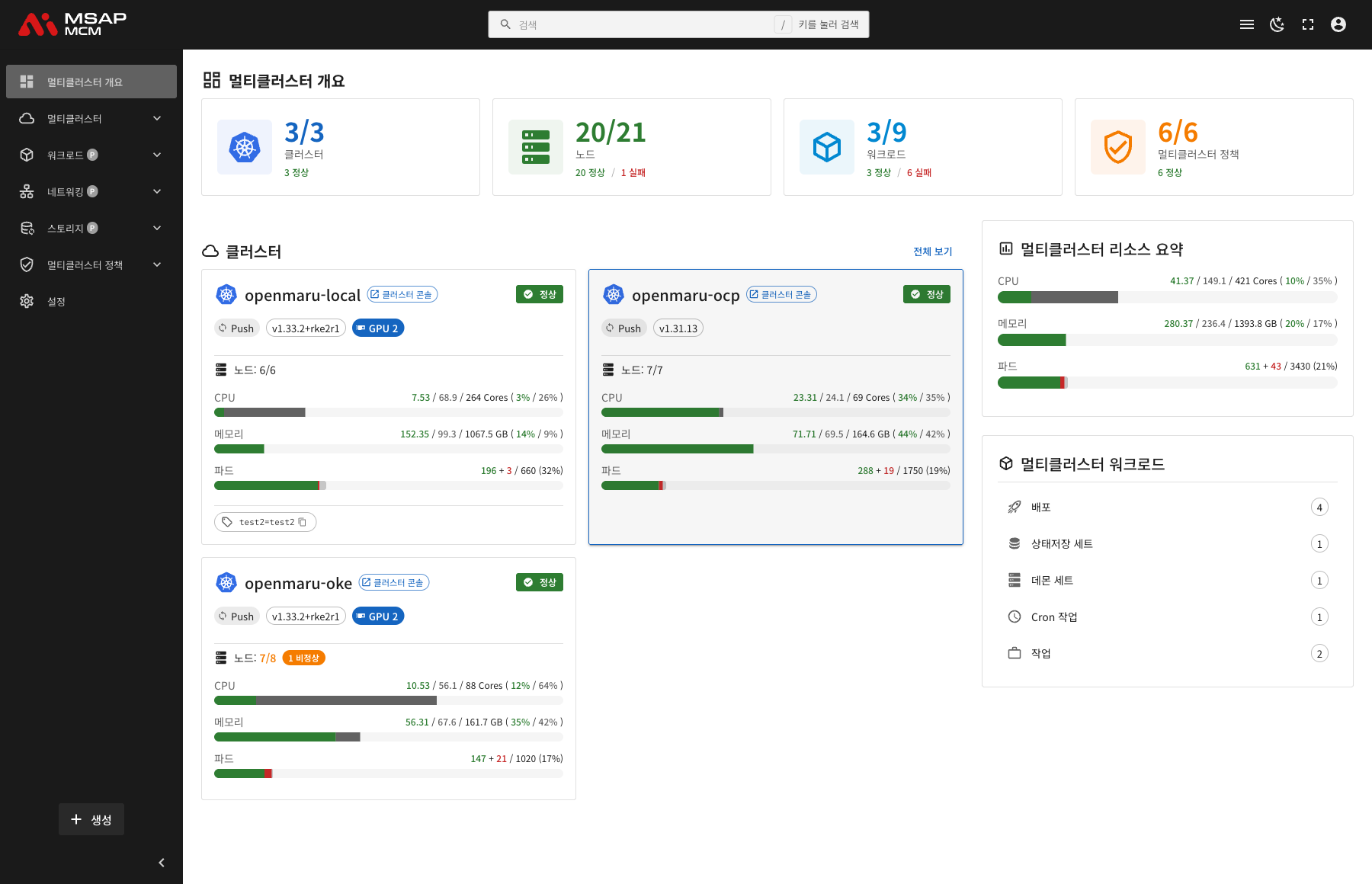
| Area | Description |
|---|---|
| Top bar | Logo, search, sidebar toggle, theme switch, full screen, account menu |
| Sidebar | Menu navigation, the resource create button, collapsing and expanding the sidebar |
| Main content | The area that shows the content of the chosen menu |
The Top Bar
The top bar sits at the very top of the screen and holds these elements:
What Each Element Does
| Element | Icon | Description |
|---|---|---|
| Logo | The OPENMARU MCM logo | Click to go to the Overview page |
| Search box | 🔍 | Search resources, pages, and clusters by name (the / key jumps to it) |
| Sidebar toggle | ☰ | Collapse and expand the sidebar |
| Dark mode | 🌙 | Switch between the light and dark themes |
| Full screen | ⛶ | Switch the browser to full screen |
| Account | 👤 | User information and the logout menu |
Search
Clicking the search box or pressing the / key opens the global search.
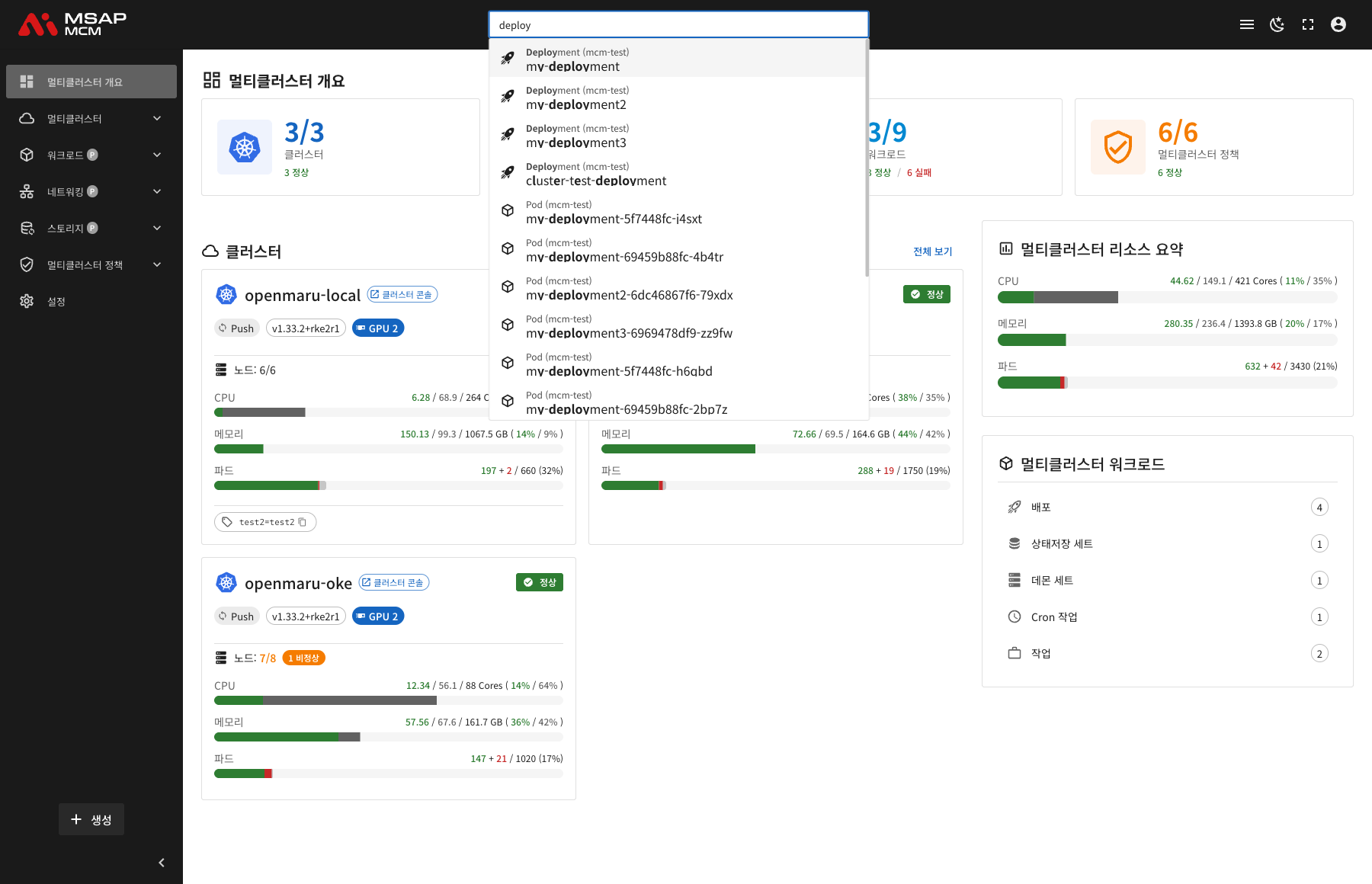
What can be searched:
- Resources (Deployments, Pods, Services and so on)
- Pages (menu items)
- Cluster names
The Account Menu
Clicking the account icon shows these options:
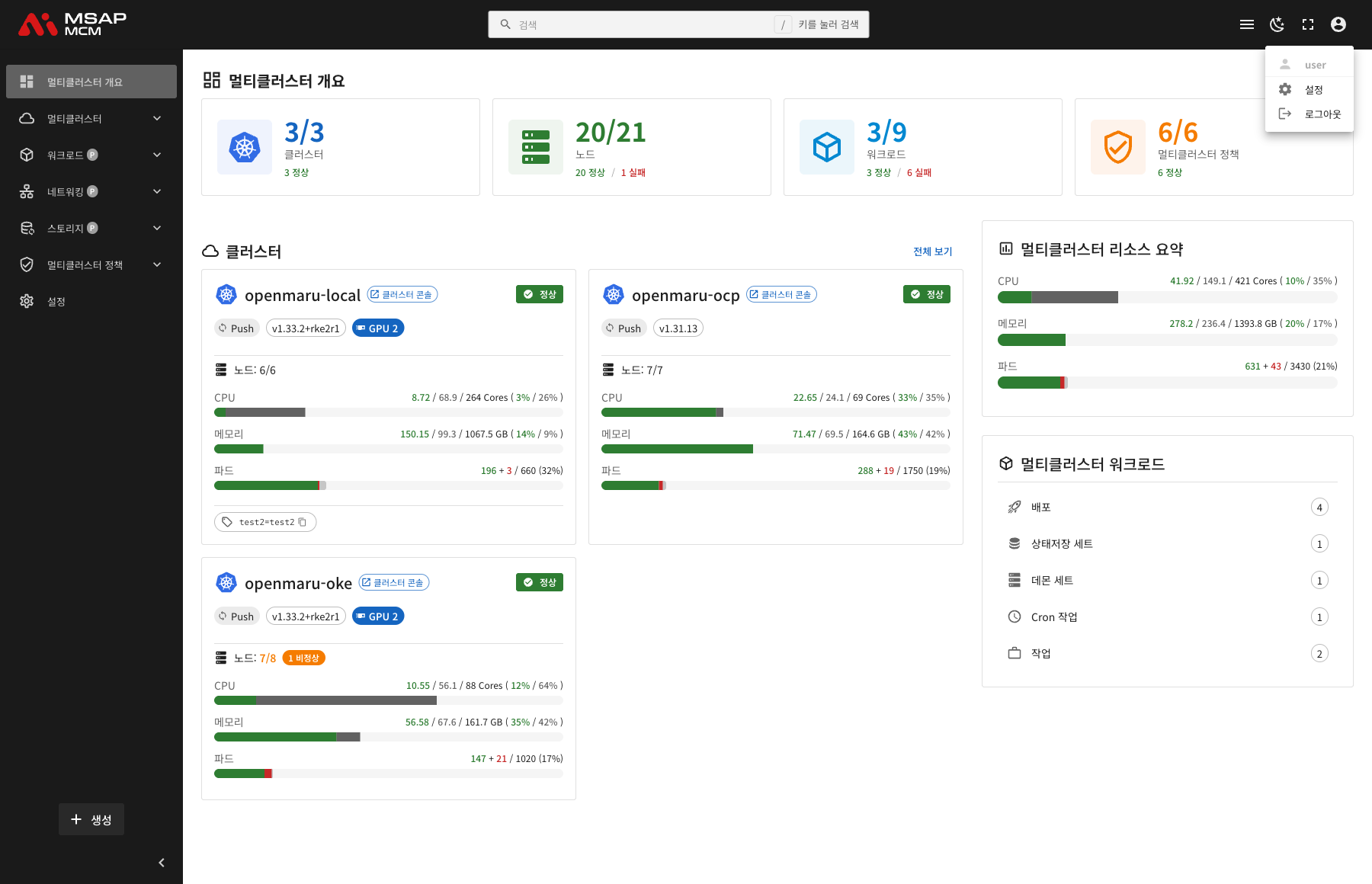
| Menu item | Description |
|---|---|
| User information | Shows the signed-in user name and email |
| Settings | Goes to the settings page |
| Logout | Logs out and goes to the login page |
The Sidebar
The sidebar sits on the left of the screen and provides menu navigation.
The Sidebar Expanded
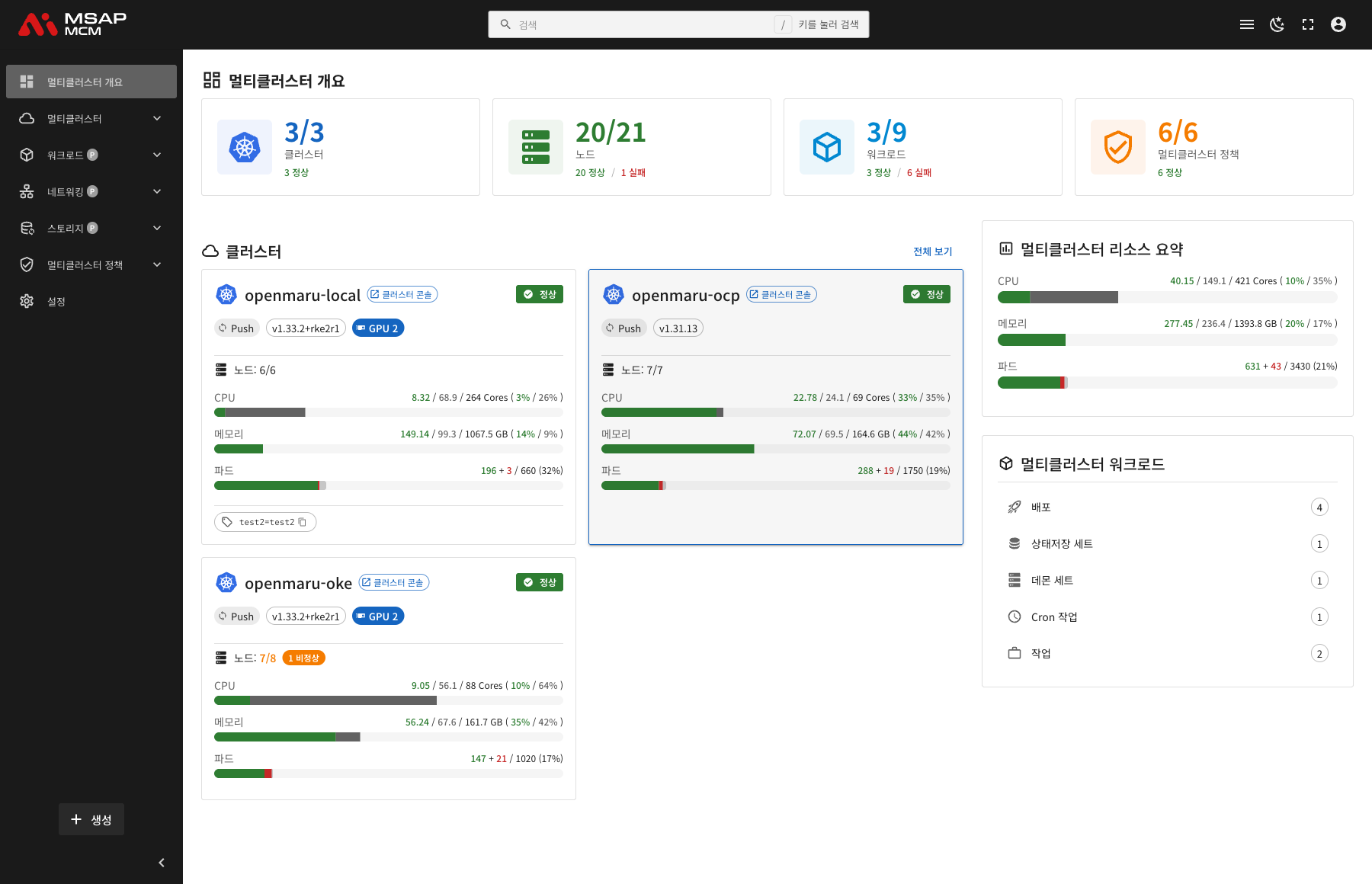
The Menu Structure
The sidebar menu is laid out like this:
| Category | Sub-menus | Description |
|---|---|---|
| Multi-Cluster Overview | - | The dashboard home screen |
| Multi-Cluster | Topology, Clusters, Namespaces, Nodes | Cluster management |
| Workloads | Deployments, DaemonSets, StatefulSets, Jobs, CronJobs, ConfigMaps, Secrets, HPAs, ReplicaSets, Pods | Kubernetes workload management |
| Networking | Services, Ingresses | Network resource management |
| Storage | PVCs | Storage resource management |
| Multi-Cluster Policies | Propagation Policies, Override Policies | Multi-cluster policy management |
| Settings | - | User settings |
Menu Badges
Some menu items carry a badge:
| Badge | Meaning |
|---|---|
| P | Propagation -- a resource to which a multi-cluster propagation policy applies |
| M | Member Cluster -- a resource that belongs to a member cluster only |
The Create Button
Pressing the "+ Create" button at the bottom of the sidebar opens the YAML editor for creating a new resource.
Collapsing and Expanding the Sidebar
- The sidebar toggle button: click the ☰ icon on the top bar
- The arrow at the bottom of the sidebar: click the
<button at the bottom of the sidebar - When collapsed, only the icons are shown, and hovering brings up the menu name as a tooltip.
The Main Content Area
The main content area shows different screens according to the menu chosen.
Common Elements
Most pages share these elements:
| Element | Description |
|---|---|
| Page title | The current page name and icon |
| Summary cards | A summary of resource status (the healthy and failed counts) |
| Resource list | The resource list as a table |
| Filter and search | The namespace and cluster filters, and search |
| Refresh | The button that refreshes the data by hand |
How a Detail Page Is Laid Out
A resource detail page is normally made up of these tabs:
| Tab | Description |
|---|---|
| Overview | The resource's basic information, labels, and annotations |
| YAML | The resource YAML definition (editable) |
| Events | The related Kubernetes events |
| Clusters | The multi-cluster deployment state (for resources a policy applies to) |
Themes
The OPENMARU MCM Console supports a light mode and a dark mode.
- Light mode: a light background, the default
- Dark mode: a dark background, easier on the eyes
The theme is switched by clicking the 🌙 icon on the top bar.
Keyboard Shortcuts
| Shortcut | What it does |
|---|---|
/ | Focus the search box |
Esc | Close a dialog or popup |
Responsive Design
The OPENMARU MCM Console adapts to different screen sizes:
- Desktop: the whole UI is shown
- Tablet: the sidebar collapses automatically
- Mobile: the sidebar becomes an overlay
Next Steps
- Overview (the dashboard home) -- using the dashboard home screen in detail
- Topology (the topology view) -- visualising the cluster topology