1.3. Login and Authentication
Overview
Valid credentials are needed to reach the OPENMARU MCM Console. Two authentication methods are supported:
- SSO (single sign-on): integrated authentication based on Keycloak (recommended)
- Token authentication: direct authentication with a Kubernetes service account token
The Login Screen
Reaching the OPENMARU MCM Console brings up the login screen.
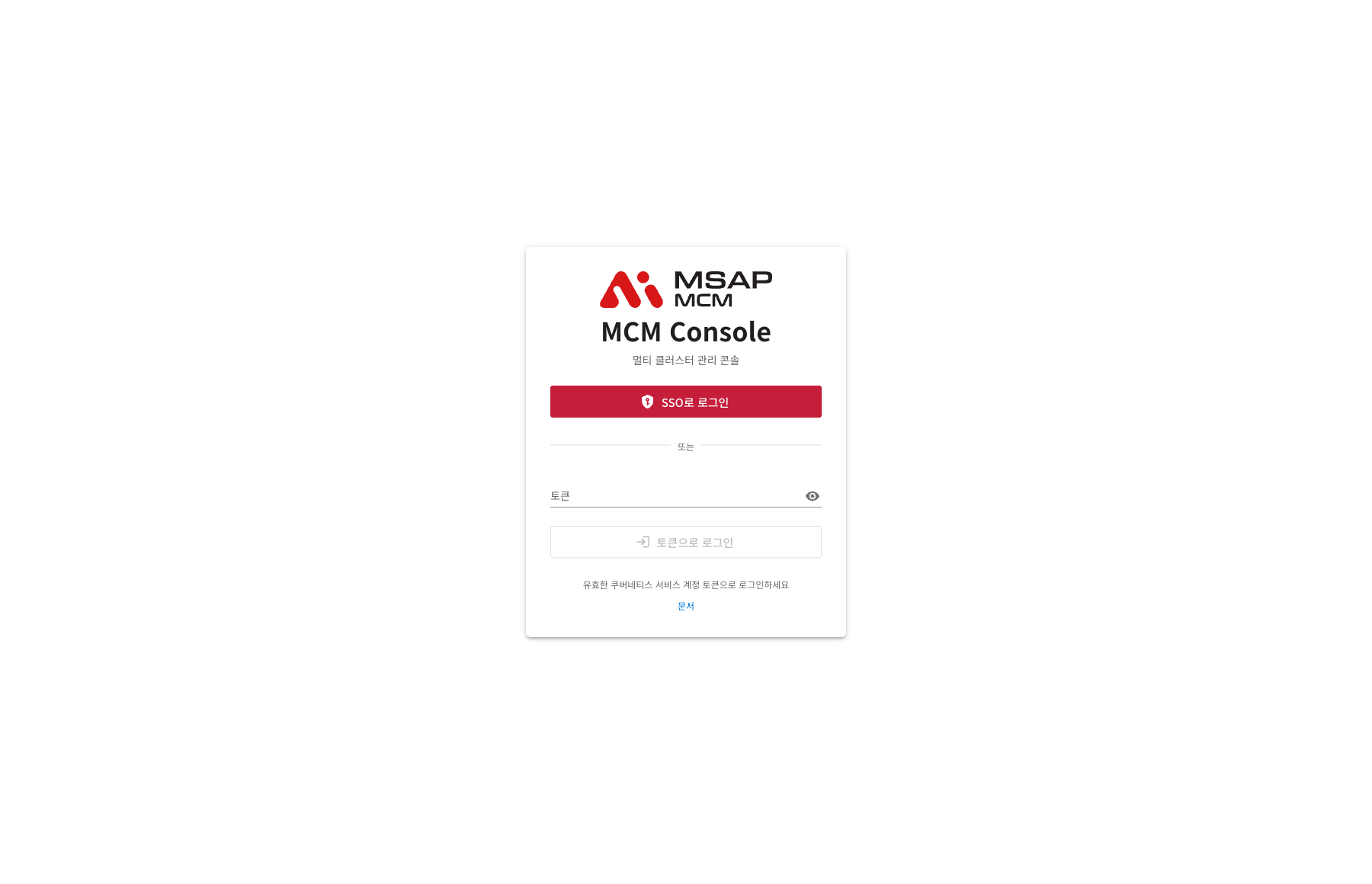
The Parts of the Screen
| Element | Description |
|---|---|
| Logo and title | The Kubernetes logo, the "MCM Console" title, and the description "the multi-cluster management dashboard" |
| Sign in with SSO button | The Keycloak SSO authentication button (shown only when enabled) |
| Divider | The word "or", separating SSO from token login |
| Token field | The field for the Kubernetes token |
| Show/hide token button | Click the 👁 icon to see the token contents |
| Sign in with token button | The button that performs token authentication |
| Help link | A link to the official Karmada documentation |
Authentication Methods
1. SSO Login (Keycloak) — Recommended
Where SSO (single sign-on) is enabled, a Sign in with SSO button is shown.
How to use it:
- Press the Sign in with SSO button.
- You are redirected to the Keycloak authentication page.
- Sign in with your organisation's account.
- Once authenticated, you return to the OPENMARU MCM Console.
Advantages:
- Convenient sign-in with your organisation's existing account
- Centralised user management
- Session management and security policy applied
Note: SSO is configured by an administrator. If no SSO button appears, use token authentication.
2. Token Login
Authenticates with a Kubernetes ServiceAccount token.
How to use it:
-
Paste the Kubernetes token into the Token field.
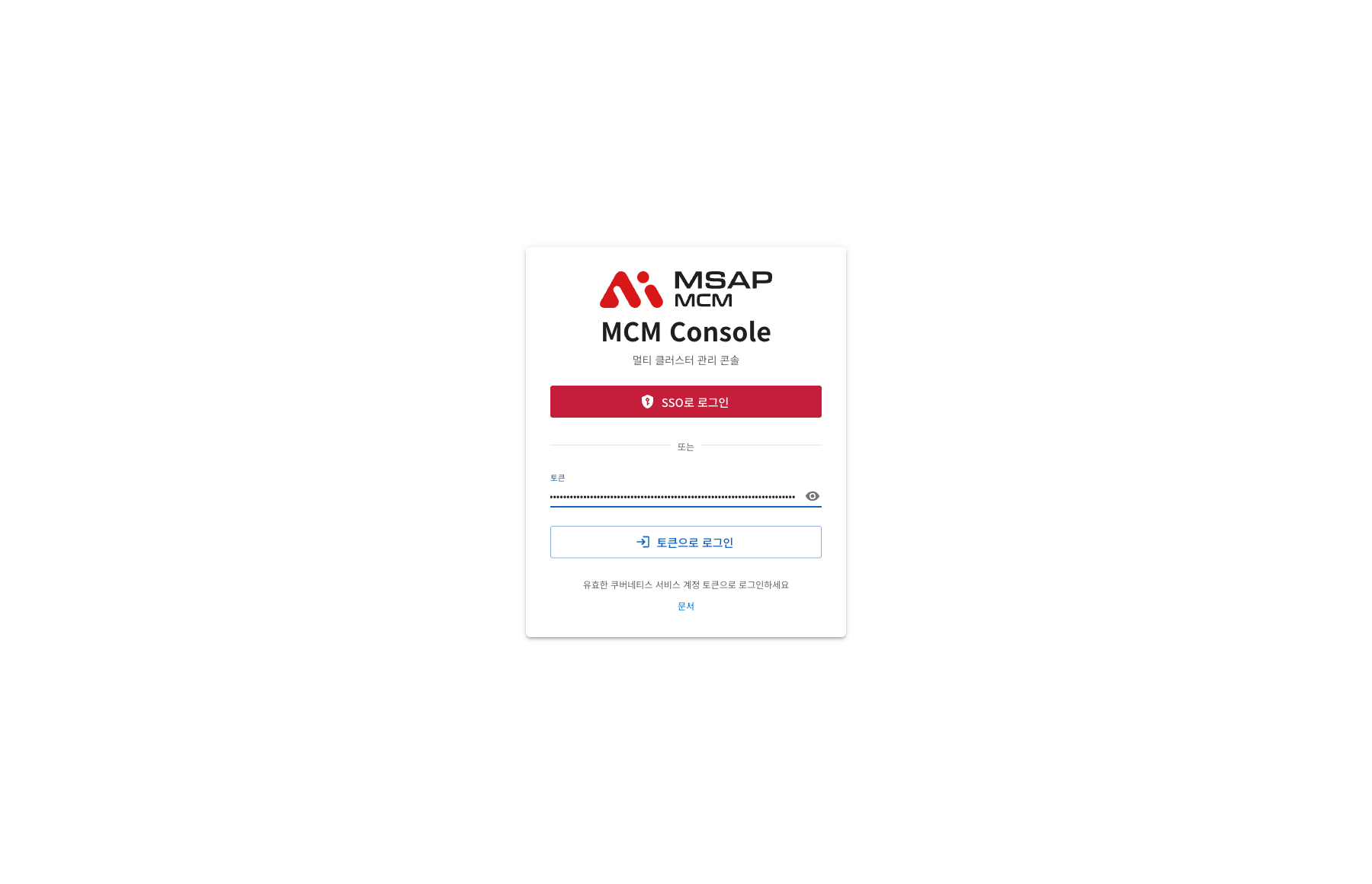
-
Clicking the 👁 icon shows the token contents. (It is displayed across several lines.)
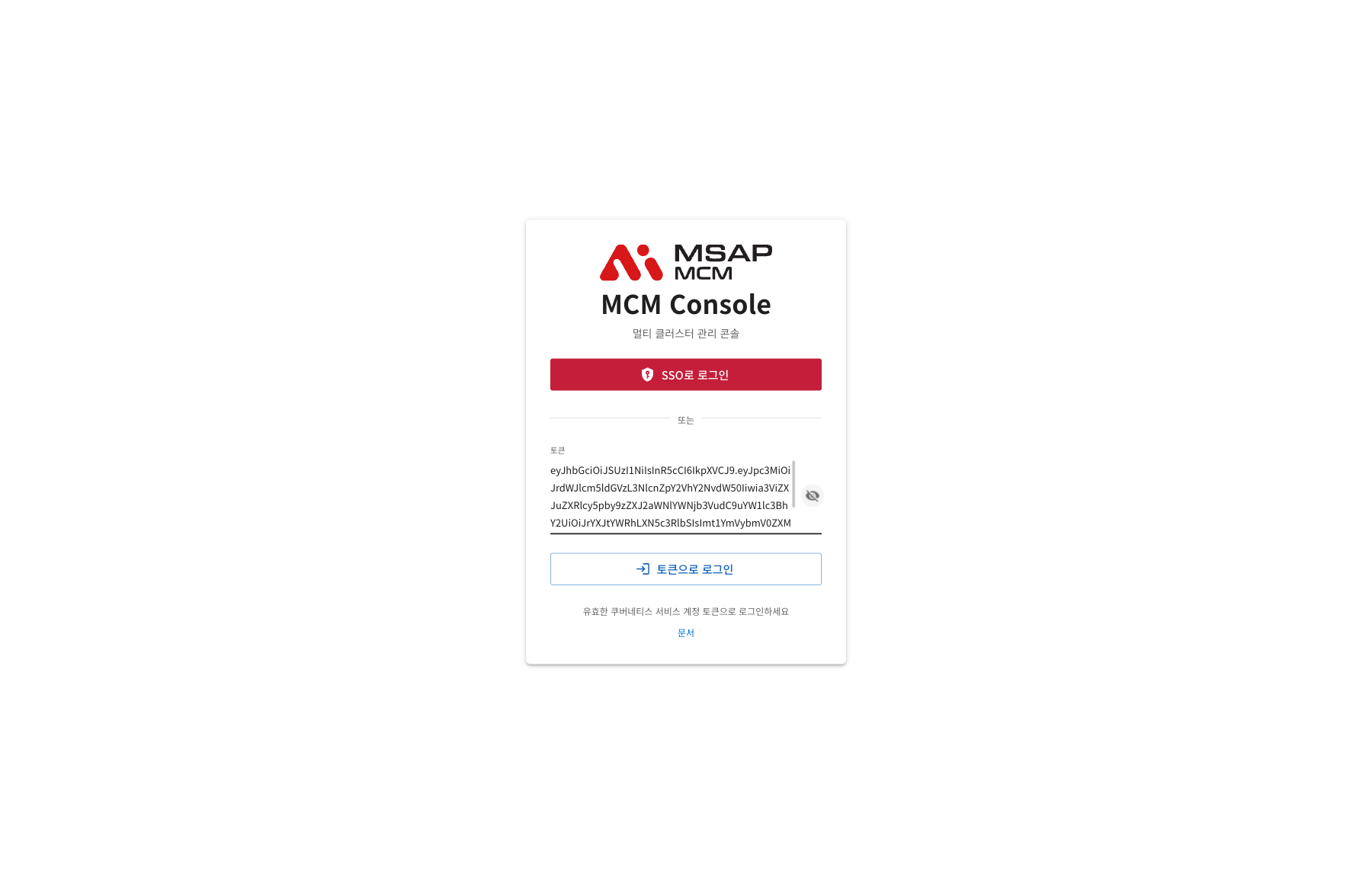
-
Press the Sign in with token button.
-
On success you are taken to the dashboard home (Overview).
How to Obtain a Token
How to obtain a token from the MCM control plane.
Method 1: Use an Existing ServiceAccount
# read the token of the MCM Console ServiceAccount
kubectl -n karmada-system get secret mcm-console-secret \
  -o go-template="{{.data.token | base64decode}}"
Method 2: Create a New ServiceAccount
# 1. create the ServiceAccount
kubectl -n karmada-system create serviceaccount mcm-user

# 2. create the ClusterRoleBinding (cluster-admin rights)
kubectl create clusterrolebinding mcm-user-binding \
  --clusterrole=cluster-admin \
  --serviceaccount=karmada-system:mcm-user

# 3. create the Secret for the token
cat <<EOF | kubectl apply -f -
apiVersion: v1
kind: Secret
metadata:
  name: mcm-console-secret
  namespace: karmada-system
  annotations:
    kubernetes.io/service-account.name: mcm-user
type: kubernetes.io/service-account-token
EOF

# 4. read the token
kubectl -n karmada-system get secret mcm-console-secret \
  -o go-template="{{.data.token | base64decode}}"
Method 3: Create a Temporary Token (Kubernetes 1.24+)
# create a token valid for 24 hours
kubectl -n karmada-system create token mcm-console --duration=24h
Handling Errors
Common Errors
| Error message | Cause | What to do |
|---|---|---|
| Please enter a token | The token is empty | Enter a valid token |
| Invalid token | The token is malformed or too short | Obtain the token again and enter it |
| Authentication failed | The token has expired, or the rights are insufficient | Obtain a new token |
| Initialising SSO... | Waiting for the connection to the Keycloak server | Wait a moment, or use token login |
Tips for Resolving Errors
- Watch for whitespace when copying the token: make sure no leading or trailing spaces are included.
- Check whether the token has expired: obtain a new one if it has.
- Check the rights: confirm the ServiceAccount has appropriate rights (a ClusterRole).
- Browser cache: on an SSO error, clear the browser cache and try again.
Logging Out
You can log out from the user menu at the top right of the MCM Console.
- Click the user icon at the top right
- Choose "Logout"
- You are taken to the login screen
Session Management
- The login session survives closing the browser (the token is kept in local storage).
- Once the token expires, API calls raise an error.
- With SSO authentication, the session is governed by the Keycloak session policy.
- Logging out after use is recommended for security.
Security Recommendations
- Least privilege: use a ServiceAccount with only the rights it needs.
- Token security: keep the token safe and do not share it.
- Rotate tokens regularly: refresh the token periodically for security.
- Prefer SSO: authenticate through SSO where you can.
Next Steps
- UI Overview -- a look at how the console screen is laid out
- Overview -- using the dashboard home screen