7.7. Secret Store
When to Look at This
- When passing a password or credential to an application
- When several namespaces use the same value
- When secret synchronization has failed
What the Secret Store Is
Passwords and credentials are kept in a store outside the cluster, and the namespaces that need them receive them from there.
A plain Kubernetes Secret holds its value inside the cluster. Using the same value in three namespaces means creating three copies, and changing it means fixing all three. Missing one produces no error at all.
With the secret store the value exists once, in the store, and each namespace receives it. When the stored value changes, it is read again on a set interval.
Menu: Cluster > Secret Store
How It Differs From a Plain Secret
| Plain Secret | Secret store | |
|---|---|---|
| Where the value lives | Inside the cluster | In a store outside the cluster |
| The same value in several places | One copy per namespace | One copy in the store, each namespace receives it |
| When the value changes | Find and fix every place that uses it | Fix the store; each interval picks it up |
| Who read it and when | Not recorded | Every read and write is recorded |
Applications see no difference. What the secret store produces is still a Kubernetes Secret, so pods reference it the usual way.
Screen Layout
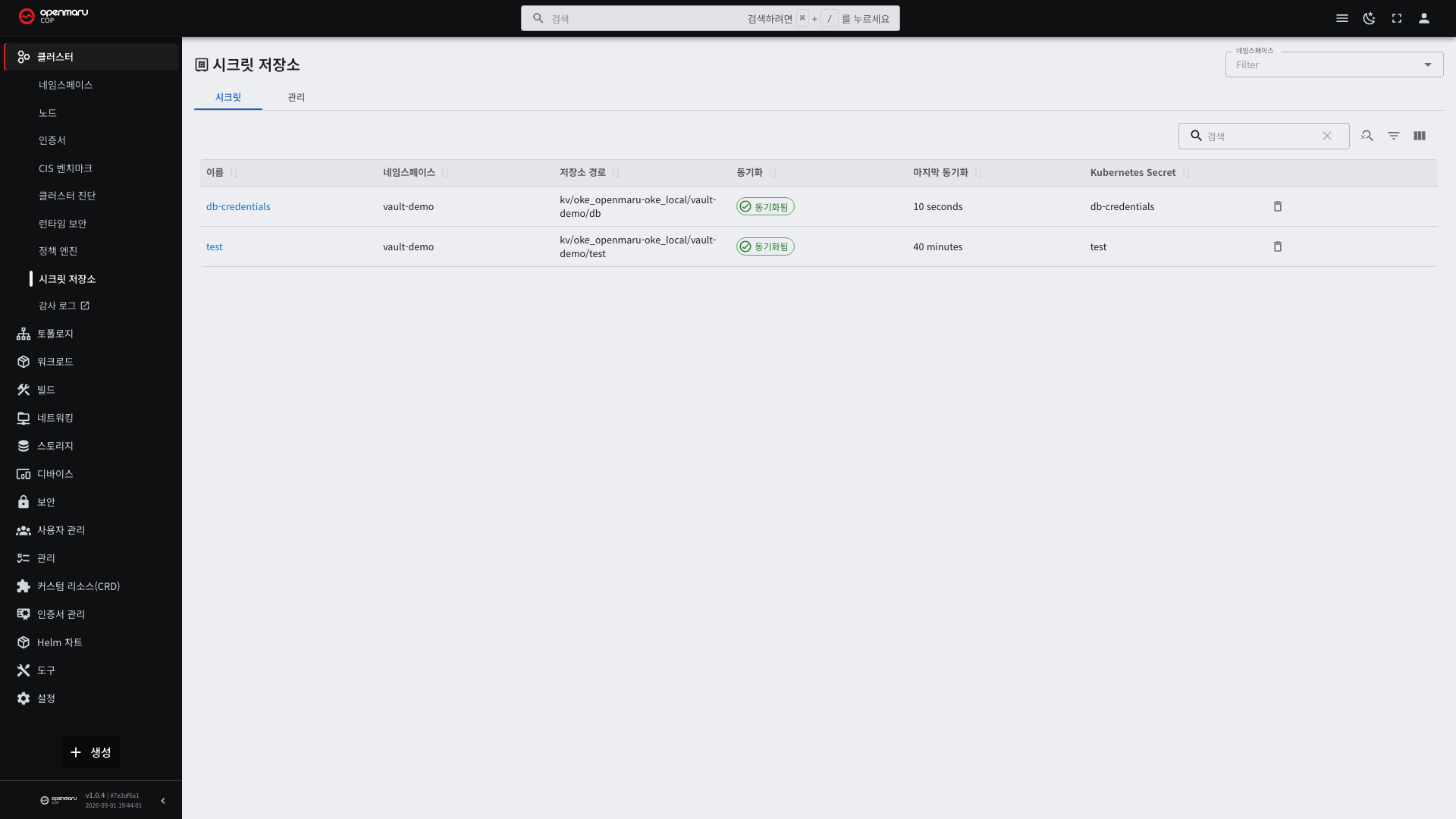
The screen has two tabs.
| Tab | What it shows |
|---|---|
| Secrets | The values this namespace receives from the store |
| Administration | The state of the store itself. Appears only with permission to view the whole cluster |
The Secrets tab follows the namespace filter at the top of the screen.
The Secrets Tab
The values this namespace receives from the store.
The buttons appear only when exactly one namespace is selected. Pick one in the namespace filter at the top right and a box for that namespace opens above the list, holding the connection status and [Add secret]. With several selected, or none, there is no way to decide where to create things, so only the list appears.
| Column | Description |
|---|---|
| Name | The name of the import. Selecting it opens the details |
| Namespace | The namespace receiving the value |
| Secret store path | Which path in the store the value is read from |
| Sync | Synced, Failed, or Pending |
| Last sync | When the value was last read |
| Kubernetes Secret | The name of the Secret produced from it |
Connecting a Namespace
A namespace starts out unconnected to the store. Selecting one namespace opens its box showing Not connected together with [Connect this namespace].
Connecting takes one step and does not need an administrator. The Console creates two objects inside this namespace and nothing at all on the store side.
The readable paths are limited to those under your own namespace. The path rule is the access boundary, so another namespace's values stay unreadable even after connecting.
Adding a Secret
[Add secret] brings a value from the store into this namespace as a Kubernetes Secret.
| Field | Description |
|---|---|
| Enter the value now | On, the value is also written to the store; off, an existing stored value is only imported |
| Name | The name of the Kubernetes Secret to create |
| Secret store path | Where the value is (or will be) stored. The leading part is fixed and cannot be edited |
| Keys | Which stored value becomes which key of the Secret. Several can be added |
| Sync interval | How often the store is read again. The default is one hour |
The leading part of the path is fixed because that rule is the security boundary. Isolation holds only if there is no way to enter another namespace's path.
Turn Enter the value now off when the value is already in the store — placed there by someone else or from the command line. There is no reason to overwrite it.
Why Not to Set a Short Sync Interval
A short interval picks up changes in the store sooner. In exchange, the store is read every interval and every one of those reads is recorded in the audit log. A five-minute interval produces twelve times the records of an hourly one.
If the value rarely changes, leave the default of one hour. When an immediate update is needed, right after a deployment for example, shorten it for that moment and set it back.
Why the Values Are Not Shown Here
This screen does not read the values. It shows only the list and the status.
Putting a value on the screen hands it to everyone looking at the screen, and that viewing leaves no record in the store. The value is needed by the application, not by a person, so it is delivered as a Kubernetes Secret while the screen only shows whether that delivery is working.
The detail screen shows which stored value becomes which key of the Secret. The values themselves do not appear.
Removing a Secret
[Remove secret] undoes the import. The Kubernetes Secret created from it is removed with it.
An application using it loses the value. Before removing, check whether any pod references that Secret.
The value in the store stays. You can add it again at any time, so an import made by mistake can simply be removed and recreated.
When Synchronization Fails
Entries showing Failed in the Sync column state the reason. These three are the common ones.
| Notice | Meaning | What to do |
|---|---|---|
| The path was not found in the secret store | The value is not there yet, or the path differs | Check the path, or put the value in the store first |
| The SecretStore it refers to does not exist | The namespace is not connected | Run [Connect this namespace] first |
| The secret store did not respond | The store itself is not running | Check component status on the Administration tab, or ask your operator if you lack permission |
[Show details] reveals the original message.
The Administration Tab
Shows whether the store itself is healthy. The tab appears only with permission to view the whole cluster.
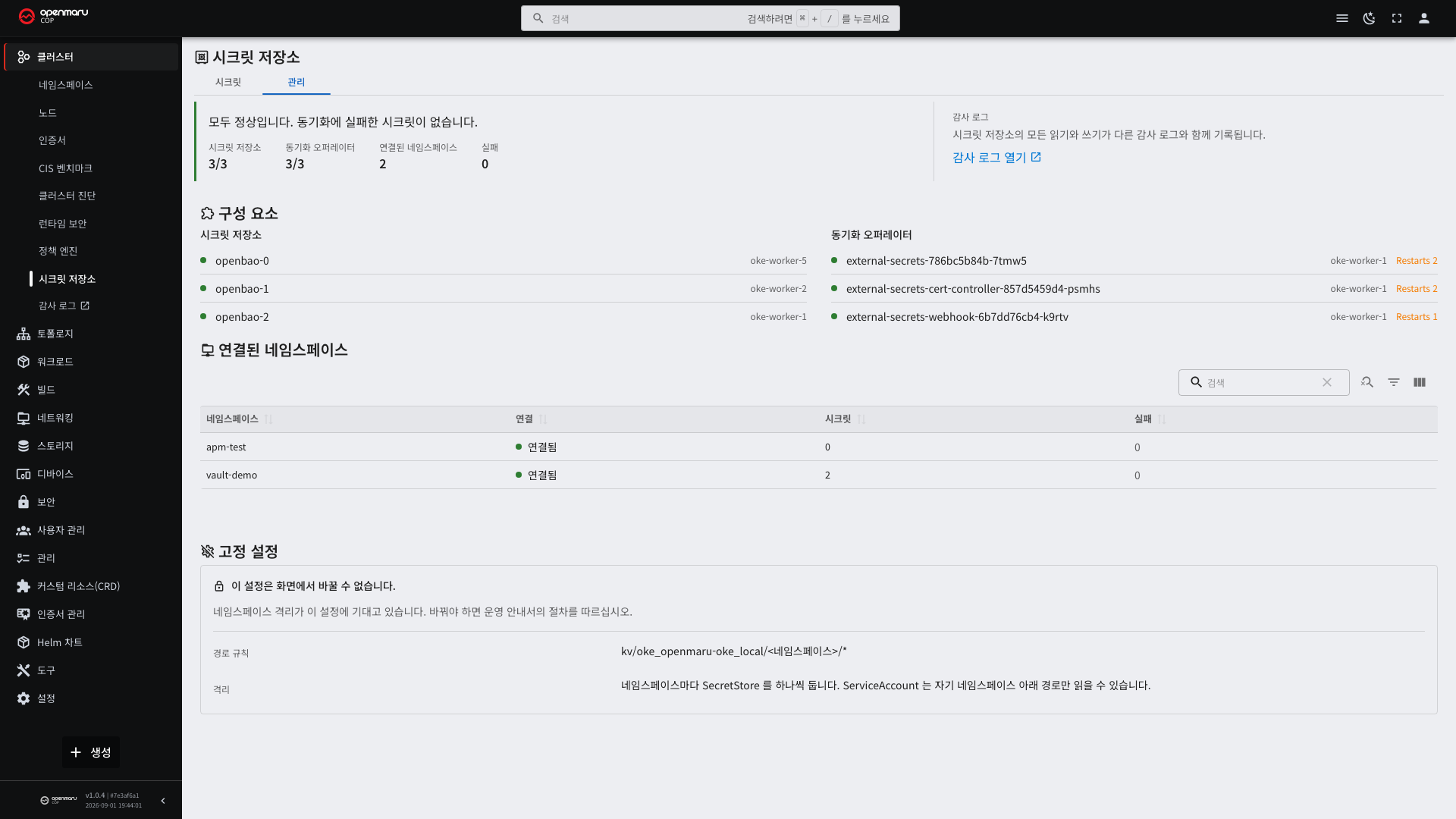
A single sentence at the top states the status, with four counts beside it (store, synchronization operator, connected namespaces, failures). Below them is the supporting detail.
| Part | Content |
|---|---|
| Components | Pod status of the store and the synchronization operator (ready, node, restarts) |
| Connected namespaces | Per namespace: connection state, secret count, and failure count |
| Fixed settings | The path rule and isolation. They cannot be changed on the screen |
| Audit log | Opens the audit records in the monitoring console |
The fixed settings have no editing control so that the boundary holds structurally. What cannot be changed on the screen cannot be changed by mistake.
Audit Records
Every read and write on the store is recorded. The records are collected with the other audit logs and can be viewed in the monitoring console.
An application receiving a value is also a read, so a shorter sync interval produces more records.
Common Tasks
| Goal | How |
|---|---|
| Pass a stored value to an application | [Add secret] on the Secrets tab |
| Prepare a namespace for first use | Select that namespace, then run [Connect this namespace] once |
| Find why a value is not applied | Read the Sync column and the Last sync time |
| Apply a value immediately | Shorten the sync interval, then set it back afterwards |
| Clean up an import made by mistake | [Remove secret]. The stored value stays |
| Check whether the store itself is healthy | Component status on the Administration tab |