7.5. Policy Engine
When to Look at This
- When a deployment is rejected and you do not know why
- When checking how well the cluster follows its rules
- When you want to see how many resources a rule would catch before applying it
What the Policy Engine Is
It checks whether resources follow the rules and records the ones that do not.
Every cluster has rules to keep: pull images only from approved registries, do not run containers as root, always declare resource requests. Checking these by hand on every deployment guarantees that some will be missed.
The policy engine performs those checks when a resource is created or changed. When a resource breaks a rule, it either blocks the deployment or records it without blocking. Each policy decides which of the two it does.
Menu: Cluster > Policy Engine
Screen Layout
The screen has two tabs.
| Tab | What it shows |
|---|---|
| Report | The resources that broke a rule |
| Policy | The installed policies, and turning them on and off |
The Report Tab
Shows which resource broke which rule. A summary sits at the top and the list below it.
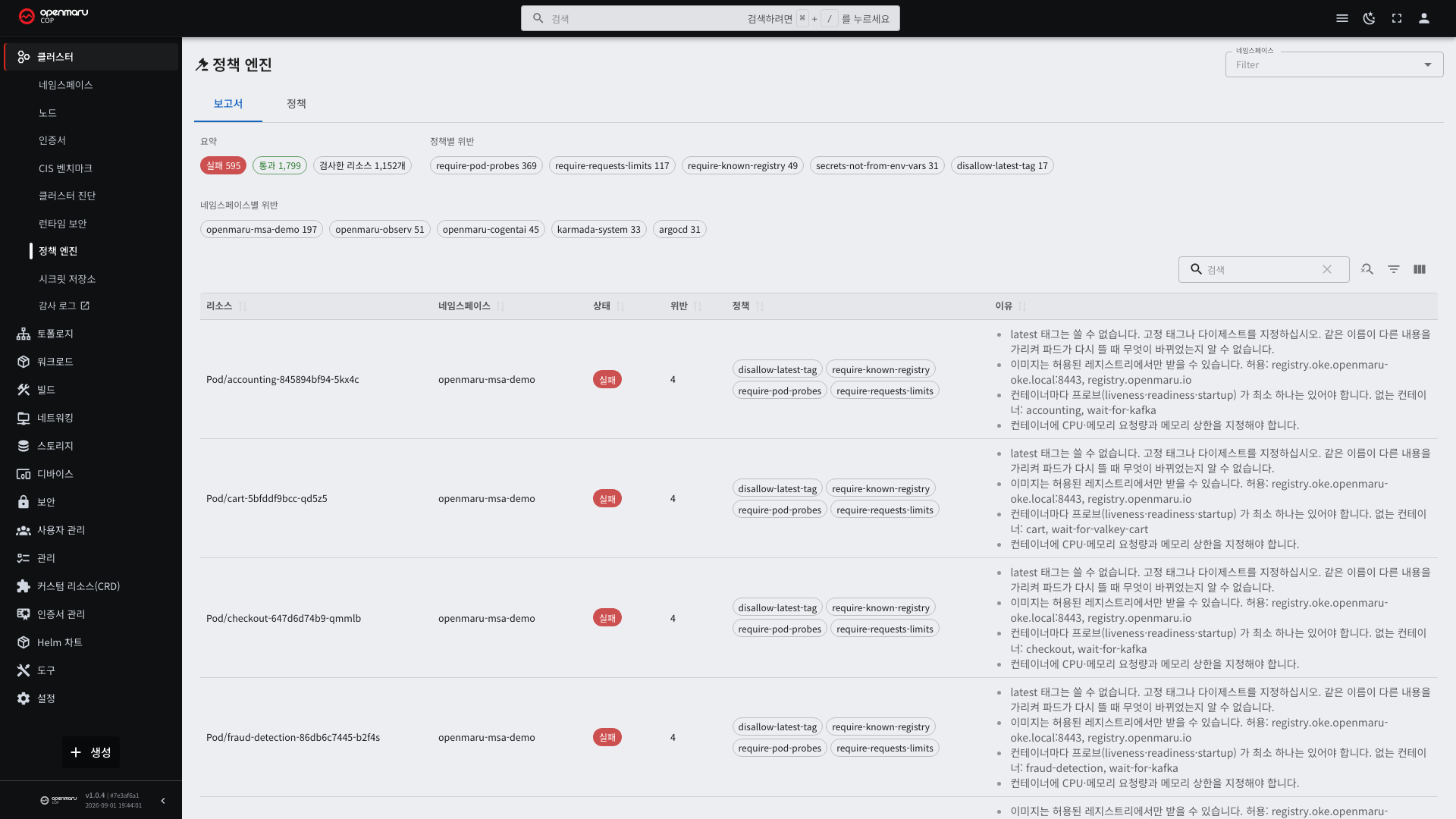
| Column | Description |
|---|---|
| Resource | The kind and name of the resource (for example Pod/my-app-7d9f...) |
| Namespace | The namespace it lives in |
| Status | Failed or passed |
| Violations | How many rules that resource broke |
| Policy | The name of the rule it broke |
| Reason | What the problem is and how to fix it |
Read the reason column first. In most cases it already states how to fix the resource.
Filtering From the Summary
Selecting an item in the summary narrows the list to matching entries.
| Summary item | Effect |
|---|---|
| Failed / Passed | Only one of the two can be selected. The Resources checked count beside them is a total and cannot be selected |
| Violations by policy | Shows only resources caught by that policy |
| Violations by namespace | Shows only resources in that namespace |
Policy and namespace can be combined — for example, only the resources in one namespace that broke the image registry rule. Selecting again clears it, and Clear filter appears while anything is selected.
Results from disabled policies are not shown. Turning a policy off removes it from later checks, but records already written remain. The screen counts only the policies that are running now.
The Policy Tab
The list of installed policies.
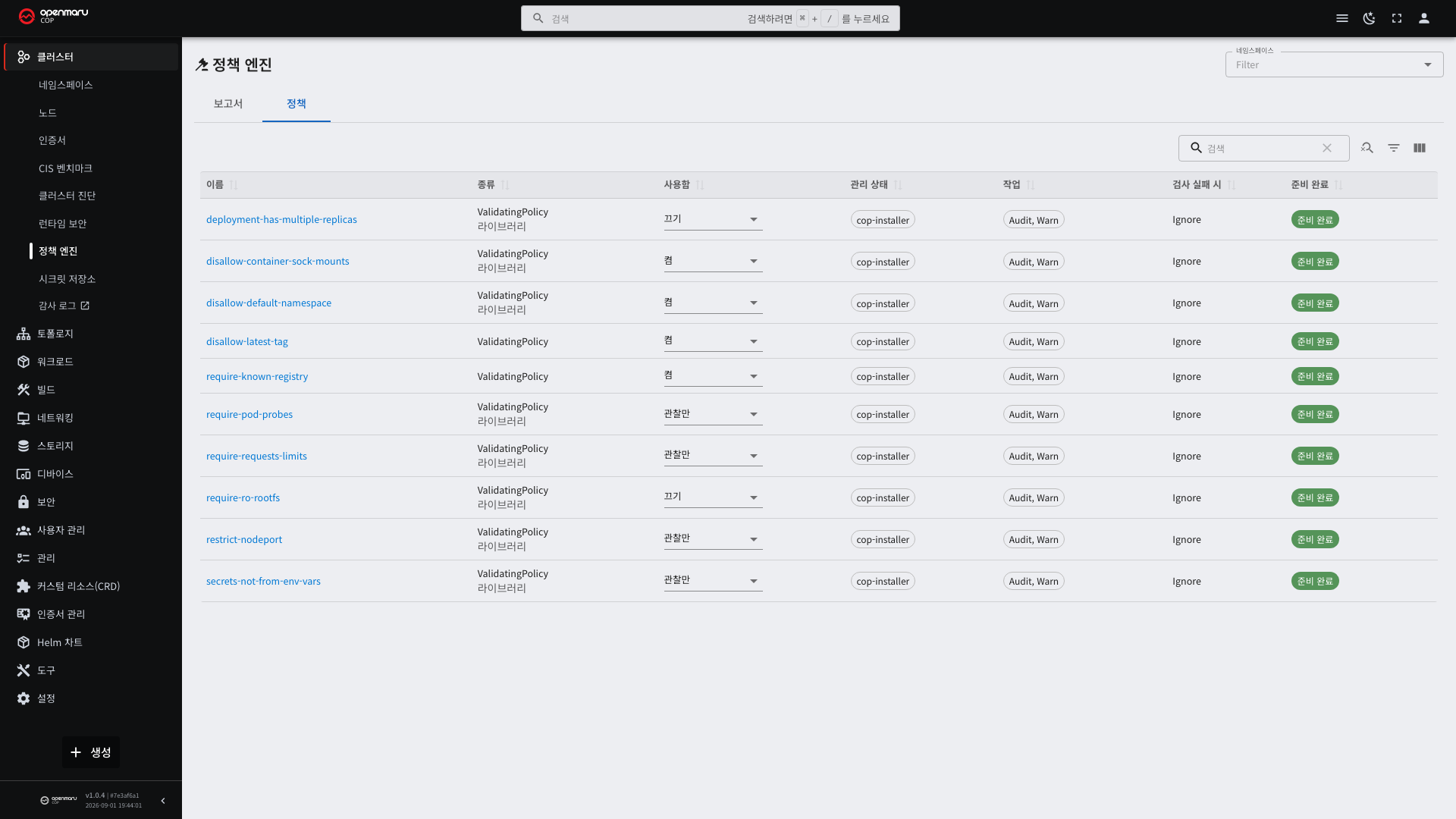
| Column | Description |
|---|---|
| Name | The policy name. Selecting it opens the details |
| Kind | The policy type. Ones from the policy library also show Library |
| Enabled | On, audit only, or off |
| Managed state | Whether the installer manages it or it was changed in the Console |
| Action | What happens when a resource breaks the rule |
| On check failure | What happens when the check itself could not run |
| Ready | Whether the policy is ready to run |
Turning a Policy On and Off
The Enabled column offers three values.
| Value | Behavior |
|---|---|
| On | Checks at deployment time and records in the report |
| Audit only | Records in the report without affecting deployment |
| Off | Does not check |
Changing the value opens a confirmation dialog explaining what will change.
If you cannot select a value, you do not have permission to change it. Ask your administrator.
Why Audit-Only Comes First
Audit-only is the state you use before turning a policy on.
Setting a rule straight to "on" blocks every deployment that matches it from that moment. Turning it on without knowing how many resources will be caught stops work.
With audit-only, the report counts how many resources the policy catches without interfering with deployments. Once the count looks manageable, raise it to "on."
Audit-only is also the answer when a policy that is already on keeps producing warnings but you still want the records.
Changing a Policy Hands It to the Console
Changing a policy in the Console moves its Managed state to the Console. Running the installation again then skips that policy, so that what you changed in the Console stays.
To return a changed policy to its installed state, ask your operator.
When It Is Not Installed
The policy engine is optional and off by default. On a cluster without it, the screen explains how to turn it on instead of showing the lists. Installation is done by the operator.
Common Tasks
| Goal | How |
|---|---|
| See which resource broke what | On the Report tab, select a policy or namespace to filter |
| Turn one rule off for now | On the Policy tab, set that policy to Off |
| Check the impact before enforcing | Leave it Audit only and read the count in the report |
| Stop the warnings but keep the records | Change it to Audit only |
| Find why your deployment was blocked | Filter the Report tab by your namespace and read the Reason column |