6.2. Reviewing Publish Requests
Overview
When a user asks to put a skill they made into the Skill Hub (the place that stores skill packages and lets you install them into profiles; see the A.3. Glossary), a "publish request" is created. An administrator checks the request, picks a namespace, and approves or rejects it. Some requests are published automatically, without administrator review, when they meet certain conditions. This chapter explains how to approve and reject requests, how to set up automatic approval, and how an administrator can publish a zip file directly.
Permissions: Only administrators can approve or reject publish requests and publish directly.
The Publish Request Flow
- A workspace owner (or a team manager or administrator) asks to put their own skill into the Skill Hub.
- The server checks the requested skill folder and stores it as a bundle (zip).
- An administrator approves or rejects the request. If the conditions are met, it is approved automatically.
- When the request is approved, AAS publishes it to the Skill Hub.
- If the Skill Hub makes it public right away, the status is "Published". If the hub runs its own review first, the status is "Under skill hub review".
Figure 6.2-1 shows these five steps with automatic approval and the status branches added.
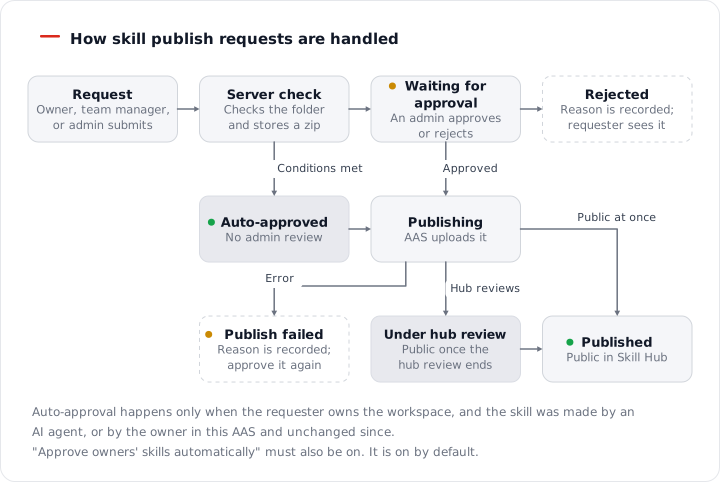
Figure 6.2-1. How a skill publish request is processed
When a User Says They Received a Rejection Message
A user who receives a rejection message for one of the reasons below can ask an administrator about it. The server makes this rejection before an administrator reviews the request. Your job is to tell the user the reason and how to fix it.
| Reason | Description |
|---|---|
| A string that looks like a secret | If a file contains text shaped like a key or token, the request is not created. |
| File limit exceeded | A skill folder in a request can have up to 200 files, 5 MiB in total, and 1 MiB per file. |
| No SKILL.md | The skill folder must contain SKILL.md, the skill description file. |
| Description too short | The description line (description) at the top of SKILL.md must be at least 20 characters. |
| Name or version format | The name must be 2 to 63 characters of lowercase letters, digits, and hyphens. The version must be three numbers joined by dots, such as 1.2.3. |
| Version too low | If the Skill Hub already has the same name, the version must be higher than that one. |
| Same name already exists | If the name overlaps with one uploaded by someone else, use a different name. An administrator can still request a new version of an overlapping name. |
| A request is already waiting | You cannot create a new request while a request with the same name is waiting to be processed. |
| Source cannot be uploaded | Unmodified Hermes built-in skills and skills installed from the Skill Hub cannot be uploaded. Skills that modify a "Restricted" package also cannot be uploaded. |
Reviewing Publish Requests
This feature is visible only to administrators. Workspace owners and team managers see only the request list for their own AI agent workspaces. General users who only have access permission cannot see the request list.
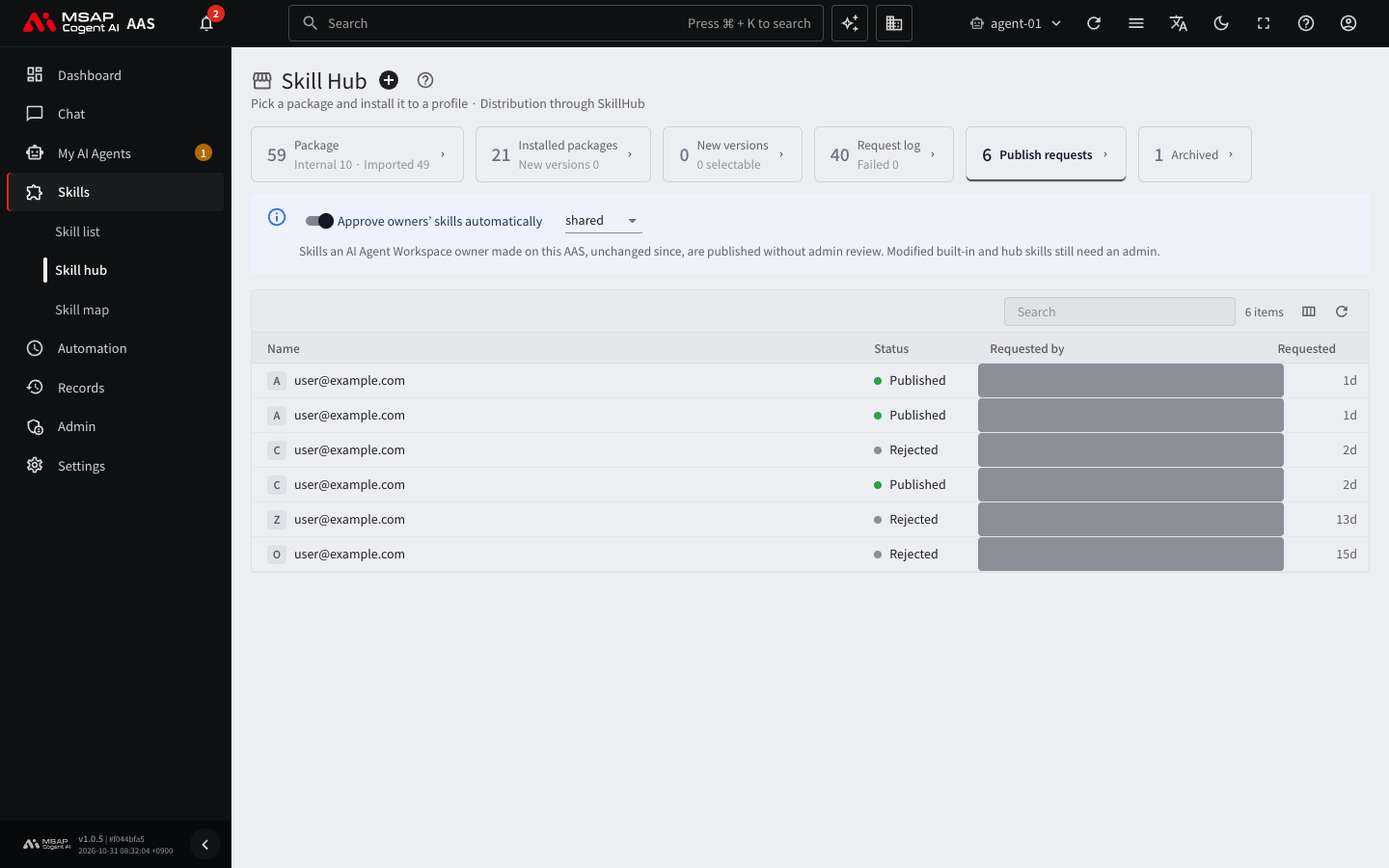
Figure 6.2-2. Publish request list
- Open "Skills › Skill hub" in the left menu.
- Click the "Publish requests" tab. If a request is waiting for approval, the tab shows a warning-colored mark.
- Click a request row to open the drawer (the detail pane that opens on the right side of the screen; see the A.3. Glossary).
- In the drawer, check the requester, profile, status, skill origin, and result message.
- Click "Download the published bundle" to download the zip.
- Check the contents by following "What to Check Before Approving" below.
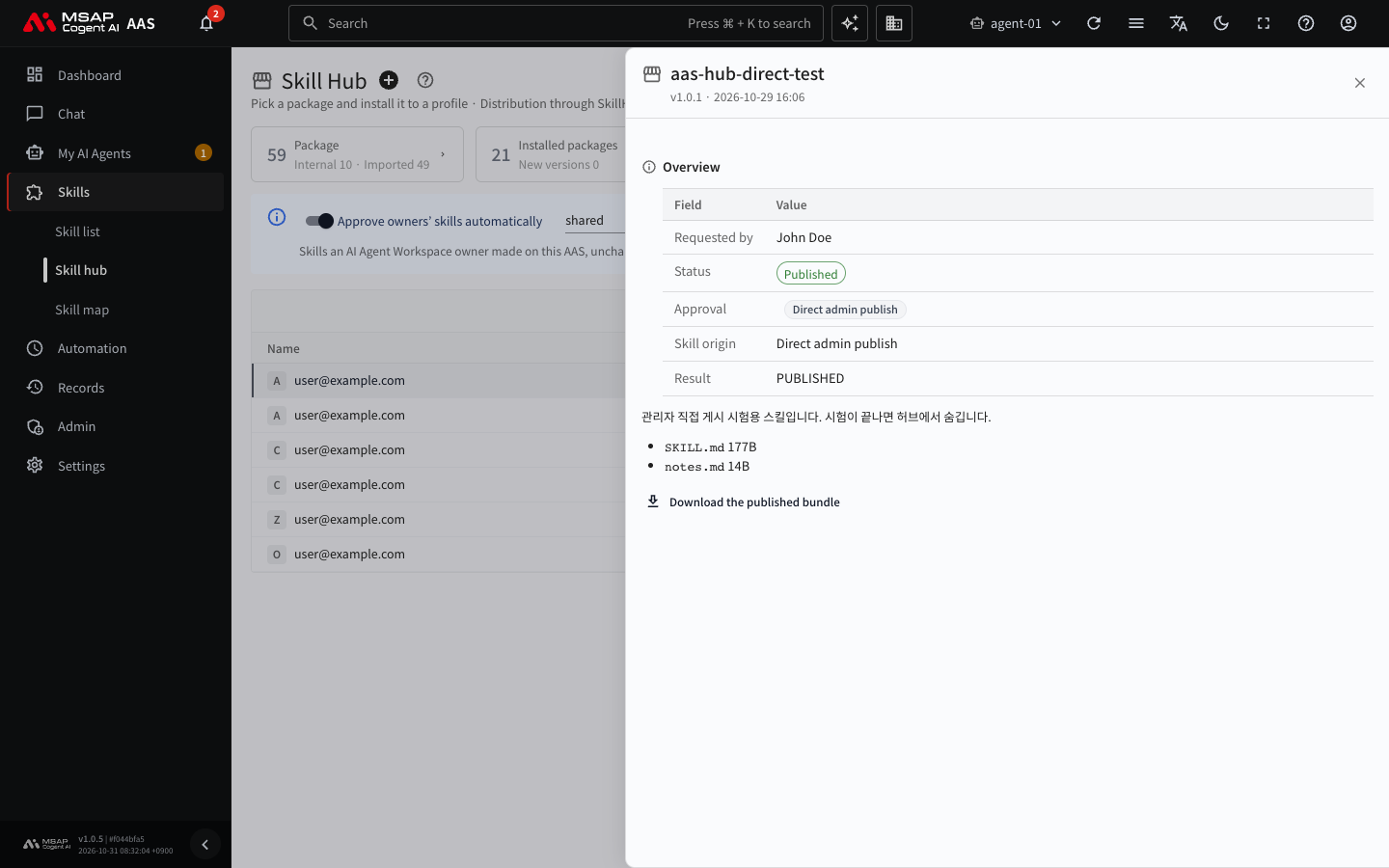
Figure 6.2-3. Publish request drawer
What to Check Before Approving
When you approve, the skill is uploaded to the Skill Hub and others can install it. Approve only after you have checked all of the following.
- Content: The description in SKILL.md in the downloaded zip matches what the skill does.
- Content: If there are script files (
.py,.sh), open them and confirm they do nothing unintended (deleting files, sending data outside). - Secrets: The files contain no text such as keys, tokens, or passwords. The server filters out key-shaped text at the request stage, but some forms can slip through, so look once more yourself.
- Internal addresses: The drawer does not show the warning "It contains internal domains or private IPs". If the warning is shown, the request cannot be published to "Shared" and can be published only to "Restricted". Check whether the content is acceptable for members only.
- Name and version: The name and version are correct, and the request is not a new version that overwrites an existing package of the same name (if it is a new version, that is intended).
- Namespace: The right one of "Shared" and "Restricted" is selected. For what each area means, see 6.1. The Skill Hub and Namespaces.
Meaning of Each Status
| Status | Meaning |
|---|---|
| Waiting for approval | Waiting for an administrator to approve or reject it. |
| Publishing | A direct publish by an administrator is being processed. |
| Published | It is public in the Skill Hub. |
| Under skill hub review | The hub is running its own review. You cannot approve it in AAS. It becomes public after the hub's review ends. |
| Rejected | An administrator rejected it. The reason is kept in the result field. |
| Publishing failed | An error occurred while publishing. The reason is in the result field. |
Warnings in the Drawer
- If you see "It contains internal domains or private IPs", a file contains an internal address. It cannot be published to the "Shared" namespace. It can be published to the "Restricted" namespace, where only members see it.
- If an approved request is already published, the drawer also shows how many profiles in this AAS installed that package. This is the number of profiles that receive a new-version notice.
Approving
Warning: A published version cannot be deleted. Finish "What to Check Before Approving" above before you approve. If you published something by mistake, the only option is "Hide in skill hub", which removes all versions of that package from the hub list. You cannot remove just one version. Skills in profiles that already installed the package stay as they are. For the steps, see "Hiding and Showing Again" below.
- In the drawer, choose a value from the "Namespace" list.
- Click the "Approve and publish" button.
- In the confirmation window, read the name, version, and namespace in "Publish {name} v{version} to namespace {namespace}".
- If they are correct, click confirm.
If it succeeds, the status changes to "Published" or "Under skill hub review". If publishing fails, the status changes to "Publishing failed" and the reason appears in the result field. After you fix the cause, you can approve the same request again.
Note: When you publish to the "Shared" namespace, the email address in the author field of SKILL.md is removed. If an internal domain or private IP remains, publishing is rejected.
Rejecting
- Write the reason in the "Reason for rejecting" field. If you leave it empty, "Rejected" is recorded.
- Click the "Reject" button.
The rejected request stays as "Rejected", and the requester can see the reason.
Publishing Without Administrator Review
When "Approve owners' skills automatically" is on, some requests are published without administrator approval. The default is on.
Conditions for Automatic Approval
All of the following must be true.
- The requester is the owner of that AI agent workspace.
- The skill was made by an AI agent, or the owner made it directly in this AAS and has not changed it since.
The following requests are not approved automatically. An administrator reviews them.
| Request | Reason |
|---|---|
| A request made by an administrator | The administrator approves it directly. |
| A modified Hermes built-in skill or a modified Skill Hub skill | The usage rights of the original must be checked. |
| A skill with no record of being made directly, or a skill that another person or an AI agent changed after it was made | The content may have changed. |
If automatic approval fails, the request returns to "Waiting for approval" and the reason is kept in the result field. A request approved automatically gets the "No admin review" mark, and the "Approval" field in the drawer shows "Automatic (no admin review)".
Automatic Approval Settings
The settings are in the strip above the "Publish requests" tab.
- Turn "Approve owners' skills automatically" on or off with the switch.
- In the list on the right, choose the namespace for automatic approval.
The "Namespace for automatic approval" list shows the value currently in use. In a default installation where no value was chosen, it is "Restricted". If the requester specified a target namespace, that value is used.
Publishing a zip Directly as an Administrator
An administrator can publish a zip file straight to the Skill Hub without a request. You can upload a new skill or a new version of an existing skill.
- On the "Packages" tab of "Skills › Skill hub", click the plus button next to the title ("Publish to skill hub"). You can also start from "Publish new version" in the package drawer.
- Drag in a zip that contains SKILL.md, or choose one with "Choose a file". This zip must be small enough to install in a workspace, so the limit is 512 KiB. This is different from the limit for user publish requests (5 MiB in total).
- In the preview, check whether it is a new skill or a new version. For a new version, the number of changed files is shown.
- If there are scripts, check their contents and select "I checked the scripts". What to check is the same as in "What to Check Before Approving" above.
- For a new skill, choose the "Namespace".
- In the "Version" field, enter a version such as 1.2.3. It must be higher than the current version in the Skill Hub.
- Click the "Publish" button and confirm in the confirmation window.
Publishing can take up to 2 minutes. It continues even if you close the window. Check the result in the "Publish requests" tab, in the row marked "Direct admin publish". For a failed row, you can publish again with the "Publish the same bundle again" button.
Warning: A published version cannot be deleted. If you published something by mistake, hide the whole package from the hub with "Hiding and Showing Again" below.
Names that match an AAS built-in skill (six packages) cannot be published or hidden from the screen. The AAS server manages the built-in skills. For details, see 6.3. Built-in Skills and New Version Notices.
Hiding and Showing Again
- Click "Hide in skill hub" in the package drawer (it opens when you click a package row on the "Packages" tab of the "Skill Hub" screen).
- Confirm in the confirmation window. All versions disappear from the hub list and are excluded from new-version notices and automatic upgrades. Skills in profiles that already installed the package stay as they are.
- To undo it, open the row on the "Hidden in hub" tab and click "Show again". If it succeeds, "Shown again" appears.
The "Hidden in hub" tab shows only packages hidden from AAS. Packages hidden directly in the hub are not shown.