2.2. The input area and tool selection
Choosing tools, sending, options
There are two options above the input box: Select tools and Use document search. What you leave switched on changes the answer you get.
Selecting tools
This is where you decide what the widget may consult. The tools are grouped by area: databases, Kubernetes, charts, forecasting and so on.
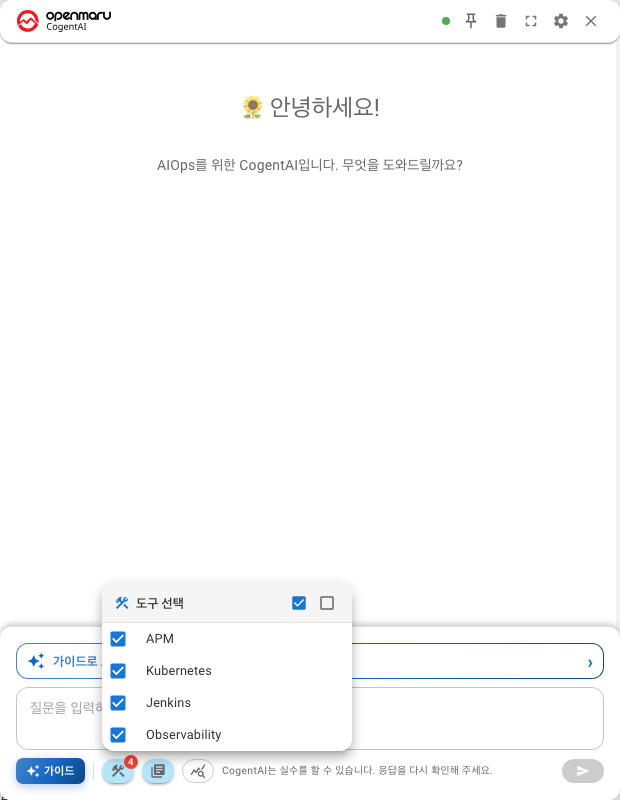
- Your selection is shown above the input box
- Select all / Deselect all changes everything at once
An area you have not switched on gets no answer at all
This is a precondition, not an optimisation. Ask about a pod with the Kubernetes tools switched off and the widget will not even attempt the query — it answers along the lines of "I don't know what you are referring to".
Check that the tools for that area are on before you ask.
Leaving everything on has a cost too: choosing between tools takes longer, and the widget sometimes picks the wrong one.
| What you are asking about | What to select |
|---|---|
| Queries and tables | Databases |
| Pods and nodes | Kubernetes |
| Metric trends and forecasts | Charts, forecasting |
If you are not sure what to select, starting with Select all is fine. Narrow it down once you are used to it.
Suggested questions change with the tools you select
The suggested questions that match your selection appear in the chat window. Select nothing and no suggestions appear (Chapter 103).
Document search
Makes the widget search the product documentation as well.
| What you are asking | Document search | Query tools |
|---|---|---|
| "How do I create an alert rule?" | On | Off |
"How is <app name>'s response time?" | May be off | On |
Switch the query tools off when you ask how to do something
It is not enough to switch document search on — you have to switch the query tools off too. Leave them on and a how-to question gets routed to a query instead, which brings up an unhelpful dialog asking you for a namespace or an application name.
Switch it on for questions about usage and configuration. When you are querying metrics, leaving it off is faster.
Sending
Enter and Shift + Enter
| Key | What it does |
|---|---|
Enter | Send |
Shift + Enter | New line |
The difference matters when you paste several lines, such as a log extract or a SQL statement. Pasting does not send one line at a time; the whole block goes in together.
Send · Stop response
While an answer is being written, the send button becomes Stop response.
- If the answer is going the wrong way, stop it and ask again
- What arrived before you stopped it stays in the conversation
What you see while the answer is coming
What it is doing right now
The stage is shown in words.

The elapsed time is shown with it. Questions that query several metrics take a while, so this is how you tell that it has not stalled.
When it asks you back
If a value needed for the query is missing, the Parameter confirmation dialog appears. It is asking you to fill in something such as a namespace or an application name (Chapter 306).
When it calls a request dangerous
Requests that delete or change something are confirmed once more through the Dangerous request detected dialog. Press Continue if that is what you meant.
The line at the bottom
A notice is always shown under the input box (Chapter 101).
Next
- Reading answers — Reading answers — tables, charts, diagrams
- Filling in the blanks — ② Guided questions
- Analysing selected metrics — ③ Analysis Prompt Builder — overview