7.1. Downloading a report
Analysis results as a file
You can save an answer as a file, for attaching to a report or keeping for later.
Where it is
It is the Download Report button under an answer. Every answer has one.
Pressing it opens a dialog for choosing the format.
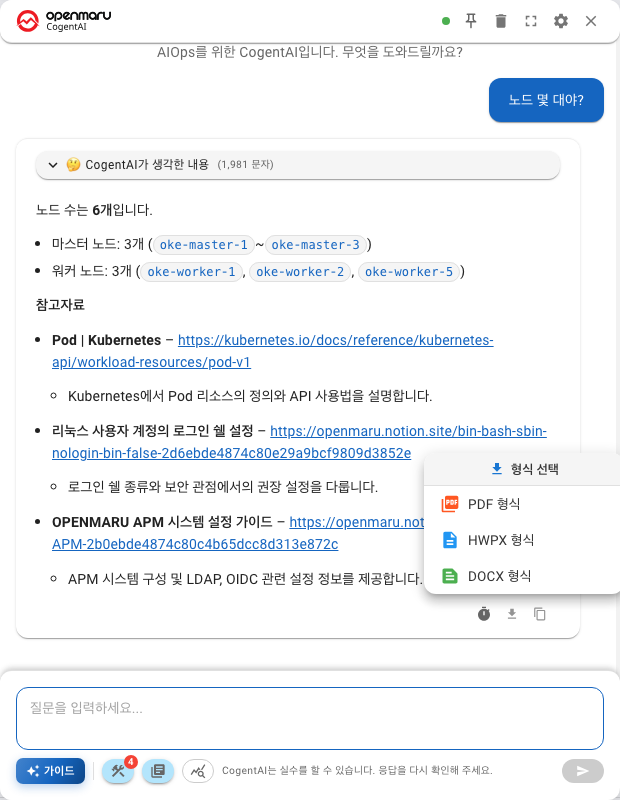
Three formats
| Format | When |
|---|---|
| For sharing and printing as is. It looks the same everywhere | |
| HWPX | A Hangul document. For pasting into a report template |
| DOCX | A Word document. For editing the content |
Choose PDF if you will submit it unchanged, and HWPX or DOCX if you will fold it into another document.
What goes into it
The content of that answer: the explanation, the tables and the charts.
It works on one answer at a time. Not the whole conversation, just that answer. To collect several answers, download each one or copy and paste them.
It takes time to produce
You do not get the file the instant you press the button. The server builds the document and then it downloads.
- Progress is shown while it is being built
- When it is ready you get Report Ready and press Download
- Once it has arrived you get the Report downloaded successfully notice
Answers with many charts take longer.
When it says the file cannot be found
After enough time has passed, a file that was built earlier may have been removed. Press download again in that case.
Sending to OpsKnow
Instead of downloading a file, you can upload it straight to the document store. The button is called Send to OpsKnow.
- Use it to keep the result as a document the team shares
- On success you get Saved to OpsKnow
- This button appears only when the integration is configured
How this differs from copying
| Copy | Download Report | |
|---|---|---|
| What it captures | Text | Text plus tables and charts |
| Where it goes | The clipboard | A file |
| When | For pasting something quickly | For keeping or reporting |
Copying an answer that contains charts leaves the figures behind. To keep the figures, download the report.
Next
- Copying — Reading answers — tables, charts, diagrams
- Retention of the conversation — Settings and connection status