2.4. Settings and connection status
Language and display settings, the connection indicator
Settings
Change these from the settings menu in the header. Your changes persist the next time you open the widget.
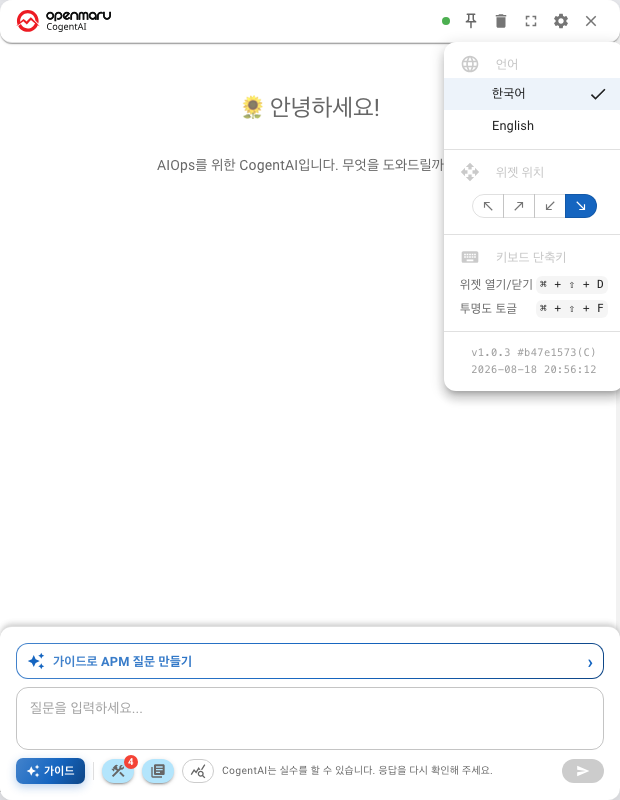
Language
Choose between 한국어 / English. Both the interface text and the language of the answers change with it.
Widget position
This is where the floating button and the chat window appear. Choose one of the four corners.
Top left               Top right

Bottom left            Bottom right  ← default
If it covers a part of the console you look at often, move it to the opposite side.
Keyboard shortcuts
| Shortcut | What it does |
|---|---|
⌘/Ctrl + Shift + D | Toggle the widget |
⌘/Ctrl + Shift + F | Toggle opacity |
The connection indicator
This is the dot to the left of the title. It tells you whether the widget is connected to the server.
| Label | Meaning | What to do |
|---|---|---|
| Server connected | Normal | — |
| Server connecting… | Connecting | Wait |
| Server idle | Idle | — |
| Server disconnected | Disconnected | Click the dot to reconnect |
| Server error | Error | Click the dot to reconnect |
Look here first when no answer arrives
If you sent a question and nothing happened at all, the connection has usually dropped. Clicking the dot reconnects immediately. You do not need to reload the page.
This happens most often when you come back after being away for a while.
When the "Connection setup required" dialog appears
Some features only work if a separate connection has been set up. Without it you get this guidance.
① Click the 'Setup connection' button
② Complete the required setup in the new window
Once you finish in the new window, Connection successful appears and your original question continues.
- After a while it changes to Timeout. If you have finished the setup, press Close
- If you do not have permission to configure it, contact your administrator
Where the conversation is kept
- Folding the window away with Close chat keeps the conversation
- Pressing New chat clears it
- How long the history is retained depends on your organisation's settings — check with your administrator
Copy anything worth keeping, or download it as a report.
Next
- Handling the window — The header — pin, full screen, clear, close
- Results as a file — Downloading a report
- When something goes wrong — When something goes wrong