9. 24-Hour Unattended Operation
The wallboard is a screen you hang on the wall and leave on for weeks. It is built on the assumption that nobody will refresh it. When the connection drops, it shows that on the screen and reconnects on its own. This chapter describes that behavior and what operators should know.
Reading the LIVE Indicator
The LIVE indicator at the top of the screen shows the connection status to the server. The large number shows the business state (Normal, Warning, Critical). The LIVE indicator shows only the connection.
| LIVE indicator | Meaning | What to do |
|---|---|---|
| Green | The connection is alive and values arrive on time | Nothing |
| Amber, pulsing slowly | The connection is open but no values have arrived for more than 10 seconds, or the first connection is in progress | Wait a moment. If it continues, check the status of the APM server |
| Red, pulsing fast | The connection is lost and the wallboard is reconnecting | Wait, or click it to reconnect now |
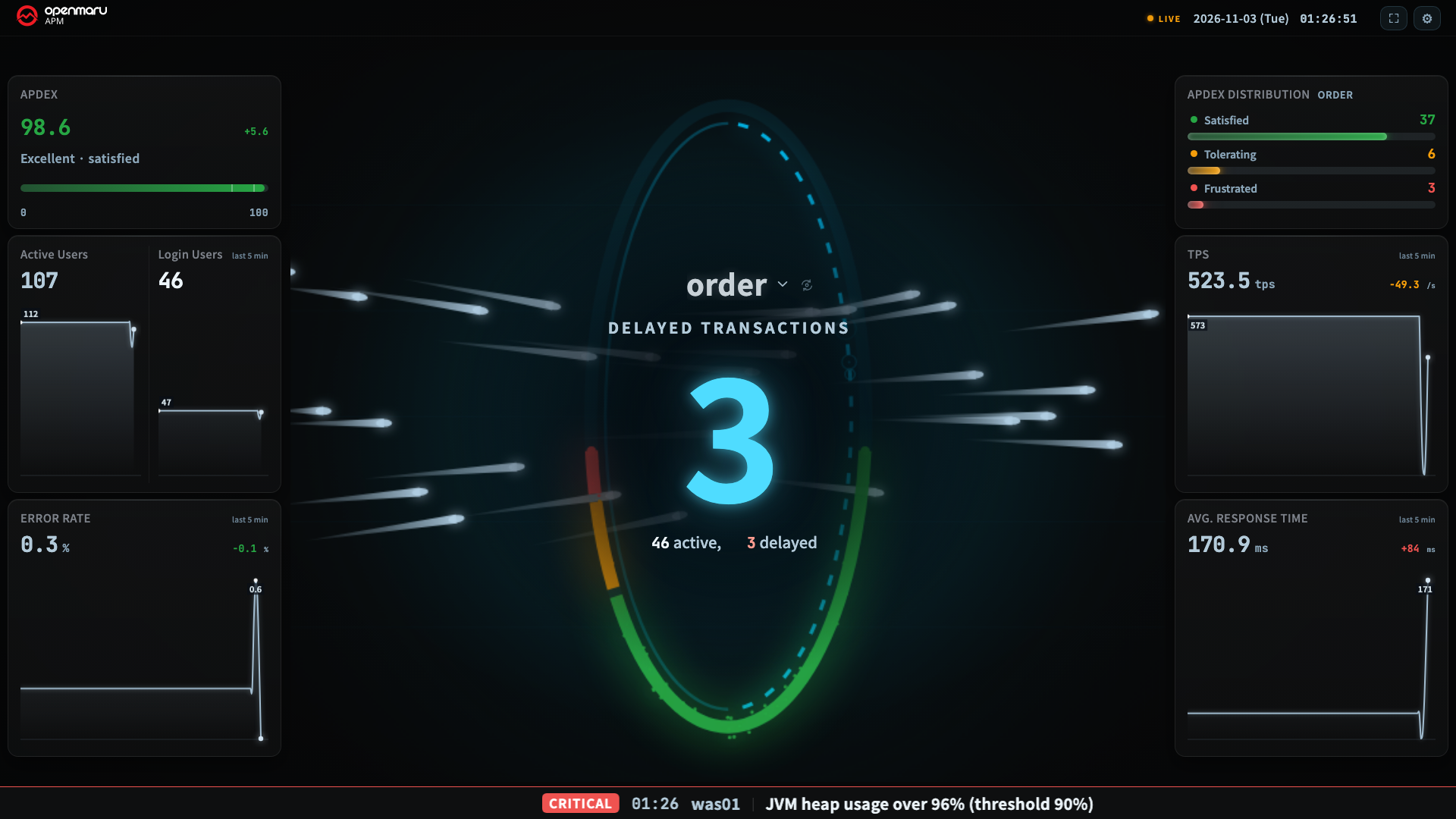
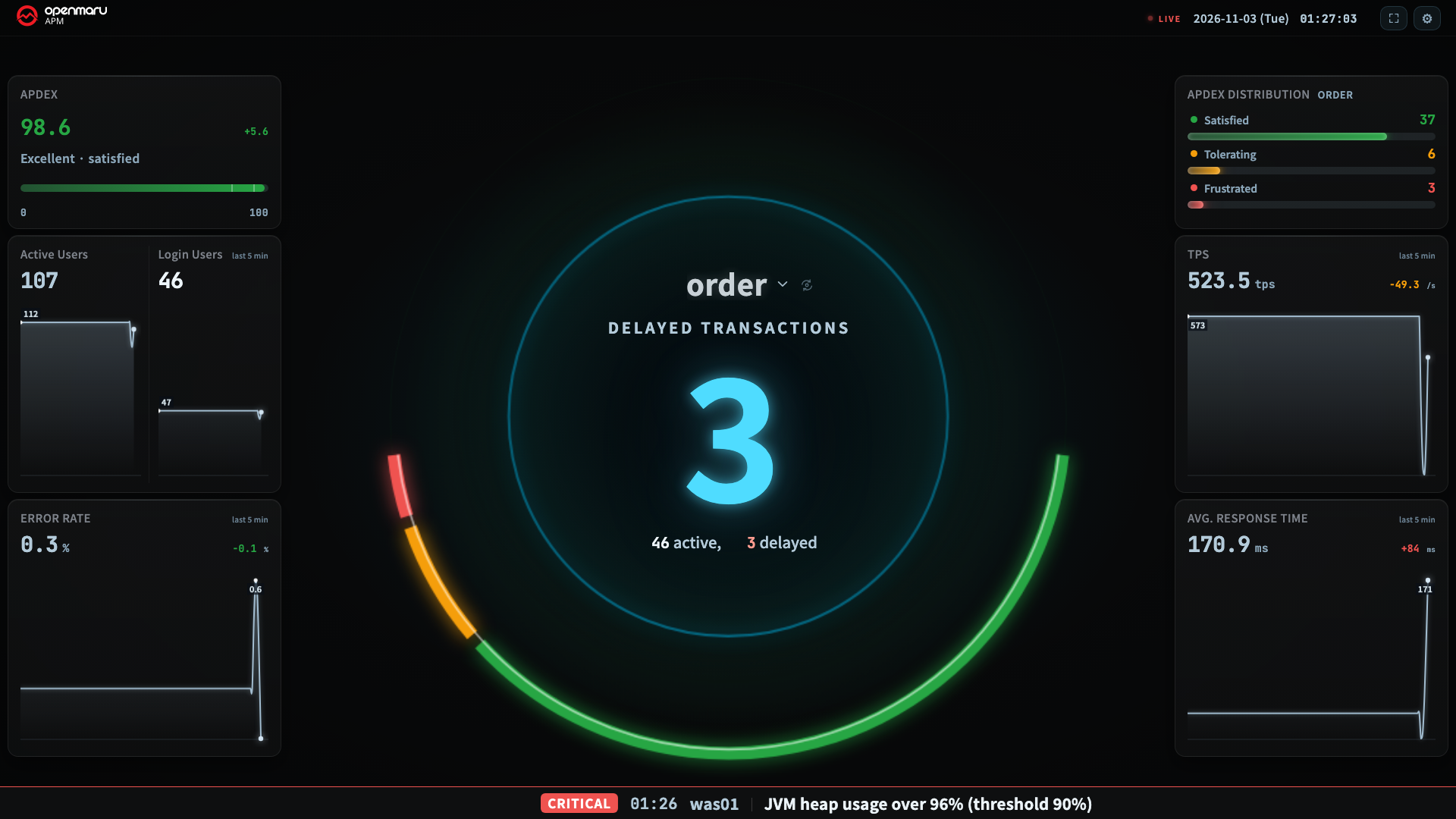
When the connection drops, the wallboard keeps the last screen and only stops updating. The screen does not go blank or drop to 0, because that would be misread as an outage. Instead, the visual stops moving, so old values do not look live. If a number looks wrong, check the LIVE indicator first.
Reconnecting on Its Own
- The APM server sends a signal every 30 seconds to show that the connection is alive. If this signal does not arrive for 90 seconds, the wallboard treats the connection as lost and reconnects.
- When reconnecting, it increases the interval between attempts from 1 second up to 30 seconds. It shifts each attempt time slightly, so that many TVs do not connect at the same moment when the APM server comes back after a short stop. Even when you restart or upgrade the APM server, the wallboard shows the connection as lost (red), waits, and reconnects on its own.
- A quiet group with no requests is normal even when no values arrive. The wallboard does not drop the connection just because values stop arriving. It decides only from the server's signal.
- It also checks the connection again when the browser tab goes to the background and comes back, or when the page is reopened from the browser cache.
- When the indicator is red, click the LIVE indicator to reconnect immediately without waiting.
When Your Login Expires
If your login expires under the server's session policy, the wallboard cannot receive values even after it reconnects. A "Login has expired" band then appears at the top of the screen with the time it happened. The numbers stay readable, but they are frozen at that time.
- Click the Refresh button on the band.
- When the login screen appears, log in with the wallboard account.
How long a login lasts follows the APM server settings. Pinning the browser profile does not make it longer. If the wallboard logs out often, ask your APM administrator about the login duration.
Where Settings Are Stored
Wallboard settings (split, group per tile, alert thresholds, server thresholds, hero, alert band) are stored in that browser, not on the server.
| If you do this | Result |
|---|---|
| Close the window and open it again | It opens with the same layout |
| Open it on another PC with the same account | It opens with that browser's settings. The two do not affect each other |
| Replace only the TV | The settings are in the PC's browser, so they stay the same |
| Replace the PC or clear the browser data | The settings are lost. You need to set them again |
Each control room can show a different layout, but the trade-off is that you must set it up again when you replace the PC. To avoid losing the layout, we recommend writing the conditions into the wallboard address (chapters 6 and 10). Values in the address take priority over values stored in the browser, so opening the same address on a new PC gives you the same layout.
| What you can set in the address | What you cannot set in the address (set again when you replace the PC) |
|---|---|
| Number of tiles, group or server per tile, view, hero, server thresholds, alert band mode | Alert thresholds (Warning at, Critical at), alert band levels, side panels and sidebar position, login users display, center number, chart color, transaction balls |
Can It Stay On for Weeks?
The wallboard is built to release the memory used by the previous screen when you change the screen split or the visual.
Accounts and Security
- Use a dedicated wallboard account. The wallboard shows only the groups that account can see. If you give the dedicated account permission only for the groups the control room watches, groups that are not needed do not appear on the screen. Permissions are set in chapter H18 of the User Guide.
- To use the alert band, add that account as a recipient of the alert policy (chapter 8).
- The kiosk PC stays logged in. If someone closes the window with Alt + F4 or changes the address, they can get into the console with that account. Do not use an administrator account, and control access to the control room.
PC and Display
- There is no recommended PC specification. A 4K screen has more to draw. If the screen stutters, switch to a lighter visual such as Pulse Core or Heartbeat, or reduce the number of tiles (chapter 5).
- With a 4K TV, set the PC's display scaling to 100% to be able to select the 12 and 16 splits (chapter 6).
- Turn off Windows power saving and the screen saver. For the first few days, check that browser update notices or restore prompts do not appear over the wallboard.
Reducing Burn-In
- The wallboard uses only a dark background (chapter 2).
- In the Normal state the visual is quiet but keeps moving, and the clock and numbers keep updating.
- We recommend turning on the TV's screen protection or panel protection features and scheduling the TV to turn off outside business hours.
Unattended Operation Checklist
| Check | How to verify |
|---|---|
| Does the browser start automatically with the wallboard address? | Restart the PC (chapter 3) |
| Is the browser profile pinned? | --user-data-dir in the launch options |
| Is the LIVE indicator green? | Top of the screen |
| Are the alert thresholds above the usual values for that workload? | The screen is not always amber in normal conditions (chapter 4) |
| Is the alert band reception status Registered? | The alert band row in Settings (chapter 8) |
| Is the wallboard account a recipient of the alert policy? | Alert policies in the console |
| For a 4K TV, is the PC display scaling 100%? | The 12 and 16 splits are not locked (chapter 6) |
Copyright (c) 2026. OPENMARU, Inc.