6. Several Groups on One Screen
If you monitor more than one service, split the screen and put a different group in each tile. One TV then shows several services together, and you can pick out at a glance which one has a problem.
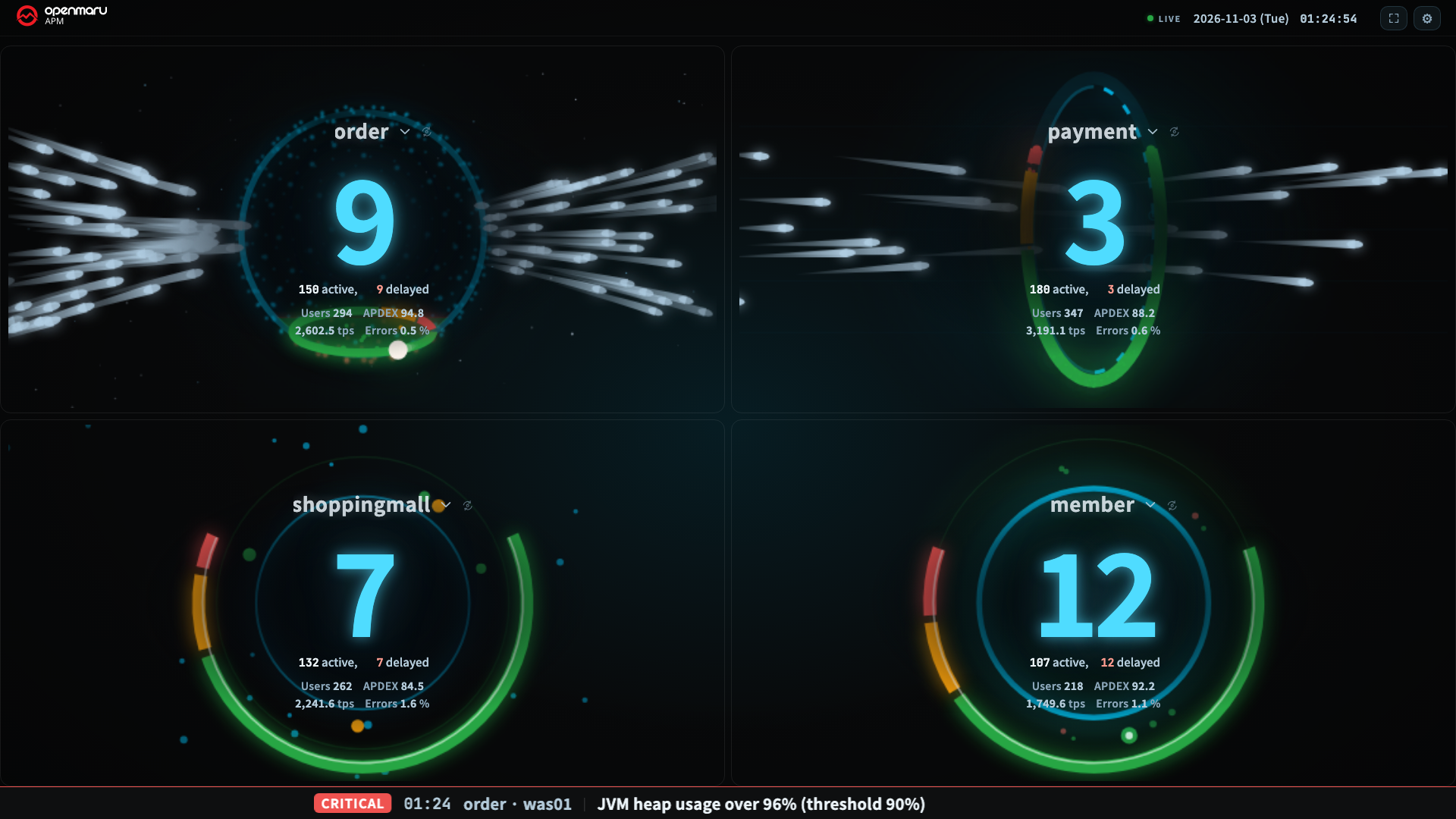
Splitting into Tiles
- In Settings (gear) ▸ Layout ▸ Screen split, choose the number of tiles. The options are 1 / 2 / 3 / 4 / 6 / 8 / 12 / 16 tiles.
- Press the title of each tile and choose the group that tile shows. Long lists can be searched.
- Press the circular-arrow button beside a tile title to switch only that tile to the next hero.
Your choices are saved per tile in that browser and restored the next time you open it.
Rules That Decide Which Splits You Can Choose
Sometimes a split cannot be chosen or is reduced automatically. Hover over a locked button to see the reason.
On a Small Screen, Tiles Become Too Small
When a tile is smaller than a certain size, the large number cannot be read from 3 m away. Such splits are never produced.
| Screen resolution | Maximum split you can choose |
|---|---|
| 4K (3840×2160) | 16 |
| QHD (2560×1440) | 12 |
| 1080p (1920×1080) | 8 |
- When every tile is a server tile, the minimum tile size is smaller (233×150), so you can choose 16 tiles even at 1080p.
- If 12 and 16 tiles are locked on a 4K TV, check the PC's display scaling. At 150% or 200% scaling, the browser sees a smaller screen. Set the scaling to 100%.
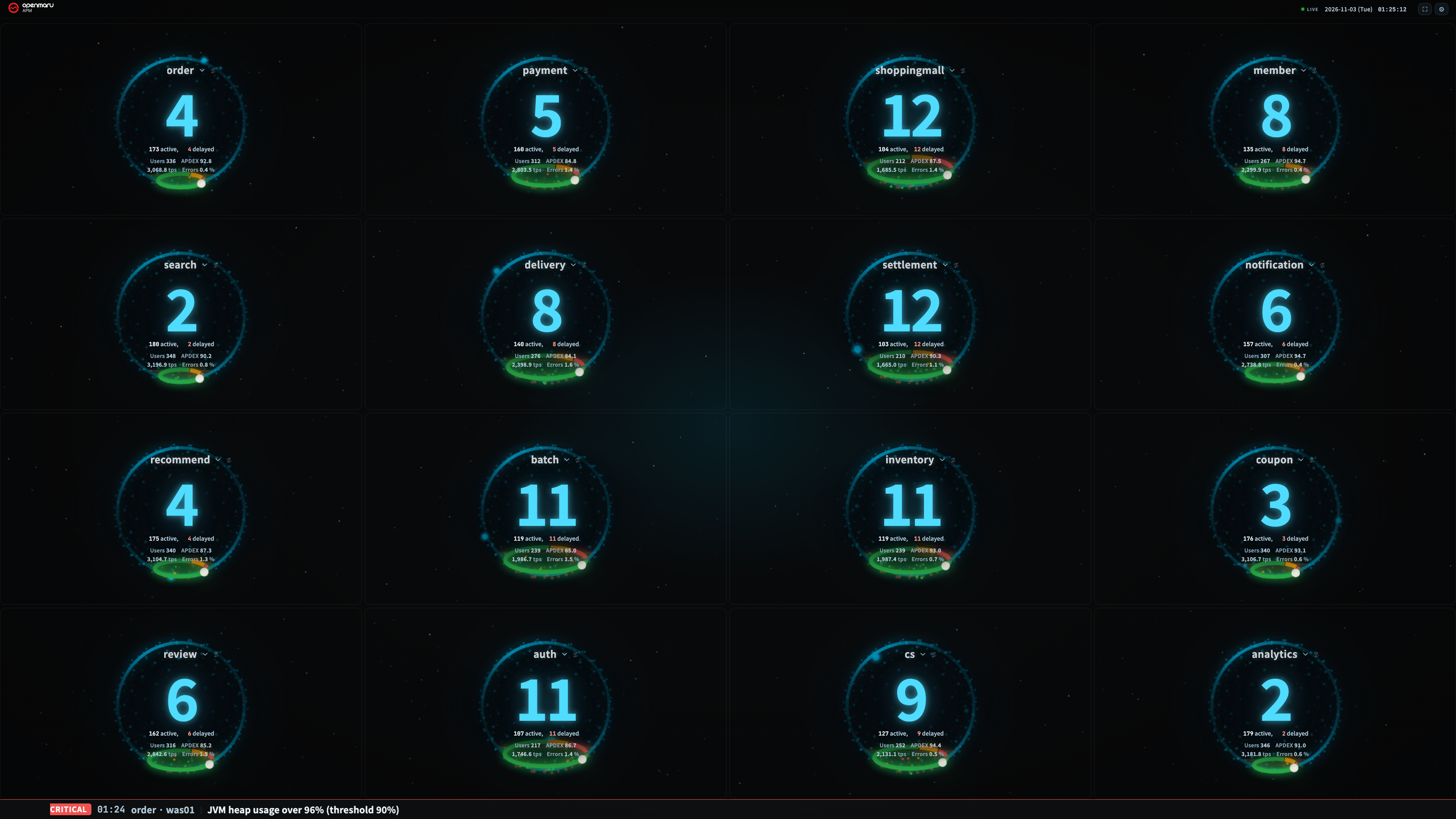
You Cannot Split into More Tiles Than There Are Groups
The screen splits only as far as the number of groups you have. 16 tiles can be chosen only when you can see 16 or more application groups. When every tile is a server tile, it counts server groups (servers, in server assignment).
This limit applies to the split buttons in the Settings window. If you use ?split= in the address to split into more tiles than there are groups,
the same group can appear in several tiles.
Your Choice Remains Even When the Split Is Reduced
When the window gets smaller and your chosen split no longer fits, only the screen is reduced; your choice is not erased. Open it again on a large TV and it returns to the number of tiles you chose.
Choosing a Target per Tile
The list that opens when you press a tile title starts with the Switch view set. In an application tile, choose → Server view; in a server tile, choose → Application view. Only that tile switches to the other view.
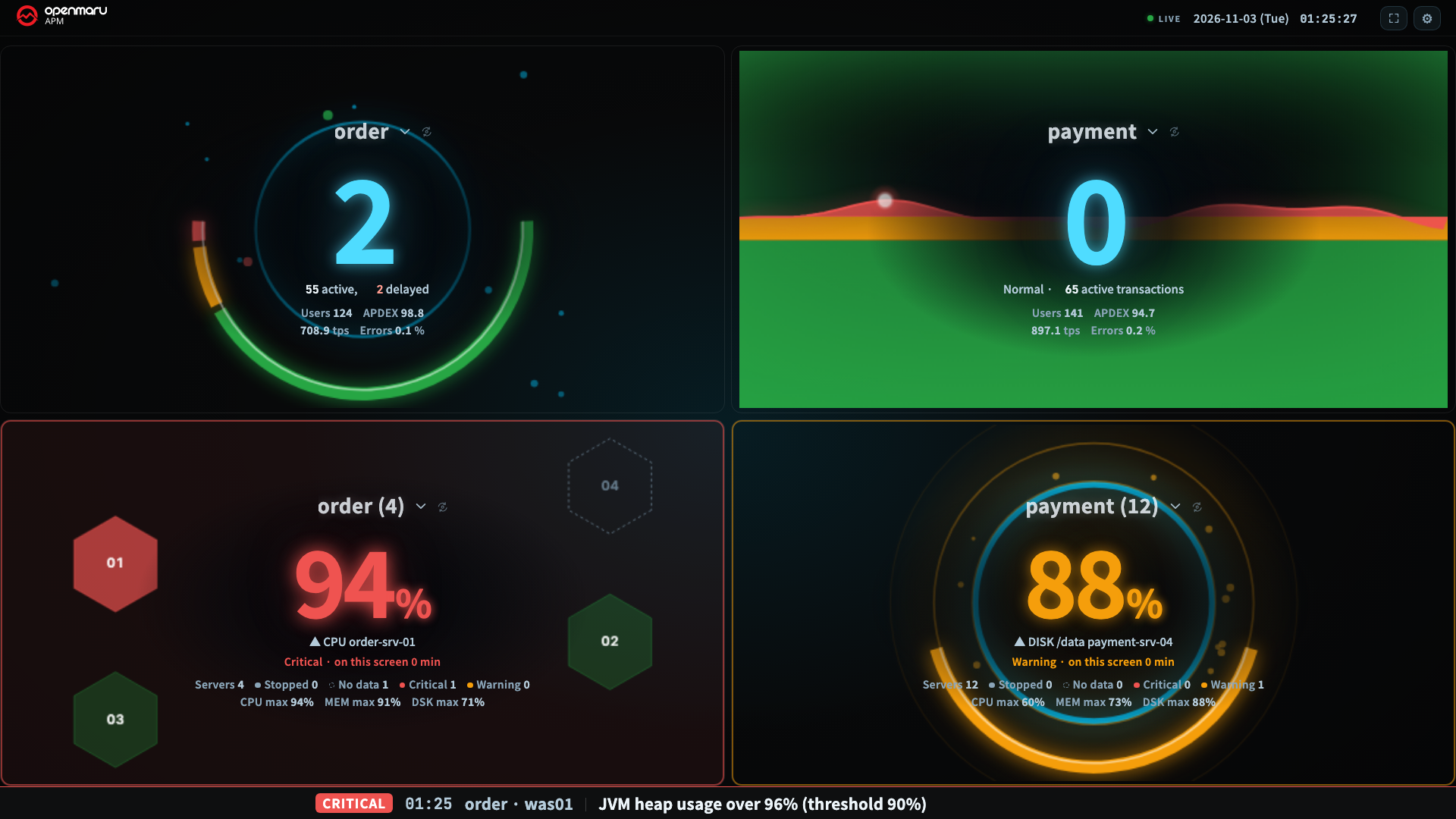
In an application tile, the list of application groups follows. In a server tile, the list is divided into the following sets.
| Set | Choosing an item |
|---|---|
| Switch view | → Application view: only that tile becomes an application tile |
| Server groups | Puts one of All, a server group, or No group in the tile. The number in parentheses is the server count |
| Application groups | Puts in the tile the servers whose IP matches a WAS server of that application group |
| Server assignment | Spreads the servers in the chosen scope across tiles, one per tile, worst first. The number of servers that do not fit shows in the header as +n off screen. This set appears only when a tile is already showing a server assignment |
| Servers | Pins the chosen server to that tile |
Fixing the Layout with the Address
To fix a different layout on each TV, add conditions to the wallboard address. Address values take priority over saved values and are not saved. For an unattended TV, you only need to change the link.
| What you want | Value to add after the wallboard address |
|---|---|
Two groups, order and payment, in 2 tiles | ?split=2&groups=order,payment |
| 4 tiles with a different hero in each | ?split=4&groups=order,payment,member,search&heroes=orb,gate,pulsecore,heartbeat |
| The server group "payment" next to one server | ?view=sys&split=2&g=payment,host:10.0.0.21 |
For the full list of values, see chapter 10.
Copyright (c) 2026. OPENMARU, Inc.