5. Choosing a Hero Visual
The moving visual in the middle of a tile is called the hero. Whichever visual you choose, the numbers and the thresholds are the same. The only difference is the movement it uses to show the state.
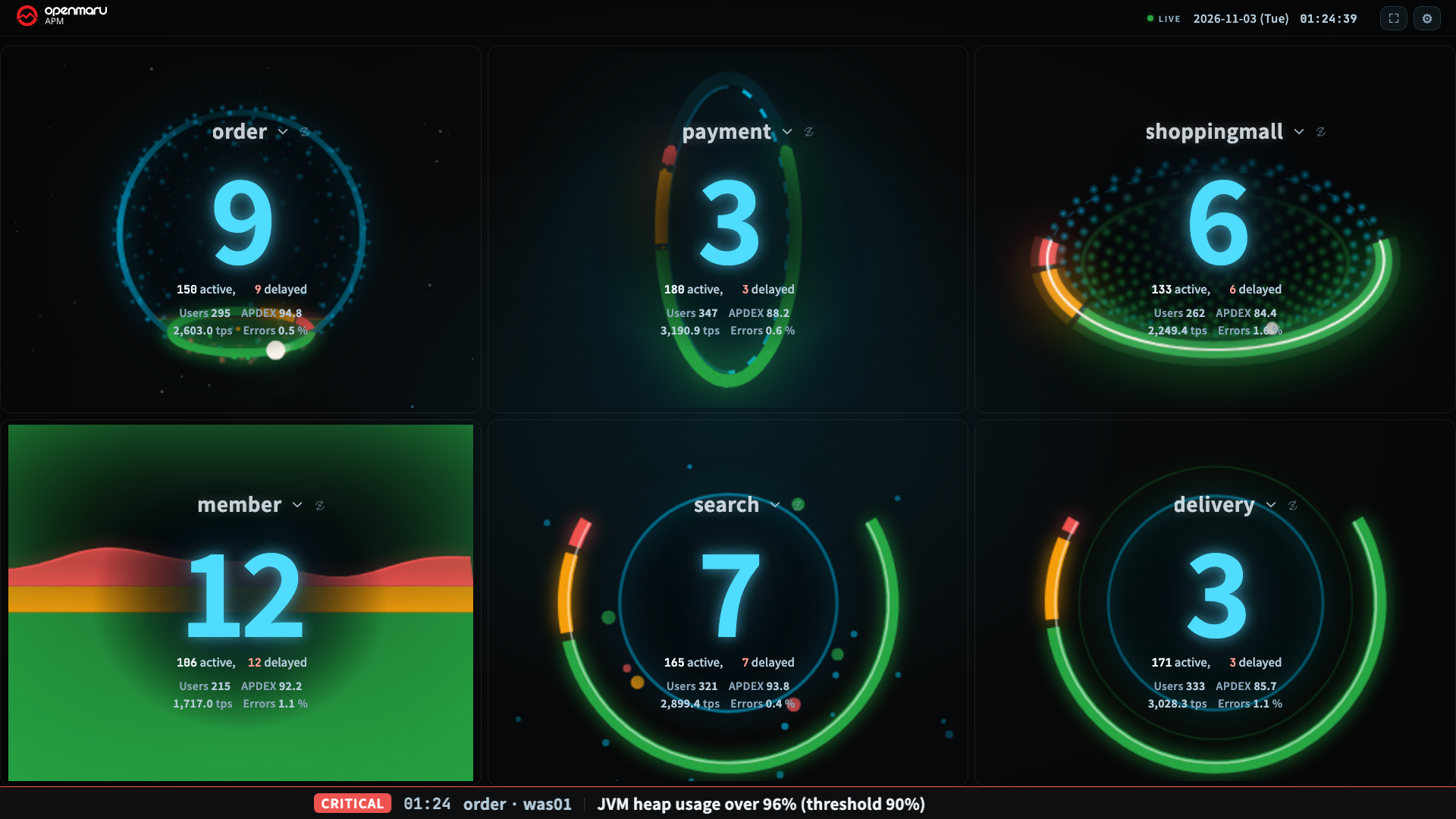
The Seven Heroes
| Name | Address value | How it looks | Tiles that can use it |
|---|---|---|---|
| Core Reactor | orb | Particles circle a central sphere. As things get worse, delays fill the sphere like rising water | Application |
| Orbital Gate | gate | Requests flow through a ring. When they back up, the ring brightens and delays pile up in an arc below | Application |
| Pulse Field | pulse | Dots ripple in step with throughput. As delays pile up, movement stops from the center outward and the outer ripples speed up | Application, server |
| Flood Field | flood | As delays grow, the water level rises from the bottom and the waves speed up | Application, server |
| Pulse Core | pulsecore | Particles gather toward the center from all sides. When they back up, a band forms around the rim | Application, server |
| Heartbeat | heartbeat | It beats at a steady pace, and particles spread outward on each beat | Application, server |
| Hive | hive | Draws one hexagon per server (chapter 7) | Server (default) |
- The default for an application tile is Core Reactor. The default for a server tile is Hive.
- Core Reactor and Orbital Gate cannot be chosen in a server tile. Both draw incoming requests as particles, and server metrics cannot tell what is coming in.
- When every server tile on the screen becomes a mini tile (chapter 7), only Hive can be chosen. The name you chose is not erased, so when the tile grows again, your original visual returns.
Where to See Each Hero in This Guide
The same visual moves differently depending on the state. The following figures show each visual in the Normal, Warning, and Critical states.
| Hero | Figures that show it |
|---|---|
| Core Reactor | Chapter 2, Application view (Normal) |
| Orbital Gate | Chapter 4, Normal; chapter 9, LIVE amber |
| Pulse Field | Chapter 4, Warning; chapter 8, receive status |
| Flood Field | Chapter 4, Critical; chapter 6, mixed split |
| Pulse Core | Chapter 3, Settings window; chapter 6, mixed split |
| Heartbeat | Chapter 8, alert band; chapter 9, LIVE red; server tile in chapter 6, mixed split |
| Hive | Chapter 2, Server view; chapter 7, Server view and mini tiles |
How to Change the Hero
| Method | Scope |
|---|---|
| Settings (gear) ▸ Appearance ▸ Center view | All tiles |
| The circular-arrow button beside the tile title. Each press switches to the next visual | That tile only |
Address ?hero=<name> | All tiles (not saved) |
Address ?heroes=<name1,name2,…> | In tile order (not saved) |
Read the Movement, Not the Color
This is the most important way to read this screen. The worse it gets, the faster, bigger, and less regular it becomes. Color is only the final check.
| Cue | When normal | As it gets worse |
|---|---|---|
| Speed | Unhurried | Visibly faster |
| Size and quantity | Small and few | The more that is backed up, the more particles and the larger the shape |
| Regularity | Steady pace | Wobbles and jumps |
If color alone told the state, the screen would be busy even when everything is normal, and you could not tell it apart from an outage. What a person walking by 3 m away has to notice is not "there is red" but "this is not how it usually looks." So the normal state was made quiet on purpose.
- Incoming requests all look the same. At that moment, you cannot know whether a request that has not finished yet will be slow. Slowness shows as requests that cannot get out and pile up.
- Pulse Field stops in the center and speeds up at the edges on the same screen. This contrast is intended: the stopped center means requests are backed up and piling up, and the faster edges mean delays are growing.
Choosing a Hero
| Situation | Recommended visual | Reason |
|---|---|---|
| 1 to 4 tiles, TV at the front of the control room | Core Reactor, Orbital Gate, Flood Field | The movement is large, so changes are easy to see from a distance |
| 6 tiles or more | Pulse Core, Heartbeat | Fewer particles, so the visual does not get cluttered even in a small tile |
| Low-spec control room PC | Pulse Core, Heartbeat | Fewer particles to draw, so the load on the PC is lower |
| Server tile | Hive | Each server's state shows as one hexagon |
- Transaction balls (the animation of requests flying in) turn off automatically at 6 tiles or more. In small tiles the balls cannot be seen and only add drawing load. The automatic off state is not saved, so when you go back to 1 tile, they come back according to your original setting.
- Turning on reduce motion (
prefers-reduced-motion) in the operating system reduces the movement.
Copyright (c) 2026. OPENMARU, Inc.