8.2. Installation and Version
Overview
Installing AAS and operating the server are outside the scope of this manual. This chapter explains how to check the version of the AAS you are using on the screen, and what an administrator should check on the screen after installation. See this chapter when you are asked for version information in an inquiry or a fault report.
Permissions: Everyone can check the version. "Checking After Installation" is the work of an administrator.
Checking the Version
Everyone can see the version information.
- Look at the very bottom of the left menu on the screen.
- Next to the product logo, small text shows the version and commit number on the first line and the commit date on the second line. Example of the first line:
v1.0.5 | #1a2b3c4d - Click the area with the logo and version.
- The "Version information" window opens. When this window opens, the check is done.
- To close the window, click the close button at the top right.
When the left menu is collapsed, only the logo is shown. Hover the mouse over the logo and "Version information" appears. Clicking it opens the same window.
Items in the "Version Information" Window
| Item | Content |
|---|---|
| Product name | The product name with the installation brand attached |
| Version | The AAS version. Example: v1.0.5 |
| Commit (short) | The first 8 characters of the source commit number |
| Commit hash | The full source commit number |
| Commit date | The date of the last source change in that version |
| Build date | The date the screen image was built |
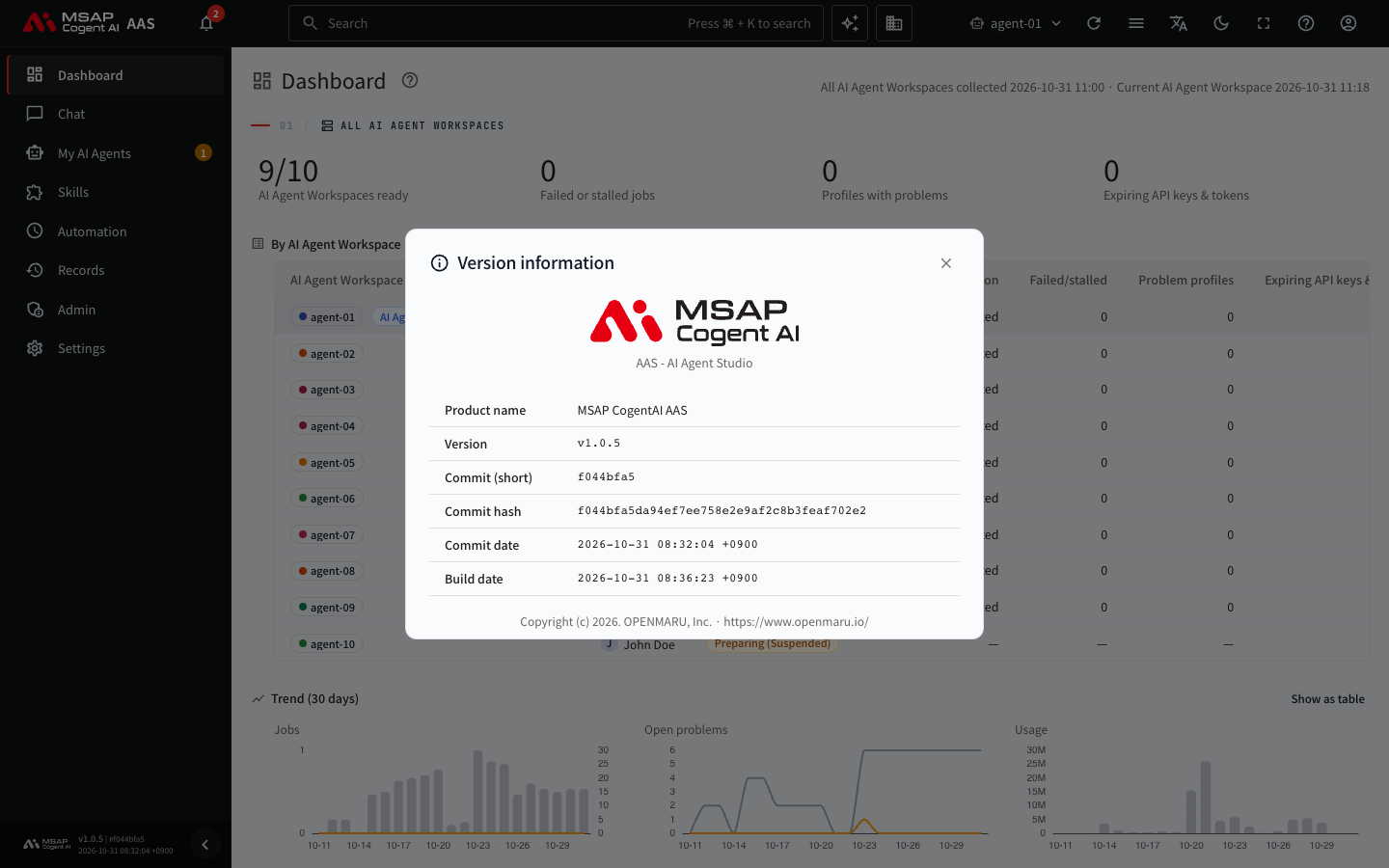
Figure 8.2-1. The "Version information" window
If a value is not known, N/A is shown. At the bottom of the window are the copyright text "Copyright (c) 2026. OPENMARU, Inc." and a link to the company website.
Note: The version in this window is the version of the AAS screen and server. The image version of each user's AI agent workspace (Hermes) can be different. To upgrade the Hermes version, see 3.3. Rolling Out a New User Hermes Image.
When you make an inquiry, include the "Version", the "Commit hash", and the "Build date".
Notice That a New Version Was Deployed
If AAS is updated to a new version while you have the screen open, "A new version is available. The page refreshes automatically every 30 seconds" may appear. Wait, or reload the browser.
Checking After Installation
Installation and reinstallation are the operator's work. The operator is the person who installs AAS and manages the server (see the A.3. Glossary). If installation or a change is needed, ask the operator, or see the AAS installation chapter of the COP (OPENMARU Container Orchestration Platform) installation guide.
After the operator finishes the installation, check the following on the screen.
- Sign in with an administrator account and check that the "Admin" group appears in the left menu.
- In "Operations" on the dashboard, check "LiteLLM OK" and "Skill hub helper OK".
- In "Skills › Skill hub", check that the AAS built-in skills and the community division appear.
- If the default account created at installation (the name is usually
aas-admin) appears in "Admin › Users & roles", ask the operator whether the password has been changed.
On success, items 1 to 3 are all visible. If any one is not visible, tell the operator that item and the version information. For detailed symptoms, see A.2. Troubleshooting.