1.2. Opening the widget and its layout
The floating button, and the three areas: header, conversation, input
How to open it
There is a round button in the corner of the screen. Press it and the chat window opens.
It sits at the bottom right by default, but it can go in any of the four corners, and you can drag it somewhere else (change it in the settings: Chapter 204).
Opening and closing from the keyboard
| Shortcut | What it does |
|---|---|
⌘ + Shift + D (Mac) / Ctrl + Shift + D | Toggle the widget |
⌘ + Shift + F (Mac) / Ctrl + Shift + F | Toggle opacity |
Use opacity when you need to see the screen behind the widget. You do not have to close it and open it again.
Layout
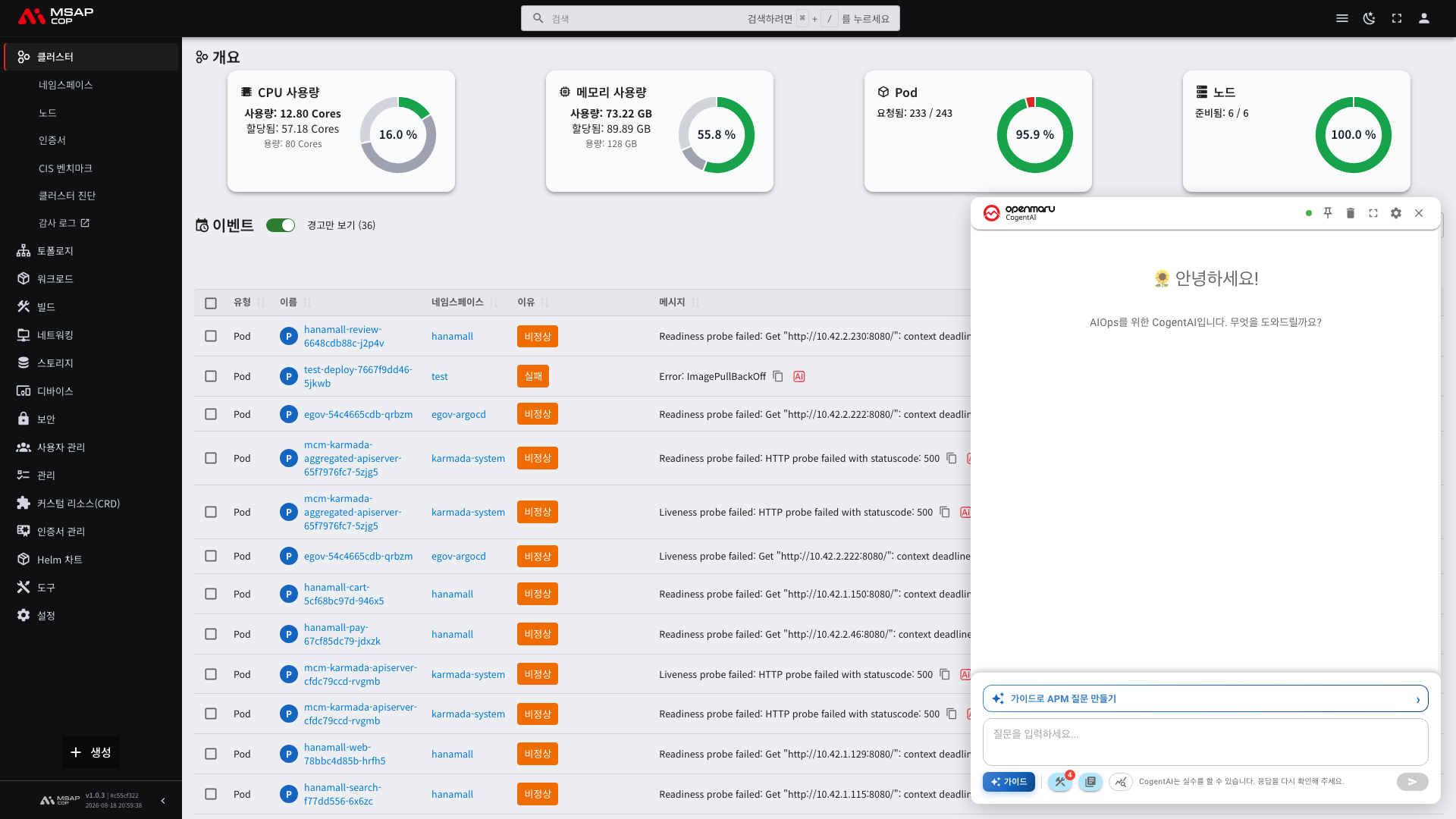

1. Header
The dot to the left of the title — connection status
Its colour and label tell you the state of the server connection.
| Label | Meaning |
|---|---|
| Server connected | Normal |
| Server connecting… | Connecting |
| Server idle | Idle |
| Server disconnected | Click the dot to reconnect |
| Server error | Click the dot to reconnect |
This is the first place to look when no answer arrives. If it is disconnected, click it to reconnect.
The five buttons
| Button | Icon | What it does |
|---|---|---|
| Always on top | Pin | When on, the widget stays open even if you click outside it. When off, an outside click closes it |
| New chat | Bin | Clears the conversation so far and starts over |
| Maximize / Restore | Four corner arrows | Expands to the full screen |
| Settings | Cog | Language, position, shortcuts (Chapter 204) |
| Close chat | Cross | Closes the chat window (the conversation is kept) |
Turning the pin on makes life easier
By default the widget closes when you click outside it. If you are working in the console while reading an answer, it keeps closing on you.
To keep a conversation going while you look at charts, turn the pin button on first.
2. Conversation area
It starts with a greeting. Questions and answers stack from top to bottom.
The buttons above an answer
Every answer has copy buttons.
- Copy to clipboard — the answer only
- Copy Q&A — both together, which is what you want when sharing with someone else
Scroll to bottom
If you scrolled up while reading a long answer, the Scroll to bottom button brings you back.
3. Input area
Selecting tools
This is where you choose what the widget may consult. The tools are grouped by area: databases, Kubernetes, charts and so on.
- Select all / Deselect all changes them in one go
- Your current selection is shown above the input box
The suggested questions change with your selection (Chapter 103).
Document search
Makes the widget search the product documentation as well. Turn it on when you are asking how to do something.
When you are asking about metrics, leaving it off is faster.
The input box
Type where it says Type a message... and press Send.
While an answer is being written, that button becomes Stop response. If the answer is going the wrong way, stop it and ask again.
The line at the bottom
A notice that cannot be dismissed is always shown (Chapter 101).
Changing the size and position
- Drag the header to move the window
- Drag a corner or an edge to resize it
- It will not shrink past a point — enough room is kept for charts to stay readable
For large figures such as charts and execution plans, Maximize is the comfortable option.
Next
- Your first question — Asking your first question
- Change position, language and shortcuts — Settings and connection status
- When it will not open — When something goes wrong