6. MS Teams Event Configuration
What This Chapter Does
It configures APM events to arrive in a Microsoft Teams channel.
What you need -- a Teams channel and permission to add an integration to it.
There are three methods. Choose one.
| Method | When to choose it |
|---|---|
| A. Workflow | Use this if you are setting up new. It is the method Microsoft currently recommends |
| B. Power Automate | When you already run other business flows with Power Automate |
| C. The old Webhook Connector | No longer usable -- only the migration is described |
Microsoft fully discontinued Office 365 Connectors on 18-22 May 2026. An integration configured that way receives no alerts now, so it has to be rebuilt with A or B.
Once configured -- a card-style message appears in the chosen Teams channel every time an event occurs.
MS Teams Integration Methods
There are three integration methods, and if you are setting up new, use method A.
- MS Teams Workflow method -- the currently recommended way
- Power Automate method -- when you have a paid licence
- The old Webhook Connector method -- discontinued in May 2026 and no longer working
A. Webhook Integration with the MS Teams Workflow Method
This is the method Microsoft currently recommends. It replaces the old Office 365 Connector.
What it does -- you create a workflow on the Teams channel and enter the address (webhook URL) that workflow receives on into APM. When APM sends an alert to that address, the workflow posts it to the channel as a message.
1) Create the Workflow
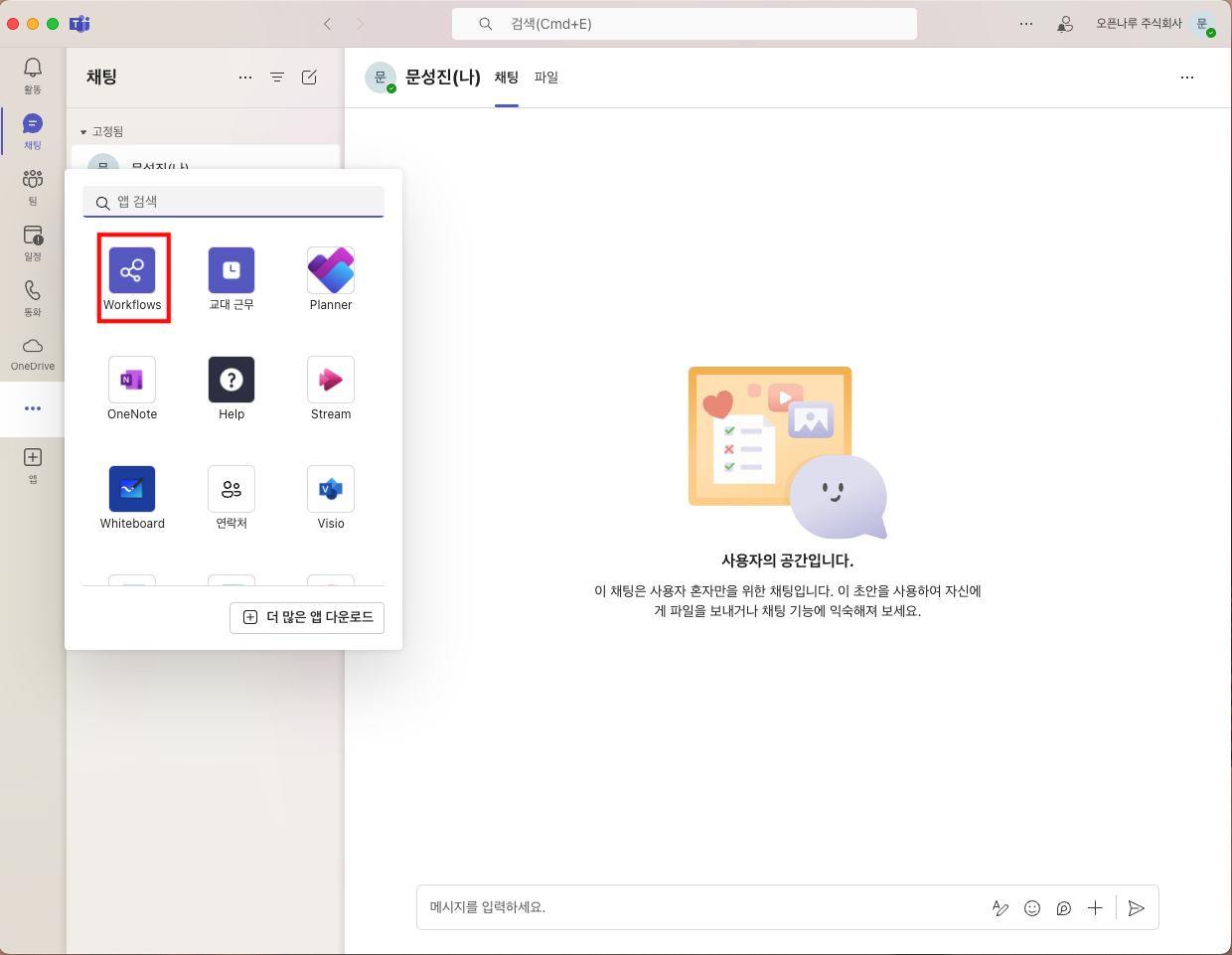
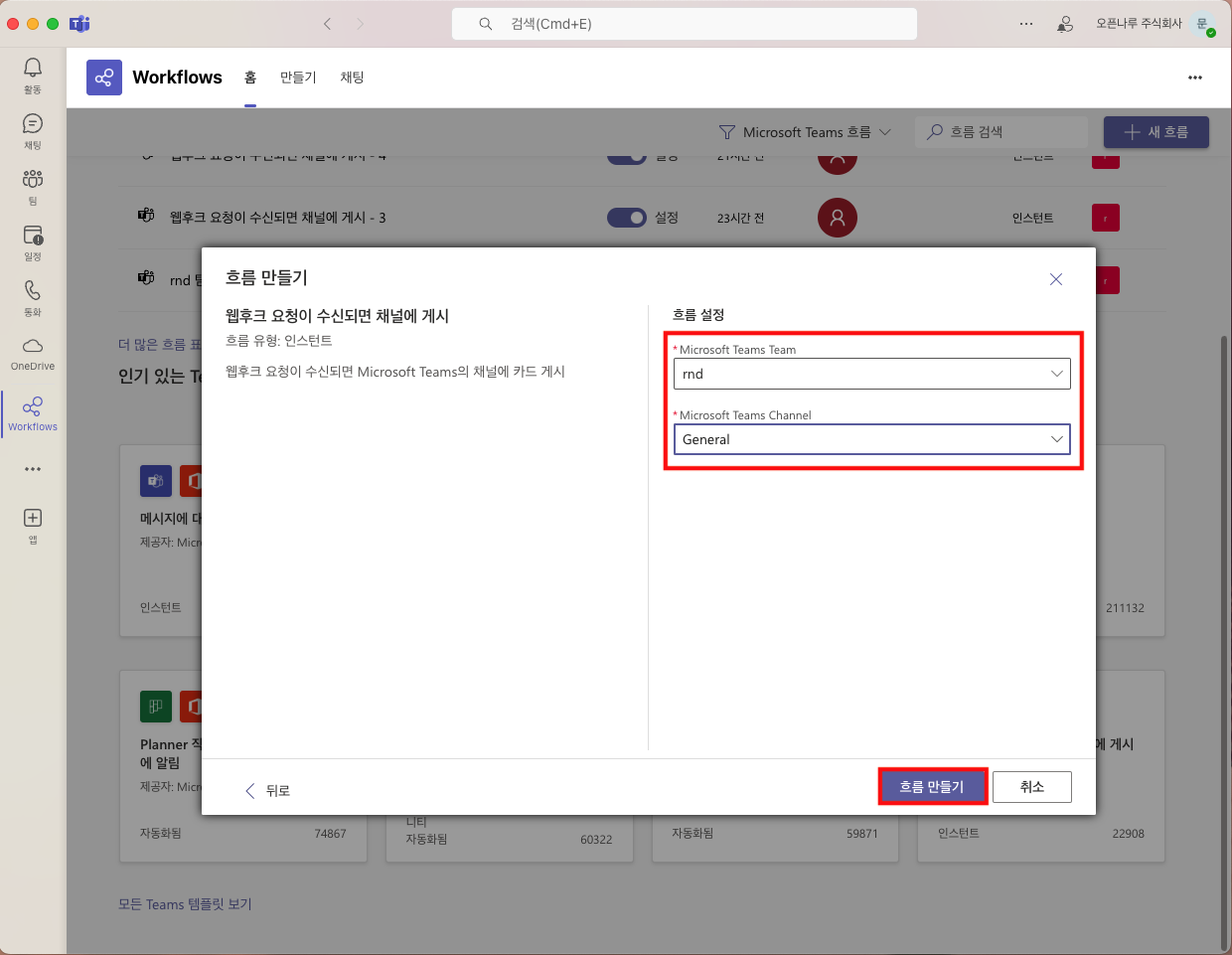
From the channel's More (...) > Workflows, choose Post to a channel when a webhook request is received. Name the flow, choose the Team and Channel to post to, and click Create flow.
2) Remove the Default Card Step and Replace It with a Parse JSON Step
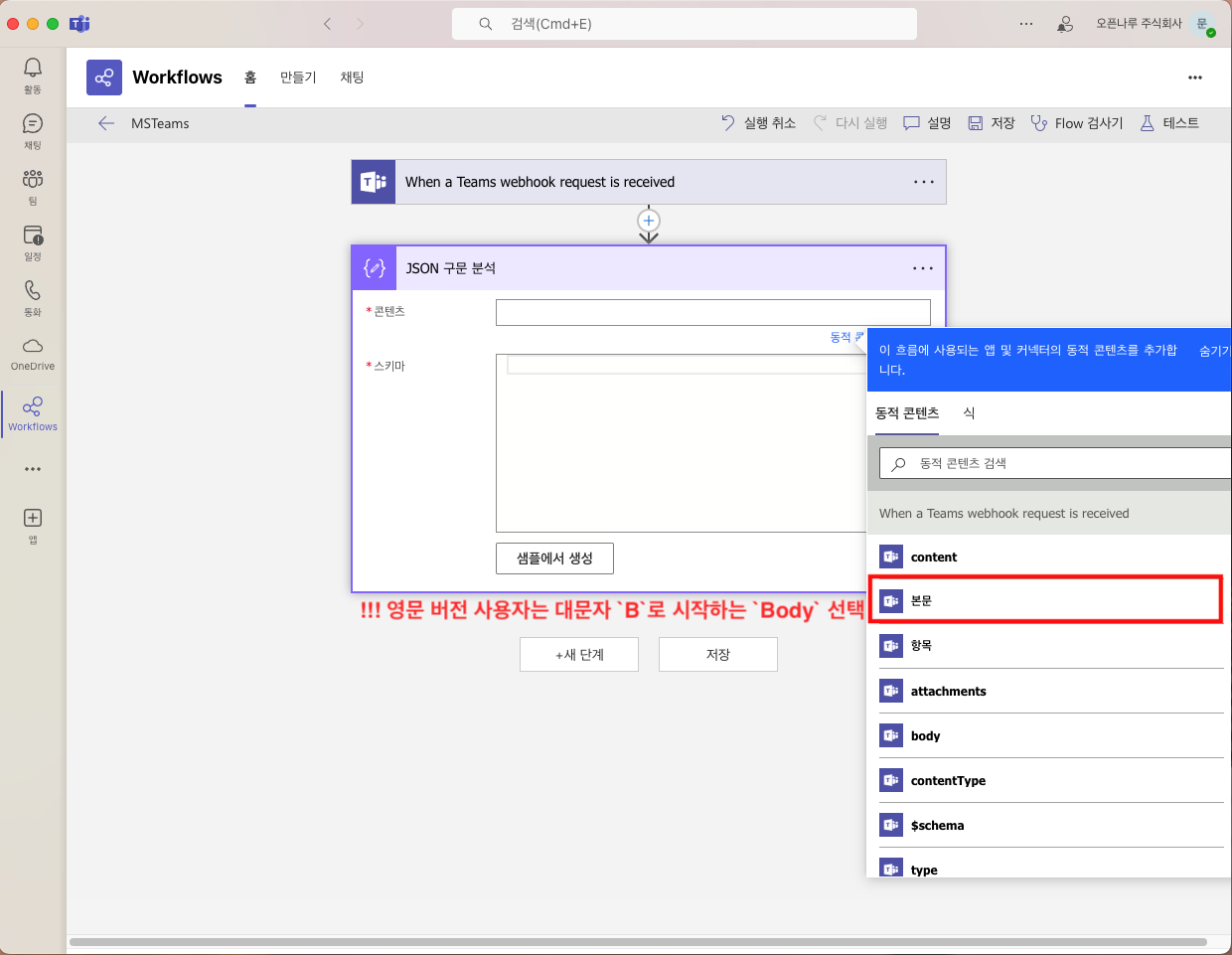
Go to Manage workflow > Edit. Delete the Send each adaptive card step that is there by default, and add Parse JSON with + New step.
- Content: choose
Body - Schema: paste the following
{
    "type": "object",
    "properties": {
        "title": { "type": "string" },
        "text":  { "type": "string" }
    }
}
3) Add the Step That Posts to the Channel
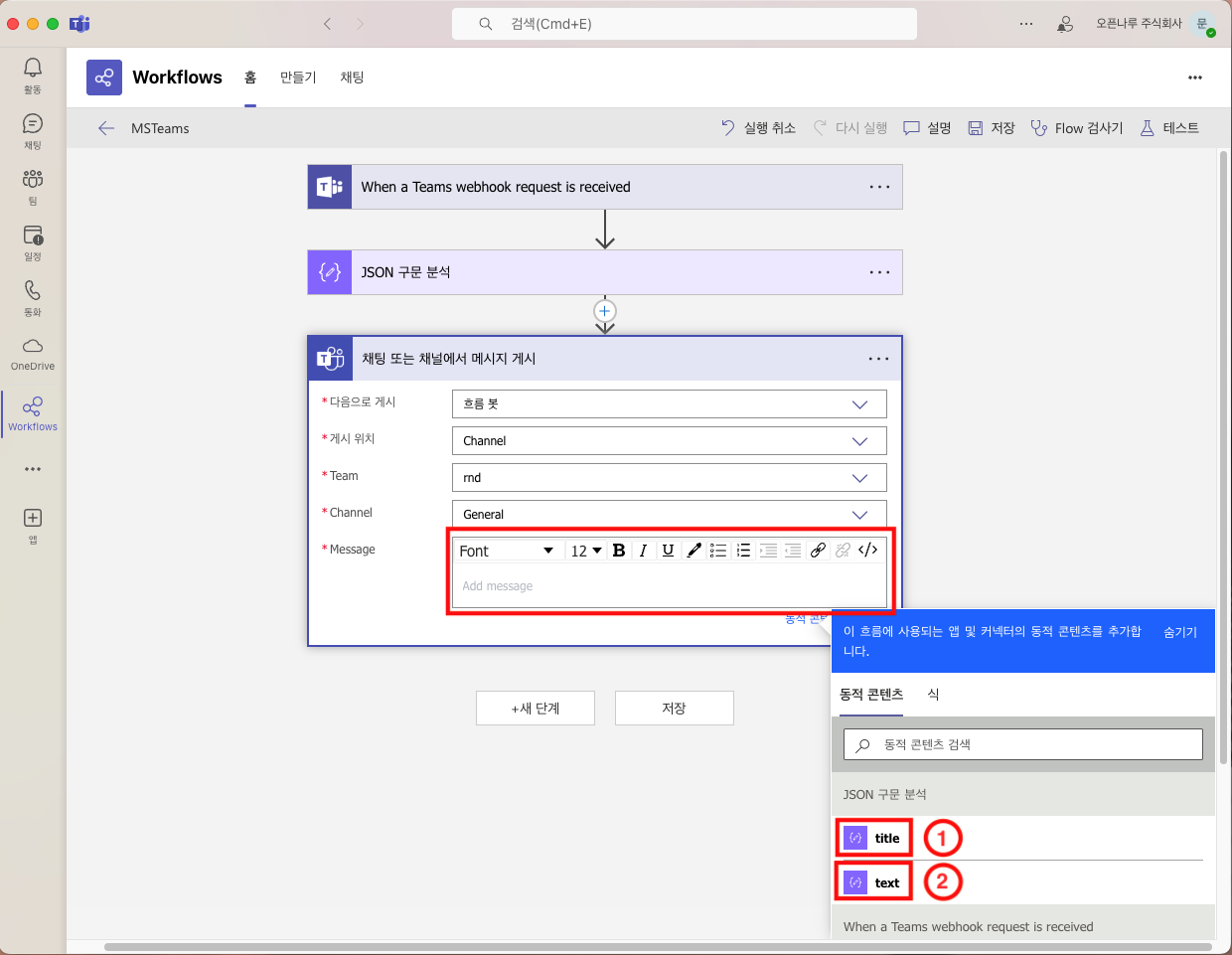
Add + New step > Microsoft Teams > Post message in a chat or channel, then choose where to post
and the Team and Channel. Put the title and text from the previous step into the Message
field in that order and save.
4) Copy the Webhook URL
Open the When a Teams webhook request is received step and get the address with the Copy button. Enter this value in the Webhook URL field in Configuring Events in APM.
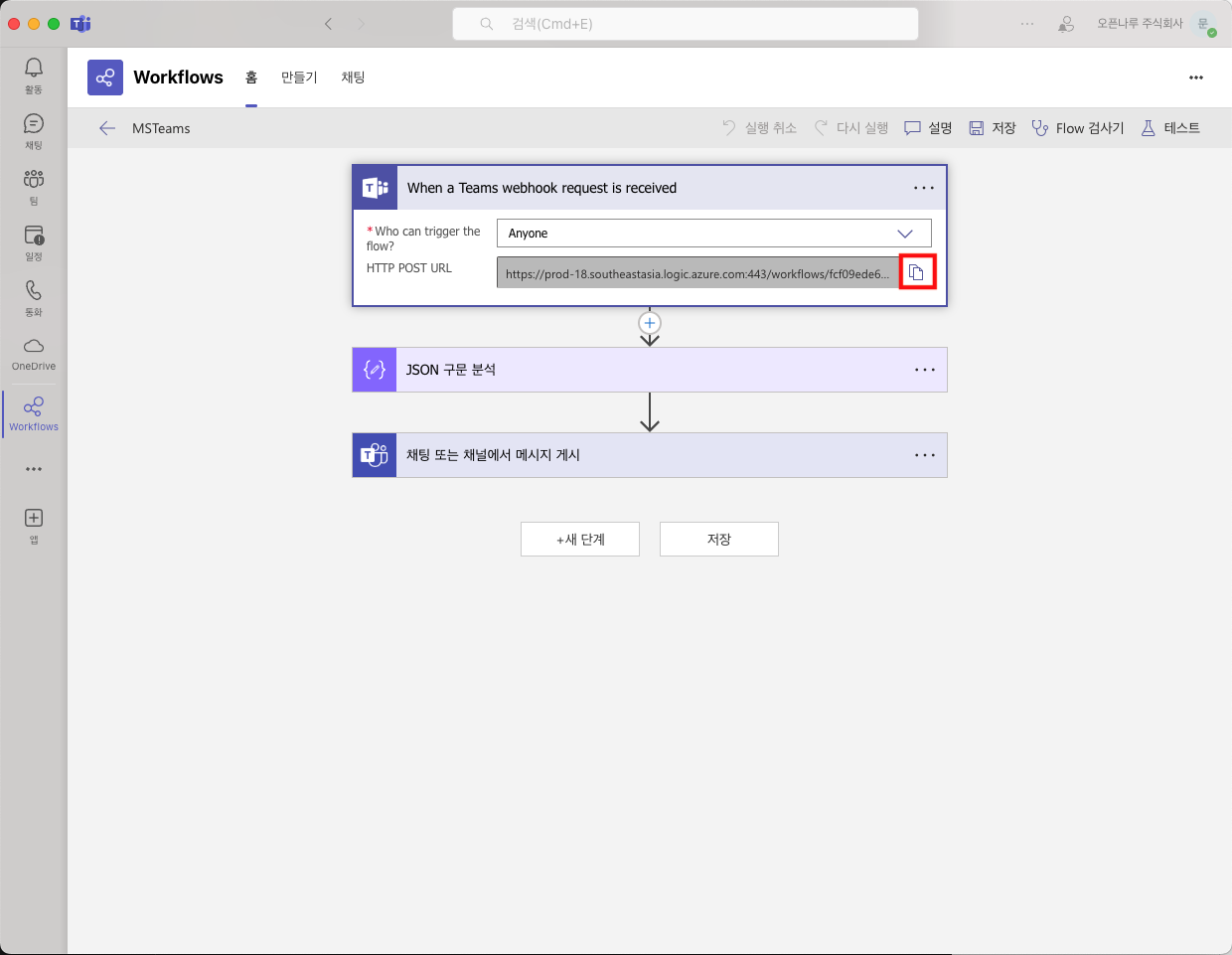
B. Webhook Integration with the Power Automate Method
A paid Power Automate licence is needed for this method. Without one, use A. the Workflow method above.
What it does -- in Power Automate you create a flow that receives an HTTP request and have that flow post to the Teams channel. The purpose is the same as method A; only where you build it differs.
1) Create a Flow That Receives an HTTP Request
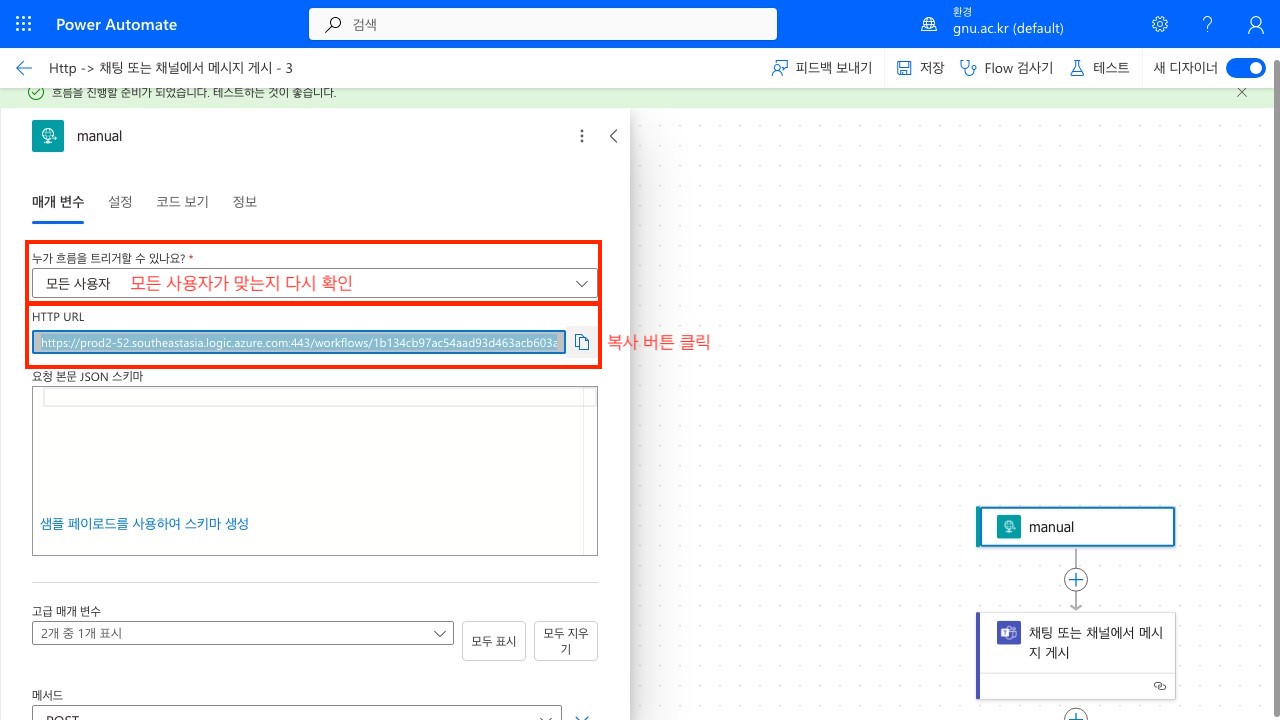
From Create > Instant cloud flow, choose When an HTTP request is received.
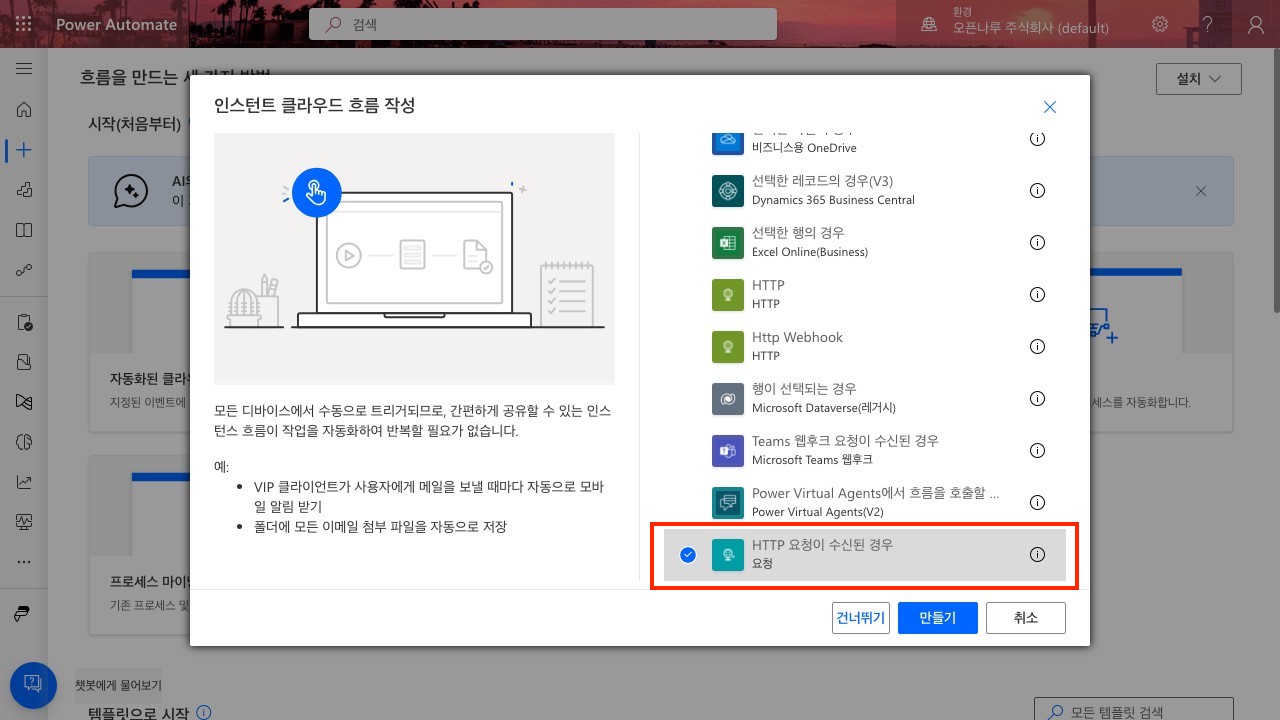
In the advanced parameters, set Method to POST.
Who can trigger the flow? has to be set to Anyone for APM to be able to call it. This is not the default, so be sure to change it.
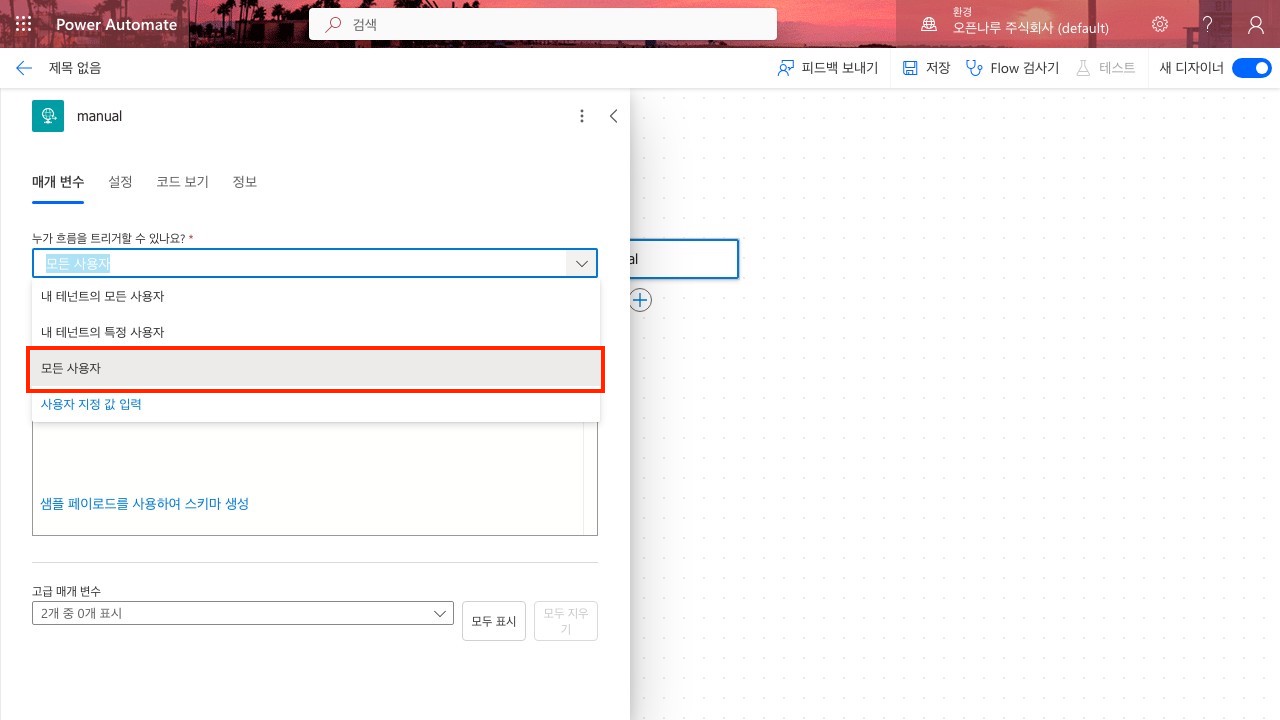
2) Add the Step That Posts to the Channel
Add + > Microsoft Teams > Post message in a chat or channel. For Post as, choose Flow bot,
then specify where to post and the Team and Channel.
Paste the following into the Message field as it is.
@{triggerOutputs()?['body']['title']}
@{triggerOutputs()?['body']['text']}
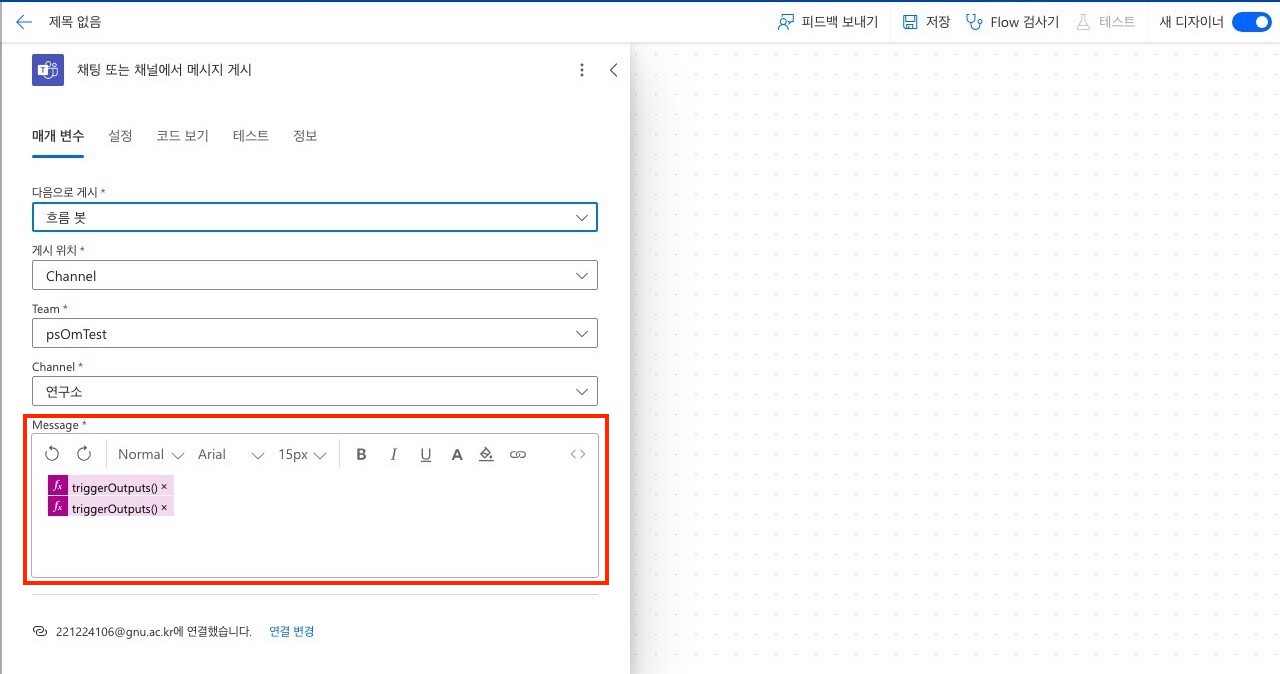
3) Copy the HTTP URL
After saving, copy the HTTP URL created on the trigger step and enter it in the Webhook URL field in Configuring Events in APM.
C. The Old Webhook Connector Method (Unusable)
Microsoft fully discontinued Office 365 Connectors over 18-22 May 2026. An integration configured this way receives no alerts now.
If Teams alerts stopped one day, it is likely configured this way. Rebuild it with A. the Workflow method, then change the value in the APM event settings to the webhook URL you received.
Microsoft's discontinuation schedule was postponed several times -- October 2024, then December 2025, then March 2026, and finally May 2026. In-house documents or older notices may show a different date.
Testing MS Teams Alerts
Once configured, do not wait for a real event -- send one test event and confirm straight away that the webhook URL is correct.
In the OPENMARU APM console, go to Event > Event List and press the more (⋮) button at the top
right of the list; a Test Sample Critical Event item appears.
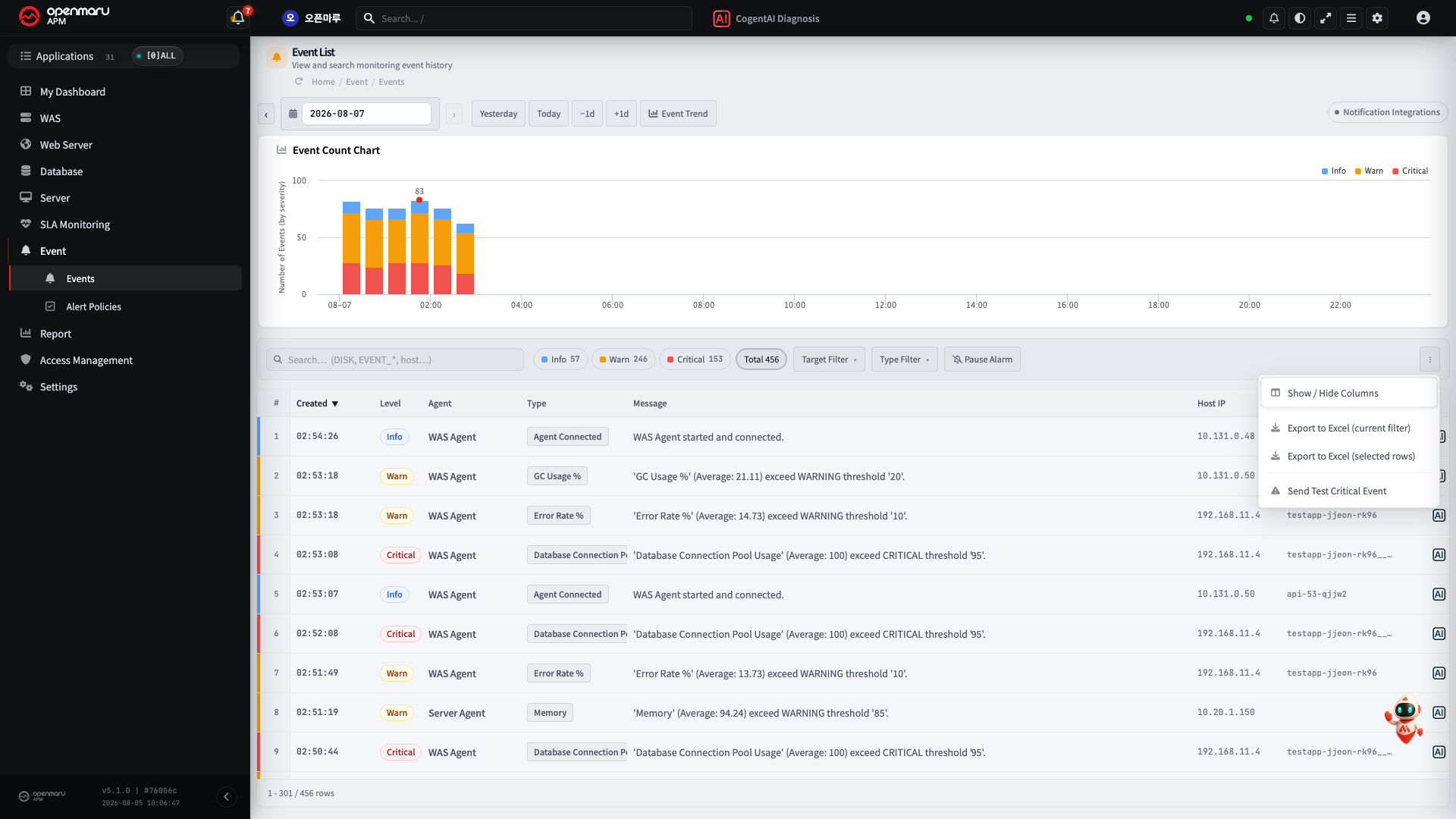
Selecting the item opens a Send test event confirmation window. Pressing Send sends one test
critical event to the administrator.
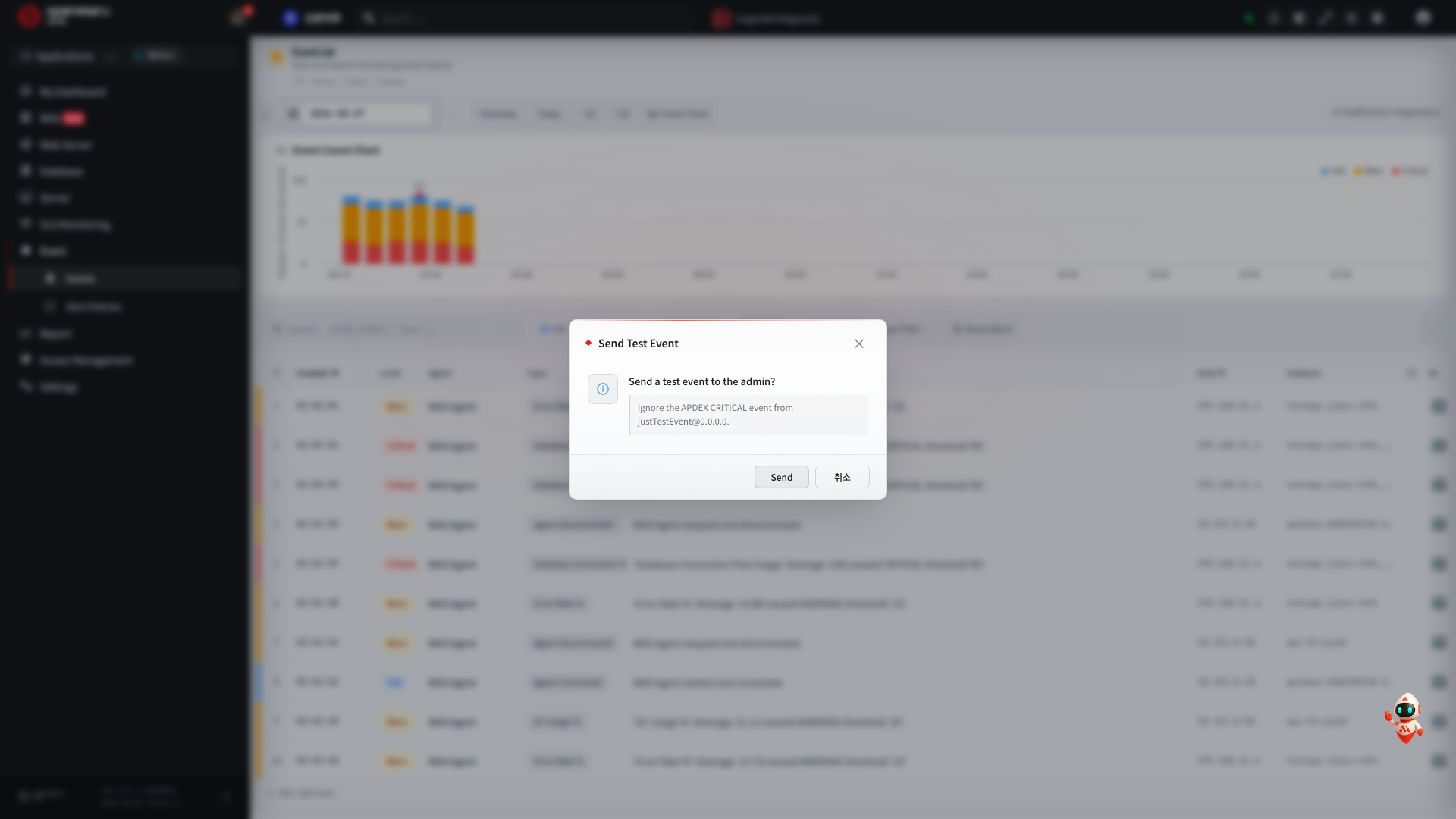
The test event is sent only to the admin account, regardless of the alert policy settings.
If an alert arrives in the MS Teams channel a moment later, the integration is complete. If nothing arrives, check the webhook URL value and the channel permissions again.
Configuring Events in APM
In the OPENMARU APM console, go to Settings > Monitoring Settings and select the Event Channels
tab to configure the MS Teams event settings. Every channel setting is gathered on this one screen.
MS Teams Event Configuration Items

| Item | Default | Description |
|---|---|---|
| ① Enabled | FALSE | Selects whether to use the MS Teams event settings, as TRUE or FALSE. |
| ② Webhook URL | - | For the MS Teams integration, enter the URL issued by MS Teams Workflow or Power Automate. |
| ③ Message Locale / Message Language | KR / KO | Setting KR/KO sends Korean messages; setting US/EN sends English messages. |
| ④ Proxy Address | - | Enter the proxy address. e.g. 192.168.23.65:3128 |
| ⑤ Delivered Message Levels | ALL | Selects which events are sent to MS Teams. ALL: every event. Otherwise specify the events to send from INFO, WARN, FORECAST, and CRITICAL, separated by commas. |