2. Slack Event Configuration
What This Chapter Does
It configures APM events to arrive in a Slack channel. When a failure occurs, the message appears in a channel the team is already watching.
There are two methods. Choose one.
| Method | What is different | When to choose it |
|---|---|---|
| Webhook | You obtain an address (URL) that posts to one channel and enter it in APM | Most cases -- the setup is simpler |
| Bot | You install an app in the workspace and send with a token | When you want to post to several channels, or change the bot name and icon |
What you need -- a Slack workspace and permission to add an app to it. If you have no workspace, you can create one by following the steps below.
Once configured -- every time an event occurs in APM, a message appears in the channel you chose.
Overall Flow
| Step | What you do |
|---|---|
| 1 | Prepare the Slack workspace and channel (skip if you already have them) |
| 2 | Obtain a webhook address or a bot token |
| 3 | Enter that value in the event settings of the APM console |
| 4 | Confirm it reaches the channel with a test send |
Webhook Method
You obtain an address that posts to one channel and enter it in APM. This method is enough for most cases.
1) Create a Slack App
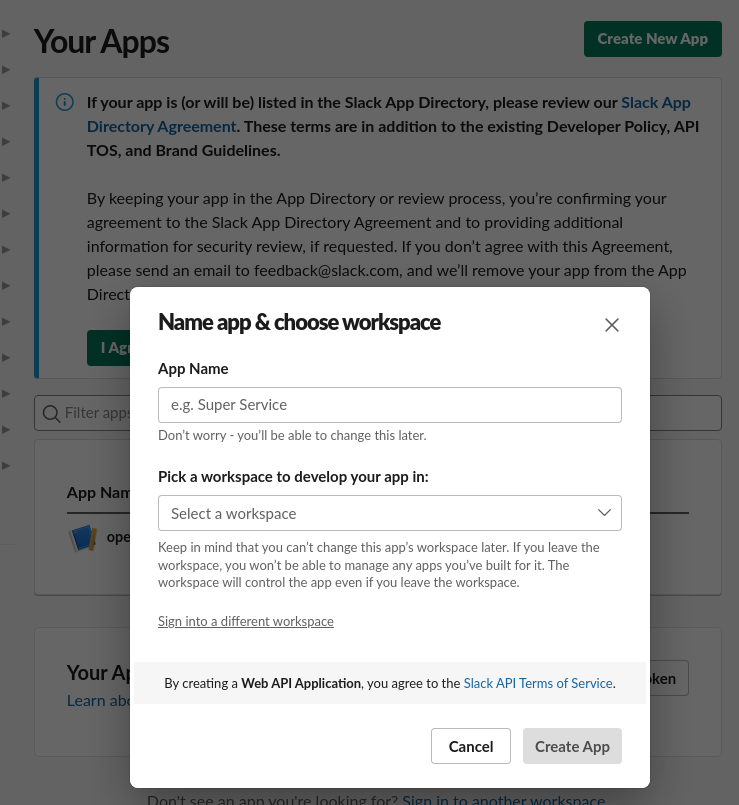
Go to https://api.slack.com/apps, create an app with Create New App, and choose the workspace.
2) Turn on Incoming Webhooks and Choose a Channel
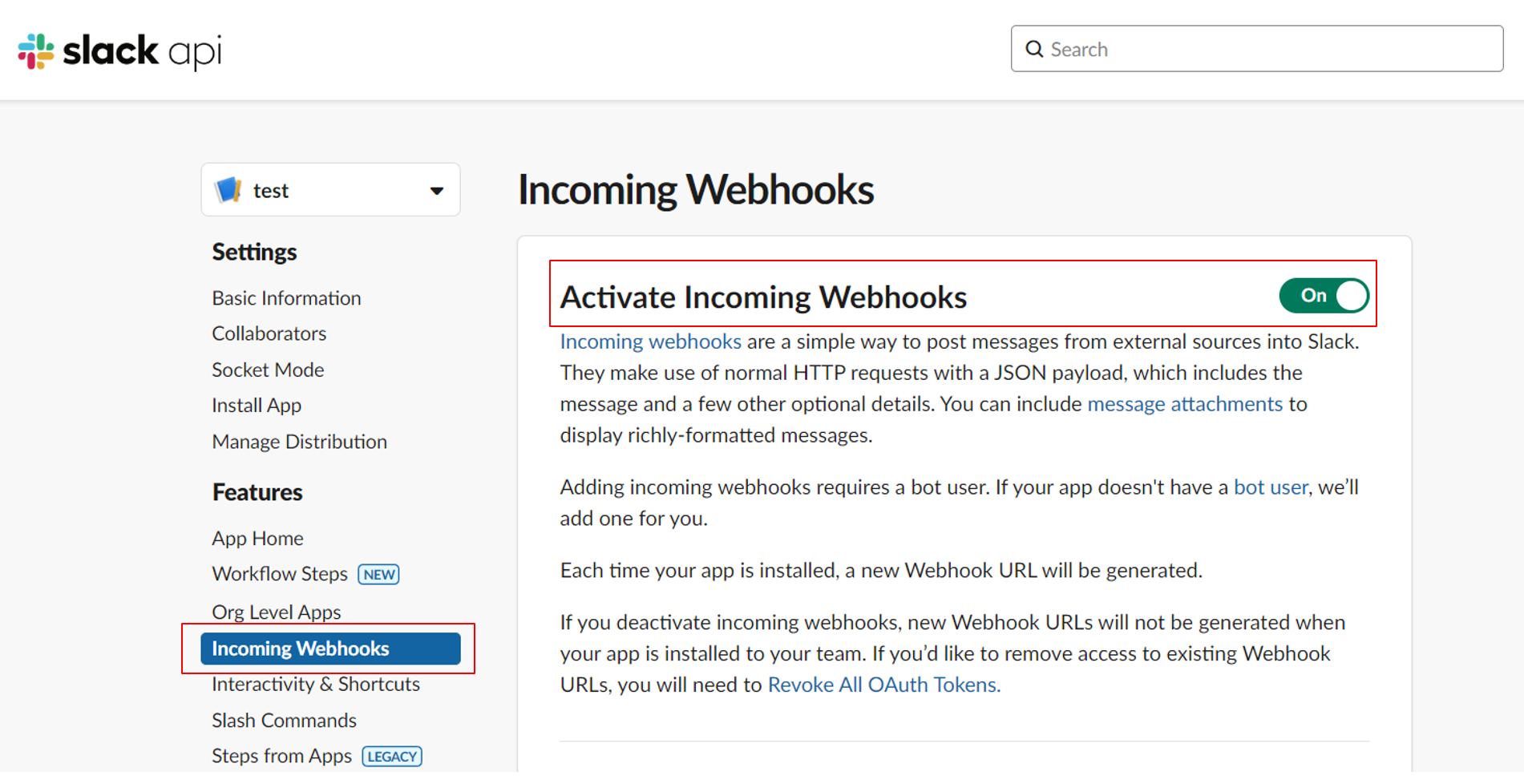
In the app settings, go to the Incoming Webhooks menu, turn on Activate Incoming Webhooks, then choose the channel that receives events with Add New Webhook to Workspace.
3) Copy the Webhook URL
Once the channel is chosen, a Webhook URL is created. Copy this address and enter it in the Webhook URL field in Configuring Events in APM.
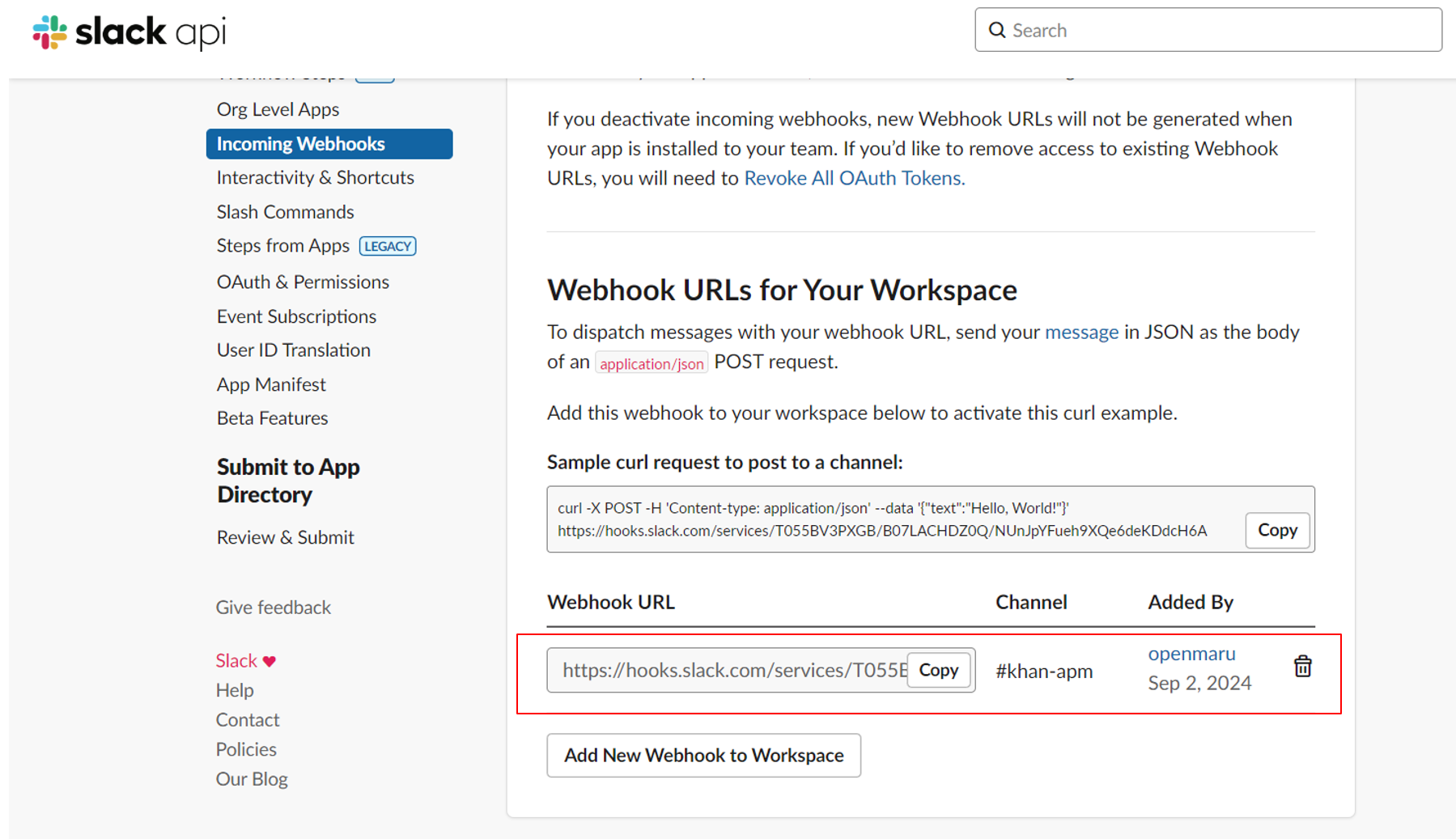
Anyone who knows this address can post to that channel. Do not leave it as it is in documents or code repositories.
Bot Method
A webhook is fixed to one channel, but a bot can post to several channels and its name and icon can be changed. It takes a few more steps in return.
1) Add the Bot and Get a Token
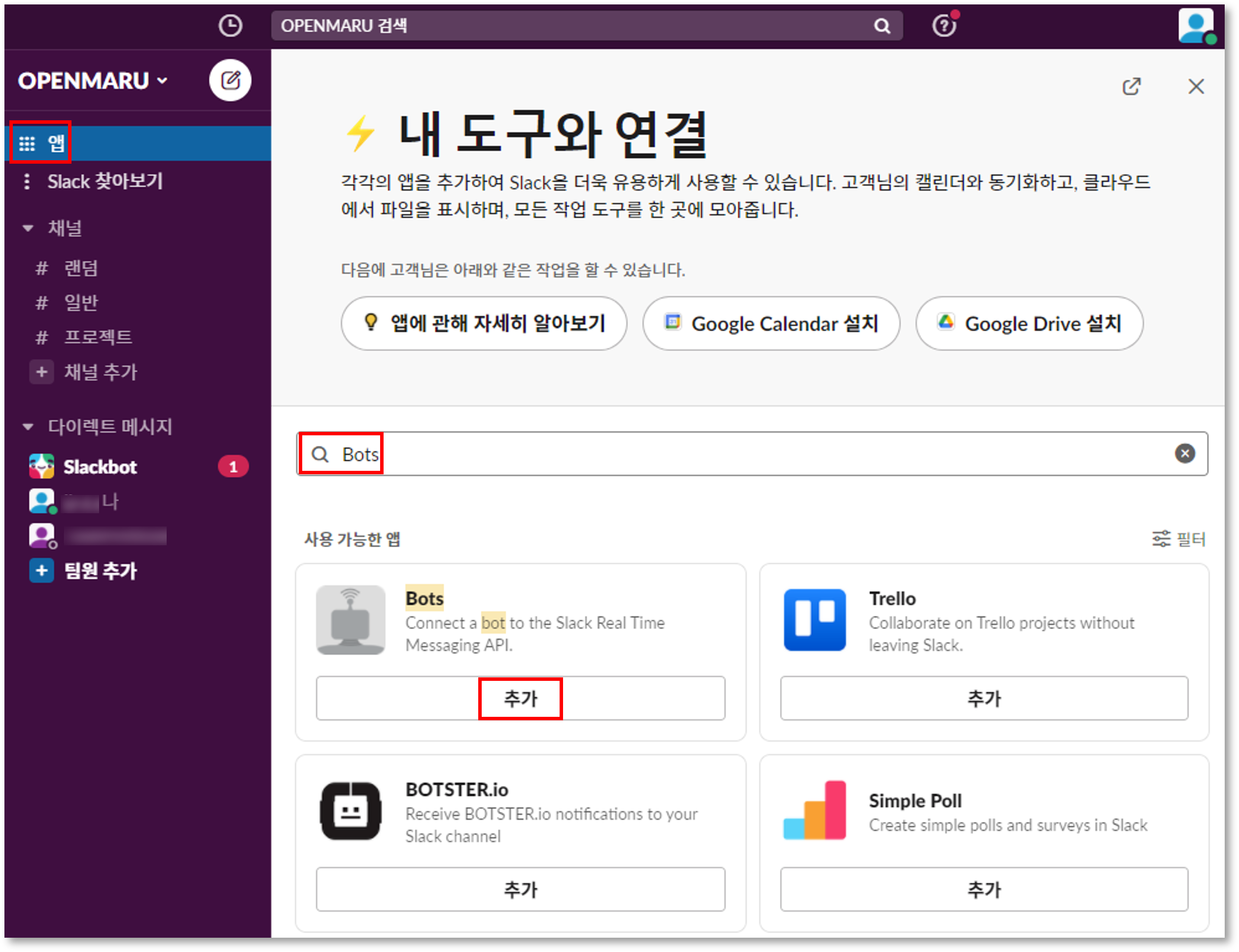
Find Bots in the Slack app list, add it to the workspace, decide the bot's user name, then click Add bot integration.
The API Token appears on the next screen.
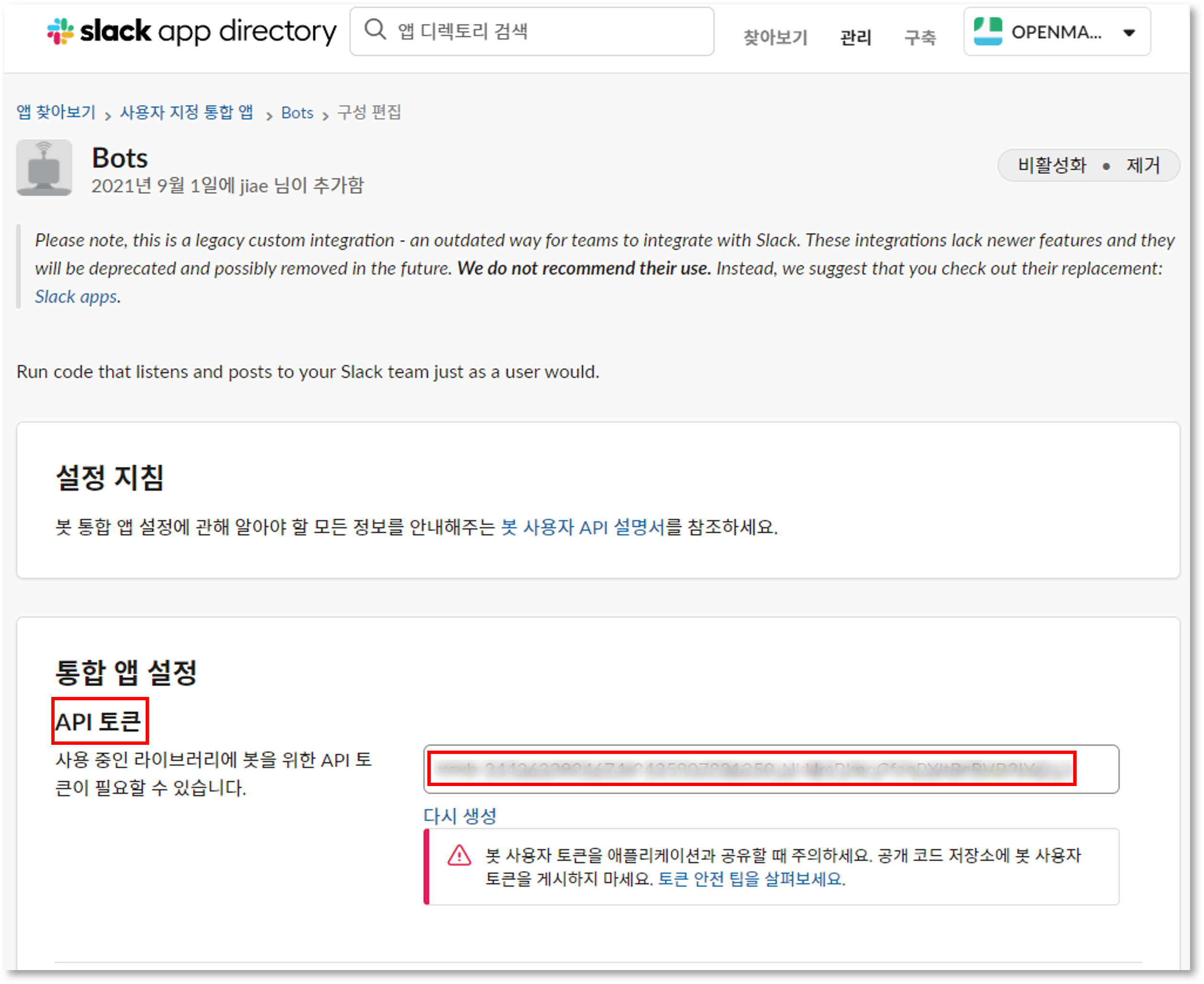
This value is the key to the integration with APM. It is troublesome to find again once you leave the screen, so copy it now and finish by clicking Save integration.
2) Create the Channel That Receives Events
Create a channel with Add channel > Create a new channel and give it a name. Add the people who should see the alerts with Add people.
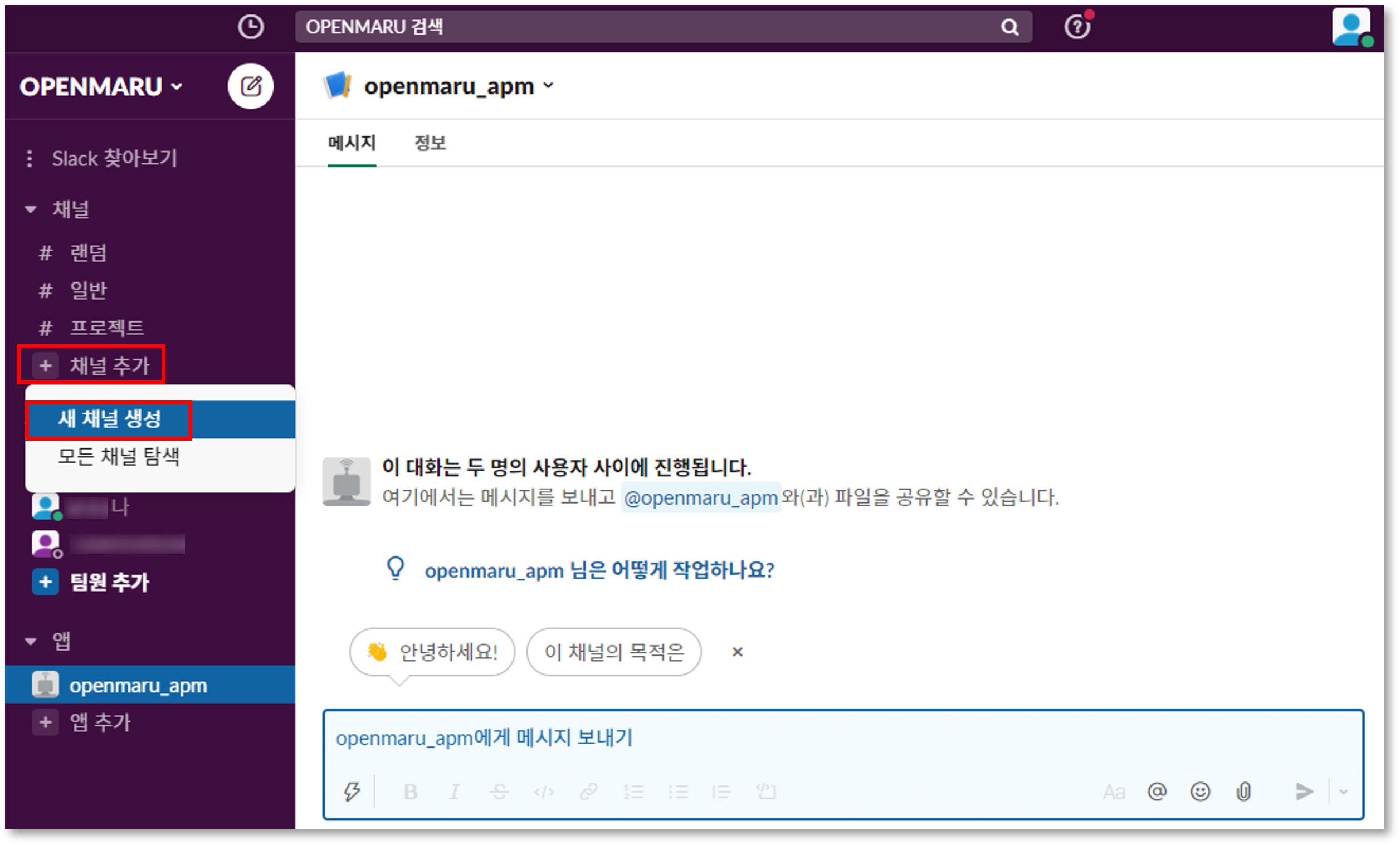
3) Invite the Bot to the Channel
In the channel you created, enter /invite @<bot name> to invite the bot. Without the invitation,
no message arrives even when the token is correct.
Configuring Events in APM
In the OPENMARU APM console, go to Settings > Monitoring Settings and select the Event Channels
tab to configure the Slack event settings. Every channel setting is gathered on this one screen.
Slack Event Configuration Items
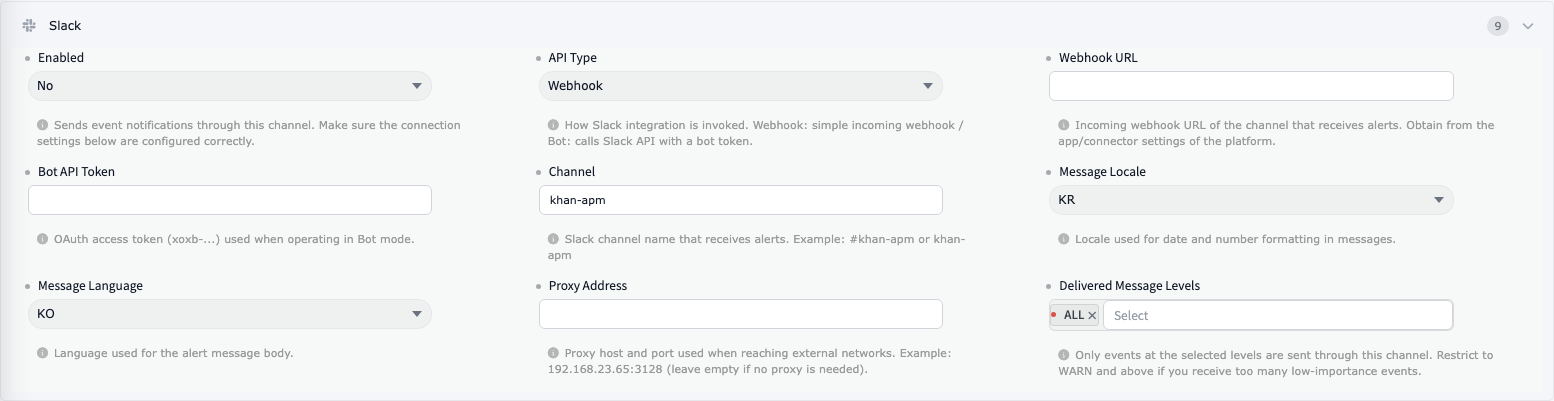
Change the values shown in the Slack section.
| Item | Description |
|---|---|
| ① Enabled | Whether to use the Slack integration. Set it to "TRUE" to receive event alerts. |
| ② API Type | Selects how the Slack integration is configured (Webhook or Bot). |
| ③ Webhook URL | For the Webhook method, enter the webhook URL created earlier. |
| ④ Bot API Token | For the Bot method, enter the bot API token issued earlier. |
| ⑤ Channel | Enter the name of the channel created earlier that receives APM events. |
| ⑥ Message Locale / Message Language | Setting KR/KO sends Korean messages; setting US/EN sends English messages. |
Confirming Events Arrive in the Slack Channel
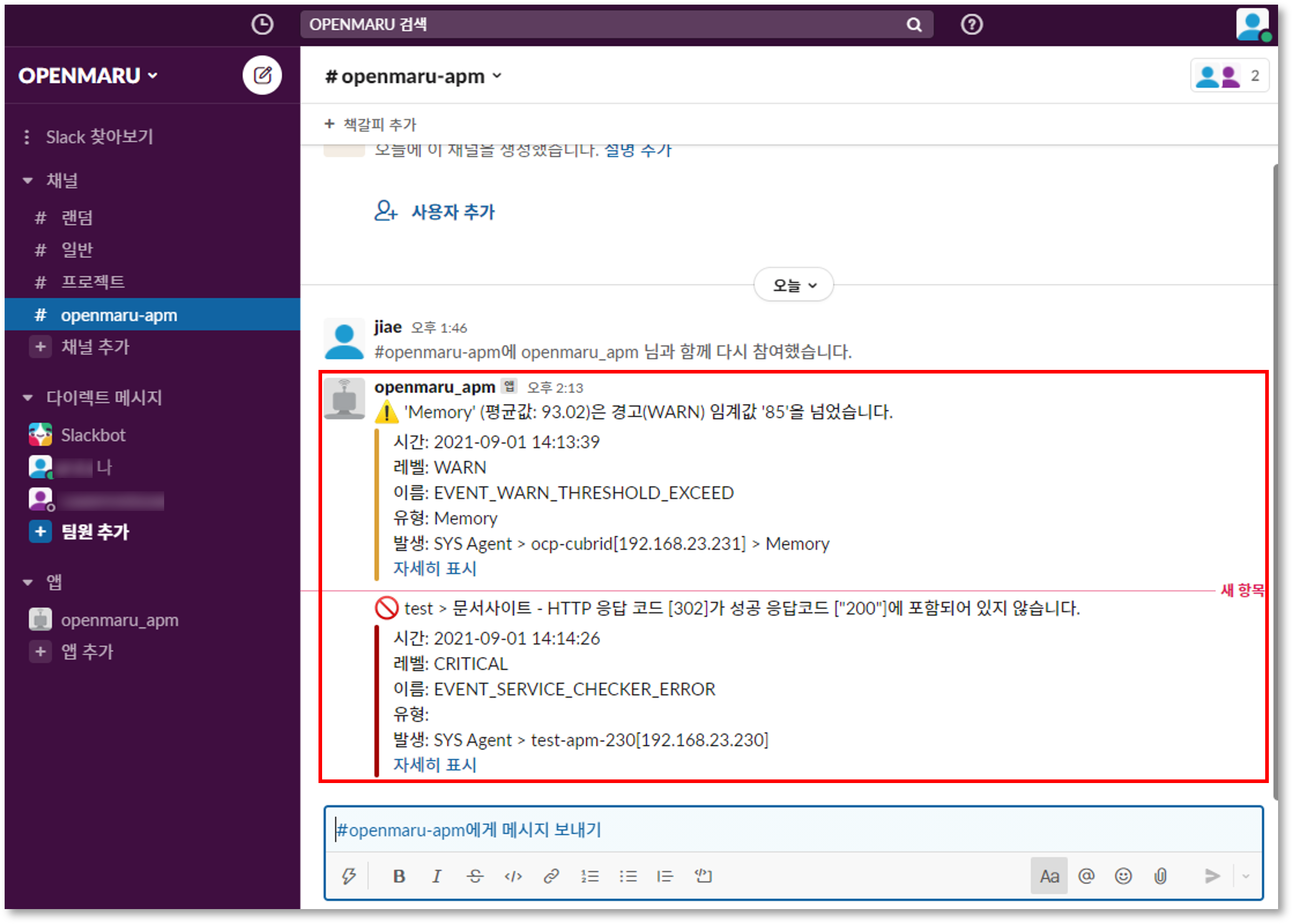
Restart the APM server, and you can see APM events in the Slack openmaru-apm channel, delivered
through the webhook you connected or the @openmaru_apm bot.
Add the users who want to receive events to the openmaru-apm channel.
Slack events can be received through a range of clients -- the iOS and Android apps, a browser, and the Windows application.
Slack is reachable through a browser by default, and also through desktop applications for macOS, Windows, and Linux, or the mobile apps for iOS, Android, and Windows Phone.