5.2. Diagnosing SQL straight from APM
The AI query diagnosis button in the transaction detail — results without writing a prompt
When you have been looking at a slow transaction and worked out which SQL statement is causing the delay, you do not have to retype that query into the widget. One button hands it over.
This route exists only in OPENMARU APM. The other consoles do not have it.
Where it is

In the waterfall, spans that called the database have a SQL button next to their name. Pressing it opens a dialog showing that span's query.
What the dialog shows
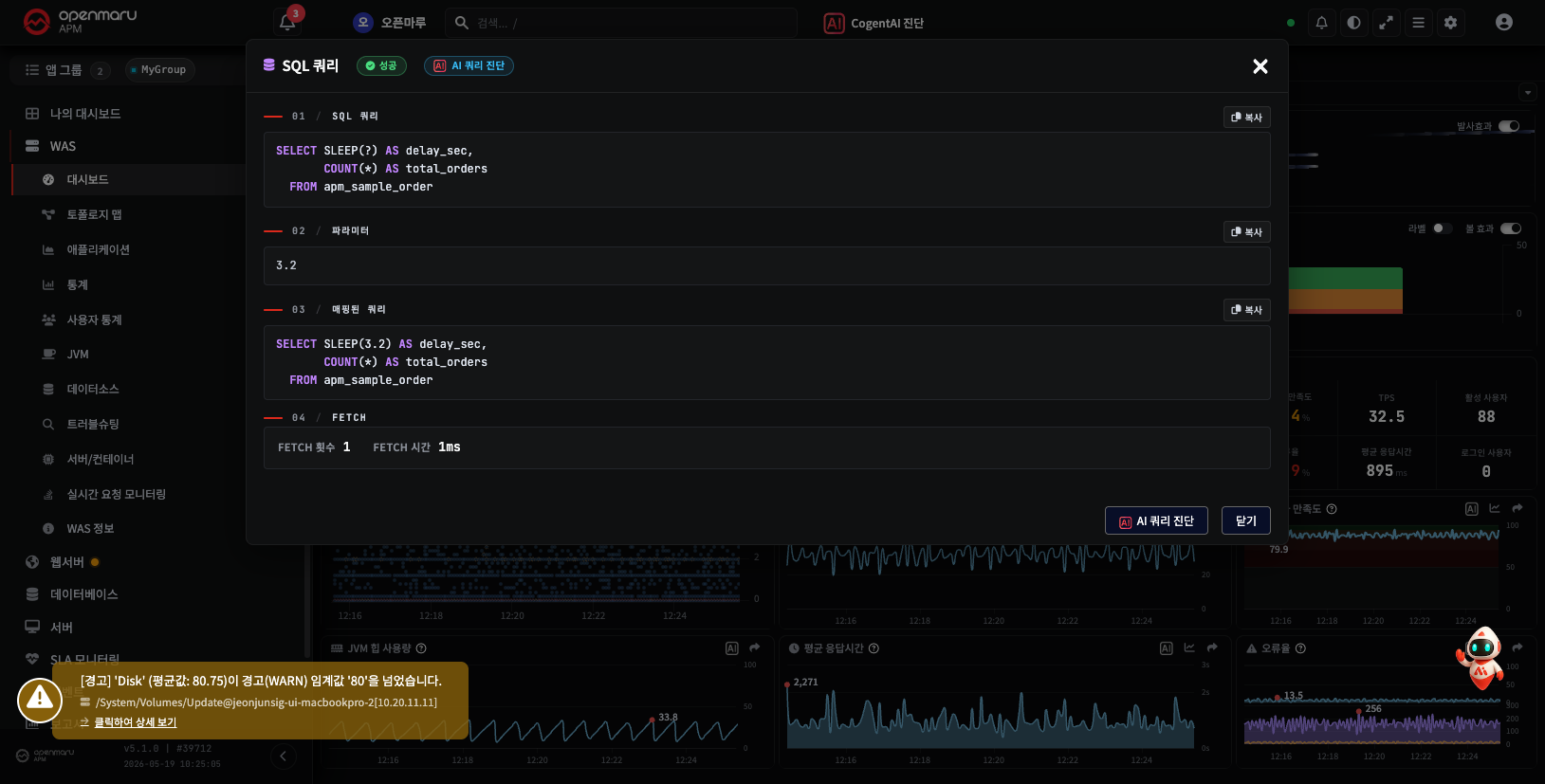
| Field | Contents |
|---|---|
| 01 SQL query | The original query — question mark (?) placeholders still in place |
| 02 Parameters | The values that actually went into those placeholders |
| 03 Mapped query | The query as it was executed, with the values filled in |
| 04 FETCH | How many times the results were fetched, and how long it took |
A success / failure badge sits next to the title, and if it failed the error is shown with it. The connection details and the elapsed time are shown too.
Each field has its own copy button, so you can copy them individually.
What happens when you press the button
What goes to the AI is the mapped query. Because it contains real values rather than placeholders, the execution plan can be fetched exactly as it ran.
The screen writes the prompt for you. It comes out roughly like this.
On the database server connection_id=
<DB type>, analyse the query below using the analyze_slow_query tool — Query :<mapped query>
If the query failed, the error message is handed over as well, which asks the AI to look at why it failed too. You do not have to paste anything yourself.
The database type (mysql, oracle, postgresql …) and the connection target are filled in automatically from the connection details the dialog was showing.
What the screen does when you press it
The button changes in sequence. That change is the signal that the request was accepted.

At the same time a notice saying "Check the result in the CogentAI panel" appears briefly at the top of the screen.
The SQL dialog does not close
That is deliberate. After sending the request you can keep looking at the query while you read the widget's answer. Close it yourself with Close or X when you are done.
If the widget was folded away, expand it when you see the notice. The answer has already arrived inside it.
What comes back
Because analyze_slow_query is doing the work, the answer usually includes these.
- The execution plan — a tree chart, so you can see at a glance which step is expensive
- Why it is slow — an interpretation such as "no index was used" or "this is a full scan"
- What to change — candidate indexes, rewriting the query
The execution plan chart can be dragged and zoomed. Large plans run off the screen, so handling them is covered separately in Reading execution plans and ERDs.
When it does not work
The button is not there at all
One of two reasons.
- The CogentAI integration is switched off in the APM settings — an administrator has to turn it on
- Your account does not have permission — availability is set per account
Contact your administrator. It is not something you can turn on from the screen.
"The AI widget is not ready yet"
This appears when you press the button before the widget has finished loading. The request is not sent. Telling you is better than ending with no reaction at all.
Wait a moment and press it again. If it persists, reload the page.
You pressed it but no answer came
Expand the widget. Answers arrive inside it even when it is folded away. If there is still nothing, see When something goes wrong.
Why this route is easier
To do the same thing with a free-form question you would copy and paste the query, write the database type and name the tool. The button replaces all three.
| Button | By hand | |
|---|---|---|
| Query | The mapped query, automatically | Copy and paste |
| Database type | From the connection details, automatically | Typed in |
| Error message | Included automatically when there is one | Pasted separately |
The biggest difference is that nothing can be mistyped on the way across.
Next
- Reading the execution plan in the result — Reading execution plans and ERDs
- Asking without the button — What you can ask a database
- The other entry points in APM — In OPENMARU APM