6.2. In COP Console
Asking around Kubernetes resources — buttons on resources and events
In COP Console you ask about the Kubernetes resources themselves. The subject is an object such as a Pod, Deployment or Service, rather than a metric.
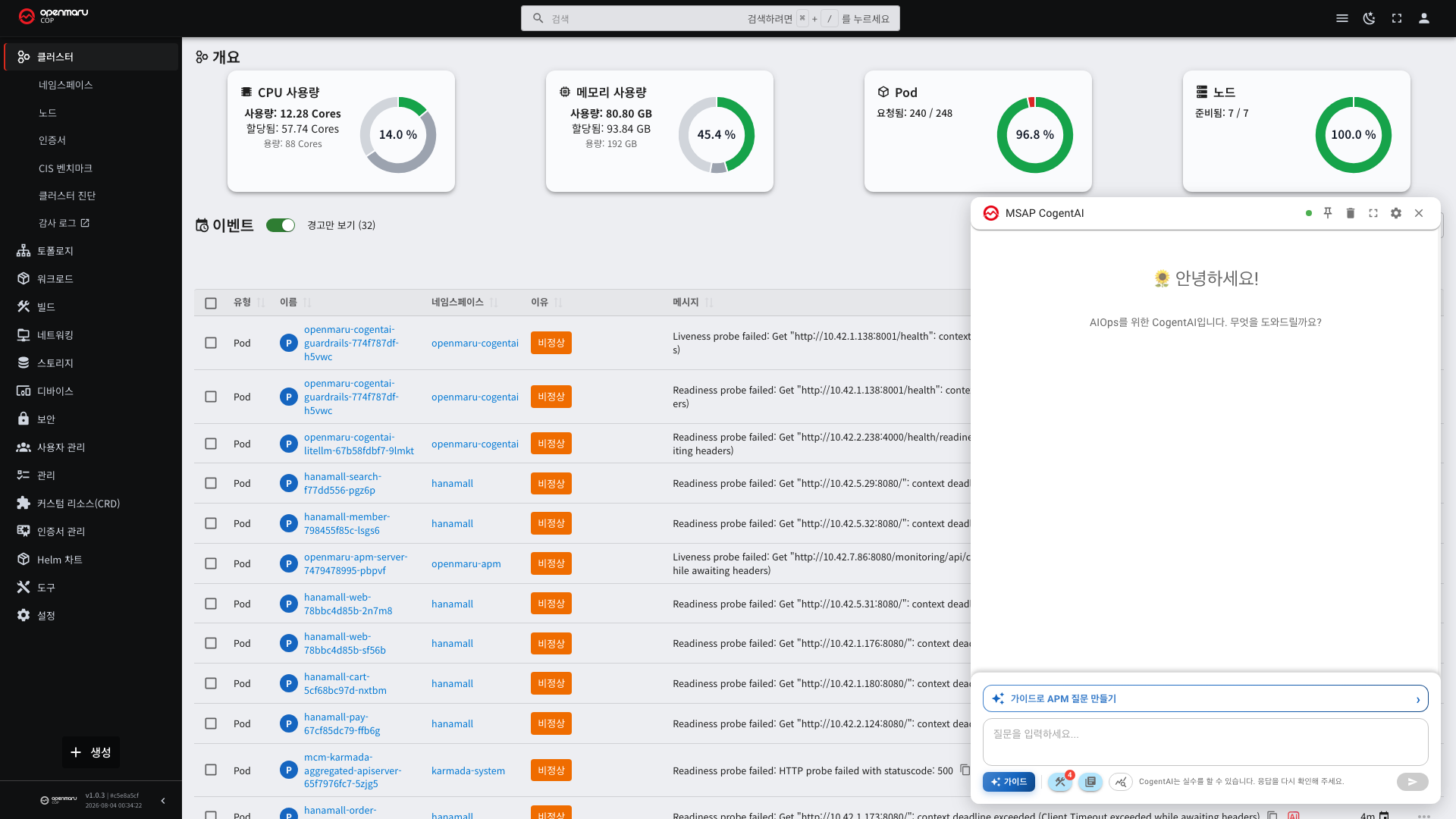
You can ask "why won't this pod start?" without going through the YAML yourself.
Two entry points
| Where | Button | What you ask |
|---|---|---|
| Resource detail screen | Ask CogentAI Insight | What state is this resource in |
| Event list | AI button | What does this event mean |
1. Resource detail — Ask CogentAI Insight
The AI icon is at the top of the resource detail screen, next to the navigation button.
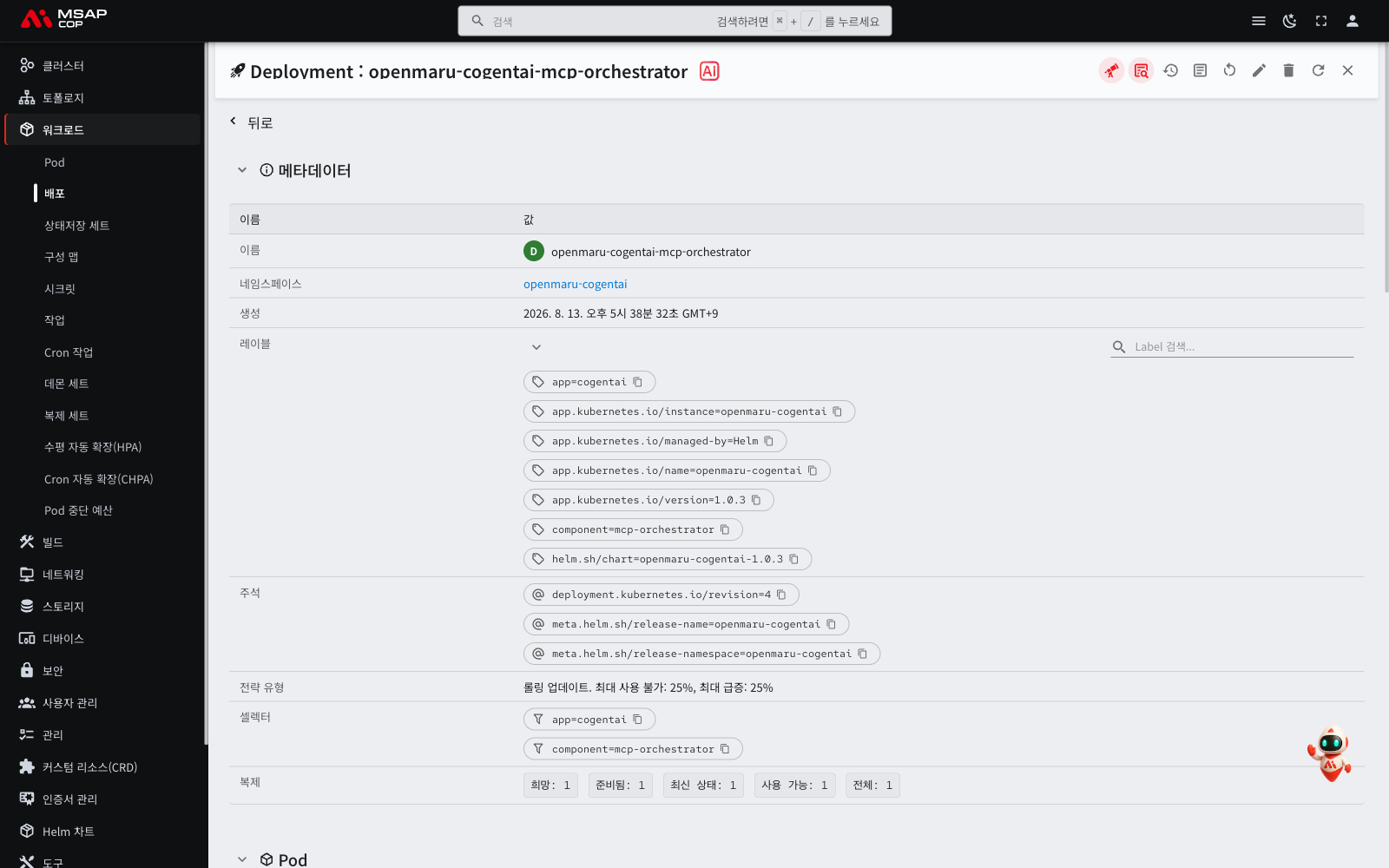
It does not care what kind of resource it is. Anything with a detail screen has the button.
Pressing it composes a question like this.
Analyse resource
[Deployment/<app name>]
What is handed over
The resource's entire YAML goes across. You do not have to press View YAML and copy it yourself. The kind, name, namespace and cluster go with it.
managedFields is left out. It is a value Kubernetes uses internally, so it adds bulk without helping the analysis.
It looks at different things for different kinds
What to check is defined in advance per resource kind.
| Kind | Examples |
|---|---|
Pod · Deployment · StatefulSet · DaemonSet · ReplicaSet | Restarts, replicas, resource settings |
Service · Ingress · NetworkPolicy | Targets, routes, selectors |
ConfigMap · Secret | References and format |
PersistentVolume · PersistentVolumeClaim | Capacity, access modes, binding |
Job · CronJob | Schedule and completion state |
Role · RoleBinding · ClusterRole · ClusterRoleBinding · ServiceAccount | Permission scope |
Node · Namespace | State and quotas |
So the same button focuses the answer differently when pressed on a Pod and on an Ingress.
You can press it even when the resource is not on screen
The button works even if the resource failed to load. In that case it asks this.
Analyse resource load failure for
[Pod/<pod name>]
With only the kind, name, namespace and cluster, it suggests why it is not visible: a mistyped name, the wrong namespace, or a permissions problem.
Think before pressing it on a Secret
A Secret has a detail screen, so it has the button too. And its entire YAML goes across.
The data values are not masked. They are written in base64, but that is encoding, not encryption. Decoding gives you the original value.
| Fine to ask | Ask directly instead of using the button |
|---|---|
| "Which pods reference this Secret?" | A detailed analysis of a Secret that holds real values |
| "Is the type set correctly?" |
The first only needs the name, so asking it as a free-form question keeps the values out of the conversation.
Where this conversation is retained depends on your organisation's settings. For a
Secretholding production credentials, checking it on screen yourself is better than using the button.
2. Events
This is the AI button next to an event. It appears in two places, and what goes across differs slightly.
The Events tab in a resource detail
It sends one event, arranged as a table.
- Reason — the reason, such as
FailedSchedulingorBackOff - Subject — what kind of object it occurred on, and in which namespace
- The original message
The question is composed like this.
Analyse event
[Warning/FailedScheduling]Pod/<pod name>
Events in the cluster overview
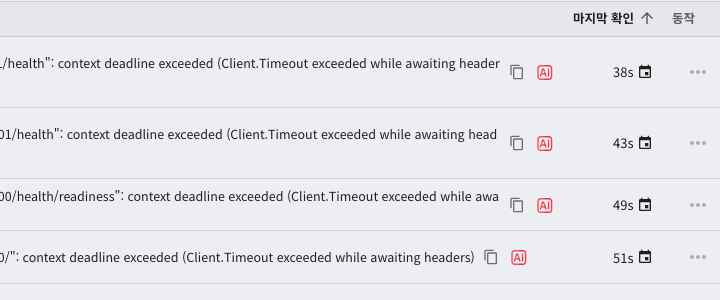
Here only the message is sent. It is for asking straight away what a message in the list means.
To include the target resource as well, go into that resource and press the button in its Events tab.
Asking about metrics
COP Console does not keep a metric store of its own. To ask about something like a CPU or memory trend, you have to choose a datasource in the Analysis Prompt Builder.
| What you want to see | Datasource to choose |
|---|---|
| Kubernetes container and node metrics | observ |
| WAS and transaction metrics | apm |
Both datasources are available even when you open the widget in COP Console. See "The datasource has nothing to do with the console you opened" in Chapter 401.
Asking with a free-form question
Type it yourself for anything without a button. In that case you have to name the subject.
"Tell me the state of
<pod name>in<namespace>" "Show me pods with many restarts in<namespace>"
Switch the Kubernetes tools on first. With them off, you get no answer.
Unlike with a button, the screen context does not go across automatically, so write the namespace and the name.
When the buttons are not there
If the CogentAI integration is switched off in the administrator settings, the widget itself does not appear. It does not appear on pre-login screens either. Sign in first.
If the buttons are there but pressing them does nothing, the widget may not have finished loading. Wait a moment and press again.
Next
- Choosing a metric analysis — Analysis scenarios at a glance
- The other consoles — In OPENMARU APM · In Observability
- When something goes wrong — When something goes wrong