5.1.0-11.0
기능 개선
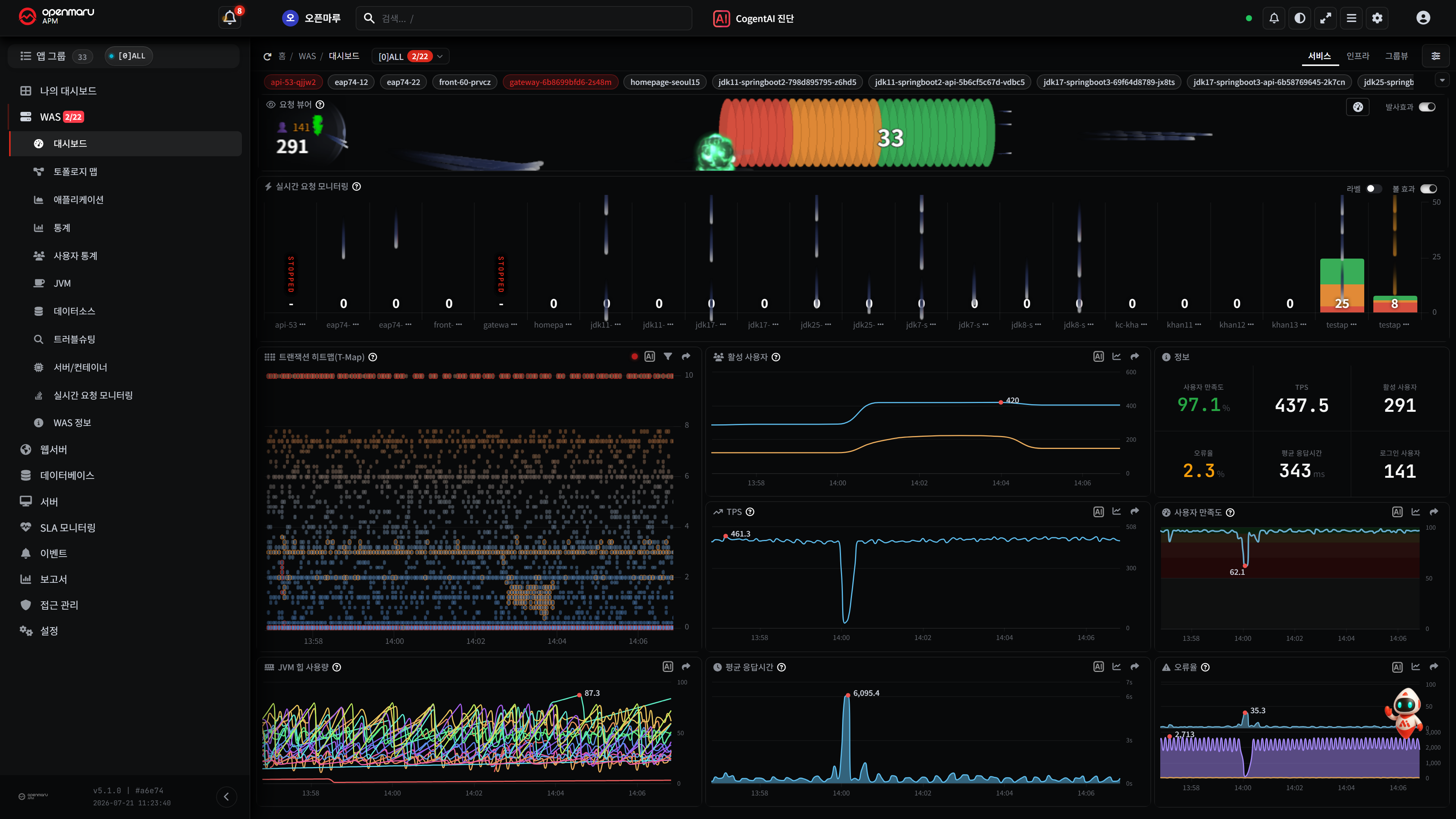
전체 UI 디자인 리뉴얼
- 대시보드·이벤트·경고정책·서버·설정 등 거의 모든 화면을 통일된 디자인으로 새로 단장
- 색상·간격·글자 크기·버튼·슬라이더를 일관되게 정리해 가독성 향상
- 데이터가 없는 화면과 수집이 멈춘 화면을 명확히 구분해 표시
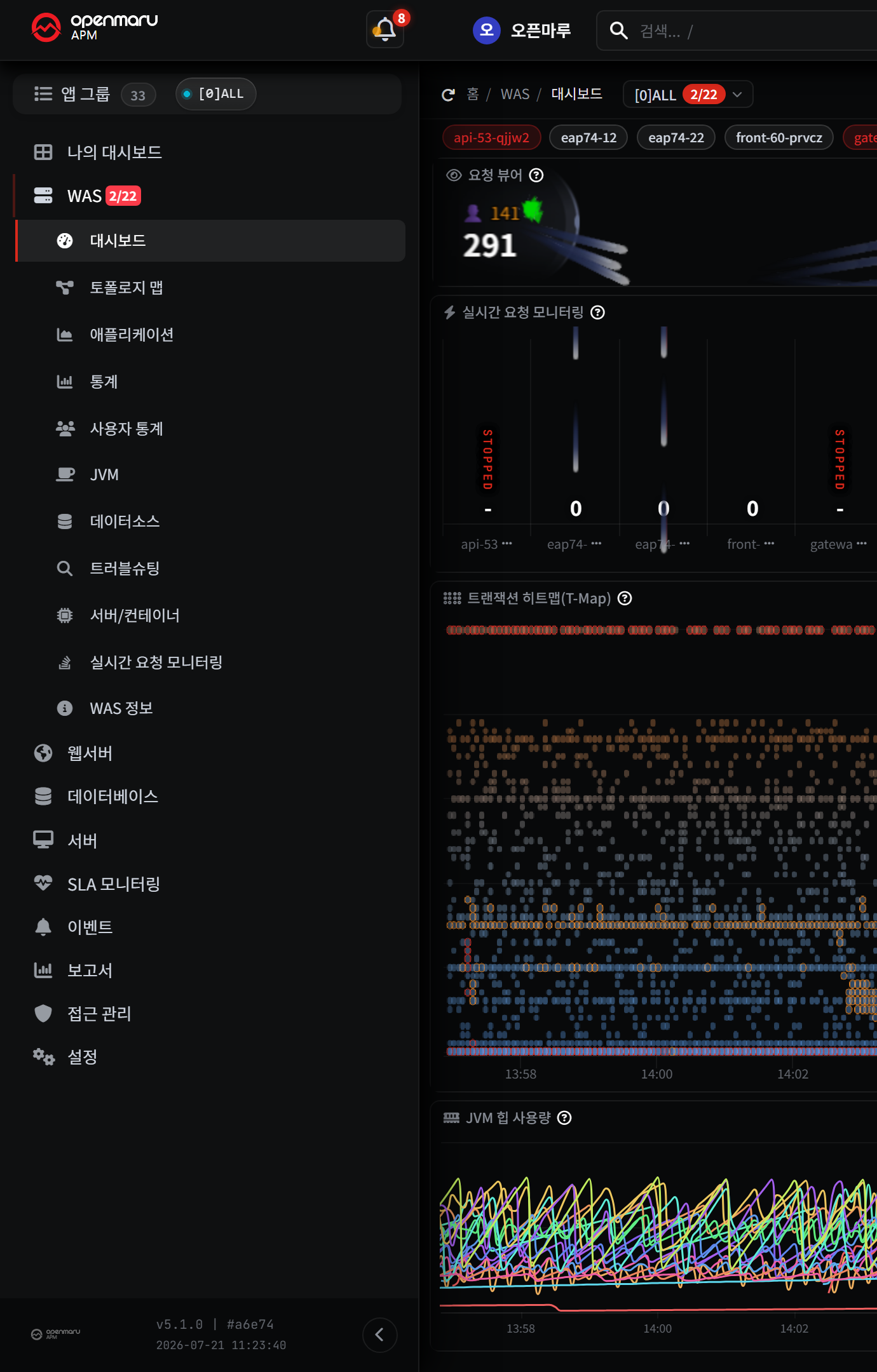
2단계 메뉴 구조 개편
- 한 줄로 길던 메뉴를 큰 분류(WAS·데이터베이스·쿠버네티스·SLA·알림·설정) → 작은 분류(대시보드·애플리케이션·JVM·트랜잭션) 2단계로 정리
- 링크로 깊은 화면에 바로 진입해도 왼쪽 메뉴가 해당 위치까지 자동으로 펼쳐지고 강조됨
- 각 분류 옆에 인스턴스 개수를 배지(숫자 표식)로 표시, 메뉴를 좁혀도 숫자는 유지
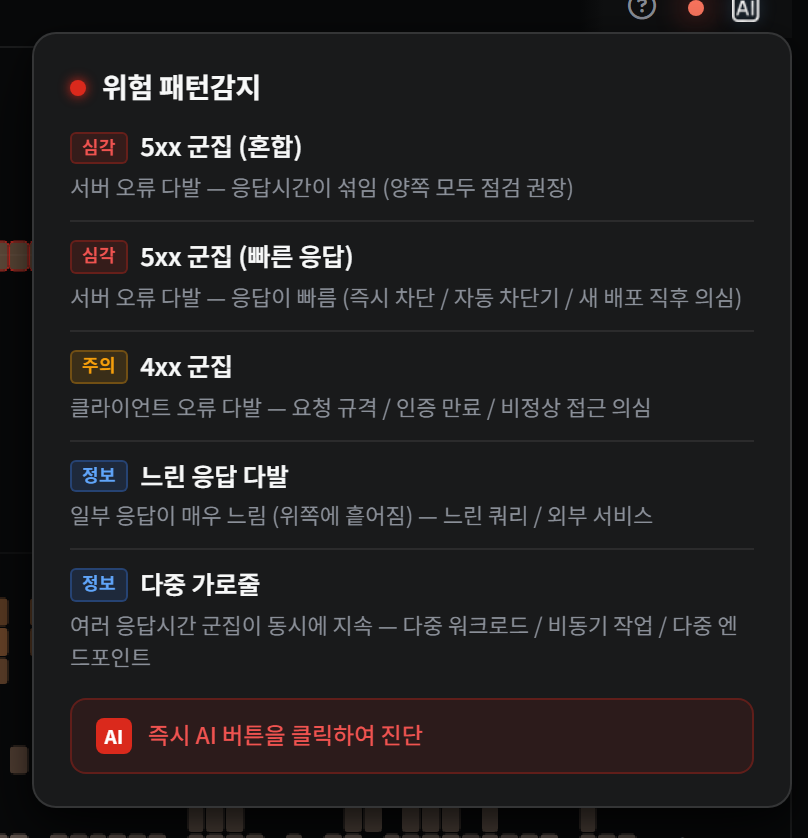
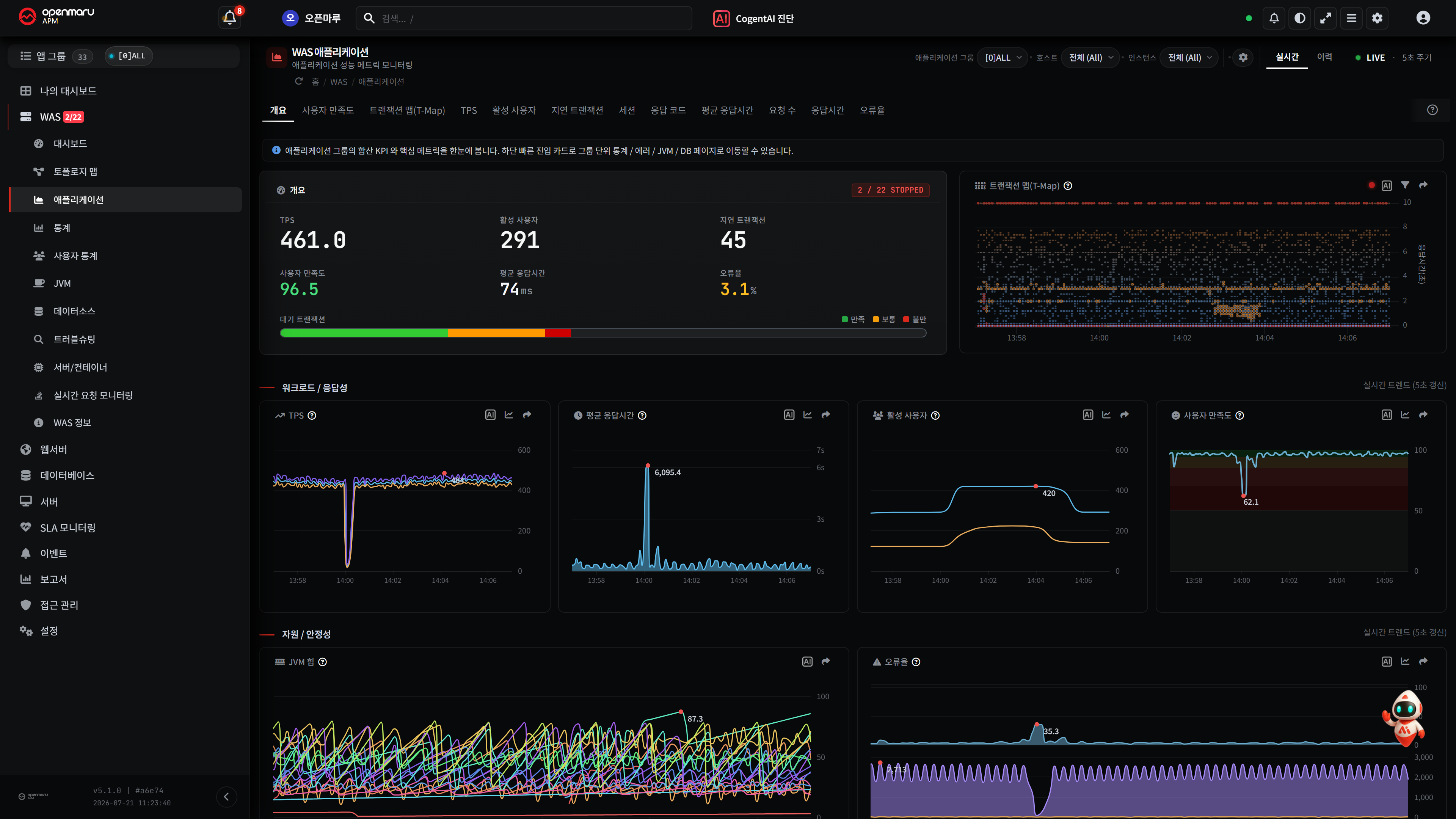
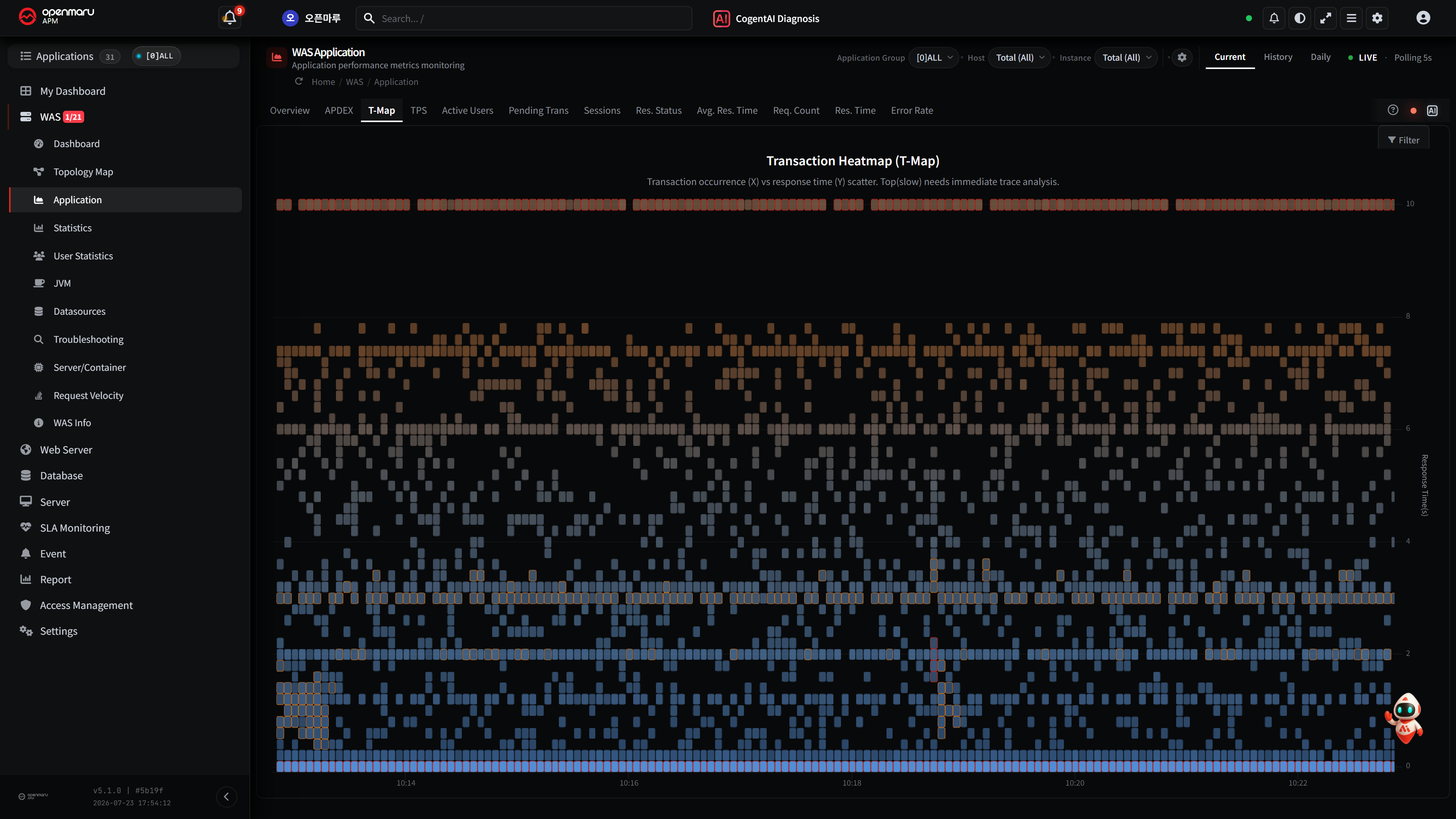
T-Map 장애 패턴 16종 자동 감지
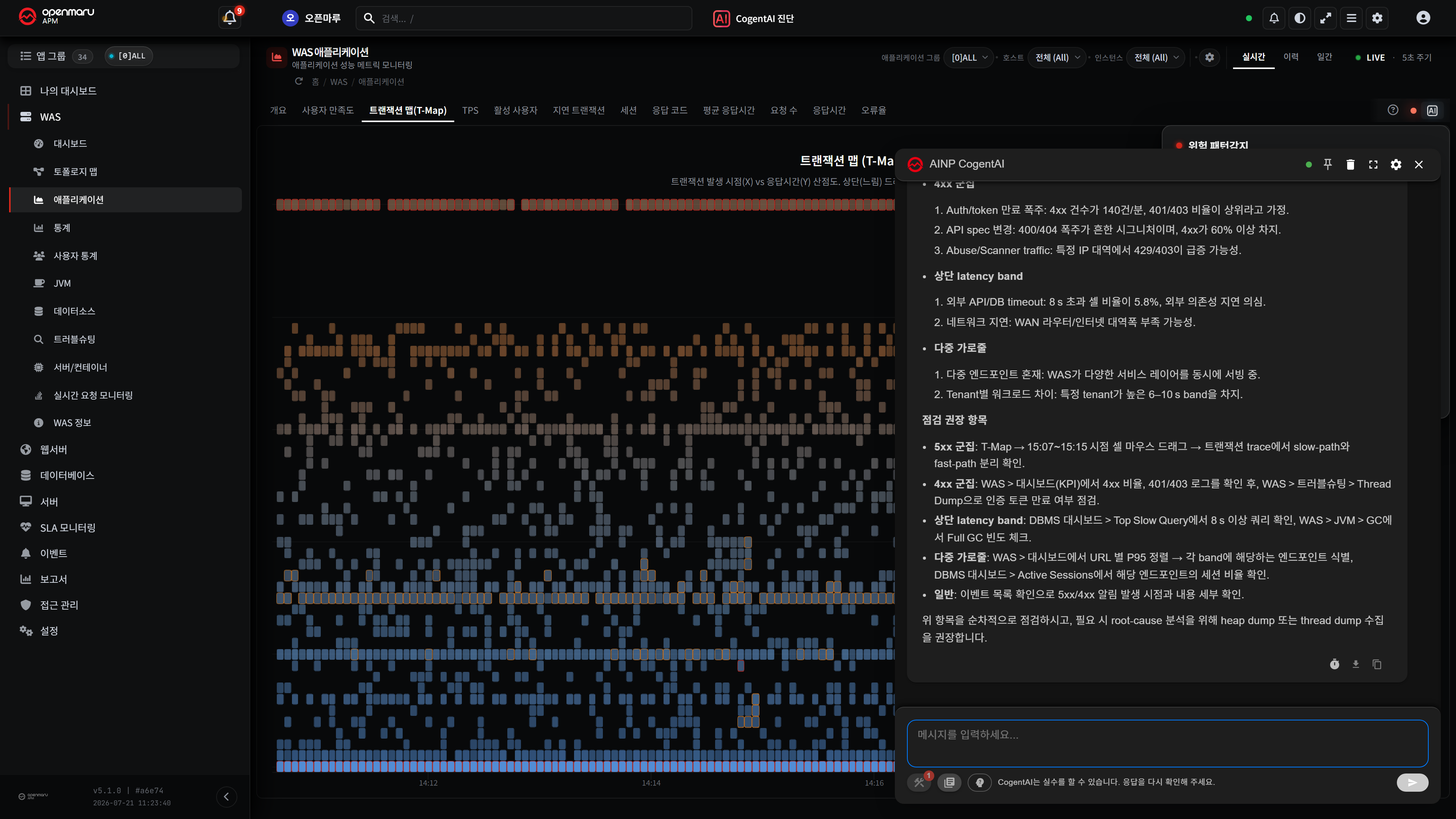
- 일정 시간의 모든 트랜잭션을 시간(가로)×응답시간(세로) 평면에 그려, 장애 종류마다 나타나는 고유한 모양을 자동으로 감지
- 상태 표시 원의 색으로 심각도 구분 — 초록(정상)·노랑(약함)·주황(주의)·빨강(위험)
- 같은 오류라도 응답 속도에 따라 점검할 위치를 다르게 안내
- 상태 원 옆 AI 버튼으로 ① 한 줄 요약 ② 감지된 패턴 ③ 원인 가능성 ④ 점검 권장 메뉴를 한 번에 확인 가능
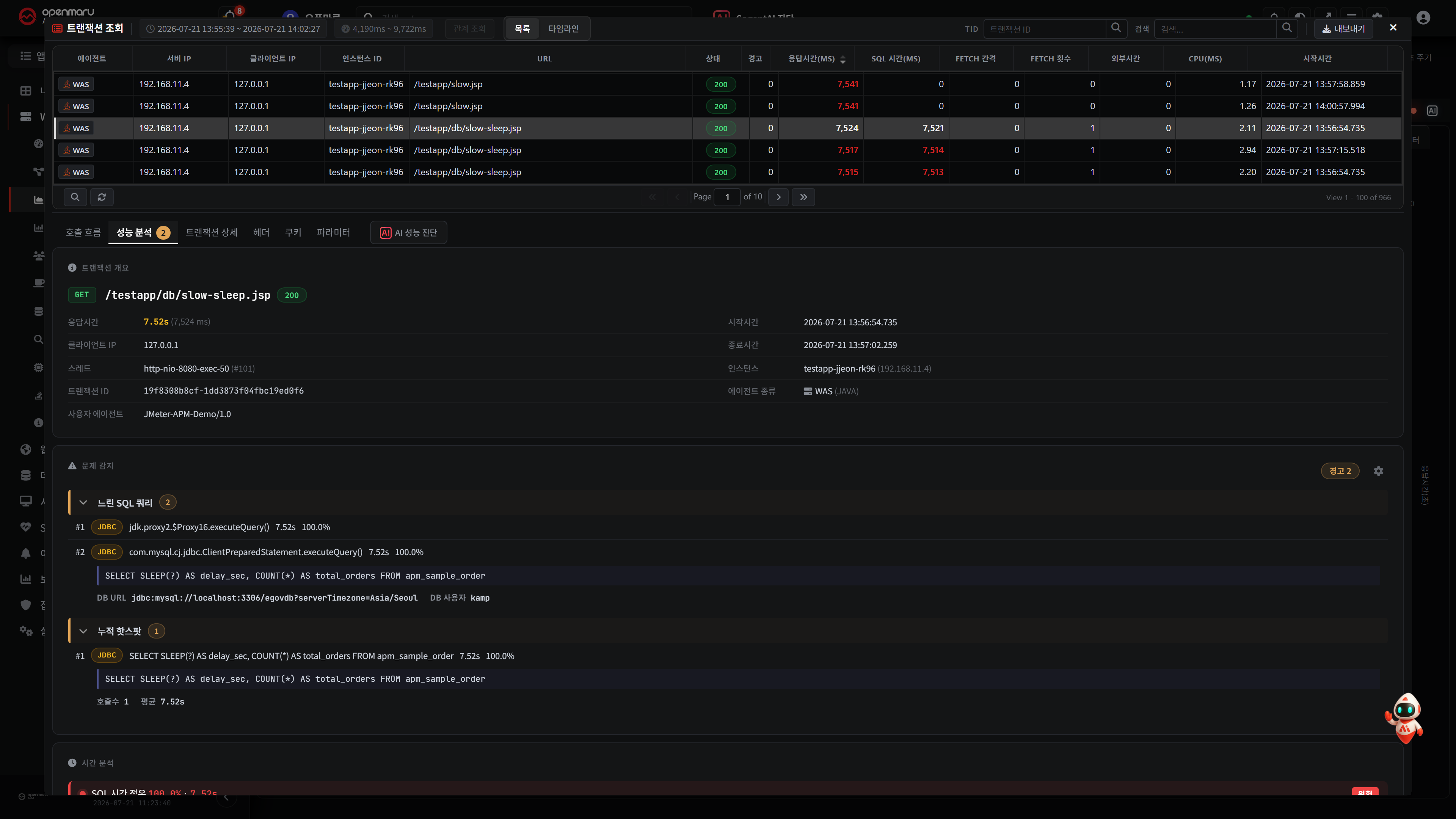
트랜잭션 원인 패턴 19종 자동 진단
- 개별 트랜잭션을 열면 원인 패턴 19종을 동시에 자동 진단해, 심각도 색(빨강·주황·회색)으로 우선순위를 매겨 화면 상단에 표시
- 느린 SQL·외부 호출·오류는 물론 N+1 반복 쿼리·커넥션 풀 대기·외부 호출 직렬화 등 놓치기 쉬운 패턴까지 자동 분류
- 느린 SQL과 외부 호출은 소요 시간·전체 대비 비율과 함께 순위로 표시되며, 항목 클릭 시 아래 타임라인의 해당 위치로 이동
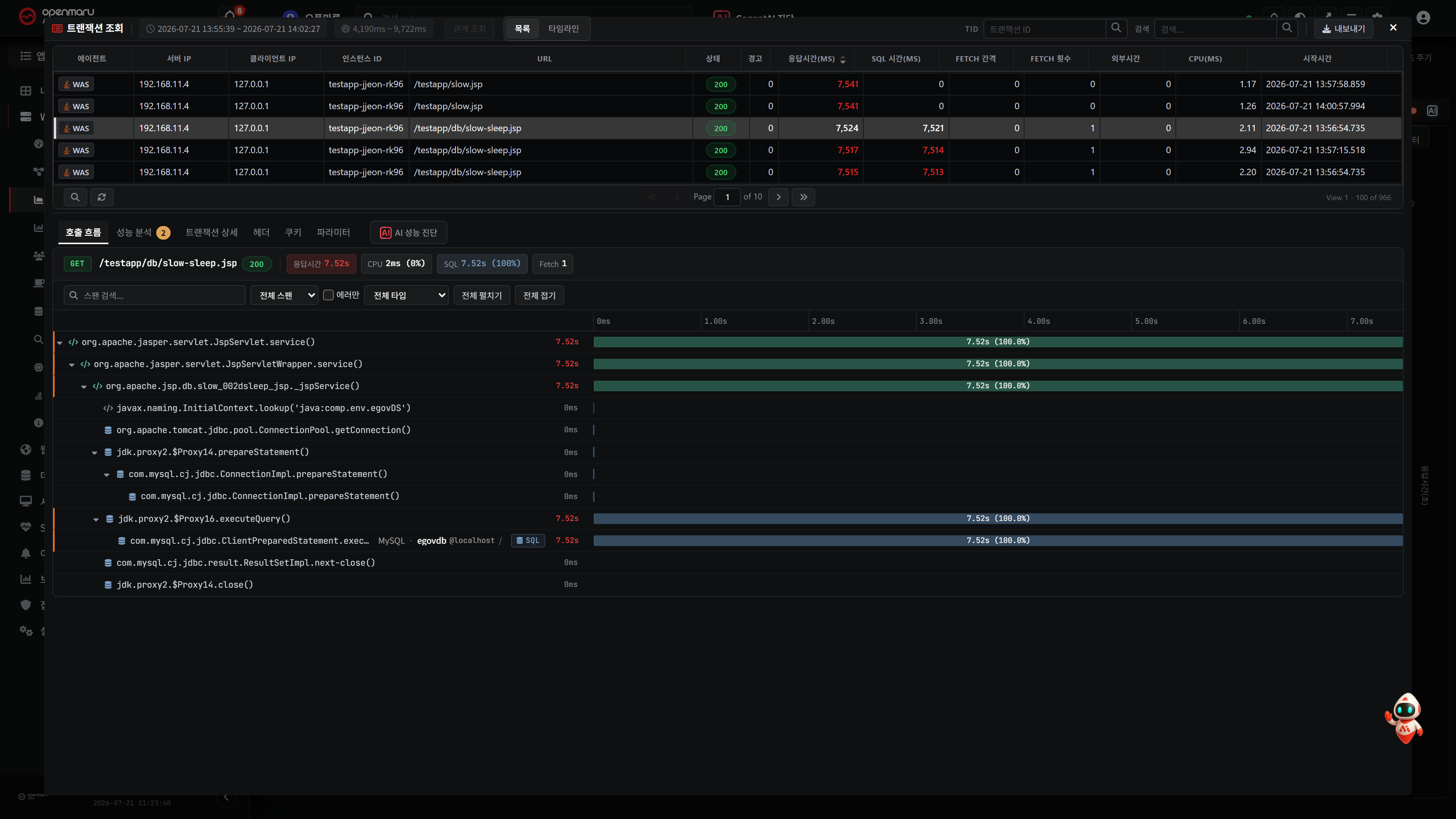
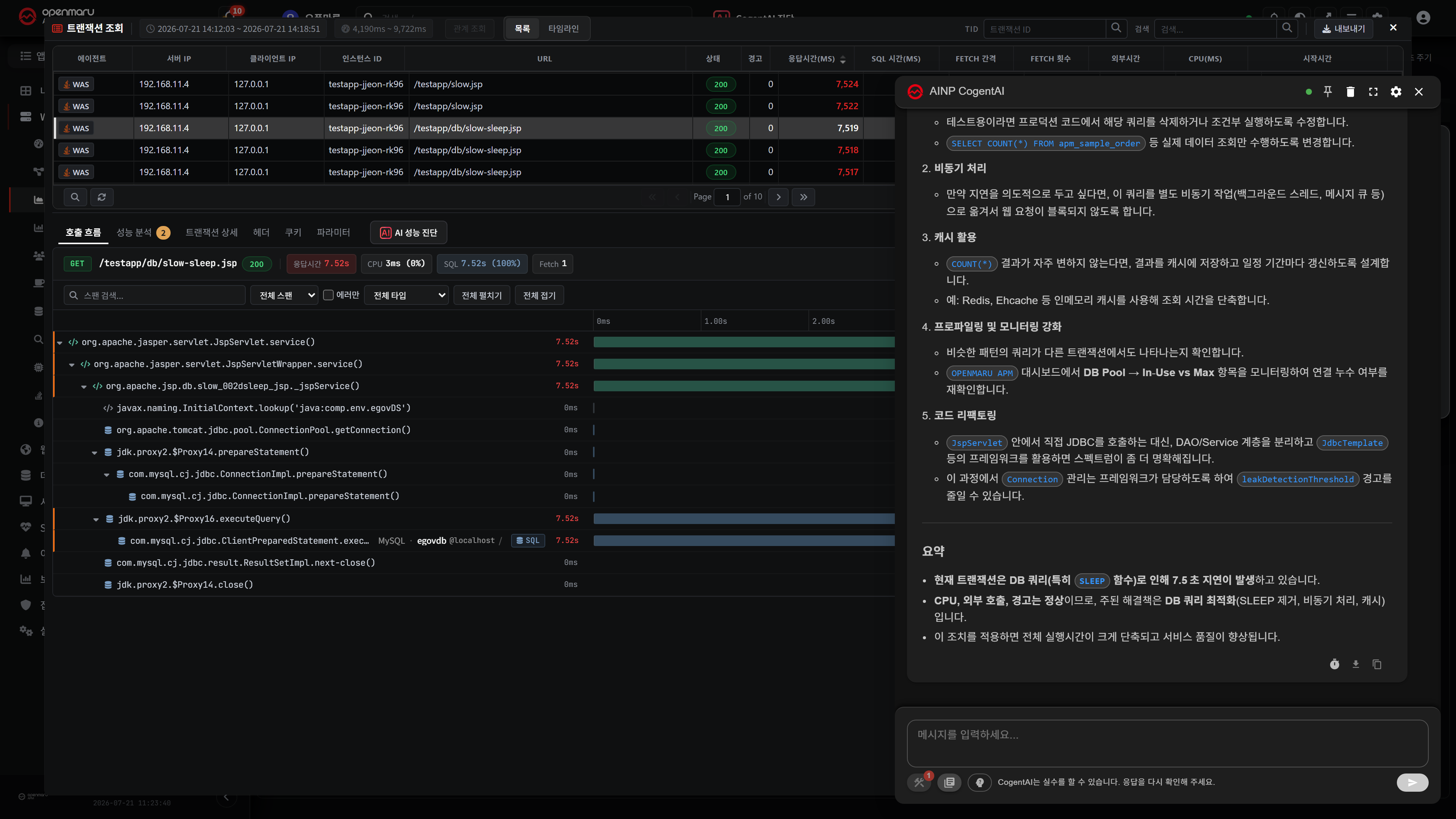
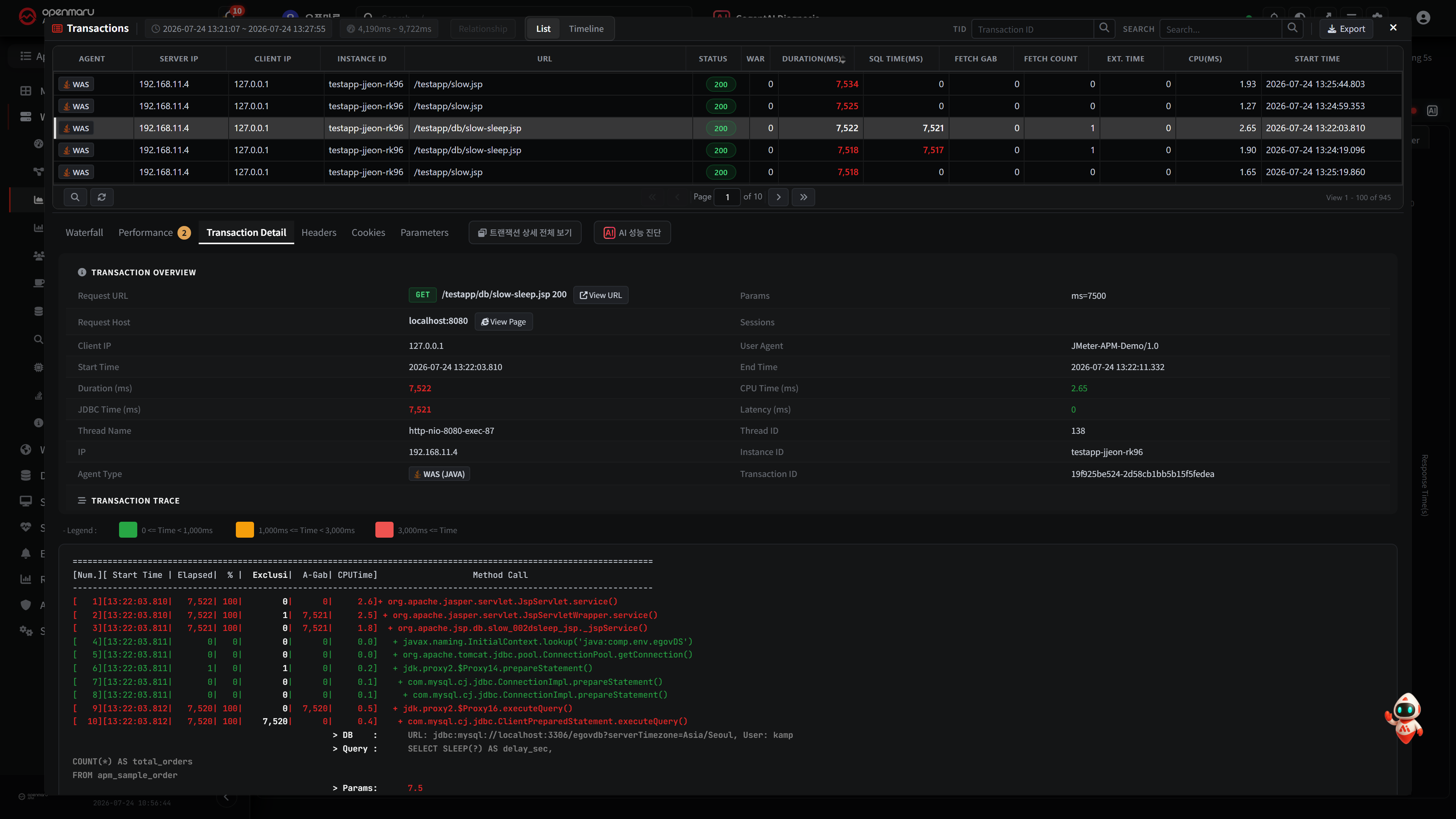
트랜잭션 상세 다이얼로그 · 타임라인 워터폴
- 트랜잭션 상세를 별도 페이지 대신 다이얼로그(팝업) 로 열도록 변경
- 호출 흐름을 종류별 색상(데이터베이스 쿼리·외부 API 호출·일반 메서드·오류)의 계층 그림과 타임라인 막대(워터폴) 로 표시해 느린 구간을 빠르게 확인 가능
- 위치: WAS → 애플리케이션 그룹 / 인스턴스 / T-Map
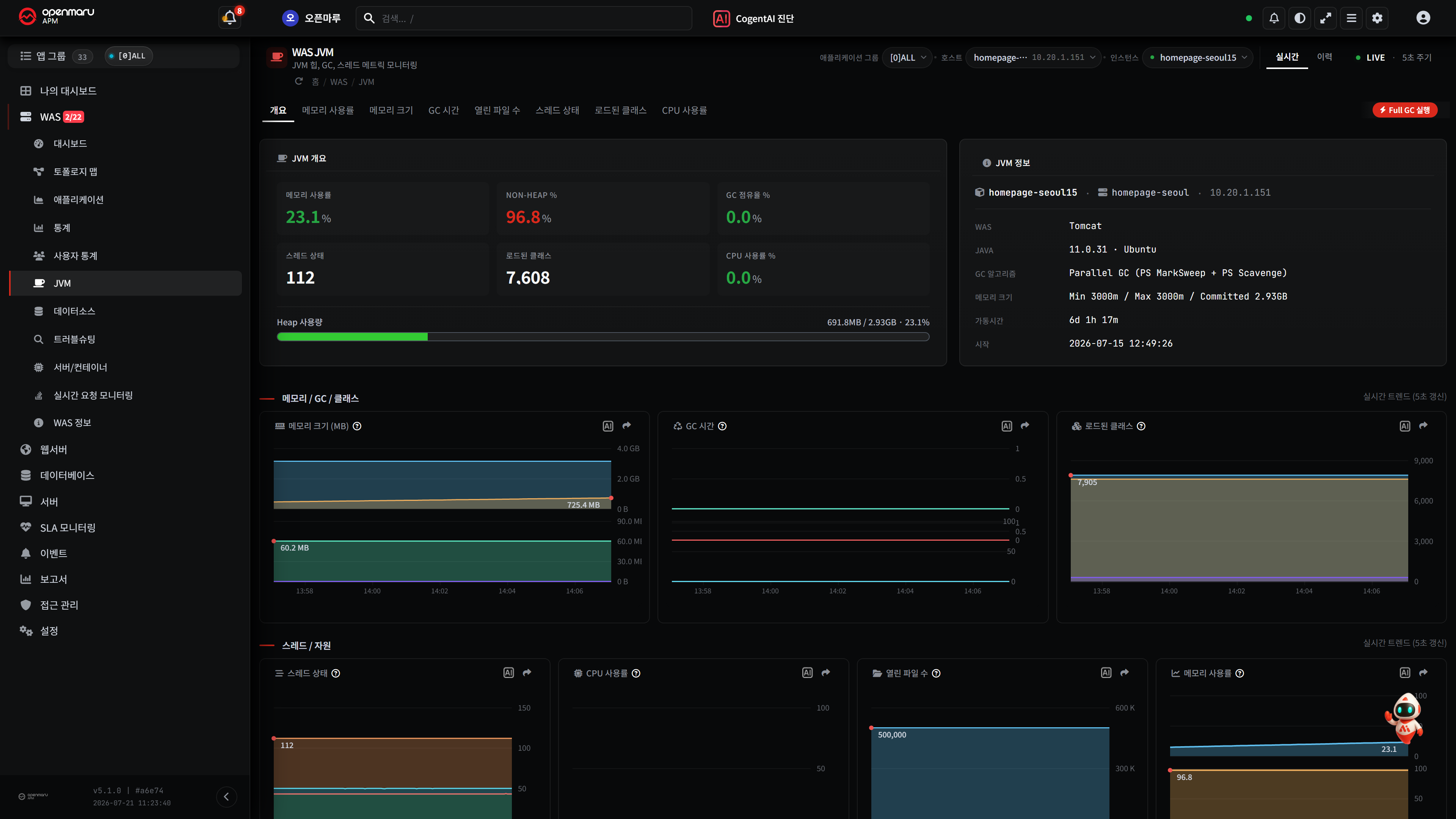
애플리케이션 / JVM 개요(Overview) 탭 추가
WAS > 애플리케이션과 JVM에 개요(Overview) 탭을 추가- 처리량·응답시간·오류율 등 핵심 지표 6~10개를 한 화면에 모아 클릭 한 번으로 인스턴스 상태 판단 가능
- 위치: WAS → 애플리케이션 / JVM → 첫 번째 "개요" 탭
보고서 DB Connection(데이터베이스 연결) 사용량 추가
- 보고서에 DB Connection(데이터베이스 연결) 사용량 항목을 추가해 커넥션 풀 사용 추이를 함께 확인 가능
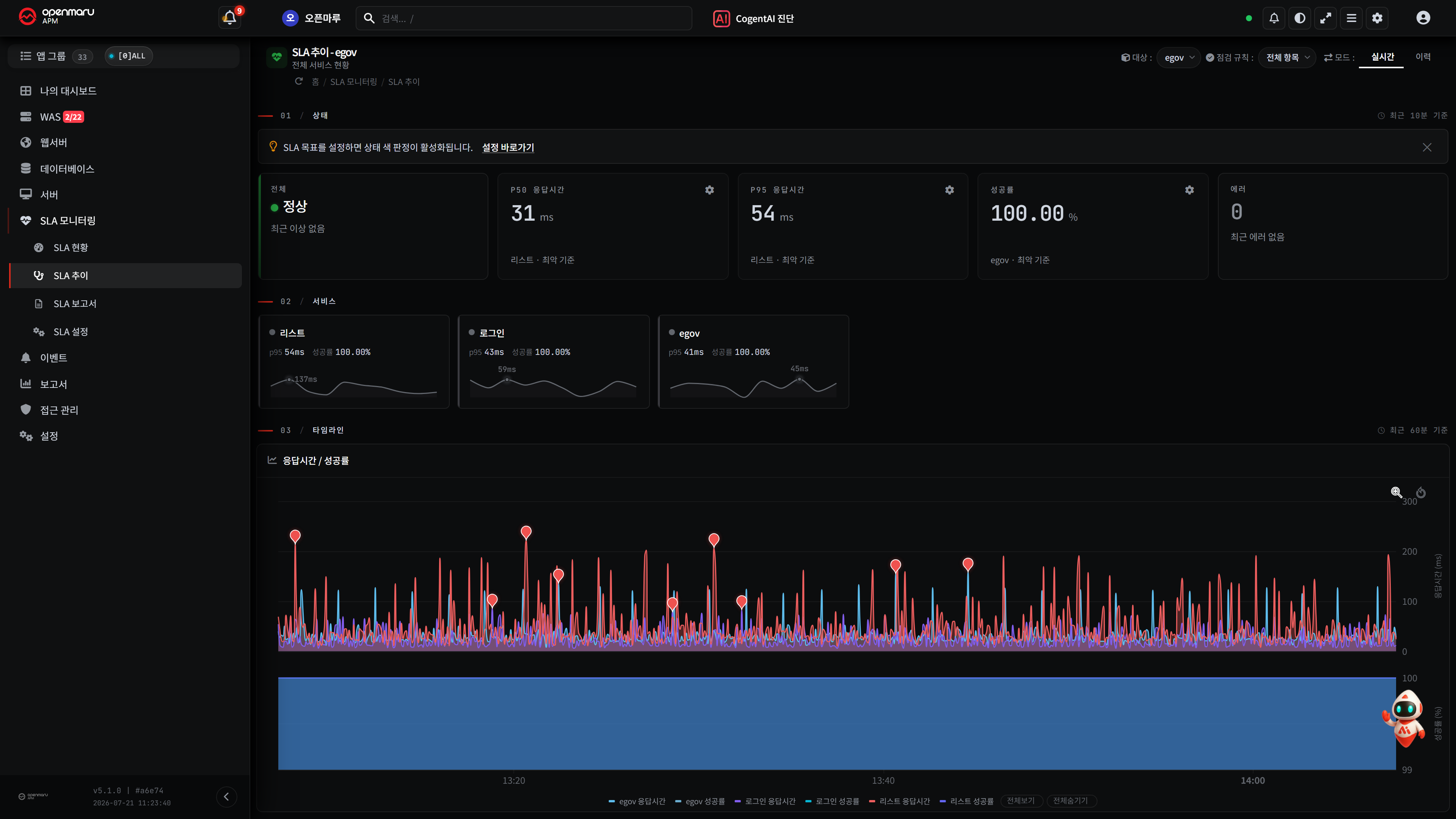
SLA 모니터링 리뉴얼
- SLA 추이 화면을 요약 → 추이 → 상세 순서의 구조로 재구성
- 맨 위 요약 띠: 전체 상태·응답시간·성공률·오류 수를 색상 칸으로 표시
- 가운데 추이: 서비스별 카드를 나란히 배치해 한 번에 비교하고, 이상이 생긴 시점을 표시
- 아래쪽 오류 목록: 평소에는 접혀 있다가 필요할 때만 펼침. 데스크톱·태블릿·모바일에 맞춰 자동 배치
모든 차트에 AI 도움말 버튼 배치
- 메트릭 탭·차트 헤더·대시보드 카드 등 모든 차트에 AI 도움말 버튼을 같은 자리에 배치해, 지표의 의미와 정상 범위를 화면에서 바로 확인 가능
- 트랜잭션 다이얼로그의
AI 성능 진단 버튼은 화면에 표시된 19종 자동 진단 결과를 그대로 AI에 전달해, 운영자가 보는 진단과 AI 응답이 일관되게 유지됨
느린 SQL 실행 계획 해석 · 인덱스 추천
- 느린 SQL이 감지되면 AI가 자동으로 실행 계획 해석과 인덱스 추천을 제공
- 데이터베이스 종류(MySQL·Oracle 등)에 맞춰 분석
CogentAI 계정·권한 그룹별 사용 제어
- CogentAI(AI 진단 기능)를 계정·권한 그룹별로 켜고 끌 수 있어, 특정 그룹에만 AI 기능을 열어주는 운영이 가능
- 참고: 그룹 권한에서 CogentAI 사용이 꺼져 있으면 해당 사용자에게 AI 메뉴·버튼이 표시되지 않습니다. 기존에 AI를 사용하던 사용자가 있다면 그룹 권한을 확인하세요.
- 위치: 설정 → 사용자 그룹 관리
기타 개선
- 화면 렌더링 및 차트·화면 전환 반응 속도 개선
- 서버와 데이터를 주고받는 방식을 웹소켓 방식으로 개선
- 모니터링 대상(에이전트)이 많은 환경에서의 화면 동작 경량화
- 반복 알람을 시작 1회 + 복구 1회 + 정기 리마인더로 정리하고 동일 원인의 중복 알람을 묶음
- 알람 처리 성능과 안정성 개선
버그 수정
- 다운로드 화면에서 인증된 사용자인데도 파일이 다운로드되지 않던 버그 수정
5.1.0-11.0.1
T-Map 트래픽 강도 음영 추가
- 트랜잭션 히트맵(T-Map)에 트래픽 강도 음영을 추가해, 같은 응답시간 구간이라도 요청이 몰린 시간대가 색의 진하기로 드러나 트래픽 집중 구간을 빠르게 확인 가능
- 위치: WAS → 대시보드 / 애플리케이션 → T-Map
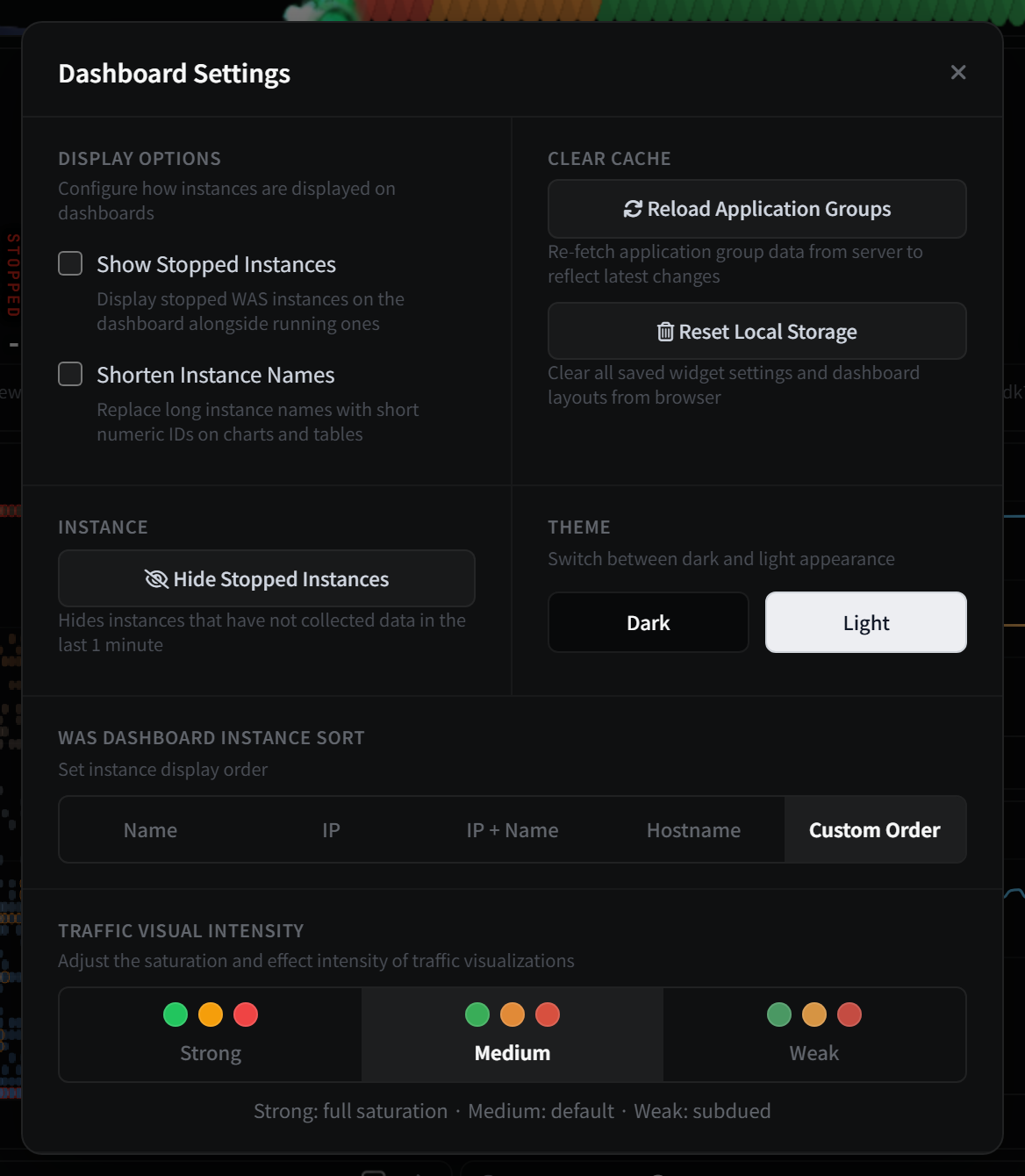
- 별도 설정 없이 기본 적용되며, 음영의 세기는 강(풀 채도) · 중(기본값) · 약(차분) 중에서 선택 가능
- 위치: 상단 헤더 톱니 아이콘 → 환경 설정 → 트래픽 시각 강도
버그 수정
- 화면 구성 파일이 압축본과 원본으로 중복 포함되던 문제를 정리해 설치본 크기가 줄고 화면 로딩이 가벼워짐
- T-Map 상세의 콤보박스 목록에서 배경색 때문에 글자가 보이지 않던 버그 수정
5.1.0-11.0.2
T-Map 트래픽 강도 색상 강화
- 트랜잭션 히트맵(T-Map)의 트래픽 강도(강·중·약) 색조를 조정해 강도 차이가 더 뚜렷하게 보이도록 개선
- 다른 차트와 색 기준이 일관되도록 공통 색상 팔레트를 함께 정리
버그 수정
- 에이전트 인증 토큰이 삭제되지 않고 남거나 중복 등록되던 버그 수정. 별도 수동 정리 없이 에이전트 상태가 정상적으로 유지됨
- 로그인 과정에서 비밀번호가 주소(URL)에 노출될 수 있던 부분 수정
5.1.0-11.0.3
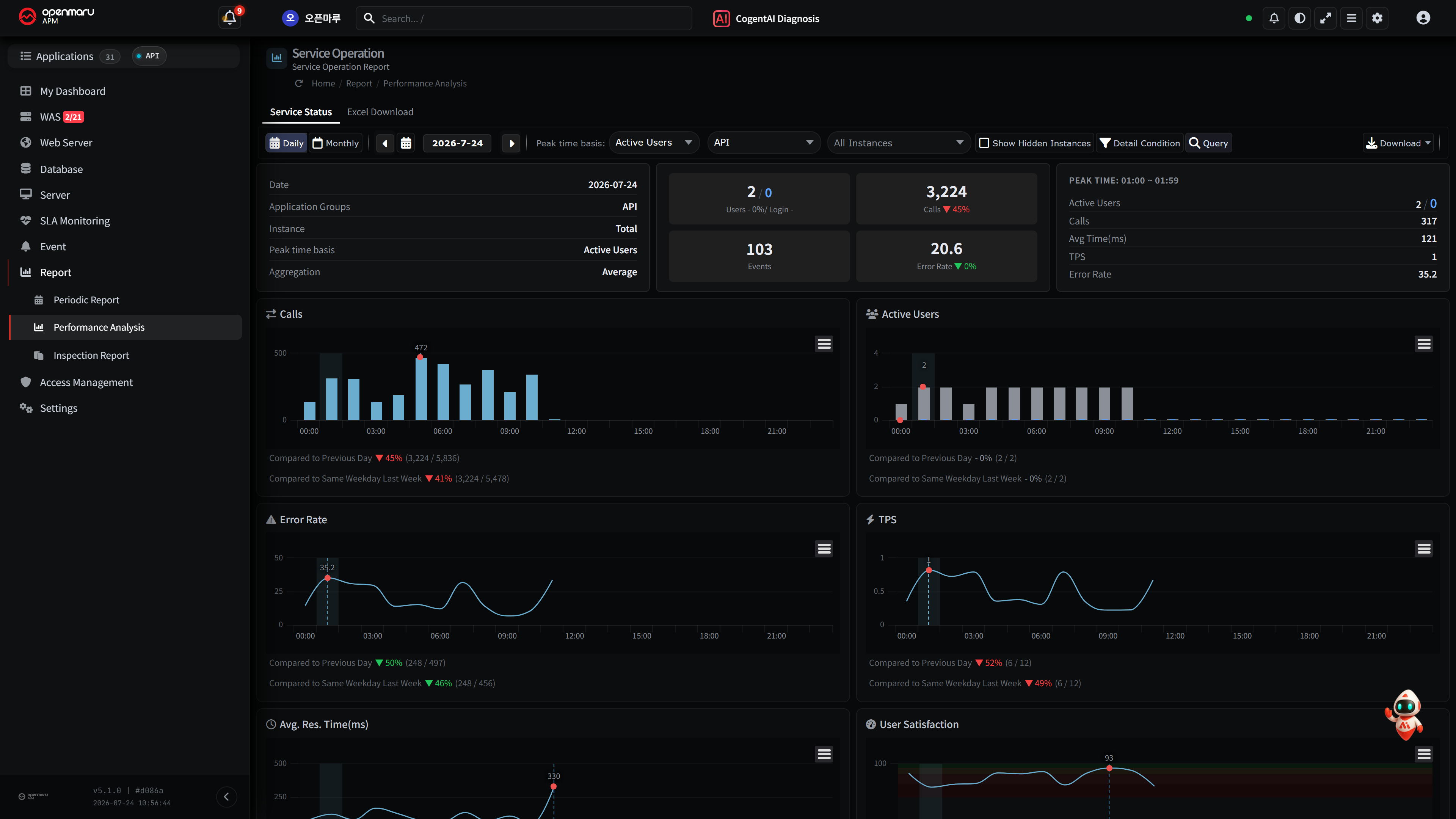
서비스 운영 현황 화면 추가
- 여러 서비스의 상태를 한 화면에서 요약해, 화면 하나로 전체 서비스의 운영 상태를 빠르게 파악 가능
- 호출건수·활성 사용자·오류율·TPS·평균 응답시간·사용자 만족도를 시간대별 차트로 표시하며, 전일 대비·전주 동일 요일 대비 증감을 함께 제공
T-Map 상세 전체 트랜잭션 보기
- 트랜잭션 히트맵(T-Map) 상세에서 표본이 아니라 전체 트랜잭션을 열어 확인 가능하며, 한 번에 표시할 최대 건수 조정 가능
- 위치: WAS → T-Map → 영역 드래그 → 상세 다이얼로그
기타 개선
- T-Map의 오류·경고 셀 테두리를 실선으로 진하게 변경해 정상 셀과 명확히 구분되고, 상단 끝점 색상을 조정해 실제 위험 구간과 혼동되지 않도록 개선
- 느린 쿼리 AI 분석이 데이터베이스 종류에 맞는 도구로 분석하도록 개선해 분석 정확도 향상
- 서버 캐시 관리 수단을 보강해 장기 운영 시 안정성 향상
버그 수정
- T-Map 상세에서 텍스트 검색이 되지 않던 문제와 필터의 정규식 체크박스가 동작하지 않던 버그 수정
- T-Map 상세의 SQL 정보에서 조회(Fetch) 정보가 누락되는 경우가 있던 버그 수정
- SQL 파라미터가 표시 제한(128개)을 넘었을 때 안내 메시지가 나오지 않던 버그 수정
- 정상 동작하는 시스템 에이전트가 주기적으로 '중지'로 표시되던 버그 수정
- 서버 최초 시작 시 일부 에이전트가 애플리케이션 그룹에 등록되지 않던 버그 수정